
There’s a lot of confusion about the three different media types in Final Cut Pro X: native, optimized, and proxy.
Native media is the format shot by your camera. For example, AVCHD, H.264, DV, and HDV are all examples of native media formats.
Optimized media is always ProRes 422. When the “Optimize Media” checkbox is checked during import, FCP X transcodes, which is a fancy way of saying it “converts,” your media from its native format into Apple ProRes 422.
Proxy media is always Apple ProRes 422 Proxy. Proxy media creates a reasonably high-quality media file, but at about 1/4 the size of ProRes 422.
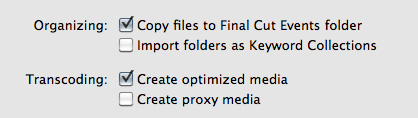
When you import media from either a file or camera, you have the ability to optimize it, or create proxy files.
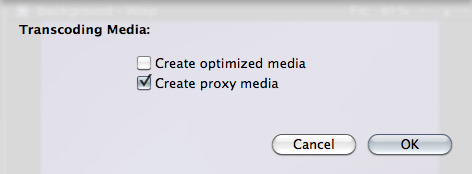
You also have the ability to convert media after you’ve imported the files. Simply select the clips in the Event Browser that you want to transcode and select File > Transcode media.
Either way, here are your options:
What’s “reasonable image quality?” Generally, the higher the bit rate of the media, the better the image quality. For this reason, since ProRes 422 has a much higher bit rate than ProRes Proxy, the image quality is potentially better. This is especially true if you are doing color correction, green-screen keying, or lots of image manipulation. However, if you are simply capturing and editing consumer-grade camera images, without many effects, you may not see any quality difference at all between optimized and proxy media.
Creating proxies or optimized media always makes a copy of your camera source files. Both optimized and proxy media will have better performance than the camera native formats.
You can select one option, both, or none. Depending upon which options you select, you could have up to three copies of your media files stored on your system:
1. Camera native
2. Optimized
3. Proxy
Duplicate media files are not necessarily a bad thing and FCP X will track them properly; however, multiple copies do require more disk space.
RECOMMENDATIONS
Not all camera formats require optimizing. If the Optimize option is grayed out, it means that the camera format is already optimized and would not benefit if converted into ProRes 422. (DV and AVC-Intra are two examples of already-optimized media formats.)
NOTE: For the geeks among us, optimized formats are those that are stored in an I-frame format.
My general recommendation is to always optimize media. Purchasing an extra hard disk will more than pay for itself in the time you save during editing.
SWITCHING BETWEEN FILES

To switch between native, optimized, or proxy files in your Project go to the Final Cut Pro > Preferences > Playback tab.
Click the radio button for Proxy to edit using Proxy files.
Click the radio button for Original/Optimized to edit using anything else.
You can change this setting whenever you want, however, you can’t have a mix of some Proxy and some Optimized files in the same Project at the same time. Proxy and Optimized files are stored in different folders in the same Event folder.
(By the way, I thought whether you selected High Quality or Better Performance in this preference pop-up menu, your output quality will always be the same – high quality. However, see Jason’s comment below.)

2,000 Video Training Titles
Edit smarter with Larry Jordan. Available in our store.
Access over 2,000 on-demand video editing courses. Become a member of our Video Training Library today!
Subscribe to Larry's FREE weekly newsletter and
save 10%
on your first purchase.

142 Responses to FCP X: Native vs. Optimize vs. Proxy Media
← Older Comments Newer Comments →-
 Giulio says:
May 21, 2012 at 2:51 am
-
 Mike T. says:
May 21, 2012 at 7:07 am
-
 EPREditor says:
May 25, 2012 at 11:27 pm
-
 Larry Jordan says:
May 26, 2012 at 8:02 am
-
 Iain Anderson says:
May 28, 2012 at 7:19 am
-
 Phil Hastings says:
June 5, 2012 at 8:40 pm
-
 Larry Jordan says:
June 5, 2012 at 8:53 pm
-
 Shaun says:
June 9, 2012 at 4:08 pm
-
 Larry Jordan says:
June 9, 2012 at 4:18 pm
-
FCP X: Native vs. Optimize vs. Proxy Media | Tower Studios says:
June 28, 2012 at 11:09 am
← Older Comments Newer Comments →Very Thank you!
Upon further research I’ve been provided with more clarification on this subject. You can find more info here on the Apple community question I started: https://discussions.apple.com/message/18417093#18417093
Basically, my theory was correct, in that editing native NON-ProRes files, such as h.264 can be a solid choice for your workflow. Editing is still a breeze – chopping and cutting video together on the timeline etc. ALL Projects in FCPX automatically render into a ProRes flavor, which you can choose from in the Project Render Settings. (You can also choose uncompressed I believe). The default setting is ProRes 422. Any h.264 media on the timeline will render to ProRes422 as soon as any color grading of filters are applied. Each time a filter is changed, the clip will Re-Render from the original h.264 media. The final rendered clip is a rendered ProRes video.
This method allows you to save a lot of time and hard drive space up front by not having to transcode ALL of your media. You get the added benefits of grading/compositing in 4:2:2 color space as well. However, the downside is your render times will take longer because it is transcoding h.264 media for each render, instead of ProRes files. This method can be likened to a FCP 7 project – setting your Sequence Settings to ProRes422. Once any format of media in placed into that timeline, it renders in 4:2:2 ProRes. This is exactly what happens in FCP X. The only difference is the layout of the settings and the naming structure, project versus sequence.
In Final Cut X: Can you bring footage in as a Proxy file, to save drive space, and make editing the editing speed faster, and then when you finish your project just re-transcode the proxy footage of only the footage that you used in the project and not the whole event media to a higher Pro Res Format?
If you are doing a feature or documentary with a lot of footage that was shot in a High Definition format (Red for example), the amount of external drive space you would need would be tremendous if you had to transcode all the footage to the higher level Pro Res formats. In Final Cut 7 you were able to do this. Can you do this in Final Cut X?
I am not sure that workflow works, and I would be cautious in recommending it.
Larry
A contrary opinion. If your Mac can handle it, I don’t generally recommend transcoding media, at least not H.264 footage. Here’s an article I wrote for macProVideo.com about it:
http://www.macprovideo.com/hub/final-cut/fcp-x-the-truth-behind-performance-with-optimized-media
Optimizing media is a safe option, but it takes time and space, and isn’t best for every situation.
Hi Larry,
EPReditor’s question is the same as mine. I have hours of material for a short 5 minute project, with AVCHD, ProRes, H.264 files. My hope was to transcode everything into ProRes Proxy edit and then use the edited project as a reference to transcode only the used material into ProRes. I was hoping there was a way to “automatically” swap the proxy files for the full resolution ProRes 422 files. Isn’t there a way to consolidate the project creating a new event with just the used files. Wouldn’t this be a step in this theory? thanks, Phil
Phil:
It’s a cool idea, but I don’t know any way to do it. FCP X creates proxy files on ingest. I don’t know any way to take a group of edited files and convert them into a higher level format of ProRes.
Larry
Larry,
When you say that optimized media “provides the best possible performance and image quality”, do you mean while editing, the final exported video, or both?
If I edit in proxy media, does that mean that the final export will also be a proxy file and not the full quality?
If thats the case, then is there a way to edit with proxy media and then switch it to optimized to get the best export quality?
Thanks!
Optimized media provides, in most cases, better performance and quality, than editing native media.
Proxy files are smaller than optimized files, so if you need to save space, use proxy files.
Proxy files are always created in addition to ether native or optimized files. To switch between Proxy and Optimized files, click the appropriate radio button in Final Cut Pro > Preferences > Playback tab. All effects and transitions transfer seamlessly.
Larry
[…] FCP X: Native vs. Optimize vs. Proxy Media June 28, 2012 Tower Studios Team Final Cut Pro X, Instructional AVCHD, final cut pro x, Media, Optimize, Video, Videography FCP X: Native vs. Optimize vs. Proxy Media Credit To: http://www.larryjordan.biz/media-in-fcp-x/ […]