
There’s a lot of confusion about the three different media types in Final Cut Pro X: native, optimized, and proxy.
Native media is the format shot by your camera. For example, AVCHD, H.264, DV, and HDV are all examples of native media formats.
Optimized media is always ProRes 422. When the “Optimize Media” checkbox is checked during import, FCP X transcodes, which is a fancy way of saying it “converts,” your media from its native format into Apple ProRes 422.
Proxy media is always Apple ProRes 422 Proxy. Proxy media creates a reasonably high-quality media file, but at about 1/4 the size of ProRes 422.
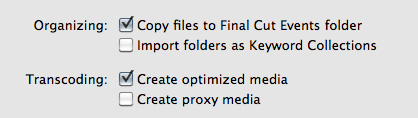
When you import media from either a file or camera, you have the ability to optimize it, or create proxy files.
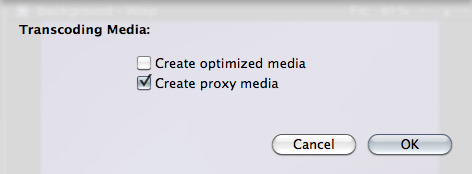
You also have the ability to convert media after you’ve imported the files. Simply select the clips in the Event Browser that you want to transcode and select File > Transcode media.
Either way, here are your options:
What’s “reasonable image quality?” Generally, the higher the bit rate of the media, the better the image quality. For this reason, since ProRes 422 has a much higher bit rate than ProRes Proxy, the image quality is potentially better. This is especially true if you are doing color correction, green-screen keying, or lots of image manipulation. However, if you are simply capturing and editing consumer-grade camera images, without many effects, you may not see any quality difference at all between optimized and proxy media.
Creating proxies or optimized media always makes a copy of your camera source files. Both optimized and proxy media will have better performance than the camera native formats.
You can select one option, both, or none. Depending upon which options you select, you could have up to three copies of your media files stored on your system:
1. Camera native
2. Optimized
3. Proxy
Duplicate media files are not necessarily a bad thing and FCP X will track them properly; however, multiple copies do require more disk space.
RECOMMENDATIONS
Not all camera formats require optimizing. If the Optimize option is grayed out, it means that the camera format is already optimized and would not benefit if converted into ProRes 422. (DV and AVC-Intra are two examples of already-optimized media formats.)
NOTE: For the geeks among us, optimized formats are those that are stored in an I-frame format.
My general recommendation is to always optimize media. Purchasing an extra hard disk will more than pay for itself in the time you save during editing.
SWITCHING BETWEEN FILES

To switch between native, optimized, or proxy files in your Project go to the Final Cut Pro > Preferences > Playback tab.
Click the radio button for Proxy to edit using Proxy files.
Click the radio button for Original/Optimized to edit using anything else.
You can change this setting whenever you want, however, you can’t have a mix of some Proxy and some Optimized files in the same Project at the same time. Proxy and Optimized files are stored in different folders in the same Event folder.
(By the way, I thought whether you selected High Quality or Better Performance in this preference pop-up menu, your output quality will always be the same – high quality. However, see Jason’s comment below.)

2,000 Video Training Titles
Edit smarter with Larry Jordan. Available in our store.
Access over 2,000 on-demand video editing courses. Become a member of our Video Training Library today!
Subscribe to Larry's FREE weekly newsletter and
save 10%
on your first purchase.

142 Responses to FCP X: Native vs. Optimize vs. Proxy Media
← Older Comments-
 wouter says:
February 8, 2013 at 2:45 am
-
 Rick says:
February 8, 2013 at 6:49 am
← Older CommentsHi,
I read the article and some comments, but a bit too much to read them all.
Say I check ‘create proxy media’ and not optimized media (don’t have the disk space). Then I edit everything (using the proxies for faster performance). Then I want to export my movie, will finalcut use the proxy files to render the final output, or the native files?
If finalcut uses the proxies to render final output, that would deestroy the whole point of using proxies, which should in fact just be a placeholder to be able to edit quicker, not to use in final export.
I also find it very strange that finalcut creates proxies for every file upon import. Let’s say you import 2h of footage spread over 100 clips. Then you start cutting away and end up with a 5min timeline. That means finalcut will have created proxies for 2h of video of which you only use 5mins on the timeline, or in other words it waists 1h55m proxy files which waist disk space since you’re not using them. (same goes for optimized media, why doesn’t it optimize only the parts on the timeline).
Premiere works like this, and altough you then have to recreate proxies from time to time (for example when you decide to make a shot on the timeline last a few seconds longer), in my eyes this is much more efficient. Also on export in premiere, it simply uses your original files instead of the proxies, unless you specifically tell premier to use the proxies instead (for example when you want to do a quick test export as of course this results in lower final image quality).
Thanks,
Wouter
Wouter-
You do not have to transcode anything on import – it is a performance trade. If you want to edit in Proxy, then transcode everything on import to Proxy. Set your display preferences to Proxy. When you are ready to export, then change the preferences/display settings to native/optimized. The display setting controls what is exported. If you need to use optimized media for speed reasons at this point, just select the project media and select create optimized media by File/Transcode media.
A side note: Render files are never used in export if you are using Send to Compressor. So you don’t have to render prior to exporting, according to Ross Shane. You will only need to render for playback performance/playback quality. Leave background render off.
Rick