
[ This article was first published in the July, 2011, issue of
Larry’s Final Cut Pro Newsletter. Click here to subscribe. ]
Fiver Löcker asks:
How do I work with proxy media?
Larry replies: This is tricky, because the Help files don’t detail this process. But it is actually very simple.
Proxies are transcoded (converted) copies of your master files. They use ProRes 422 Proxy and are at 1/4 the size of the original. For instance, here the original ProRes 422 file for this Youth Culture clip is 238.3 MB in size.
When it gets transcoded to a Proxy, the size plummets to 19 MB. The quality is not as good, but this can save a lot of space while you are doing the rough cut.

Here’s the overview of working with proxies:
Here are the details.
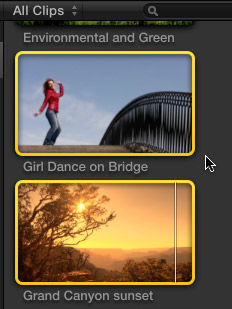
1. Assuming you did not create Proxy media when you first imported your clips, select the clip(s) for which you want to create proxies.
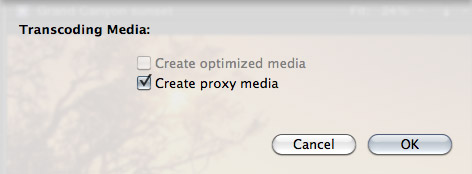
2. Select File > Transcode media. Then, in the resulting dialog window, check Proxy media.
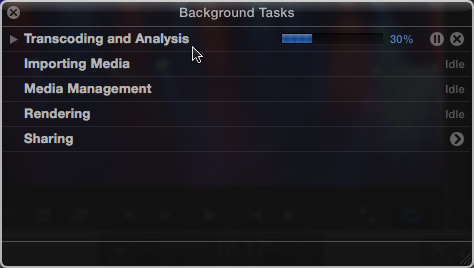
3. Depending upon the number and length of the media you selected, this can take some time, use the Background Task window (Cmd+9) to monitor progress.
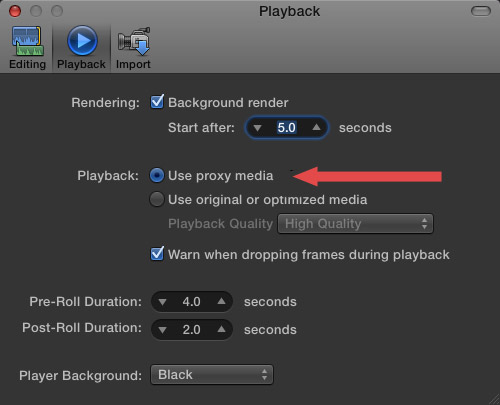
4. Once proxies are created, go to Final Cut Pro > Preferences > Playback (Cmd+,) and change the playback option to “Use Proxy Media.”
All media that has proxies, will automatically switch and be displayed (top image). Any media that doesn’t have proxies will display the missing media icon (bottom image).
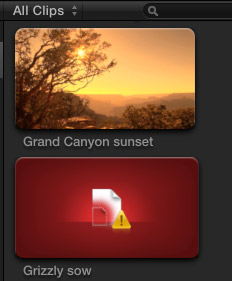
5. To switch back to high-quality images, return to Preferences and change the playback setting to “Use original or optimized media.”
Proxy files are stored in their own folder inside Final Cut Events > [ Event name ] > Transcoded Media > Proxy Media.

2,000 Video Training Titles
Edit smarter with Larry Jordan. Available in our store.
Access over 2,000 on-demand video editing courses. Become a member of our Video Training Library today!
Subscribe to Larry's FREE weekly newsletter and
save 10%
on your first purchase.

91 Responses to FCP X: Working With Proxy Media
← Older Comments Newer Comments →-
 KB says:
April 2, 2013 at 7:22 am
-
 Ian Colquhoun says:
April 10, 2013 at 3:50 am
-
 creativehelm says:
April 10, 2013 at 9:44 am
-
 Ignacio says:
April 17, 2013 at 9:08 pm
-
 Virumandi says:
May 19, 2013 at 12:11 am
-
 Larry says:
May 19, 2013 at 7:14 am
-
 doliili says:
June 4, 2013 at 6:24 pm
-
 Larry Jordan says:
June 6, 2013 at 9:57 am
-
 Tom says:
August 29, 2013 at 12:25 am
-
 Lenny says:
October 9, 2013 at 1:04 am
← Older Comments Newer Comments →Sorry, I just want to be crystal clear on this point. So if I only check the “proxy” box upon import, then edit in proxy, I will still be able to export as ProRez 422 even though I never checked “optimized media” upon importing?
Thanks!
Hi. I’m trying to make the shift from 7 to X.
Really interesting stuff here that has cleared up a couple of issues but I have another question. I’m on a Macbook Pro for mobility and have been creating proxy files under the impression that that would allow me to use smaller drives on the road (500 Gig Passbooks). All fine so far, though I now realize I’ve been working with the original media thanks to info above. I’ve been aware that I’ve been creating original media on the drives and been getting progressively more worried about space issues.
If I set the preferences to proxy and delete the original files, will I be able to re-import/re-encode them when I’m back in the office? Kinda crucial as far as I’m concerned.
Any help greatly appreciated. ( Sorry for for such a noob question:) )
Ian
Hi Ian,
By no means do you want to delete the original files—do not delete your originals! That being said, FCPX will allow you to re-link to the original media imported into your “Event”, but it must be the original media, or exact copies of the original media.
Now, when you say “!’m aware that I’ve been creating original media on the drives”, do you mean that you’re adding “optimized media” to the footage/media that was already there when you began the project? In other words, there’s a setting for creating optimized media upon import—is that what you’re doing?
Let us know and we’ll go from there.
Hello,
Great read and thanks for the info.
I just wanted to clarify, which is the best setting; importing the video with both boxes UN checked, importing it as optimized media, or importing as proxy media?
Cheers!
i m already use final cut studio, right now i m using fcp 10, audio content and motion content occupied more space how to remove the contents…….pls help me……
Virumandi:
What content do you want to remove? When you are done with a Project, you can remove its folder from the Final Cut Projects folder. When you are done with an Event, you can remove its folder from the Final Cut Events folder.
Whether you copy these folders to a separate hard drive or trash them depends upon whether you want to delete or retain your project files.
Larry
Hi all,
I have a big problem with Project FCP X now, I already finished my project one ours and want to export to final movie but I find missing proxy in my timeline project and all video in Event Library, how I can find my original video in timeline and Event Library?
I already try to Relink import but doesn’t work!! who can help me, Please!!
Cheers
Doliili
Doliili:
Generally, all you need to do is change the Preference setting from Proxy media to Original media and everything should re-connect (see the screen shot above.)
You DON’T need to relink media, unless you have removed the original media from the Events folder.
Larry
Hi. Can I just make the proxy files from my DLSR [.mov (h.264)], edit the movie and export it every compression I need without loosing quality?
Thanks for posting this material 🙂
I’m truly sorry, but I am so confused after reading this thread.
Here is my problem:
I imported a lot of 1080i material to my MBP. Before import I clicked the “create optimized” not exactly knowing what that was at the time. The internal 500 GB SSD HD was big enough for both the original and the optimized material. Now I am about 20 minutes into the project and noticed that the rendering in the background is slowing me down considerably the more I work on my project. I wanted to make proxies of my original material in the hope to ease my MBP, but my internal HD is just not big enough for the extra copies.
1. Can I (should I) erase the optimized files to make space for the proxy files?
2. I have an external HD accessible. Can I move the original material to the external HD now and only work with proxy material on my internal HD until I export? Meaning, when I’m done cutting using the proxies relink to the original material on the external HD and export the movie in the best quality?
Thanks in advance to Larry and all for this informative site.