
[ This article was first published in the July, 2011, issue of
Larry’s Final Cut Pro Newsletter. Click here to subscribe. ]
Fiver Löcker asks:
How do I work with proxy media?
Larry replies: This is tricky, because the Help files don’t detail this process. But it is actually very simple.
Proxies are transcoded (converted) copies of your master files. They use ProRes 422 Proxy and are at 1/4 the size of the original. For instance, here the original ProRes 422 file for this Youth Culture clip is 238.3 MB in size.
When it gets transcoded to a Proxy, the size plummets to 19 MB. The quality is not as good, but this can save a lot of space while you are doing the rough cut.

Here’s the overview of working with proxies:
Here are the details.
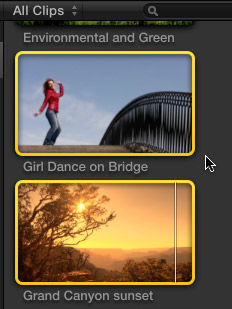
1. Assuming you did not create Proxy media when you first imported your clips, select the clip(s) for which you want to create proxies.
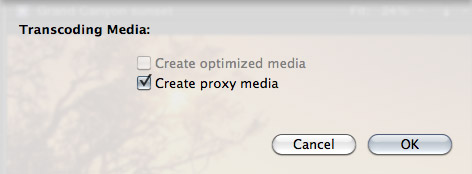
2. Select File > Transcode media. Then, in the resulting dialog window, check Proxy media.
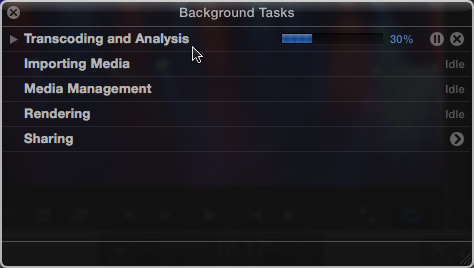
3. Depending upon the number and length of the media you selected, this can take some time, use the Background Task window (Cmd+9) to monitor progress.
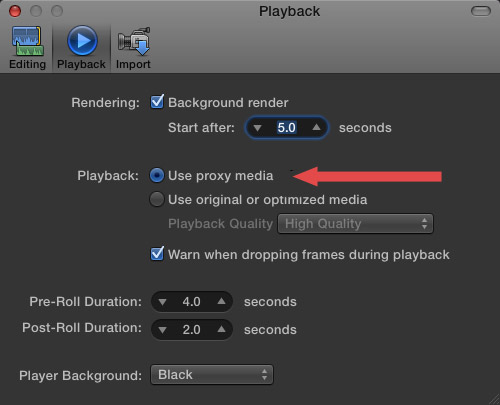
4. Once proxies are created, go to Final Cut Pro > Preferences > Playback (Cmd+,) and change the playback option to “Use Proxy Media.”
All media that has proxies, will automatically switch and be displayed (top image). Any media that doesn’t have proxies will display the missing media icon (bottom image).
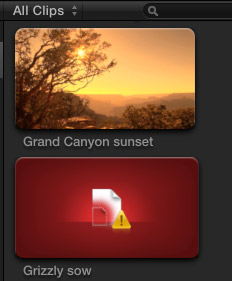
5. To switch back to high-quality images, return to Preferences and change the playback setting to “Use original or optimized media.”
Proxy files are stored in their own folder inside Final Cut Events > [ Event name ] > Transcoded Media > Proxy Media.

2,000 Video Training Titles
Edit smarter with Larry Jordan. Available in our store.
Access over 2,000 on-demand video editing courses. Become a member of our Video Training Library today!
Subscribe to Larry's FREE weekly newsletter and
save 10%
on your first purchase.

91 Responses to FCP X: Working With Proxy Media
← Older Comments Newer Comments →-
 Jim Nayzium says:
October 11, 2013 at 1:50 pm
-
 Jim Nayzium says:
October 11, 2013 at 7:17 pm
-
 Larry says:
October 12, 2013 at 7:44 am
-
 Larry says:
October 12, 2013 at 7:45 am
-
 Larry says:
October 12, 2013 at 9:06 am
-
 Lenny says:
October 12, 2013 at 10:08 am
-
 Justin says:
October 22, 2013 at 3:04 am
-
 Brett Ramsey says:
October 28, 2013 at 6:06 pm
-
 cameron says:
November 20, 2013 at 5:02 pm
-
 Tom says:
November 21, 2013 at 9:30 pm
← Older Comments Newer Comments →Florian Dufour-Feronce,
But what if I am needing all five projects accessible.
I have a complex event browser happening – a complex multi-cam edit and probably 600 gigs worth of files and proxies.
Right now — it’s in full clip mode — and when I try switching to proxy I get spinning beach ball of death for around an hour and I give up — are you saying I should keep waiting?
OR should I force quit — then just move all the projects like you speak of — I am scared something bad will happen to the projects!! hahaha…
Anyway – I am currently trapped.
Has anyone else experienced long switch times from going to proxy adn back and forth in playback preferences?
Okay — I just did a force quit after about an hour and trashed preferences.
Then I went into my FCP and made all waveforms NOT display to help with performance a bit.
Then changed from full-original media to proxy and it took about 80 minutes but this time I just let it work itself out and it worked!!
I have about 200 XDCam clips that were never optimized because it was greyed out for whatever reason. So I only have XDcam EX native clips and Proxy Clips… Maybre the XDCam EX clips are intensive on the processor or ram or something?
I have a mac mini with 4 gigs of ram – so not that heavy duty of a machine —
Lenny:
All media is stored in your Event. And it is easy to move the Event from one hard disk to another. So, you don’t want to only move Proxy media, you will need to move everything.
In the Event Library, select the Event you want to move.
Choose File > Move Event and select the hard disk location to move the Event to and click OK.
This will take a while, so DON’T QUIT FCP X!!!
However, during the move you can continue editing, but your system will be slow while all the files are moved from one location to another.
Larry
Tom:
Proxy files are lower quality than camera originals.
So, while you CAN do it this way, your image will look soft.
Larry
Jim:
You are being limited by only have 4 GB of RAM. 8 GB would be much better. Also, the Mac Mini has a seriously underperforming GPU, which FCP X relies on for much of the compression/decompression work with XDCAM clips.
Both of those are holding you back.
larry
Thank you for the response, Larry.
If I move the whole Event folder, is there a possibility to work only with the proxies on my MBP and when I’m finished cutting relink to the originals on the external disk?
Lenny
Hi Larry,
My problem is that FCPX sees my proxy footage as original.
No I need to switch this and re link my R3D files as original.
So is this possible?
Having the same problem.Import in proxy, edit in proxy, want to export using original media but it keeps exporting the proxy instead. It looks horrible.
Cost me a job last week, just couldn’t make the deadline with the need to reimport and transcode 750 GB of footage and re-edit.
is there anyway to get a project with files that arent proxies exported from final cut pro x ? ive imported my media into the event browser and i thought it shouldve transcoded it by it self. it has not and now i have a finished a project and when i try to export it in apple pro res 422 or apple pro res 422 (hq) or any export setting for that matter it says error and its because of missing proxy. how do i export with out having to go back in to make all the media ive imported proxys and redo my hole project ? ive tryed everything and have been looking on the internet for hours now.
Did you pre-transcode to proxy and import that as “original.” Or did you just edit in proxy? If so, you just need to change the playback preferences to original or optimized prior to exporting.
I edit only in proxy sometimes with DSLR footage on my laptop. I have a drive that holds the original media, and I import choosing not to copy originals and to create proxies. Then I can take my laptop with me leaving the originals behind, and only need to connect the originals drive when doing my final export.