
[ This article was first published in the July, 2011, issue of
Larry’s Final Cut Pro Newsletter. Click here to subscribe. ]
Fiver Löcker asks:
How do I work with proxy media?
Larry replies: This is tricky, because the Help files don’t detail this process. But it is actually very simple.
Proxies are transcoded (converted) copies of your master files. They use ProRes 422 Proxy and are at 1/4 the size of the original. For instance, here the original ProRes 422 file for this Youth Culture clip is 238.3 MB in size.
When it gets transcoded to a Proxy, the size plummets to 19 MB. The quality is not as good, but this can save a lot of space while you are doing the rough cut.

Here’s the overview of working with proxies:
Here are the details.

1. Assuming you did not create Proxy media when you first imported your clips, select the clip(s) for which you want to create proxies.
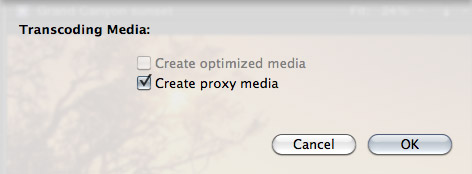
2. Select File > Transcode media. Then, in the resulting dialog window, check Proxy media.
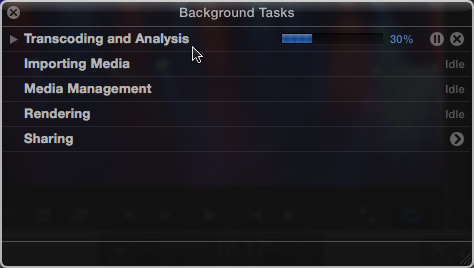
3. Depending upon the number and length of the media you selected, this can take some time, use the Background Task window (Cmd+9) to monitor progress.
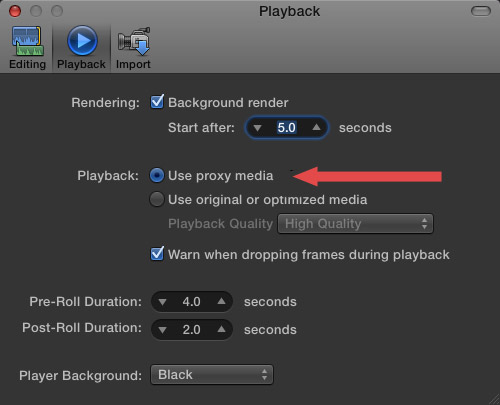
4. Once proxies are created, go to Final Cut Pro > Preferences > Playback (Cmd+,) and change the playback option to “Use Proxy Media.”
All media that has proxies, will automatically switch and be displayed (top image). Any media that doesn’t have proxies will display the missing media icon (bottom image).

5. To switch back to high-quality images, return to Preferences and change the playback setting to “Use original or optimized media.”
Proxy files are stored in their own folder inside Final Cut Events > [ Event name ] > Transcoded Media > Proxy Media.

2,000 Video Training Titles
Edit smarter with Larry Jordan. Available in our store.
Access over 2,000 on-demand video editing courses. Become a member of our Video Training Library today!
Subscribe to Larry's FREE weekly newsletter and
save 10%
on your first purchase.

91 Responses to FCP X: Working With Proxy Media
← Older Comments Newer Comments →-
 Larry says:
September 2, 2012 at 3:39 pm
-
 Dino Bibolotti says:
September 2, 2012 at 6:06 pm
-
 David Delp says:
October 31, 2012 at 6:19 pm
-
 Sam James says:
November 1, 2012 at 7:07 am
-
 Ed Kulis says:
November 1, 2012 at 7:51 am
-
 creativehelm says:
November 1, 2012 at 10:20 am
-
 Sam James says:
November 1, 2012 at 9:25 pm
-
 FurryToes says:
November 10, 2012 at 3:57 pm
-
 Tom Parker says:
November 10, 2012 at 4:09 pm
-
 FurryToes says:
November 10, 2012 at 6:50 pm
← Older Comments Newer Comments →Dino:
If you optimize your media, FCP X exports the optimized media. If you simply create proxy files, it will output your original media. And, yes, in most cases, optimized media exports much faster than camera source files.
Larry
Ok. Thanks Larry!! Great article.
Greetings =)
Dino.
Larry, you’re so awesome for giving away all this stuff. I’m so tempted to take your courses, but so much information is there for free. I hope you are getting paid somehow. I’ll wallow in your generosity with grateful hopes so.
-David
Hi, I’m in the process of moving over to FCPX and am wondering why the average Macbook Pro with dedicated graphics used to be able to edit ProRes files off the bat in FCP6 and 7 and now with FCP X we have to go to all this trouble with proxies and duplicated original files? Is FCP X’s graphics engine improved, or in the transformation, gone back about 5 years in terms of the playback of high bitrate files? I’m finding all this proxies business (and the roaring hard drive) a bit of a step into infancy in terms of fast editing.
Can anyone enlighten me about the advantages here?
Cheers, this is a good post.
Sam
Hi Sam,
I like Larry’s Sep 2 comment above that proxy media exports faster. That’s an advantage
The huge difference for me was memory. I had 8GB since memory was expensive a few years ago when I bought my Mac Pro. But I was recently able to add 16 Gig for about $230 and it made a huge difference in rendering and eliminated the spinning ball during interactive editing.
Curiously, looking at memory usage it seems that my Mac Pro wants about 12 G all together when using FCP X and other Apps needed during editing like iTunes, Photoshop, iPhoto. So at 8 G there were many slowdowns but using only 12 of the 24 it’s much faster.
Hello Sam,
Believe it or not, I’m editing Canon native h.264 files (5D MKII and/or 7D) in FCP X without any hiccups. I’m on an iMac (2.8GHz Intel Core i7 Quad Core, 8 GB RAM, AMD Radeon HD 6770M 512MB GPU) running Snow Leopard on one partition and Lion on another. When I tried to edit the native h.264 files in FCP X on Snow Leopard I couldn’t do it—had to create proxies; however, when I created the Lion partition and loaded FCP X on it, the difference for me was jaw dropping. In the last 3 months I haven’t created a single proxie. And, I’m even able to create and edit Multicam Clips without optimizing (or creating proxies).
FCP X has sped up my workflow exponentially. I’m a believer.
Oh excellent, thankyou very much + yes I’m still on Snow Leopard..
I’m really questioning this at the moment, with my own experience. I have imported proxy files (and am in proxy mode to edit) but some of my final rendered output are almost certainly not rendered from original media. It’s noticeably pixelated & artifacty – exactly as seen while editing proxy but not in the original media. It’s only noticeable for some clips (sections of the final output), so it could be a kind of bug.
I will come back here when I finish the experiment – I’ll try switching to optimized media and rendering from there & see if there’s any difference.
Are you switching back to optimized or original before export? If you export while in proxy mode, that’s what you’ll get—the proxies. If you’re switching but still seeing low res output, have you tried deleting your render files and allowing the project to re-render in optimized/original mode?
Yep, confirmed. I changed to “optimised media” and the video is much, much sharper. Moral of the story, for me, in 10.0.6 at this stage, is NEVER RENDER OUTPUT IN PROXY MODE – you get proxy-grade output.