
[ This article was first published in the July, 2011, issue of
Larry’s Final Cut Pro Newsletter. Click here to subscribe. ]
Fiver Löcker asks:
How do I work with proxy media?
Larry replies: This is tricky, because the Help files don’t detail this process. But it is actually very simple.
Proxies are transcoded (converted) copies of your master files. They use ProRes 422 Proxy and are at 1/4 the size of the original. For instance, here the original ProRes 422 file for this Youth Culture clip is 238.3 MB in size.
When it gets transcoded to a Proxy, the size plummets to 19 MB. The quality is not as good, but this can save a lot of space while you are doing the rough cut.

Here’s the overview of working with proxies:
Here are the details.

1. Assuming you did not create Proxy media when you first imported your clips, select the clip(s) for which you want to create proxies.
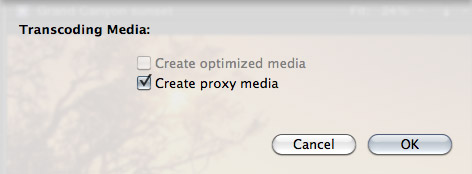
2. Select File > Transcode media. Then, in the resulting dialog window, check Proxy media.
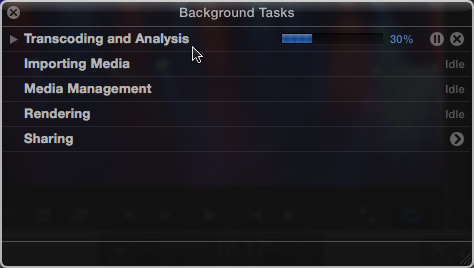
3. Depending upon the number and length of the media you selected, this can take some time, use the Background Task window (Cmd+9) to monitor progress.
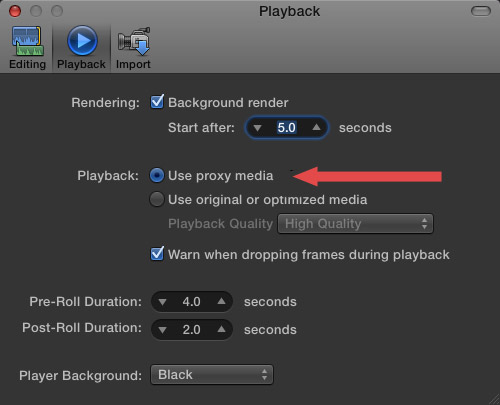
4. Once proxies are created, go to Final Cut Pro > Preferences > Playback (Cmd+,) and change the playback option to “Use Proxy Media.”
All media that has proxies, will automatically switch and be displayed (top image). Any media that doesn’t have proxies will display the missing media icon (bottom image).

5. To switch back to high-quality images, return to Preferences and change the playback setting to “Use original or optimized media.”
Proxy files are stored in their own folder inside Final Cut Events > [ Event name ] > Transcoded Media > Proxy Media.

2,000 Video Training Titles
Edit smarter with Larry Jordan. Available in our store.
Access over 2,000 on-demand video editing courses. Become a member of our Video Training Library today!
Subscribe to Larry's FREE weekly newsletter and
save 10%
on your first purchase.

91 Responses to FCP X: Working With Proxy Media
← Older Comments Newer Comments →-
 Ed Kulis says:
July 27, 2012 at 2:53 pm
-
 SK says:
August 18, 2012 at 7:55 pm
-
 Tom Parker says:
August 19, 2012 at 11:02 am
-
 luke symons says:
August 25, 2012 at 7:18 pm
-
 Chris says:
August 27, 2012 at 6:44 am
-
 Ed Kulis says:
August 27, 2012 at 6:57 am
-
 Tom Parker says:
August 27, 2012 at 8:44 am
-
 Ed Kulis says:
August 27, 2012 at 9:07 am
-
 Tom Parker says:
August 27, 2012 at 9:30 am
-
 Dino Bibolotti says:
August 31, 2012 at 1:23 pm
← Older Comments Newer Comments →Hi,
I recently upgraded to FCPX 10.0.5 and switched to proxies. The Mac had to crank over night but it all seems much better now.
A reboot or 2 helped as well.
I haven’t yet converted back to optimized media to render the project in full quality. I’m sure that will be interesting too.
I upgraded all my projects and events from FCPX10.0 to 10.0.5. In events some clips are missing and it says “proxy missing” while some clips are fine. Does anyone know whats going on here?
That’s not a lot of information to go on. But bhat’s what happens when you have proxies enabled and not every clip has a proxy.
Did you ever import clips without transcoding to proxies? Click on the missing clips and check their file status to see if proxies exist for them. If they don’t, right-click and choose transcode, and create the proxies.
ssues that may affect playback include available memory, disk speed, graphics performance, and processor performance.
You may be able to get better performance by doing the following:
– Use proxy playback by selecting ‘Use proxy media’ in Playback preferences. (Requires proxy media.)
– Optimize your source clip media.
Sunday, 26 August 2012 12:13:29 PM Australian Eastern Standard Time
this is what come up after importing from a GoPro hero 2 HD
Yes, Larry, to me the whole point of Proxy is to be able to be mobile and on-the-go. Why doesn’t the documentation make this easy to ONLY copy Proxy media to a local or external smaller drive, and then when back at the RAID in the office, copy back and continue working with full-sized media? The Sharing Projects article helps with this some, but doesn’t delineate between sharing JUST Proxy, or full Optimized versions.
Thanks for any insight.
Chris.
Hi all,
What puzzles me is why the entire set of events/projects needs to be proxy or not. Seems that it should be configurable as part of a single item’s properties.
If anyone knows how to subset just some of FCPs items to proxy or not I’d appreciate hearing about it.
This workflow doesn’t make sense to me. What you’d like to be able to do is figure out which clips will have a greater performance impact than others, go through hundreds or thousands of clips to set that subset to use proxy, then when you’re done editing go back through them to set them to full resolution again? That seems very likely to result in final output that includes low res proxy footage.
What happens in FCP X is a standard workflow. In other systems, you’d offline the project, then online for final export, albeit in those systems it’s easier to separate the proxies and take your work on a smaller drive. In X, proxies seem to be there only for performance reasons and you have to jump through hoops to take just the proxies with you.
I don’t see a lot of benefit to being able to proxy a subset. Most productions stick to one or two types of cameras, so if you need to proxy footage typically you’d need to proxy it all anyway. I imagine there’d be a lot of design and development to build this and there’d be very few people who would use it.
Hi Tom,
I see your point about the difficulty of trying to manage the subsets. I’ve got a lot of small projects which only use dozens of clips. It was seeming to me that proxy or not was not set at the project level but at the entire FCP level and that seemed too big. I may not be using proxies for the right reason. I switched it all back to optimized and I’m getting ok performance.
I’m thinking that if it was a useful feature, clips could “know” whether or not they were proxed and provide a status. Then at final render time you could have set a status saying use full res. However that would make the estimate of the final render time very difficult.
I’m only familiar with my own workflows and I don’t have a good way to know what’s best for the industry at large. So I appreciate your comments to help with better insights.
I see what you’re saying. Yes, that’s a change. FCP X greatly simplified proxies. On or off, that’s it. In FCP 7 you would offline a project. I would like to see that changed in future versions with the addition of a true offline where I can make a proxy-only copy of a specific event/project.
It’s not perfect but I’ve been very happy to trade an application level preference for proxies to get rid of the application level setting of scratch disks. I always hated that. 🙂
I’m don’t know about the technical issues involved but it seems like having to include logic about a clip’s proxy status and not using the pre-rendered footage could slow down the rendering engine.
Hi friends, I wanna know; Does or its posible that FCPX uses optimized render files for export instead of original media, if there were created and no deleted, to acelerate render without losing quality?
Thanks, and sorry the bad english.
Dino.