
[ This article was first published in the July, 2011, issue of
Larry’s Final Cut Pro Newsletter. Click here to subscribe. ]
Fiver Löcker asks:
How do I work with proxy media?
Larry replies: This is tricky, because the Help files don’t detail this process. But it is actually very simple.
Proxies are transcoded (converted) copies of your master files. They use ProRes 422 Proxy and are at 1/4 the size of the original. For instance, here the original ProRes 422 file for this Youth Culture clip is 238.3 MB in size.
When it gets transcoded to a Proxy, the size plummets to 19 MB. The quality is not as good, but this can save a lot of space while you are doing the rough cut.

Here’s the overview of working with proxies:
Here are the details.
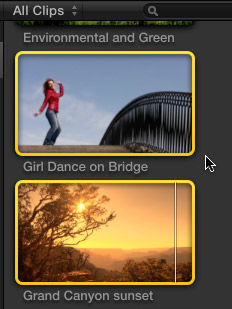
1. Assuming you did not create Proxy media when you first imported your clips, select the clip(s) for which you want to create proxies.
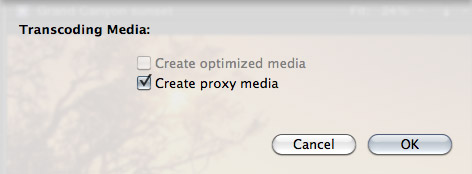
2. Select File > Transcode media. Then, in the resulting dialog window, check Proxy media.
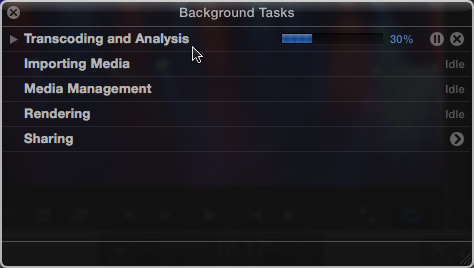
3. Depending upon the number and length of the media you selected, this can take some time, use the Background Task window (Cmd+9) to monitor progress.
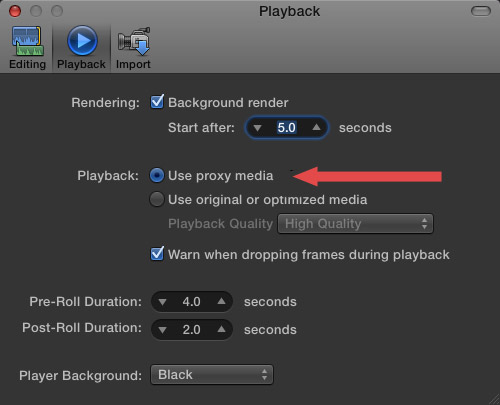
4. Once proxies are created, go to Final Cut Pro > Preferences > Playback (Cmd+,) and change the playback option to “Use Proxy Media.”
All media that has proxies, will automatically switch and be displayed (top image). Any media that doesn’t have proxies will display the missing media icon (bottom image).
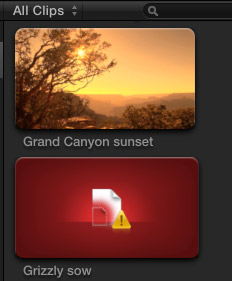
5. To switch back to high-quality images, return to Preferences and change the playback setting to “Use original or optimized media.”
Proxy files are stored in their own folder inside Final Cut Events > [ Event name ] > Transcoded Media > Proxy Media.

2,000 Video Training Titles
Edit smarter with Larry Jordan. Available in our store.
Access over 2,000 on-demand video editing courses. Become a member of our Video Training Library today!
Subscribe to Larry's FREE weekly newsletter and
save 10%
on your first purchase.

91 Responses to FCP X: Working With Proxy Media
← Older Comments Newer Comments →-
 Tom Parker says:
June 12, 2012 at 9:58 am
-
 Florian Dufour-Feronce says:
June 19, 2012 at 8:19 am
-
 Florian Dufour-Feronce says:
June 21, 2012 at 6:36 am
-
 Adam says:
July 5, 2012 at 10:16 am
-
 Tom Parker says:
July 5, 2012 at 11:45 am
-
 AlexFK says:
July 12, 2012 at 10:16 am
-
 Tom Parker says:
July 12, 2012 at 8:47 pm
-
 Tom Parker says:
July 12, 2012 at 9:27 pm
-
 Ed Kulis says:
July 23, 2012 at 7:29 am
-
 Nan says:
July 27, 2012 at 2:37 pm
← Older Comments Newer Comments →Gino, I actually haven’t had to relink if the event folder structure is the same. FCP recognizes the event on the mobile drive. I just replicate the event folder and copy just the proxies.
To switch back from proxy to original media in fcpx sounds easy, but if you have got a complex multicam project,
it takes between 8 up to nearly twenty hours for my 3-Cam 90-minutes-project, to change back again to the original files, this is very unpro 😉 I will try to make a test-project, and then replace either the files in the original folder and replace them with self crated proxy files, or put the original/optimized media into the transcoded/proxy folder and see if fcpx will accept this method.
Greetings
Florian
Solved the problem! I cleaned up my events window and put away all old projects to another hard drive and ejected it, except the one I am currently working on, now it works fine.
Hi!
Does anyone know how to change the file format of proxy files? All mine come out in NTSC (and in the wrong aspect ratio) when I would prefer them to be in PAL.
Also, I’ve noticed that my Gaps are in NTSC format as well. Is there a project/event setting I’m missing somewhere where I can choose NTSC/Pal, resolution, widescreen etc. for all future projects?
Cheers
Adam
Gaps will match the project settings. If you’re having problems, create the project, choose custom for the video format, and select PAL.
This solution sounds solid, Tom. How have you found switching back and forth?
I am currently assistant editor on a doc and have over 10 TB of material (many multicam bits) on my 12TB RAID. Its all optimized media. It would take a whole separate RAID to house all of the proxies. So I could theoretically just copy all the Event directories, over a dozen, to the other drive with only the proxy files. When copying back to the original RAID, would I just copy the .fcpproject files and .fcpevent files to the original 12TB drive directories?
I really wish I was able to move just the proxy media to the other drive and re-link it to the 12TB RAID, but it does not seem like this works. FCPX just states that the files are missing, but once I try to select “Relink Event Files” it doesn’t give the option to relink these proxies.
Alex, I’ve had a couple clips where the proxy and optimized sort of got disconnected and I had to replace the edit. But mostly it’s been smooth, switch the preferences and the project re-renders at the new resolution.
I do all my Event organization before going mobile, so I don’t move the event database back. I actually do a move or duplicate project command for the project, and exclude the render files. But yes, you could just move the CurrentVersion.fcpproject file. Just be wary of creating project ID conflicts.
FCP wants everything to be in the Event folder. Relinking is intended to tell FCP X where the originals are when lost, and the related proxies and optimized versions are expected to be in the related event. So right now, there’s no such thing as relinking the proxies.
I’d expect that at some point in the future an update will make this easier, with an option to create a duplicate of an event with proxies only.
Alex, let me rethink that. It’s difficult to move events without all the media. I don’t copy the Event in the Finder because I get an ID conflict if I have both my portable and primary volumes mounted at the same time. What I’ve been doing, and it’s a little clunky, is exporting the Event XML and importing it on my portable volume. That will create your keyword structure and give you a fresh CurrentEvent.fcpevent file with it’s own unique ID, but since the media isn’t on that volume it will be offline.
Then I quit FCP and just copy the Transcoded Media > Proxy Media folder to the proper location on the portable drive inside the Event created by importing the XML.
Hi Larry,
Great forum and answers. Thank you very much for sharing your expertise.
I just started using proxies and I’ve run into this surprise. Retimed clip fine but copy paste it and it shows missing proxy in the pasted clip.
I’ve got video background that looks like the graphics behind a news show multiperson display. It’s very short stock footage but I want to retime it to 1% and cut and paste it to fill up about an hour to fill in the frame over a cropped slide show screen.
I retime the clip, it ends up about 10 minutes and it’s fine. Now I want to cut and paste it a few times to fill out the hour. On paste I get a missing proxy media.
I’ve waited for the render of the original clip to finish.
What to do?
-ed
Hi Larry,
I am using FCP 6 and have 4 clips that I have made a multi-cam with.
It seems now the external hard drive is having a problem keeping up or even getting started to view the 4 angles in the viewer, so I am unable to pick the right shot in editing.
My external drive is a 7200 G-Drive 1.5TB
The 4 cameras are Canon HF11
Any advice :-]