
[ This article was first published in the July, 2011, issue of
Larry’s Final Cut Pro Newsletter. Click here to subscribe. ]
Fiver Löcker asks:
How do I work with proxy media?
Larry replies: This is tricky, because the Help files don’t detail this process. But it is actually very simple.
Proxies are transcoded (converted) copies of your master files. They use ProRes 422 Proxy and are at 1/4 the size of the original. For instance, here the original ProRes 422 file for this Youth Culture clip is 238.3 MB in size.
When it gets transcoded to a Proxy, the size plummets to 19 MB. The quality is not as good, but this can save a lot of space while you are doing the rough cut.

Here’s the overview of working with proxies:
Here are the details.
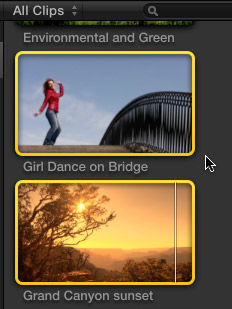
1. Assuming you did not create Proxy media when you first imported your clips, select the clip(s) for which you want to create proxies.
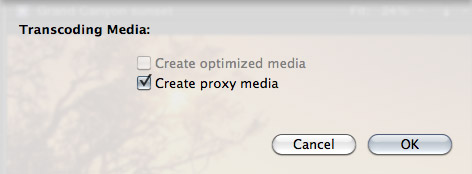
2. Select File > Transcode media. Then, in the resulting dialog window, check Proxy media.
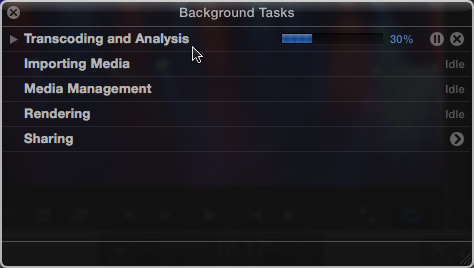
3. Depending upon the number and length of the media you selected, this can take some time, use the Background Task window (Cmd+9) to monitor progress.
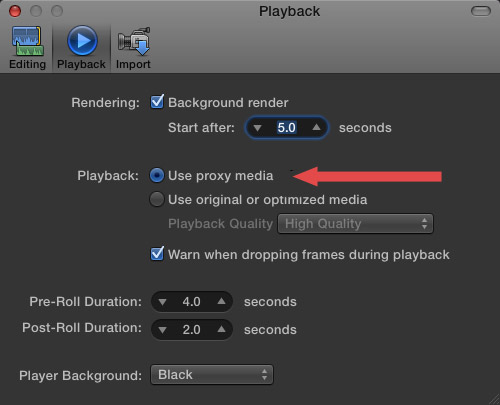
4. Once proxies are created, go to Final Cut Pro > Preferences > Playback (Cmd+,) and change the playback option to “Use Proxy Media.”
All media that has proxies, will automatically switch and be displayed (top image). Any media that doesn’t have proxies will display the missing media icon (bottom image).
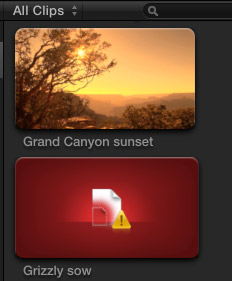
5. To switch back to high-quality images, return to Preferences and change the playback setting to “Use original or optimized media.”
Proxy files are stored in their own folder inside Final Cut Events > [ Event name ] > Transcoded Media > Proxy Media.

2,000 Video Training Titles
Edit smarter with Larry Jordan. Available in our store.
Access over 2,000 on-demand video editing courses. Become a member of our Video Training Library today!
Subscribe to Larry's FREE weekly newsletter and
save 10%
on your first purchase.

91 Responses to FCP X: Working With Proxy Media
Newer Comments →-
 Ty says:
January 20, 2012 at 5:02 pm
-
 Peter wiren says:
February 18, 2012 at 1:26 am
-
 Tom Parker says:
April 4, 2012 at 11:48 pm
-
 Abed says:
April 12, 2012 at 6:29 am
-
 Tom Parker says:
April 12, 2012 at 5:33 pm
-
 Hector Ceron says:
April 26, 2012 at 12:46 pm
-
 FrederikC says:
May 30, 2012 at 3:53 am
-
 Tom Parker says:
May 30, 2012 at 8:50 am
-
 FrederikC says:
May 30, 2012 at 3:42 pm
-
 Gino Amadori says:
June 12, 2012 at 12:22 am
Newer Comments →If I import my media and tell FCP X to create proxy media, Can I export the final project with the original media?
Yeah! That I wonder as well. If you import and edit as
Proxyfiles (to save discspace) is there a way to import just the parts that you have used in the timeline and export the project as prorez high quality. I’ve searched the web for hours to get an answer to this question. Can somebody please help me?
Ty and Peter, you can switch the setting back to Original or optimized and export full quality. Understand that when transcoding to proxy, FCP X *always* wants the original media. If you choose not to import it, it will create an alias that points to wherever the source files reside. So there’s no re-import, Peter, you just need to be certain that the volume containing the source files is available when you switch back to original/optimized media for export.
Larry, is there a convenient way or suggested workflow to temporarily use proxy files? I’m thinking of a laptop, limited disk size situation, where I don’t want (or have room for) two or three copies of the footage. Ideally, I’m looking for a way to duplicate the project and event to a new drive but only bring the proxy files over. My issue isn’t switching the preference, it’s having all media on my primary workstation and going proxy only while mobile. Is there a best workflow to accomplish this?
Great post, very helpful for a FCPX beginner like myself but I do have one question.
If I go ahead and transcode to proxy, when I’m done editing and want to switch back to the original media, does it transcode all of my rushes or just the ones on my timeline?
Thank you very much in advance!
Abed, transcode to proxy just creates the proxy version alongside the original and optimized version. Then you choose to use the proxies for editing as Larry describes above.
When you’re ready to export you just change the playback option back to “Use original or optimized media.” The original media will then be used for export.
What happens to render files?, When change proxy to original media, will reprocess the render? Tanks! great article.
Tom,
has your question been answered?
>>>My issue isn’t switching the preference, it’s having all media on my primary workstation and going proxy only while mobile. Is there a best workflow to accomplish this?
Thanks,
Frederik
Frederik, the only option I’ve found is manually managing the media.
Create a new Event folder (identical in name to that on your primary drive, in the correct location for events) and copy only the proxy files to the secondary drive. Then move or copy your project (don’t include the render files, which will be the HQ render files) to the secondary drive.
Once you have everything on the secondary drive and are away from the primary volume, you’ll have to switch the preferences to proxy in order to edit. When you’re done, you can move/copy the project back to your primary drive. Switch the preference back and your project will re-render using the HQ files.
Peter,
has your question been answered?
>>> If you import and edit as Proxyfiles (to save discspace) is there a way to import just the parts that you have used in the timeline and export the project as prorez high quality.
Thank you,
Frederik
Just copy the proxy folder to your mobile drive and then set preferences to use proxy media an relink the files back to the folder you copied