
As I was researching my new Final Cut Pro X book, I discovered this interesting technique that I wanted to share with you.
Many times, editors need to share projects. While Final Cut Pro X does not allow more than one editor to be working in the same project at the same time, there is a way to share the same project between editors. Event References make this possible.
An Event reference is the ability to take a Project and point it to media in a different Event. What you are doing is changing the media that is connected to a Project by changing the Event reference.
A Final Cut Pro X project doesn’t contain media, it just “points” to media, which is stored in your Final Cut Events folder. This media can be stored locally, or on an XSAN server – though not, however, on a standard-issue OS X Server. We can take advantage of this fact when it comes to sharing projects between editors.
For example, let’s say two editors, in two different cities, want to both work on the same project, though not at the same time. To start, the first editor makes a complete copy of both the Project folder (stored in the Final Cut Projects folder) and the Event folder (stored in the Final Cut Events folder).
The first editor sends the second editor both folders, and the second editor starts editing. During this time, the first editor can not be working in the Project. The original Event folder, containing the media, and the Project remain with the first editor, while a copy of the Event folder and Project folder are now also with the second editor. (For those that worry, there is no reduction in image quality when you copy digital image files.)
The second editor can make changes to both the Project and the Event, such as, say, editing clips, adding keywords, changing clip names in the Event Browser, and flagging clips as Favorites using ratings. However, the second editor can not change the media itself, nor add new media.
Then, the second editor sends just the Project folder back to the first editor. (Important note, he needs to send the entire Project folder, not just a single Project file contained inside it.)
If the first editor opens the Project sent by the second editor, all the clips would be offline, because the Project is still linked to the Event folder on the second editor’s system in another city. Instead, the first editor copies the Project folder to her local system in the Final Cut Projects folder. Opening Final Cut Pro X, she selects the Project in the Project Library, without opening it in the Timeline.

With the Project selected, the editor chooses File > Project Properties (or presses Command+J).
Click the wrench icon (just above the Inspector button) to display the Project Properties window.
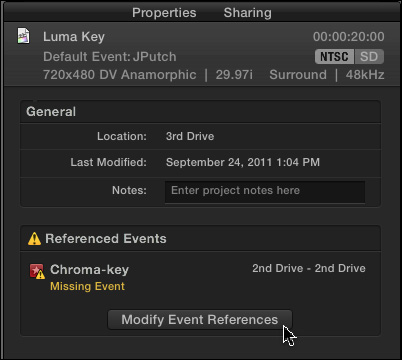
Click the Modify Event Reference button, which opens the Modify Event Reference window.
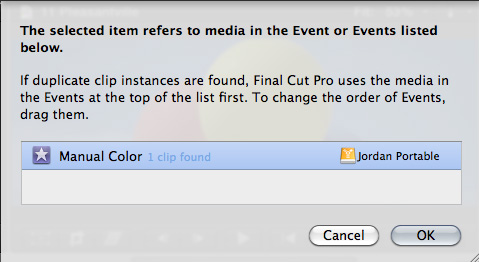
Navigate to the Event folder stored locally on her system and select it. The first editor’s Project now connects to this local media, rather than the media on the second editor’s system.
By changing Event References, both editors can send this Project back and forth for additional work. Keep in mind that once the Project is sent to one editor, the other editor can not work on the Project as there is no way to reconcile the differences between two versions of the same Project.
Both the first and second editor have their copy of the Event folder and media stored locally. Changing Event References allows repointing a Project from one Event folder to another.
This is a very intriguing use of the media management in FCP X because it easily allows changing the Event that is referenced by a Project. It isn’t the same as relinking individual clips, but allows an editor to repoint to all the media in an entire project.

2,000 Video Training Titles
Edit smarter with Larry Jordan. Available in our store.
Access over 2,000 on-demand video editing courses. Become a member of our Video Training Library today!
Subscribe to Larry's FREE weekly newsletter and
save 10%
on your first purchase.

39 Responses to FCP X: Sharing Projects
← Older Comments Newer Comments →-
 Larry says:
May 29, 2012 at 7:49 pm
-
 Gs3 says:
June 12, 2012 at 4:54 pm
-
 Larry Jordan says:
June 12, 2012 at 5:09 pm
-
 Matthew says:
June 28, 2012 at 1:35 pm
-
 andre buurma says:
July 5, 2012 at 4:51 am
-
 Larry Jordan says:
July 5, 2012 at 7:51 am
-
 Larry Jordan says:
July 5, 2012 at 7:53 am
-
 Matthew says:
July 10, 2012 at 4:51 pm
-
 Larry Jordan says:
July 10, 2012 at 5:01 pm
-
 Matthew says:
July 10, 2012 at 8:57 pm
← Older Comments Newer Comments →Unless you built the original clip as a Compound clip, you can’t.
larry
Hi Larry,
Great topic…trying to figure out a share system with FCPX (as we really like it).
Is it possible to have all ingested media on a central SAN in an office, so that multiple editors just share Project folders that link to that one Event folder on the SAN?
For example, maybe we have a dedicated ingest station that creates the initial Event folder on the shared network drive (SAN, XSAN, whatever). Maybe that ingest station doesn’t even create a Project timeline yet.
Then the first editor starts a new project on his/her local working drive, importing all the media (by reference only) from the SAN Event folder). That way it doesn’t copy all the media down to his/her local drive.
Then when he/she is done, they copy the Project folder up onto the SAN drive, where the 2nd editor pulls that Project folder down to their local drive. When they open it up, it should still link to the shared SAN drive, correct? Even if it doesn’t, then they can update the reference using the wrench tool as you describe above.
Would this system work?
If so, could Editor 1 still import (by reference only) and edit some of the same media in that SAN Event folder while Editor 2 was editing a separate project? (For example, if some of the footage is ‘generic’ that can be used in multiple projects, can 2 editors reference and use that same clip off the SAN Event folder since they’re working on separate Project timelines?
Thanks for your input…would love to find a way to do this!
Gene.
Gene:
If you are running an XSAN network, your editors won’t even need to copy down the Project folder, they can access both Event and Project files from the SAN. However, only one editor can write to a file at the same time.
Your system should work as you described, especially if you are copying project files, which is where most of the read/write behavior occurs during editing. As with all things, test to be sure your network has the bandwidth to support media playback to multiple editors – multicam, for instance, can bring a network to its knees – however, your basic approach seems sound.
Larry
Very helpful. What if the 2nd editor (in another city) doesn’t need the Optimized media, they’re just doing a rough cut and can use the Proxy media. And when the 2nd editor sends back the Project folder, is there a way to avoid sending the render folder as well, that seems like it could take a long time.
Thanks.
Interesting!
A question, to both Larry and Gene;
Do you need Fibre Optics for a system like that, or is XSAN via ethernet enough to do editing without ‘big compositing’?
Cheers,
André Buurma
Gene:
If you are running an XSAN network, your editors won’t even need to copy down the Project folder, they can access both Event and Project files from the SAN. However, only one editor can write to a file at the same time.
Your system should work as you described, especially if you are copying project files, which is where most of the read/write behavior occurs during editing. As with all things, test to be sure your network has the bandwidth to support media playback to multiple editors – multicam, for instance, can bring a network to its knees – however, your basic approach seems sound.
André:
its all a question of bandwidth. If you are not doing multicam, Gigabit Ethernet should be ok for simple edits – meaning one to three streams playing at a time.
the more streams of video you add, the faster the connection to your hard disk needs to be.
Ethernet won’t work well for multicam.
Larry
Matthew:
The Events folders need to be identical and, generally, are best done by cloning two hard drives. you’ll have problems dealing with switching between optimized and proxy media.
Make life simple for yourself, duplicate the project and media to two hard drives and just share the database.
larry
Thanks Larry for getting back to me. What I’m trying to do is setup a company that allows for editors across the country to utilize the same footage to edit with (I’m sure they’ll have to download it from our server to work with it locally – not a problem there), but do I need to upload the optimized media if they’re never going to be using it? All full rez work would be done at the site it was uploaded from.
Since we will never be in the same room, is there a way to not share all the render files, or just upload the ones used in the final sequence?
As long as they all have the same media – whether optimized or native – on their system, they only need to move project files around. Not media, not proxies, not render files.
larry
That’s what I originally thought, so I tried that, (just moving the ‘CurrentVersion.fcpproject’ file, but it would not connect with the original media. On the system I was moving it to, I created a new folder in the Final Cut Projects folder that had the same name as the original sequence, but it didn’t work. Is there another way that I should be doing it that I’m maybe missing? There’s no importing of sequences, so what seemed logical was just creating a folder like I said and moving the project file into it.