
 I’ve written about how to move:
* An FCP 7 project to Premiere Pro
* An FCP 7 project to FCP X
* An FCP X project to Audition
* An FCP X Project to Premiere Pro CC
So, in this article, I want to show you how to move a Premiere Pro CC project to Final Cut Pro X.
We do this in three steps:
However, there are some cautions in this process: Not everything transfers perfectly. I’ll talk more about this at the end.
INSIDE PREMIERE
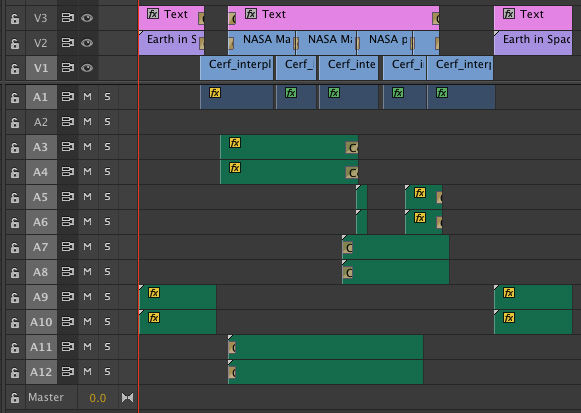
Here’s a typical project inside Premiere. There are several things to note here:
Notice that all stereo audio starts on an odd-numbered track. This is important. Most software assumes that stereo pair audio will be on two separate tracks and further assumes that the left channel starts on an odd track. I have found that I get the most reliable transfers when working with multi-track stereo audio when the left channel is placed on an odd-numbered track. (Premiere does not care if there are gaps between audio clips, nor if an entire audio track is left blank.)
NOTE: This project is based on an older Premiere project, where stereo audio spanned two tracks. In the current version of Premiere, stereo audio can appear as a single clip in a single track. When moving projects between Premiere and FCP X, whether stereo audio is on one or two tracks does not make a difference; as long as when audio spans multiple tracks, the left channel is placed on an odd-track.
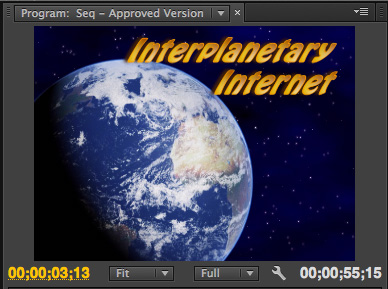
Thinking about text, notice the text color and formatting in this opening title…
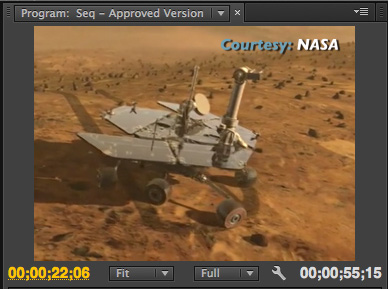
…and the formatting of this locator text.
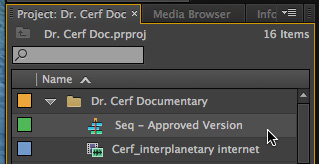
To transfer a project from Premiere, select the project in the Project panel. Then, choose File > Export > Final Cut Pro XML.
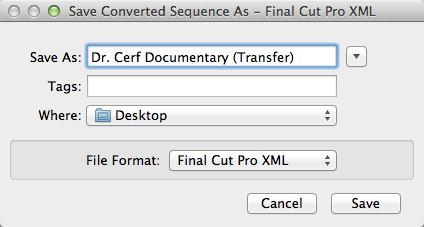
Give the XML file a name and storage location. Here, I’m calling it “Dr. Cerf Documentary (Transfer)” and storing it to the Desktop.
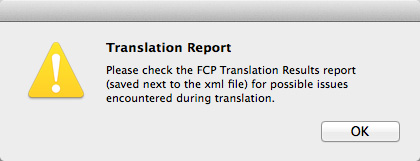
A warning message appears, indicating if Premiere had any problems with the transfer.
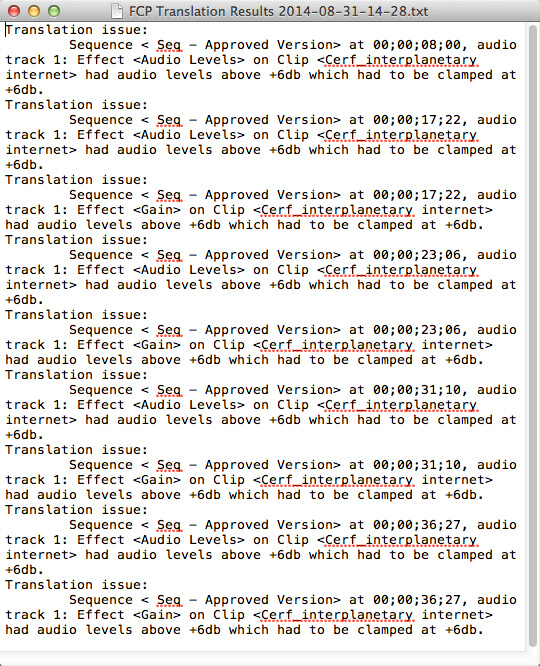
In this case, all problems relate to audio levels. (This is the Translation Results report from this export. Different projects will generate different reports.)
After a few seconds, the XML file appears on the Desktop.
NOTE: XML files are very small – generally, just a few hundred KB. They are only needed to transfer information from one program to another. Once the data has been transferred, the XML file can be deleted. For this reason, I tend to store them to the Desktop to make them easy to find and delete when this process is complete.
CONVERTING FOR FINAL CUT PRO X

FCP X and Premiere use different versions of XML, so we need to convert the XML file so that Final Cut can read it. This requires a utility from Intelligent Assistance called: “7toX” — it’s available in the Mac App Store for $9.99. Here’s the link.
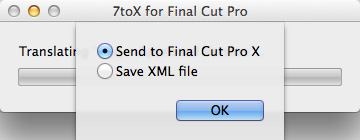
Either start the application and select the XML file, or, much easier, simply drag the XML file on top of the application icon. This dialog asks what you want to do with the converted XML file.
While sending the file to FCP X is the fastest, when it comes to transferring files, I tend to be a “belt-and-suspenders” kind of guy. I prefer to do this in two steps:
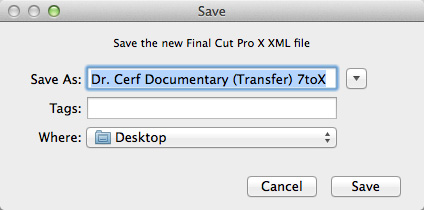
So, I chose the “Save XML File” option, gave it a name and storage location and clicked Save. The translation process starts and only takes a few seconds.
IMPORT INTO FINAL CUT PRO X
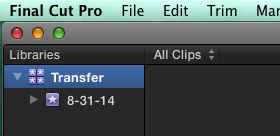
Start Final Cut and create a new Library.
NOTE: Creating a new Library is optional, as you’ll see in a minute, but I prefer to transfer projects to their own library.
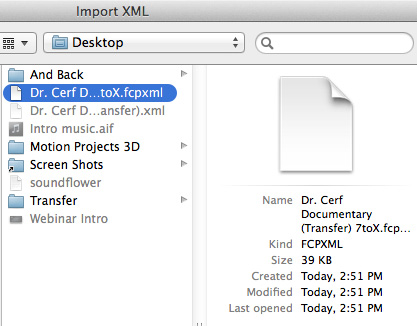
Choose File > Import > XML. Select the converted XML file and click Import.
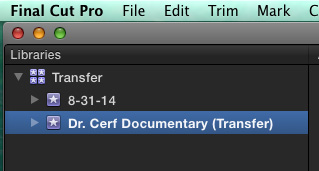
The transferred project is imported as its own event, with the sequence and media inside. (This is why creating a new library is optional.)
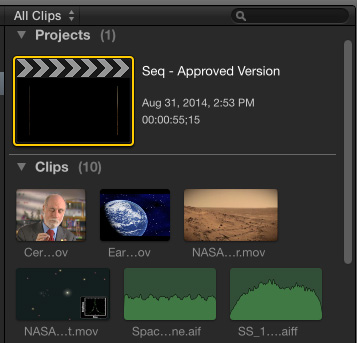
As you would expect, the project and all media are displayed in the Browser.
THINGS CHANGE
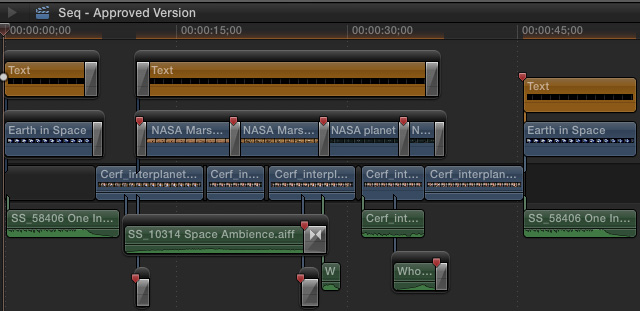
Here’s what the transferred project looks like, inside FCP X.
NOTE: In discussing this article with the folks at Intelligent Assistance I was told they have encountered issues where Premiere can play media that isn’t recognized by FCP X because it wasn’t ingested and rewrapped as MOV. This just points up that it is important to transfer files ahead of your deadline so you have time to fix problems if they occur.
SUMMARY
If I were doing this for real, rather than writing an article about the process, transferring files is very fast. Assuming all software is installed, moving large projects from Premiere to FCP X would generally take a couple of minutes, at the most.
In today’s interconnected world, moving edits from one application to another is fast and easy. The trick is knowing what transfers and what doesn’t. Media and edits are ALWAYS safely transferred. The issues all relate to effects.
EXTRA CREDIT
As we’ve just seen, because of the differences between Premiere and Final Cut Pro X, not everything transfers successfully. We have similar problems when sending files between different versions of Final Cut, Avid and Premiere.
While all edits and most media transfer successfully between applications, most wipes, effects and color grading do not. This is because each application handles these differently which means that the best time to transfer files is when the edit is complete but effects are not yet started. Here’s a white paper from Intelligent Assistance providing more details on what transfers and what doesn’t.
Also, the following suggestions on media are taken from the 7toX help files:
Carefully consider the media format of your video clips. For example, Final Cut Pro X can support R3D clips directly, whereas Final Cut Pro 7 needs RED QuickTime Wrapper versions of the clips. Black video usually means that your NLE is missing a plug-in. If you’ve installed a Final Cut Pro X plug-in to support your camera’s format, then you’ll need to download and install a version for Final Cut Pro 7 or Premiere Pro. (Import a clip directly into Final Cut Pro 7 or Premiere Pro to see if the camera format is supported.) The most reliable way to get media that works in Final Cut Pro 7, Premiere Pro and Final Cut Pro X is to transcode to your favorite flavor of ProRes.

2,000 Video Training Titles
Edit smarter with Larry Jordan. Available in our store.
Access over 2,000 on-demand video editing courses. Become a member of our Video Training Library today!
Subscribe to Larry's FREE weekly newsletter and
save 10%
on your first purchase.

47 Responses to Premiere Pro CC: Transfer Projects to Final Cut Pro X
← Older Comments Newer Comments →-
 youssra says:
January 14, 2017 at 6:31 am
-
 Larry says:
January 14, 2017 at 7:43 am
-
 Paul says:
January 18, 2017 at 2:48 pm
-
 Larry says:
January 18, 2017 at 6:41 pm
-
 Chris says:
July 24, 2018 at 1:31 pm
-
 Larry says:
July 24, 2018 at 2:18 pm
-
 Sara says:
September 4, 2018 at 9:09 pm
-
 Larry says:
September 5, 2018 at 6:10 pm
-
 Kamal says:
October 15, 2018 at 8:10 am
-
 Larry says:
October 15, 2018 at 8:43 am
← Older Comments Newer Comments →Hello Larry,
Thank you for this, very useful.
I followed all instructions but I get this note “SendToX cannot open files in the “Final Cut Pro XML” format”
What do you think is the problem? and how can I solve this?
thanks,
Yousara:
You are using the wrong utility. “SendToX” converts XML files FROM Premiere TO FCP X. “XtoCC” converts files FROM FCP X TO Premiere.
Larry
I also get the same error message as youssra… trying to move a XML from Premiere CC to FCPX. the app used to work, but the update (SendToX v 1.0.68) just won’t open.. anything.
I suspect a fundamental compatibility error.
Paul:
I know the guys at Intelligent Assistance that wrote this software. They would want to know of any problems with it. Please visit their website and send them a note so they can fix it.
This should move files easily between the two applications.
Larry
Hello! Trying to do a transfer from Premiere CC2018 to FCPx and everything transferred fine other than the audio from the camera. Interviews were shot on a Red and I used the ProRes422 .mov’s created by the camera. There were 4 channels of audio with the useable audio (one lav) on channel 2. I deleted the other three audio tracks and moved the channel 2 audio to track 1 in Premiere and edited the interviews. I exported the XML, used SendToX and everything transferred other than the audio from the camera. Music and any other additional audio in the timeline transferred. I even tried deleting the video and just exporting the audio only from the camera. In FCPX, I can see the audio files with the clip names matching the camera file names, but there’s no audio playing. Erg. Any ideas? Thanks!
Chris:
At a guess, the problem is when you moved the channel 2 audio to track 1. The XML file that Premiere exported thinks the audio is on channel 1 in the clip, when it is actually on channel 2. Try moving the audio back to Channel 2 and see if that works.
If not, contact the team at SendtoX – intelligentassistance.com – they have excellent support and can get this figured out.
Larry
Hi Larry,
I have transferred a multi-layer 25 minute sequence from Premiere Pro CC 2017.1.2 v11.0 into FCPX version 10.4.3. It all worked except that any supers and subtitles now show as solid black frames in FCPX as well as a few other minor issues. My big problem is that the FCPX library I have created is a massive 850GB. Does this mean that somehow it has duplicated the actual footage (including unused material). I don’t know how to use FCPX but can’t see why it isn’t just using the XML to create the sequence and linking to the original footage. The footage I have used is mostly ProRes 422 quicktimes across a couple of external hard drives. I also could not see any step in the conversion process where I could control this. Thanks for your help
Sara:
Lots of questions here.
* FCP X, unlike Premiere, allows you to either import media into the Library, or reference external media. This is determined by a preference setting or in the Media Import window. Given your description, it looks like you set this preference to copy media into the Library, which then duplicated your media. This is controlled by you on import.
* Media import via XML is controlled by this preference setting.
Larry
Hello,
Thanks for this post. Im having an issue though. I followed all the steps and it all works. I relink the files but I still ahem no access as it comes up saying that there is a missing plug in. How do I find the missing plug in and should that be coming up when the xml file doesn’t have any effects on it at all. Its a simple raw cut.
Please help
Kamal:
Not true. The XMLfile contains media, edits, transitions, effects – virtually everything in the original edit. That which FCP X can’t process is ignored, but it is still in the XML file.
Do a Google search on how to find a missing plug in. I wrote about that a while ago, but can’t remember how I did it.
Larry