
There’s a lot of confusion about the three different media types in Final Cut Pro X: native, optimized, and proxy.
Native media is the format shot by your camera. For example, AVCHD, H.264, DV, and HDV are all examples of native media formats.
Optimized media is always ProRes 422. When the “Optimize Media” checkbox is checked during import, FCP X transcodes, which is a fancy way of saying it “converts,” your media from its native format into Apple ProRes 422.
Proxy media is always Apple ProRes 422 Proxy. Proxy media creates a reasonably high-quality media file, but at about 1/4 the size of ProRes 422.
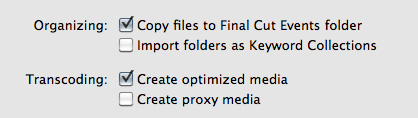
When you import media from either a file or camera, you have the ability to optimize it, or create proxy files.
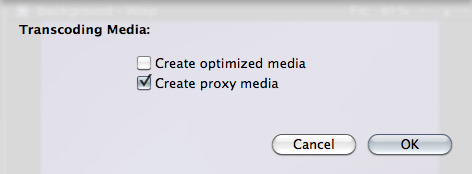
You also have the ability to convert media after you’ve imported the files. Simply select the clips in the Event Browser that you want to transcode and select File > Transcode media.
Either way, here are your options:
What’s “reasonable image quality?” Generally, the higher the bit rate of the media, the better the image quality. For this reason, since ProRes 422 has a much higher bit rate than ProRes Proxy, the image quality is potentially better. This is especially true if you are doing color correction, green-screen keying, or lots of image manipulation. However, if you are simply capturing and editing consumer-grade camera images, without many effects, you may not see any quality difference at all between optimized and proxy media.
Creating proxies or optimized media always makes a copy of your camera source files. Both optimized and proxy media will have better performance than the camera native formats.
You can select one option, both, or none. Depending upon which options you select, you could have up to three copies of your media files stored on your system:
1. Camera native
2. Optimized
3. Proxy
Duplicate media files are not necessarily a bad thing and FCP X will track them properly; however, multiple copies do require more disk space.
RECOMMENDATIONS
Not all camera formats require optimizing. If the Optimize option is grayed out, it means that the camera format is already optimized and would not benefit if converted into ProRes 422. (DV and AVC-Intra are two examples of already-optimized media formats.)
NOTE: For the geeks among us, optimized formats are those that are stored in an I-frame format.
My general recommendation is to always optimize media. Purchasing an extra hard disk will more than pay for itself in the time you save during editing.
SWITCHING BETWEEN FILES
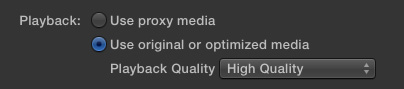
To switch between native, optimized, or proxy files in your Project go to the Final Cut Pro > Preferences > Playback tab.
Click the radio button for Proxy to edit using Proxy files.
Click the radio button for Original/Optimized to edit using anything else.
You can change this setting whenever you want, however, you can’t have a mix of some Proxy and some Optimized files in the same Project at the same time. Proxy and Optimized files are stored in different folders in the same Event folder.
(By the way, I thought whether you selected High Quality or Better Performance in this preference pop-up menu, your output quality will always be the same – high quality. However, see Jason’s comment below.)

2,000 Video Training Titles
Edit smarter with Larry Jordan. Available in our store.
Access over 2,000 on-demand video editing courses. Become a member of our Video Training Library today!
Subscribe to Larry's FREE weekly newsletter and
save 10%
on your first purchase.

142 Responses to FCP X: Native vs. Optimize vs. Proxy Media
← Older Comments Newer Comments →-
 DavidB says:
September 4, 2012 at 11:16 am
-
 George says:
September 25, 2012 at 12:07 am
-
 Larry Jordan says:
September 25, 2012 at 7:52 am
-
 George says:
September 25, 2012 at 8:37 am
-
 Paul Golden says:
October 2, 2012 at 12:27 pm
-
 Larry Jordan says:
October 2, 2012 at 12:33 pm
-
 Paul Golden says:
October 2, 2012 at 12:39 pm
-
 achille says:
October 28, 2012 at 4:31 pm
-
 achille says:
October 28, 2012 at 6:35 pm
-
 Larry Jordan says:
October 29, 2012 at 9:04 am
← Older Comments Newer Comments →I’m not sure whats going on here. I’ve began editing some projects in Final Cut ProX. My workflow is: copying all of my Canon 5D MarkII footage to a separate hard drive, which is my backup of the original files. From that hardDrive, I import all of the files, with transcode checked. Editing has been OK, but bigger projects are becoming very slow. I just noticed that when I click on the events, they are appearing as H.264 files, and not proRes! It seems like Final cut pro is using my original files and not the transcoded ones…Is this normal? What am I doing wrong?? Or does it just appear that way in the info window…
Hi,
I read though all this and didn’t really find a straight answer… Sorry. What is the best option to edit quickly 5D mKII files with FCPX?
Is this a way to go:
1. Import and transcode to Proxy
2. Cut
3. Generate Optimized Media
4. Round Trip that to let’s say Davinchi Resolve
5. Export
BTW! I think it is SOOOO foolish that your timeline settings affect your output settings. We should have the option to exit in 320×240 if we wanted to and then just export using the original media at Highest possible quality. Am I the only one who sees a problem with the current setting?
George:
If the goal is to QUICKLY edit 5D footage, edit natively. Don’t optimize and don’t create proxy files. FCP X can edit H.264 files natively.
If the goal is high-quality color correction, ProRes 422 provides better color space and MUCH faster rendering which will improve image quality and make the Davinci process go more smoothly.
Apple has designed FCP X so that you CAN export different media than your timeline – however, the highest quality you can achieve is to match your timeline settings.
Editing 320×240 Proxy files is fine for cutting, but won’t work for placing titles or anything dealing with sizing or placing images, because the geometry of working with small files is way too inaccurate when you need to replace the small files with full size HD files.
Larry
Thanks Larry,
This is what I have been doing. So cheers for the confirmation.
Option one (let’s say our team’s game on the pitch):
1. Shoot 5D
2. Import native h.264 no optimisation
3. Sync sound
4. Cut head and tail
5. Add few transitions Team A vs Team B
6. Export with compressor using desired settings
Option two (let’s say three cam interview with 2 lav mice)
1. Shoot all cameras
2. Import and create optimised footage (have coffee/ shower/ gym)
3. Sync sound to all pics from one camera. Repeat for all cameras
4. Sync clips (three of them in this case) to multi cam
5. Cut
6. Export with compressor using desired settings
NB! In both cases I have Display preferences set to better performance because as far as I know that does not affect what I got on the timeline.
I use a MBP Retina 15″ with 16GB ram and 750GB SSD drive + Intek HD Graphics 4000 512MB. The external drive, if I use one is WD Thunderbolt Duo 4TB.
OK, so if we bring DaVinci Resolve into the mix, here’s my question:
Footage is shot on Canon DSLR using Cinestyle, so it’s flat. FCPX ignores THM files, so TOD timecode must be generated outside of FCPX. Use Magic Bullet Grinder to create H264 versions of Originals with TOD TC embedded. (This could be done for C300 or other cameras that shoot LOG; or cameras that shoot RAW like the Black Magic Cinema Camera)
1) Import TC H264 footage into Resolve
2) Apply Cinestyle LUTs
2a) (Optional) Synch H264 with 2nd Source audio (Resolve does a good job of this!)
3) Create window burn with filename and TC
4) Render 1080p ProRes Proxy files
5) Import Proxies as “optimzed” media (still haven’t figured out how to get FCPX to treat imported proxies as proxies
6) Edit in FCPX and export XML back to Resolve
7) Grade original H264 media using FCPX XML list
8) Render ProRes 422 HQ back out of Resolve with handles
9) Open Resolve XML back in FCPX and conform with Hi-Res graded Media
10) Resync audio; add effects back in;
11) Render final master movies out of FCPX
Here’s my question: is there any reason why I need FCPX to recognize my Resolve-created Proxy footage as Proxy in FCPX? Or should i just let FCPX treat them as “optimized” footage until I replace it with graded, rendered hi-res footage?
Paul:
Nice write up. Since you are linking back to the masters using Resolve, there’s no reason to worry about linking to proxies in FCP X. Just treat them as regular media and let Resolve relink to the source files during final color grading.
larry
Thanks Larrry. FCPX Proxy is half-res anyway. Creating Proxy optimized media saves a lot of space and my laptop is happier. This way, I can create dailies on the road without creating massive folders full of 422HQ media. Unless there’s an easy way to apply LUTS en masse in FCPX, this seems like a pretty good workflow….
Larry,
first of all forgive me if i missed the answer to this question in the midst of the above dialog… however i need something further clarified from a reliable source such as yourself…
You indicate above “You can change this setting whenever you want, however, you can’t have a mix of some Proxy and some Optimized files in the same Project at the same time. Proxy and Optimized files are stored in different folders in the same Event folder.”
(sorry, don’t know how to make this quote show up in blue… also 64 and technologically impaired… not an under the hood guy, and too limited in budget to hire one… 😉
so my question; in mid project with many hundreds of gigs imported without optimizing, and many many hours into editing, now absolutely neeeeed to convert to something more manageable. Up ’till now every thing has been relatively smooth in prelim edit, however now that effects such as scaling, position, layers of graphics, and abundant text, w effects as well…. well let’s say things have reached LA freeway proportions.. movement in rendering or even “real time” (now there’s an oxymoron 4 u ) simple editing is extremely unwieldy, at best
So what would be best workflow for optimizing a substantial project already in post;
1 – is there a way to convert only clips in use in the various Projects in my “active” Project Library (some are temporarily archived using Event Manager X)? At this point in the overall project all i am essentially doing is refining the “Projects”… very unlikely i will add substantial new footage.
2 – if option 1 is not viable can i select (for optimization) specific events or folders or key word collections from Event Library?
…. or is there an other option for me to consider?;
I have a tangential question which is somewhat off topic, that being
3 – where should i be directing FC to place the optimized media in light of my current preference settings/hardware configuration (specified immediately below)
I thank any one in advance for any willingness to “speak” with someone so technologically limited… did my one year minimal digital film training at 60, having cut my teeth on 16mm 40 years previously and been away from the industry for 30…
Hardware:
2.66 Intel Core I5 iMac, 16 GB RAM
one T internal drive, where OS and apps/FCP X.4 live
Events and Projects currently live at root level of a one T Cinemastar drive sharing an external 2 bay drive housing (ICY DOCK) in JBOD configuration with a 2T drive where original media off of P2 card lives (still looking for the definitive workflow for P2 to FCPX if someone wants to point me to that thread somewhere).
can’t think of anything else pertinent to add at this moment…
much gratitude in advance for anyone making it this far… hopefully others with similar issues to resolve will also benefit from wisdom shared here
cheers,
achille
ps although recommendations for the purchase of additional hardware for better workflow etc. are quite welcome, for the time being the hardware i have is the hardware i will have (for the foreseeable future), except for the additional drives i will be purchasing due to lack of space… here again i would welcome suggestions, it 1T or 2T or 3T, ok to use multi drive dock? etc.
BTW neglected to mention current setting is for use original or optimized media/ playback “better performance”… thinking need to up the ante to proxy as well as optimized… therefore need to know where to optimally send all the versions for storage relative to one another… how many drives needed?
Achile:
I currently believe the following statements to be true:
1. You can only create proxy media (or optimized media) for clips in the Event Browser. You can, however, select clips in the Event Browser to create Proxy media for. This selection can be done using keywords, clicking, or other selection methods. However, Proxy media is created for whole clips, not portions of clips.
2. You can not create proxy media only for clips, or portions of clips, edited into the Timeline.
3. You can not mix Proxy and Optimized media in the same project – it needs to be one or the other
4. For an existing project, creating proxy media will not reduce storage requirements, because Proxy media would always be created in addition to, not in replacement of, existing media.
5. Proxy and optimized media are always and only stored in the Events folder. You do not have any options on where this media is stored.
6. You switch between Proxy and Optimized media using Final Cut Pro > Preferences.
Larry