
 This article was suggested by Robert Bagley, who was having problems storing files on a newly-acquired hard drive. Fixing his problem was simple – but not obvious. If this setting is incorrect on a new hard drive you just installed, you’ll have problems accessing files on that drive.
NOTE: This technique applies to, and works the same on, all versions of the Mac OS from 10.6 through 10.9.
Applications, and the boot disk, require permissions and ownership to be accurate and enabled to function properly. (A permission allows one application to “talk” with another application.) This is what we are repairing when we use Disk Utility to “Repair Permissions.”
NOTE: File servers, also, require permissions to keep track of which user has access to which file.
Drives that store data don’t use permissions and ownership. In fact, they shouldn’t use permissions. However, especially for new drives, permissions get turned on by accident for a data drive, which then prevents it from working properly.
Here’s how to turn off permissions on a hard drive or RAID.
BIG NOTE: This should NOT be done for the boot disk or server volumes. This SHOULD be done for all direct-connected drives that only store data.
Select a drive. (Remember, leave the boot disk alone.)
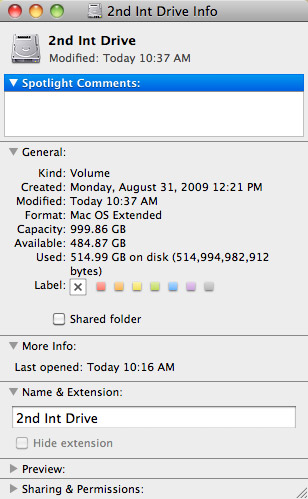
Type Command+I (or choose File > Get Info). This displays a wide variety of statistics about that hard disk. (My favorite is “Available,” which is always seems to disappear almost immediately.)
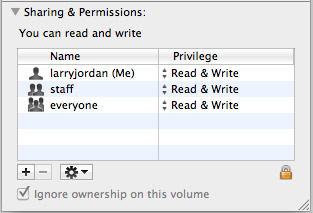
If it is closed, twirl open the Sharing and Permissions triangle and look toward the bottom. If “Ignore ownership on this volume” is checked, everything is fine.
However, if this is NOT checked, we need to change the setting.
Click the lock and enter an administrator’s password to allow changes to this setting.

Then, check “Ignore Ownership on this volume” and close the window.
You only need to do this once for each of your data drives. Most of the time, this will be set correctly. But, for those instances where it isn’t, now you know how to fix it.

2,000 Video Training Titles
Edit smarter with Larry Jordan. Available in our store.
Access over 2,000 on-demand video editing courses. Become a member of our Video Training Library today!
Subscribe to Larry's FREE weekly newsletter and
save 10%
on your first purchase.

79 Responses to Mac OS: Turn Off Drive Ownership
← Older Comments Newer Comments →-
 Peter says:
December 3, 2017 at 9:36 pm
-
 Allan Swertz says:
January 3, 2018 at 5:57 am
-
 Larry says:
January 3, 2018 at 10:49 am
-
 Tim Murray says:
February 12, 2018 at 11:03 am
-
 Tim Murray says:
February 12, 2018 at 11:04 am
-
 Russ Reno says:
February 24, 2018 at 1:14 pm
-
 Larry says:
February 24, 2018 at 1:16 pm
-
 Matthew D Grund says:
April 4, 2018 at 6:15 am
-
 Larry says:
April 4, 2018 at 7:52 am
-
 vjspin3 says:
April 10, 2018 at 7:41 am
← Older Comments Newer Comments →Got it! Thanks for your quick reply !!
Hi Larry
Can you advise why my external drive contains my folders which have a red circle with white line through them. It says I do not have permission to open them. Is this because the external drive had those files created on it from another Mac computer which I own?
Kind Regards
Allan:
As long as permissions are not enabled on the drive, any computer can create files on an external drive which are readable by all other computers.
This could be system files made visible, or other hard disk issues. I suggest contacting Apple Support.
Larry
Similar to John of Feb 14, I don’t have an “ignore owner” check box. It’s an external LaCie Firewire.
Also on 10.13.3
This does not work. Apple still takes over files that you put on the disk. So tired of apple and their seizing our files all in the name of security. How do I keep Apple out of my files?
Russ:
I’m not seeing this problem. What do you mean by: “Apple still takes over files that you put on the disk.”? What’s happening?
Larry
Hi Larry,
Thanks for this article. Perhaps you could update it for High Sierra? There is a utility available from the command line called “vsdbutil” which can be used to manage this setting.
Also – this setting is useful if the drive is attached to a Mac used as a file server, so it’s not always an inconvenience to honor permissions on an external drive.
Matthew:
Thanks for letting us know.
Larry
The Ignore Permissions is never available in any volume Info window, so checking or unchecking something that doesn’t exist is a worthless instruction.