
 This article was suggested by Robert Bagley, who was having problems storing files on a newly-acquired hard drive. Fixing his problem was simple – but not obvious. If this setting is incorrect on a new hard drive you just installed, you’ll have problems accessing files on that drive.
NOTE: This technique applies to, and works the same on, all versions of the Mac OS from 10.6 through 10.9.
Applications, and the boot disk, require permissions and ownership to be accurate and enabled to function properly. (A permission allows one application to “talk” with another application.) This is what we are repairing when we use Disk Utility to “Repair Permissions.”
NOTE: File servers, also, require permissions to keep track of which user has access to which file.
Drives that store data don’t use permissions and ownership. In fact, they shouldn’t use permissions. However, especially for new drives, permissions get turned on by accident for a data drive, which then prevents it from working properly.
Here’s how to turn off permissions on a hard drive or RAID.
BIG NOTE: This should NOT be done for the boot disk or server volumes. This SHOULD be done for all direct-connected drives that only store data.
Select a drive. (Remember, leave the boot disk alone.)
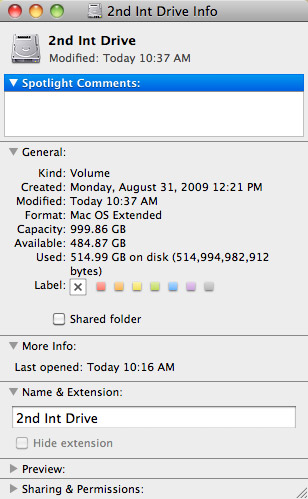
Type Command+I (or choose File > Get Info). This displays a wide variety of statistics about that hard disk. (My favorite is “Available,” which is always seems to disappear almost immediately.)
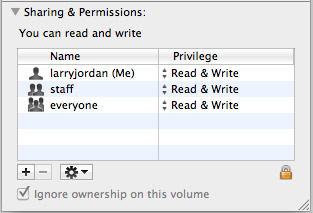
If it is closed, twirl open the Sharing and Permissions triangle and look toward the bottom. If “Ignore ownership on this volume” is checked, everything is fine.
However, if this is NOT checked, we need to change the setting.
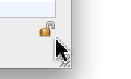
Click the lock and enter an administrator’s password to allow changes to this setting.

Then, check “Ignore Ownership on this volume” and close the window.
You only need to do this once for each of your data drives. Most of the time, this will be set correctly. But, for those instances where it isn’t, now you know how to fix it.

2,000 Video Training Titles
Edit smarter with Larry Jordan. Available in our store.
Access over 2,000 on-demand video editing courses. Become a member of our Video Training Library today!
Subscribe to Larry's FREE weekly newsletter and
save 10%
on your first purchase.

79 Responses to Mac OS: Turn Off Drive Ownership
← Older Comments Newer Comments →-
 Larry says:
April 11, 2018 at 12:20 pm
-
 Russ Reno says:
October 5, 2018 at 9:52 am
-
 Russ says:
October 5, 2018 at 10:01 am
-
 Larry says:
October 5, 2018 at 3:55 pm
-
 Crow says:
October 19, 2018 at 5:30 pm
-
 Tom Vandenberg Retired says:
October 30, 2018 at 8:56 am
-
 Ben says:
November 3, 2018 at 11:05 pm
-
 Ben says:
November 3, 2018 at 11:09 pm
-
 Todd says:
December 20, 2018 at 5:32 pm
-
 Larry says:
December 20, 2018 at 7:34 pm
← Older Comments Newer Comments →VJSpin3:
Well, not quite. It depends upon which version of the macOS you are running.
Larry
Sorry it took so long for me to respond. This is an ongoing issue with me. All in the name of “Security” apple keeps blocking manual file storage by linking the file to application, users and more. Bottom line I am looking for an override to export a file to an external drive and have it remain independent free of Apples control. This is so frustrating as I work with client data and wish to provide them with copies and I store manual copies of raw photo data that I do not want linked to any devise, user, server or network. How do I override? Please advise.
Currently I am working on RAW photos files attempting to make a hard disk back-up of this data. When you follow the above instructions – as I have. The disk is still overwritten by apples “security features”. It changes the date of the RAW media to reflect the date of the application that last used the media or the user that duplicated the media.
I can confirm this by searching for the file in Spotlight and comparing it to the file data on the drive. The drive is overwritten by Apple to reflect an incorrect “date created” Spotlight shows the same file with the correct date. The file has ALL permissions and the disk has “ignore ownership” I have done multiple permission updates and repair disk. Nothing is working it is still being overwritten by apple.
Russ.
I don’t have an answer. Please contact Apple support.
Larry
Russ…you seem to be one of those people who just hate Apple for nonsensical reasons, or for doing things you don’t understand. Apple does not “control” your files; nor do they link the files to a specific app, etc. They use a simple, tried-and-true system for establishing ownership of a file. Windows does, too – in a different way. There’s nothing malevolent going on. Apple isn’t overwriting anything. I imagine you have probably messed around with permissions and gotten yourself in over your head.
If it helps, there are four different dates that Apple keeps with a file’s metadata: file created, file modified, file added, and file last opened. Perhaps what you are looking at is a different date attribute.
You really have not explained what your problem even IS exactly. To get help, you need to supply info like: what machine you are using and the OS; what the drive is that you’re trying to copy to; the filesystem that the drive is formatted with; and what the actual problem is that you’re having!
Hi Matthew,
Would you be able to type the command line text here to accomplish that task? I tried the command in Terminal, and was put-off by the format of the command. Newbie fits me to a “T”
Thanks in advance,
Tom
Hey Russ, I think I have an idea on the trouble you’re having.
“It changes the date of the RAW media to reflect the date of the application that last used the media or the user that duplicated the media.”
This sounds to me like you’re confusing the ‘created date’ stamp with a ‘last modified date’ stamp. Most apps will add metadata to the file, so the file is updated and the newer date is shown. Check your finder window view preferences and see what’s showing. Sometimes folders view stuff differently to what’s specc’d by the parent.
“I can confirm this by searching for the file in Spotlight and comparing it to the file data on the drive. The drive is overwritten by Apple to reflect an incorrect “date created” Spotlight shows the same file with the correct date.”
This also sounds like your finder window us showing the modified date while spotlight is showing the created date. If you’re using Apple’s own tools like Photos, Apple does create multiple versions of the files if you modify the image in any way. So, you may be seeing one of the new files if it’s not a mixup between modified and created.
“The file has ALL permissions and the disk has “ignore ownership” I have done multiple permission updates and repair disk. Nothing is working it is still being overwritten by apple.”
I don’t think this has anything to do with permissions and security, this is all metadata based changes. Apple does do weird things with metadata, and it could be an app like Adobe Bridge that tags files as it caches them for display. If it was security/permissions related, you wouldn’t be able to access/view/read/save the file etc…
Maybe you need to keep an untouched RAW image in a separate folder that’s only use is to be copied somewhere else for editing/retouching? That way it’ll never be saved over intentionally by yourself. Or, perhaps just setup a test folder and go through your workflow to see what is actually changing the information, to give you a start on fixing the issue.
Cheers,
Ben
No there isn’t unfortunately. You’d need to eject the disk and then mount it before you do your backup – not a set-and-forget option.
You could always open your file from the finder instead, that would mean the OS wouldn’t spin-up the other drives.
Worked great thanks
Todd:
Yay! Thanks for letting us know.
Larry