
 This article was suggested by Robert Bagley, who was having problems storing files on a newly-acquired hard drive. Fixing his problem was simple – but not obvious. If this setting is incorrect on a new hard drive you just installed, you’ll have problems accessing files on that drive.
NOTE: This technique applies to, and works the same on, all versions of the Mac OS from 10.6 through 10.9.
Applications, and the boot disk, require permissions and ownership to be accurate and enabled to function properly. (A permission allows one application to “talk” with another application.) This is what we are repairing when we use Disk Utility to “Repair Permissions.”
NOTE: File servers, also, require permissions to keep track of which user has access to which file.
Drives that store data don’t use permissions and ownership. In fact, they shouldn’t use permissions. However, especially for new drives, permissions get turned on by accident for a data drive, which then prevents it from working properly.
Here’s how to turn off permissions on a hard drive or RAID.
BIG NOTE: This should NOT be done for the boot disk or server volumes. This SHOULD be done for all direct-connected drives that only store data.
Select a drive. (Remember, leave the boot disk alone.)
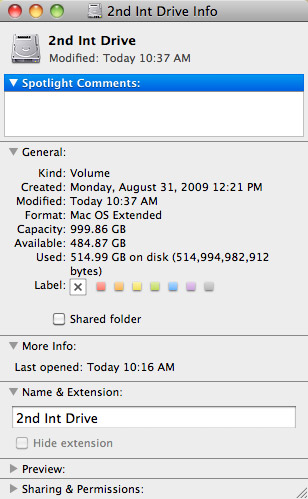
Type Command+I (or choose File > Get Info). This displays a wide variety of statistics about that hard disk. (My favorite is “Available,” which is always seems to disappear almost immediately.)
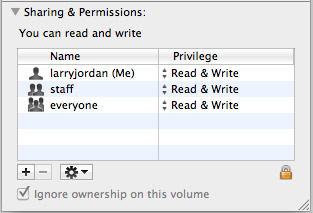
If it is closed, twirl open the Sharing and Permissions triangle and look toward the bottom. If “Ignore ownership on this volume” is checked, everything is fine.
However, if this is NOT checked, we need to change the setting.
Click the lock and enter an administrator’s password to allow changes to this setting.

Then, check “Ignore Ownership on this volume” and close the window.
You only need to do this once for each of your data drives. Most of the time, this will be set correctly. But, for those instances where it isn’t, now you know how to fix it.

2,000 Video Training Titles
Edit smarter with Larry Jordan. Available in our store.
Access over 2,000 on-demand video editing courses. Become a member of our Video Training Library today!
Subscribe to Larry's FREE weekly newsletter and
save 10%
on your first purchase.

79 Responses to Mac OS: Turn Off Drive Ownership
← Older Comments Newer Comments →-
 John says:
June 16, 2017 at 9:50 pm
-
 Larry says:
June 17, 2017 at 9:03 am
-
 Martyn Ford says:
July 24, 2017 at 4:05 pm
-
 Larry says:
July 25, 2017 at 12:54 am
-
 Karl says:
July 25, 2017 at 6:31 pm
-
 Larry says:
July 25, 2017 at 7:50 pm
-
 Terry Ward says:
December 2, 2017 at 3:20 pm
-
 Larry says:
December 2, 2017 at 5:31 pm
-
 Peter says:
December 3, 2017 at 9:14 pm
-
 Larry says:
December 3, 2017 at 9:17 pm
← Older Comments Newer Comments →If I do this with a USB drive and want to use it on different Mac OSX devices (all mine, same login, desktop and laptop), will this works.
I am thinking of securing the data by applying ownership to the drive. Does this make sense or should I use something else instead?
John:
Drive ownership doesn’t work the way you envision. It is more of an operating system routine designed around managing files on servers.
To secure your data you should look into encryption, or other ways to lock up a drive.
larry
Have an issue where ignore Drive permissions tick reverts after a day AUTOMAGICALLY on 10.12.4. Wish I could just install an earlier OS X and be done with it.
This would be a small problem except that this effects multiple people from multiple companies which means that this is costing serious loss in productivity.
Apples’ ultimate answer will be install OSx server but that just adds much more complexity to something that should be down right simple and easy.
But added complexities like permission masking, SIP and the fact Apple loves to hide everything out of sight makes fixing these things much more infuriating and unnecessarily complex.
Please escalate this as I have this issue on 2 sites now, 10 users.
Martin:
Drive ownership is an essential setting when you are running a system as a server. It can only be turned off for externally connected, non-boot drive that are not part of a network device.
I agree, servers add complexity, on the other hand, I’ve always used servers – even those driven by a MacMini or Network Attached Storage – for workgroups as large as yours.
Larry
I was hoping this post would address the problem I’ve been having. I’ve stopped using Time Machine and now just run Carbon Copy Cloner on files that actually _need_ backup.
I turned off TM and deleted the backups, but there’s still a _lot_ of missing space, and still growing; We’re up to 92.66 GB of a 1 TB drive–just gone. (No, it’s not CCC’s SafetyNet–I empty that once I’ve checked the backup.)
If I got another drive and had TM switch to that one, I’d just have another drive with missing space–and would that even fix the problem on this one? I’m stumped!
Karl:
You might try defragmenting your hard drive. The Mac creates lots of inivisble files – and defragging may help.
Larry
Thank you in advance.
Did exactly as per your instructions.
Closing the info pane reverts any changes.
Still receiving same message
‘The folder “LaCie” cannot be opened because you don’t have permission to see it’s contents’
Mac osx 10.6.3
Terry:
Hmmm…
Assuming there’s nothing wrong with the drive, or the OS…
Is the LaCie folder stored on your boot drive or an external device? Is the external device locally attached or on a server?
Boot drives and servers require special handling. A directly-attached external drive should work perfectly.
Larry
I recently moved my home folder and another users home folder from my macOS boot disk to an external HD to free up space on my boot disk. This was an easy process and it works fine, but now, I see that my user and the other users home directories are not protected as before. When I say not protected I mean I’m able to freely view and modify all folders and files in the other users home dir and vice versa. And per this link: https://support.apple.com/en-us/HT203538 I have already reset user permission after the home directories were moved. How can this be fixed? or is this the way it is because permissions are ignored on volumes other that the boot disk?
I’m sure I’m missing something fundamental with permissions so any insight appreciated.
Peter:
Home directories are ONLY protected when they are left inside your boot drive. Moving them to an external drive converts them into simple folders, accessible to anyone.
The only option would be to add encryption to the folder, which tends to slow performance greatly when accessing them. If you need them protected, you’ll need to move them back to their original location – or, more accurately, copy the files from the external drive into the new Home folder that macOS created when it couldn’t find the one that was there.
Larry