

IMPORTANT NOTE: Apple changed the behavior of compound clips with the 10.0.6 update. Here’s an article that describes the changes.
Final Cut Pro 7 calls it a “nest.” Final Cut Pro X calls it a “compound clip.” Whatever you call it, there are some real benefits in knowing how to use it.
A compound clip is simply a collection of clips gathered together and treated as though they were a single clip. There are several advantages to doing so:
There are two places you can create compound clips: in the Timeline or in the Event Browser. Let’s take a look at both.
IN THE TIMELINE
The principal benefits to creating a compound clip in the Timeline are to organize a complex edit or apply a common effect to a group of clips.
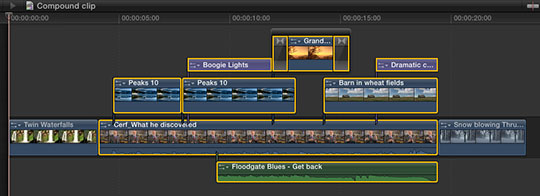
For instance, here, I want to consolidate all the selected clips into a single compound clip to simplify my edit. (OK, so this edit isn’t really that complex, my point here is to illustrate how this is done.)
To create a compound clip in the Timeline, select the clips you want to group together. One of the new features in FCP X is that you can create compound clips from clips that are not next to each other. In fact, they don’t even have to be on the same layer, nor contain the same types of clips!
NOTE: Compound clips can contain any combination of audio, video, titles, generators, still images or effects.

Choose File > New Compound Clip (or type Option+G) and all selected clips are coalesced into a single compound clip stored on a single layer.
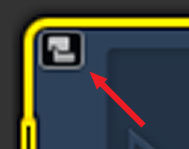
The “curved hands” logo – which Apple likens to a connected clip – is the symbol for a compound clip. This icon appears in the top left corner of all compound clips.
At this point, you have several options:
In other words, a compound clip acts just like a clip; except it contains a collection of clips.
ALL THIS — AND EDIT, TOO!
Yes, like all those Ronco commercials, you get all this — AND you can still edit the contents of a compound clip! (Sigh. Memo to self — cut back on late night TV.)
To open a compound clip for editing, including adding or removing clips or effects, simply double-click the compound clip in the Timeline.
Poof! Instant edit.
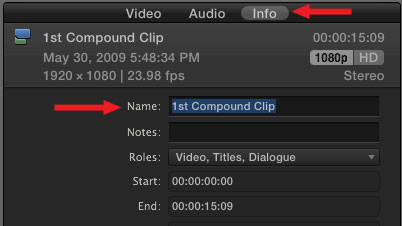
The default name of a compound clip is “Compound Clip.” Which is great if you only have one of them, however, it can become confusing as you add more.
To rename a compound clip, select it in the Timeline (or the Event Browser, but we haven’t talked about that yet). Then, go to the Info tab in the Inspector and change the name.
NOTE: You can’t rename a compound clip if you have opened it for editing in the Timeline. Compound clips need to be selected before being opened in order to be renamed.
THE TIMELINE HISTORY

As soon as you open a compound clip for editing, the Timeline History – top left corner of the Timeline – wakes up. This displays the path from the source project to the current compound clip.
For instance, in this example, I double-clicked from “Compound Project” into the “1st Compound Clip” which contained a second compound clip. When I double-clicked into this second clip, the path showed where I came from.
Click the left-pointing arrow to return back along the same path. Click the right-pointing arrow to go forward, deeper into the same compound clips. The Timeline History allows you to quickly navigate between projects and compound clips.
NOTE: These arrows also cycle you through recently opened projects.
IN THE EVENT BROWSER
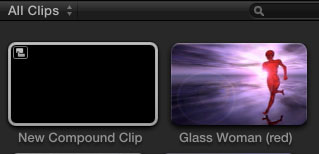
For me, while compound clips in the Timeline are useful, they show their real power when you first create them in the Event Browser
To create a compound clip in the Event Browser, make sure the Event Browser is selected, then choose File > New Compound Clip (or type Option+G).
This creates an empty compound clip. Double-click it to open it in the Timeline. Here’s the very cool part – compound clips that originate in the Event Browser act like individual projects! You can add clips, text, effects — everything you could put in a project, you can put into a compound clip!
What makes this REALLY helpful is that because the compound clip is stored in the Event Browser, you can use it in as many different projects as you want. For example, consider creating your opens, bumpers, or info-graphics as compound clips stored in the Event Browser.
Whenever you need them, you can instantly reuse them by editing the compound clip into the Timeline!
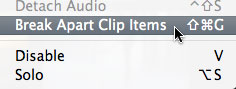
If you need to revert back to the original components of the compound clip – say to apply a different effect, change the text of a title, or add a new piece of video – simply select the compound clip and choose Clip > Break Apart Clip Items.
UPDATE – Jan. 9, 2012
I just did a quick check. If you create a compound clip in the Event Browser, then edit that compound clip into multiple projects – or multiple locations within a single project – if you change the compound clip in the Timeline it does not affect the master compound clip in the Event Browser, nor any other occurrence of that compound clip in any project.
This makes it easy to create a show open that you can modify each week for each show, without affecting previous projects.
UPDATE – Aug. 2013
This behavior changed with the 10.0.6 FCP X update. Now, if you modify a compound clip in the Timeline, it modifies all occurrences of that compound clip in the Project. The way to change one compound clip without changing all the others is to select the clip in the Timeline, and choose Clip > Reference New Parent Clip.
This duplicates the clip in the Event Browser. Rename and use the new duplicate clip. You can make as many changes to the duplicate clip as you want, without having those changes ripple back into the original clip.
SUMMARY
When I was first learning FCP X, I was concerned that it only allowed one project open at a time. However, the use of compound clips essentially allows us an unlimited number of “sub-projects,” all instantly available in the Event Browser – which can be shared inside the same project, or across multiple projects.
Very cool.
ADDITIONAL READING
Here are two other articles I’ve written on Compound Clips:

2,000 Video Training Titles
Edit smarter with Larry Jordan. Available in our store.
Access over 2,000 on-demand video editing courses. Become a member of our Video Training Library today!
Subscribe to Larry's FREE weekly newsletter and
save 10%
on your first purchase.

90 Responses to FCP X: Compound Clip Secrets
← Older Comments Newer Comments →-
 Larry Jordan says:
January 3, 2013 at 8:41 pm
-
 Kirby says:
January 4, 2013 at 4:26 am
-
 Darin says:
February 9, 2013 at 1:49 pm
-
 DebG. says:
February 11, 2013 at 12:28 am
-
 Karin Hougaard says:
February 19, 2013 at 3:52 pm
-
 Larry Jordan says:
February 19, 2013 at 6:21 pm
-
 Sam Lowe says:
February 22, 2013 at 11:48 am
-
 Tyler Clark says:
March 6, 2013 at 9:14 am
-
 M.J. says:
March 15, 2013 at 7:28 pm
-
 Larry Jordan says:
March 15, 2013 at 7:45 pm
← Older Comments Newer Comments →Kirby:
Apple changed the behavior of compound clips with the 10.0.6 update. If a clip doesn’t have the compound clip icon, then I suspect it isn’t a compound clip, but just a standard clip.
Which version of FCP X are you using?
Larry
Thanks — I am using 10.0.7, so that may explain it. They are all called “compound clips” and when I open them they each have numerous bits nested inside of them, but the bigger issue (as I see from the comments above, I am not alone) is that when I delete a section, the clips do not “snap” together, but instead insert black frames, making trimming the project all that more difficult. Thanks for the speedy response above!
Thank you JackM. This was driving me crazy. I need to use the same lower thirds compound clip with several different projects and only alter the name/titles. I can’t believe its such a hassle. Coming from Premiere Pro I was really surprised by this. Everytime I changed the name, it would change on all the projects. Bad programming in IMHO. I was losing hope until I found your post. Thanks!!
Could you just click on a compound clip in the event browser and duplicate it?
I’ve done that with multicam clips in the past.
Deborah
I have issues when I try to open compound clips on another computer. (with external HD duplicate) ..as if the clips are off line. What am I doing wrong?
Thanks
Karin
Karin:
It is possible the clips are, in fact, off-line. Opening a compound clip is easy – simply double-click it. If the media inside is missing, that is an indication the media is missing, not that the compound clip doesn’t work.
Larry
Last night I completed my final trims on a project, and began color grading. I made a compound clip of a series of cuts on the same clip, in order to color grade them simultaneously. Everything was great. I waited ’til the render was done, previewed, liked what I saw, quit FCPX 10.0.6, and went to bed. This morning, I wake up, and that compound clip shows the dreaded red screen for “missing clips.” (It’s actually just one clip with multiple cuts.”
Here’s the perplexing part: nothing shows missing in the event browser; no little yellow triangles, However, when I select “Reveal in event browser” on the compound clip in the timeline, it’s not there. When I double click on the compound clip, nothing expands. When I check Modify Event References, however, it says there’s “1 missing clip” in one of the events — but again, when I look at that event in the Browser, all’s in order. I can see the original clip there…it’s not missing.
I could easily re-cut this, but I need to understand what’s happening. Help?
Having the same problem as Sam Lowe any thoughts?
A year later… have they changed things for the worse?
I’m editing a compound clip in the timeline and every time I mess with it (via “Open in Timeline”) it alters the source compound clip in the Event Browser. And yet it will not let me duplicate it ! Or make another compound clip (same idea, make a copy)–the new one, if you open in timeline, merely contains the old compound clip. You can’t see any dynamic changes you made to it (my original complaint about this “feature”).
For that matter, I have another compound clip in a project… moved that project to another drive with the same events (which have identical contents) on it, but it will not under any circumstances re-link to the source material on that drive.
??
M.J.
Apple changed the behavior of compound clips with the 10.0.6 update to FCP X.
Now, if you change a compound clip, those changes are reflected in all iterations of the compound clip. To prevent that, select the compound clip and choose Clip > Reference New Parent Clip.
This copies the compound clip to a new “parent,” which means you can make changes to it, without those changes affecting any other compound clip.
Larry