
IMPORTANT NOTE: Apple changed the behavior of compound clips with the 10.0.6 update. Here’s an article that describes the changes.
Final Cut Pro 7 calls it a “nest.” Final Cut Pro X calls it a “compound clip.” Whatever you call it, there are some real benefits in knowing how to use it.
A compound clip is simply a collection of clips gathered together and treated as though they were a single clip. There are several advantages to doing so:
There are two places you can create compound clips: in the Timeline or in the Event Browser. Let’s take a look at both.
IN THE TIMELINE
The principal benefits to creating a compound clip in the Timeline are to organize a complex edit or apply a common effect to a group of clips.
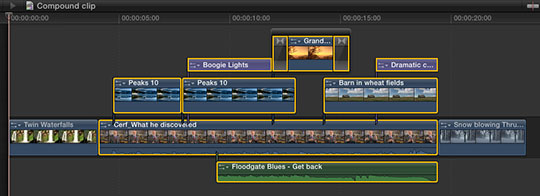
For instance, here, I want to consolidate all the selected clips into a single compound clip to simplify my edit. (OK, so this edit isn’t really that complex, my point here is to illustrate how this is done.)
To create a compound clip in the Timeline, select the clips you want to group together. One of the new features in FCP X is that you can create compound clips from clips that are not next to each other. In fact, they don’t even have to be on the same layer, nor contain the same types of clips!
NOTE: Compound clips can contain any combination of audio, video, titles, generators, still images or effects.

Choose File > New Compound Clip (or type Option+G) and all selected clips are coalesced into a single compound clip stored on a single layer.
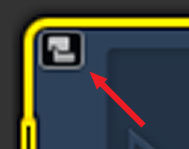
The “curved hands” logo – which Apple likens to a connected clip – is the symbol for a compound clip. This icon appears in the top left corner of all compound clips.
At this point, you have several options:
In other words, a compound clip acts just like a clip; except it contains a collection of clips.
ALL THIS — AND EDIT, TOO!
Yes, like all those Ronco commercials, you get all this — AND you can still edit the contents of a compound clip! (Sigh. Memo to self — cut back on late night TV.)
To open a compound clip for editing, including adding or removing clips or effects, simply double-click the compound clip in the Timeline.
Poof! Instant edit.
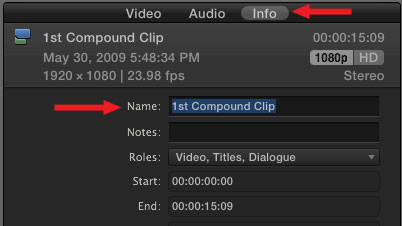
The default name of a compound clip is “Compound Clip.” Which is great if you only have one of them, however, it can become confusing as you add more.
To rename a compound clip, select it in the Timeline (or the Event Browser, but we haven’t talked about that yet). Then, go to the Info tab in the Inspector and change the name.
NOTE: You can’t rename a compound clip if you have opened it for editing in the Timeline. Compound clips need to be selected before being opened in order to be renamed.
THE TIMELINE HISTORY

As soon as you open a compound clip for editing, the Timeline History – top left corner of the Timeline – wakes up. This displays the path from the source project to the current compound clip.
For instance, in this example, I double-clicked from “Compound Project” into the “1st Compound Clip” which contained a second compound clip. When I double-clicked into this second clip, the path showed where I came from.
Click the left-pointing arrow to return back along the same path. Click the right-pointing arrow to go forward, deeper into the same compound clips. The Timeline History allows you to quickly navigate between projects and compound clips.
NOTE: These arrows also cycle you through recently opened projects.
IN THE EVENT BROWSER
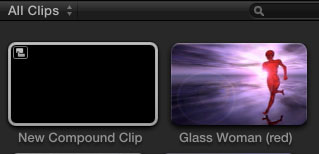
For me, while compound clips in the Timeline are useful, they show their real power when you first create them in the Event Browser
To create a compound clip in the Event Browser, make sure the Event Browser is selected, then choose File > New Compound Clip (or type Option+G).
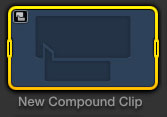
This creates an empty compound clip. Double-click it to open it in the Timeline. Here’s the very cool part – compound clips that originate in the Event Browser act like individual projects! You can add clips, text, effects — everything you could put in a project, you can put into a compound clip!
What makes this REALLY helpful is that because the compound clip is stored in the Event Browser, you can use it in as many different projects as you want. For example, consider creating your opens, bumpers, or info-graphics as compound clips stored in the Event Browser.
Whenever you need them, you can instantly reuse them by editing the compound clip into the Timeline!
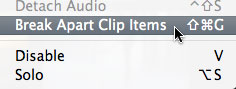
If you need to revert back to the original components of the compound clip – say to apply a different effect, change the text of a title, or add a new piece of video – simply select the compound clip and choose Clip > Break Apart Clip Items.
UPDATE – Jan. 9, 2012
I just did a quick check. If you create a compound clip in the Event Browser, then edit that compound clip into multiple projects – or multiple locations within a single project – if you change the compound clip in the Timeline it does not affect the master compound clip in the Event Browser, nor any other occurrence of that compound clip in any project.
This makes it easy to create a show open that you can modify each week for each show, without affecting previous projects.
UPDATE – Aug. 2013
This behavior changed with the 10.0.6 FCP X update. Now, if you modify a compound clip in the Timeline, it modifies all occurrences of that compound clip in the Project. The way to change one compound clip without changing all the others is to select the clip in the Timeline, and choose Clip > Reference New Parent Clip.
This duplicates the clip in the Event Browser. Rename and use the new duplicate clip. You can make as many changes to the duplicate clip as you want, without having those changes ripple back into the original clip.
SUMMARY
When I was first learning FCP X, I was concerned that it only allowed one project open at a time. However, the use of compound clips essentially allows us an unlimited number of “sub-projects,” all instantly available in the Event Browser – which can be shared inside the same project, or across multiple projects.
Very cool.
ADDITIONAL READING
Here are two other articles I’ve written on Compound Clips:

2,000 Video Training Titles
Edit smarter with Larry Jordan. Available in our store.
Access over 2,000 on-demand video editing courses. Become a member of our Video Training Library today!
Subscribe to Larry's FREE weekly newsletter and
save 10%
on your first purchase.

90 Responses to FCP X: Compound Clip Secrets
← Older Comments Newer Comments →-
 M.J. says:
March 15, 2013 at 9:15 pm
-
 Dale says:
April 26, 2013 at 11:04 am
-
 Dale says:
April 26, 2013 at 11:05 am
-
 Dale says:
May 3, 2013 at 9:11 pm
-
 M.J. says:
May 5, 2013 at 5:43 pm
-
 Larry Jordan says:
May 5, 2013 at 6:02 pm
-
 M.J. says:
May 6, 2013 at 2:45 pm
-
 thinayr says:
May 7, 2013 at 7:53 pm
-
 Dale says:
May 15, 2013 at 3:59 am
-
 Dale says:
May 15, 2013 at 4:03 am
← Older Comments Newer Comments →Thanks for your reply. In the first case, which was audio only, I just copied the clip in the timeline (took some doing to keep it off the main storyline), broke it apart and left it that way. Feh, compound clips.
The 2nd example is the more important and infuriating. The source compound clip is sitting right there in the event on the new drive, exactly the same. When looking at that piece of the clip as positioned in the timeline (more than once, as it happens), the inspector will not show/give an option to modify or even see the component event files, so you get the red clip of death. It should be a very simple matter of re-referencing, and that’s all.
Go to this red timeline-compound-clip and right-click to Open in Timeline… beep. Reveal in Event Browser… beep.
Silliness.
Same issue here.
When sharing a project, compounds become offline and can not be opened using all methods know to fcpx.
Also, had to recently go back to a backup of a project do to a bad event database, all my edits that were finished were in compounds rather then projects as many editors suggested. All media is there except the compounds. So in turn, all edits are lost. Does this mean I should just start keeping a pile of projects around again?
And, I use to find CC’s as a great way to keep graphic treatments and lower thirds around for future use. But again, they end up being offline and unusable…even if I have all the media!
Any thoughts? This new fashion of CC’s is great in many ways, but having the old CC’s with the option of the new CC’s would be great!!!
Oops, forgot to add! Thanks for all the help!! This site has become a great resource for me.
The only thing I see as somewhat of a solution…what I’m guessing was apples implementation to make it work is the ability to duplicate a project, but include media. Then select “compound clips only and create a new event”. Not ideal, but it does allow those pesky compounds to be shared between suites. Then just move the CCs to the event you wish.
New item. Say you put an effect on a compound clip. The compound clip contains the same raw footage as the plain clip.
Looks different.
NO amount of tweaking gets them to look exactly the same!
In this case it’s the Teal & Orange effect. There was a little mild exposure correction applied to the footage inside the compound clip but this doesn’t explain to me why on the plain clip there would be more blue overall OR why, to another compound clip, I have to *add* blue to get close to the original look. Flesh tones are wildly all over the map.
Another weird thing is this T&O effect–only when applied to a compound clip–seems to cap the top and bottom luma values, even if they’re nowhere near 0 or 100 on the scope.
I thought it would be easy to get the same look by either having identical color-correct values inside the compound clip but flattening the color correction values “at the surface” (for the instance of the clip in the timeline), or vice-versa. But no.
???
Interesting – I will have to take a look at this. What version of FCP X are you running?
Larry
10.0.8
This is a great article and a great comment thread.
I just went back into a big project I had started before the 10.0.6 update to find that in was heinously fuggered.
I was using titles from MotionVFX and had retimed them for my needs by creating compound clips out of the title generators and applying time stretches to them using the Retime, Rangetool, Shift N, Stretchy work flow (know what I mean?).
Anywhere I had done this with the pre 10.0.6 compound clips it was jackered. I had to go back through and rebuild/retime all my titles. Major headache. Goodthing I’m paid by the hour… ^_^
For anyone who’s having problems with titles nested in compound clips that have been retimed… The only solution I have found is to re-compound clip the old ones and re-apply time stretching. Just thought I’d share since this has been 2 days of troubleshooting : (
Hi,
Select your compound clip, then in the menu bar choose reference new parent clip. The compound will be duplicated and will have “copy” added to the end. Make sure when you go to make changes that you are in fact working on the new compound. Your timeline will display which CC you are working on.
Sorry, this was assuming you have used a compound clip to nest your title elements. If you haven’t done that, option + g will prompt you to make a compound clip and which event to save it in. I often create a separate event to graphics and such. Compound clips, while are amazing and necessary for most edits, they really have some quirks, so read up on them.