
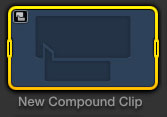
IMPORTANT NOTE: Apple changed the behavior of compound clips with the 10.0.6 update. Here’s an article that describes the changes.
Final Cut Pro 7 calls it a “nest.” Final Cut Pro X calls it a “compound clip.” Whatever you call it, there are some real benefits in knowing how to use it.
A compound clip is simply a collection of clips gathered together and treated as though they were a single clip. There are several advantages to doing so:
There are two places you can create compound clips: in the Timeline or in the Event Browser. Let’s take a look at both.
IN THE TIMELINE
The principal benefits to creating a compound clip in the Timeline are to organize a complex edit or apply a common effect to a group of clips.
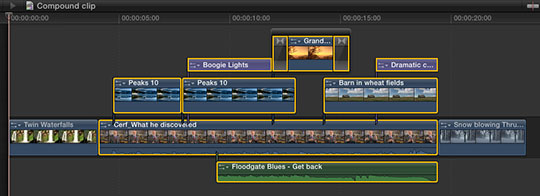
For instance, here, I want to consolidate all the selected clips into a single compound clip to simplify my edit. (OK, so this edit isn’t really that complex, my point here is to illustrate how this is done.)
To create a compound clip in the Timeline, select the clips you want to group together. One of the new features in FCP X is that you can create compound clips from clips that are not next to each other. In fact, they don’t even have to be on the same layer, nor contain the same types of clips!
NOTE: Compound clips can contain any combination of audio, video, titles, generators, still images or effects.

Choose File > New Compound Clip (or type Option+G) and all selected clips are coalesced into a single compound clip stored on a single layer.
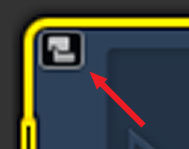
The “curved hands” logo – which Apple likens to a connected clip – is the symbol for a compound clip. This icon appears in the top left corner of all compound clips.
At this point, you have several options:
In other words, a compound clip acts just like a clip; except it contains a collection of clips.
ALL THIS — AND EDIT, TOO!
Yes, like all those Ronco commercials, you get all this — AND you can still edit the contents of a compound clip! (Sigh. Memo to self — cut back on late night TV.)
To open a compound clip for editing, including adding or removing clips or effects, simply double-click the compound clip in the Timeline.
Poof! Instant edit.
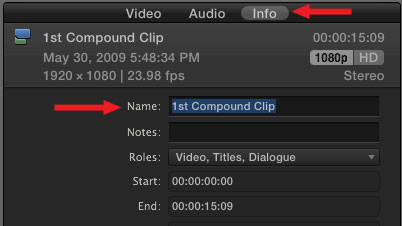
The default name of a compound clip is “Compound Clip.” Which is great if you only have one of them, however, it can become confusing as you add more.
To rename a compound clip, select it in the Timeline (or the Event Browser, but we haven’t talked about that yet). Then, go to the Info tab in the Inspector and change the name.
NOTE: You can’t rename a compound clip if you have opened it for editing in the Timeline. Compound clips need to be selected before being opened in order to be renamed.
THE TIMELINE HISTORY

As soon as you open a compound clip for editing, the Timeline History – top left corner of the Timeline – wakes up. This displays the path from the source project to the current compound clip.
For instance, in this example, I double-clicked from “Compound Project” into the “1st Compound Clip” which contained a second compound clip. When I double-clicked into this second clip, the path showed where I came from.
Click the left-pointing arrow to return back along the same path. Click the right-pointing arrow to go forward, deeper into the same compound clips. The Timeline History allows you to quickly navigate between projects and compound clips.
NOTE: These arrows also cycle you through recently opened projects.
IN THE EVENT BROWSER
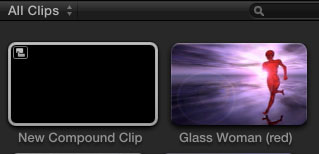
For me, while compound clips in the Timeline are useful, they show their real power when you first create them in the Event Browser
To create a compound clip in the Event Browser, make sure the Event Browser is selected, then choose File > New Compound Clip (or type Option+G).
This creates an empty compound clip. Double-click it to open it in the Timeline. Here’s the very cool part – compound clips that originate in the Event Browser act like individual projects! You can add clips, text, effects — everything you could put in a project, you can put into a compound clip!
What makes this REALLY helpful is that because the compound clip is stored in the Event Browser, you can use it in as many different projects as you want. For example, consider creating your opens, bumpers, or info-graphics as compound clips stored in the Event Browser.
Whenever you need them, you can instantly reuse them by editing the compound clip into the Timeline!
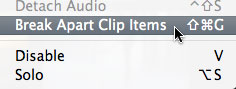
If you need to revert back to the original components of the compound clip – say to apply a different effect, change the text of a title, or add a new piece of video – simply select the compound clip and choose Clip > Break Apart Clip Items.
UPDATE – Jan. 9, 2012
I just did a quick check. If you create a compound clip in the Event Browser, then edit that compound clip into multiple projects – or multiple locations within a single project – if you change the compound clip in the Timeline it does not affect the master compound clip in the Event Browser, nor any other occurrence of that compound clip in any project.
This makes it easy to create a show open that you can modify each week for each show, without affecting previous projects.
UPDATE – Aug. 2013
This behavior changed with the 10.0.6 FCP X update. Now, if you modify a compound clip in the Timeline, it modifies all occurrences of that compound clip in the Project. The way to change one compound clip without changing all the others is to select the clip in the Timeline, and choose Clip > Reference New Parent Clip.
This duplicates the clip in the Event Browser. Rename and use the new duplicate clip. You can make as many changes to the duplicate clip as you want, without having those changes ripple back into the original clip.
SUMMARY
When I was first learning FCP X, I was concerned that it only allowed one project open at a time. However, the use of compound clips essentially allows us an unlimited number of “sub-projects,” all instantly available in the Event Browser – which can be shared inside the same project, or across multiple projects.
Very cool.
ADDITIONAL READING
Here are two other articles I’ve written on Compound Clips:

2,000 Video Training Titles
Edit smarter with Larry Jordan. Available in our store.
Access over 2,000 on-demand video editing courses. Become a member of our Video Training Library today!
Subscribe to Larry's FREE weekly newsletter and
save 10%
on your first purchase.

90 Responses to FCP X: Compound Clip Secrets
← Older Comments Newer Comments →-
 Chris says:
September 3, 2012 at 12:48 pm
-
 Larry Jordan says:
September 3, 2012 at 1:37 pm
-
 Bill Parker says:
November 9, 2012 at 2:37 pm
-
 Mike says:
November 30, 2012 at 6:02 am
-
 Larry Jordan says:
November 30, 2012 at 9:58 am
-
 DebG. says:
November 30, 2012 at 1:15 pm
-
 JackM. says:
December 19, 2012 at 11:35 am
-
 Kate says:
January 3, 2013 at 2:44 pm
-
 Kirby says:
January 3, 2013 at 6:46 pm
-
 Larry Jordan says:
January 3, 2013 at 8:39 pm
← Older Comments Newer Comments →So I created the Compounds by choosing Option + G with selected clips already in my timeline. Apparently, creating them that way doesn’t list them in the Event Browser, which is where they need to exist to show up in filtered Collections. Meh…
Chris:
Correct. In order for clips to show up in the Event Browser they need to be created in the Event Browser. (Its a factor of two different databases drive FCP X – one for Events (media) and one for Projects (edits).
The easiest workaround is to create open your compound clip in the Timeline and select everything. Then, create a new compound clip in the Event Browser. Open it in the Timeline and paste all your copied clips.
Now, you can display that Compound clip in the Event Browser and use it in searches.
Larry
Hi. I have been frustrated by the difficulty in labeling favorites and not having them appear labeled as thumbnails in the browser. I do a lot of interviews and log this way. I worked around it by making all of my selects into compound clips and then labeling them. They now appear labeled in the browser – both in list view and thumbnail – as well on the timeline. Very convenient. However, I was told it was bad to have too many compound clips within compound clips and that it will slow down my system. I’ve seen little evidence of that so far, but it’s early in the edit. I have about 60 clips that I will be working with and they are all now compound clips rather than favorites. Is this a bad idea?
Hi Larry, I’m not sure if this was a 10.0.6 change but when you create a compound clip in the timeline it adds to the current event. I also noticed if you add the compound clip to a project and edit it, the original compound clip is updated. Is that the same result you are seeing. In Jan 9th update you indicated a compound clip can be added from the event browser to another project and edited without updating the original compound clip. Wondering if compound clips are reacting different when created in event vs timeline. My Test: added 3 clips to a new project and created a compound clip. created a new project and added the compound clip. Removed one of the clips in the compound clip. Result – the original compound clip was missing the clip I deleted and the deleted clip was replaced with black frames. Thanks Mike
Mike:
Yes, Compound clip behavior changed significantly with the 10.0.6 release.
1. Compound clips are always added to the Event Browser for the current Event regardless of where they are created.
2. Changes to a compound clip are reflected universally. If you need to change a Compound clip without having those changes ripple through all other Compound clips, you need to make that Compound clip independent.
Larry
So… how do you “you need to make that Compound clip independent” Larry?
Thanks for all the info on compound clips!
Deborah
I’m not sure if you need some help with this still or not, but I found an answer!
If you open up your clip in timeline (the compound clip that you have selected), you should see the components of the clip. Copy all of the clips that make up the compound to your clipboard, and then go File -> New Event, File -> New Project. Paste the components of the compound into this new event/project, edit, then turn into a compound clip (select all of the clips, right click -> make new compound clip). This new compound clip is unique from the original, however if you plan on editing further you’ll need to repeat the process over and over again.
Afterwards, move the compound clips to the event/project that you are working on and you can delete the temporary event/project. You might be able to get away with this just by creating a new project, but I haven’t tried that out yet.
Hope this helps!
-J
Hi Larry,
I am editing a multi cam and takes of different lengths are killing me, because I need to use the sound from only one of the tracks, I have to use multicam. WIll compounding the clips and the separating them into smaller clips of equal lengths allow me to create uniform mulitcam clips? I am tearing my hair out. I have your course, but I realize this question is very specific.
Any help appreciated! Thanks!
Kate
Larry,
I’m doing touch up work on someone else’s project, and having issues with their compound clips. For one, although they are called “compound clip,” they don’t have the logo in the corner, and double-clicking won’t open them (I have to right-clip>open in timeline). The issue is that if I open them in the timeline and edit them, the edits appear, but if I try and delete a section of the compound clip, when I return to the final project, that section is black, instead of snapping together like FCX usually does. Any solutions?
Thanks a million.
Kate:
Don’t lose your hair!
The latest version of FCP X (10.0.7) now supports taking audio from one channel, which using video from multiple clips. Read this article: http://www.larryjordan.biz/fcpx-multichannel-audio-editing/
Also, my latest webinar covers this in detail: http://www.larryjordan.biz/app_bin/Store/catalog/product_info.php?products_id=311
Larry