
 Sometimes, when you are shooting SD (standard-definition) video, you set the camera menu to shoot an aspect ratio of 16:9, but the camera isn’t paying attention, so it records the video as 4:3. (This can also happen when shooting 2K 4:3 with the Arri Alexa.)
The result is that your video looks squished.

NOTE: The opposite can also happen, where video that’s supposed to be 4:3 is recorded as 16:9. For example, in the screen shot above, the earth looks “stretched,” because the aspect ratio is wrong.
This problem is easy to fix, but not easy to find. Here’s how.
CORRECT THE ASPECT RATIO
Select the clip, or clips, that you want to correct in either the Browser or the Timeline.
Open the Inspector (Cmd+4) and click the Info tab.
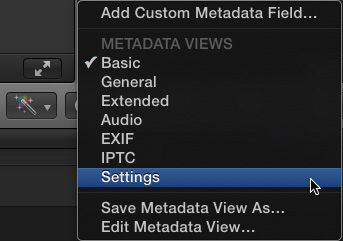
In the lower left corner of the Inspector, change the popup menu to Settings.
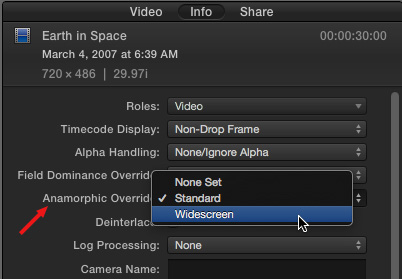
Then, in the Settings window, change the Anamorphic Override from None Set to Standard, if you want to display the selected clips in a 4:3 aspect ratio, or Widescreeen, if you want to display the clips in a 16:9 aspect ratio.

Here’s the earth, displayed at the correct aspect ratio for this clip, which is 4:3.
SUMMARY
The Anamorphic Override does not appear for HD clips, as HD is always 16:9. However, for SD clips that display incorrect aspect ratios, this is a very fast way to fix it without damaging image quality.

2,000 Video Training Titles
Edit smarter with Larry Jordan. Available in our store.
Access over 2,000 on-demand video editing courses. Become a member of our Video Training Library today!
Subscribe to Larry's FREE weekly newsletter and
save 10%
on your first purchase.

24 Responses to FCP X: Reset an Incorrect Aspect Ratio
Newer Comments →-
 Tom Wolsky says:
October 19, 2015 at 8:12 am
-
 Gretta Wing Miller says:
October 19, 2015 at 3:52 pm
-
 Chris says:
December 18, 2017 at 12:06 pm
-
 Larry says:
December 18, 2017 at 12:11 pm
-
 Meagan Cignoli says:
February 11, 2018 at 11:43 am
-
 Larry says:
February 11, 2018 at 1:21 pm
-
 Joshua says:
March 3, 2018 at 10:17 am
-
 skyler says:
June 14, 2018 at 11:17 am
-
 Larry says:
June 14, 2018 at 11:40 am
-
 Tommy says:
November 21, 2018 at 1:29 pm
Newer Comments →One problem that does occur sometimes that is FCP might not read 1140×1080 correctly, and then there is no anamorphic popup. Also video that 960×720 presents a problem. It’s always read as the Panasonic anamorphic 720p format. There is no popup to change 960×720 from widecreen.
Yes: that 960 problem! What is the math for that? I had a bunch of them in a recent phone video project, and I just Shift-dragged transform until it looked normal. Is there somewhere to see the frame size? Above window shows percentage.
well since the update that SPECIFIC field is missing. now I can’t find ANYWHERE to change the aspect ratio and it really drives me CRAZY that final cut feels the need to change an aspect ratio when it has not been told to do so. WHERE IS IT NOW???
Chris:
Um, deep breath. It’s still there. In the same spot: Info Inspector > Settings > Anamorphic Override.
Email me directly if you want me to send you a screen shot.
Larry
no its not there. thats the only setting that is different on mine, anamorphic doesnt even exist.
Meagan:
At first blush, I thought you were correct, as I could not get it to appear either. However, after additional research I learned that:
* The setting needs to be enabled – it is off by default – as outlined in this article.
* Then, it STILL won’t appear unless you also select a clip, such as a 4:3 or 16:9 SD video, that has the possibility of being stretched or squeezed accidentally.
It is this last step that, I suspect, you are missing. When I select an HD clip, this Inspector option does not appear. When I select an SD clip, this option DOES appear – provided, as I mentioned, that the setting is enabled in the Edit Metadata window.
So, if you are not seeing this when you select a clip, then this is a clip who’s aspect ratio can’t be altered using this menu.
Thanks, this was a really good question.
Larry
Right click on one of your libraries and select new project. A window should come up with options to custom set the aspect ratio/ resolution and audio and render properties. For the aspect ratio, select from one of the options or type in a custom value. A new timestream with the aspect ratio settings you set should pop up linked to your new project. Opening or copying any media into this timestream will not necessarily automatically change the video file to the aspect ratio. Using the transform tool in the video tab of your inspector (the square box next to the video view), you can resize the clip to the size of the screen.. Then you can right click on the file to make a new compound clip and that will change the resolution to your settings (e.g 1080p, 720p, etc.). That should work and is the only way o knows to do it on Final Cut Pro X without the anamorphic override feature.
Wow, some insanely complicated process to accomplish something very basic, still not accomplished. And no, the process for enabling settings is not outlined in the article. FCPX is one heck of a butchered application.
Skyler:
Smile… Three steps does not seem to me to be “insanely complicated.” And the Settings option in the lower left corner of the Info Inspector has been there since FCP X’s initial release.
Larry
Very new to FCP X and may be misinterpreting this….I started editing a video and wanted to use some clips shot in portrait mode (vertically). Of course, I got the black bars either side. Trying spacial conform, crop etc to fill the frame but this seems impossible without distortion or cropping in and losing half the image. Is there a fix for this?