
 Sometimes, when you are shooting SD (standard-definition) video, you set the camera menu to shoot an aspect ratio of 16:9, but the camera isn’t paying attention, so it records the video as 4:3. (This can also happen when shooting 2K 4:3 with the Arri Alexa.)
The result is that your video looks squished.

NOTE: The opposite can also happen, where video that’s supposed to be 4:3 is recorded as 16:9. For example, in the screen shot above, the earth looks “stretched,” because the aspect ratio is wrong.
This problem is easy to fix, but not easy to find. Here’s how.
CORRECT THE ASPECT RATIO
Select the clip, or clips, that you want to correct in either the Browser or the Timeline.
Open the Inspector (Cmd+4) and click the Info tab.
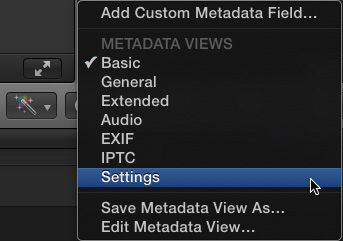
In the lower left corner of the Inspector, change the popup menu to Settings.
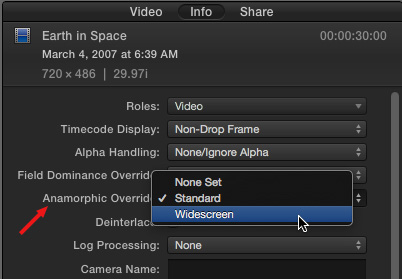
Then, in the Settings window, change the Anamorphic Override from None Set to Standard, if you want to display the selected clips in a 4:3 aspect ratio, or Widescreeen, if you want to display the clips in a 16:9 aspect ratio.

Here’s the earth, displayed at the correct aspect ratio for this clip, which is 4:3.
SUMMARY
The Anamorphic Override does not appear for HD clips, as HD is always 16:9. However, for SD clips that display incorrect aspect ratios, this is a very fast way to fix it without damaging image quality.

2,000 Video Training Titles
Edit smarter with Larry Jordan. Available in our store.
Access over 2,000 on-demand video editing courses. Become a member of our Video Training Library today!
Subscribe to Larry's FREE weekly newsletter and
save 10%
on your first purchase.

24 Responses to FCP X: Reset an Incorrect Aspect Ratio
← Older Comments-
 Larry says:
August 23, 2020 at 9:22 am
-
 Robert says:
September 18, 2020 at 6:50 am
-
 Larry says:
September 18, 2020 at 7:12 am
-
 Ryno says:
October 9, 2020 at 12:21 am
← Older CommentsJanelle:
The option is still there – as described in this article. I just checked using FCP X 10.4.8.
The KEY is this only appears for standard definition clips, and, potentially, some HDV. HD, by default, shoots a 16:9 aspect ratio, which means this option doesn’t apply or appear.
Larry
Hello Larry want to say I enjoyed learning FCPX from your Creative Live presentation best money spent. I do have a question. When placing images shot from my Canon 5D markII What is the best aspect ratio and overall image size to obtain the clearest looking image for our photography videos. Thank you and CHEERS from Canada.
Robert:
Like all things in tech: “It depends..”
“Normal” video uses an aspect ratio of 16:9, vertical video uses an aspect ratio of 9:16.
The “clearest” image is one displayed at 100% – however most DSLR cameras shoot more pixels than a typical video image. So, you can retain clarity either by scaling the image smaller, or cropping the edges, depending upon how you want to adjust the framing.
Image size is dependent upon the video project you create: 1280 x 720, 1920 x 1080 or 3840 x 2160. These numbers are fixed in a video format.
Larry
Thank you Joshua. This was the only way I could make it work. Nov 2020