
 [IMPORTANT NOTE: With the release of the 10.1 update to Final Cut Pro X, I released all new training that covers both new and old features. I encourage you to buy this, or become a subscriber, because it will help you learn the new software quickly. Click here to learn more.]
Since the release of Final Cut Pro X 10.1 a couple of days ago, my email has exploded with questions – and, it probably won’t surprise anyone to learn that media management is number one on the list. So here are the answers to common questions, along with some “secret tips” that make working with libraries easier. This is the first of four articles on media management. The others are:
NOTE: Here is a very important article on updating media, events, and projects from earlier versions of Final Cut Pro X. Please read this before you update.
Apple has also provided additional resources in two white papers:
And here is a video webinar that illustrates these, and more, media management techniques for Final Cut Pro X.
DEFINITIONS
A Library is a container that holds media, events, and projects. You can have an unlimited number of libraries open at once and you can open and close libraries as needed. Final Cut requires a minimum of one library to be open at all times.
NOTE: Even though computers are using faster SSD and Fusion drives, I still recommend that libraries and media be stored on a fast second drive or RAID. In my case, I store all my libraries on an attached Thunderbolt RAID.
Events are folders that are contained inside libraries. A library must contain at least one event. There is no limit to the number of events that can be contained in one library. The easiest way to to think of an event is that it is a folder, or bin, that stores stuff.
NOTE: In earlier versions of Final Cut Pro X, there was a limit of about 2,000 clips that could be stored in an event. That limit was, essentially, removed.
Projects are the instructions on how to edit our clips; they are now analogous to sequences in Final Cut Pro 7. (Here’s an article that explains how to manage projects.)
Media is stored in libraries, or referenced by libraries, and can be moved or copied between projects, events, or libraries.
WORKING WITH LIBRARIES
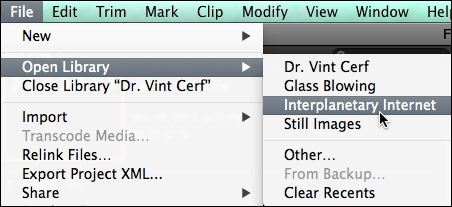
To open a library, select File > Open Library and select from the recent library list.
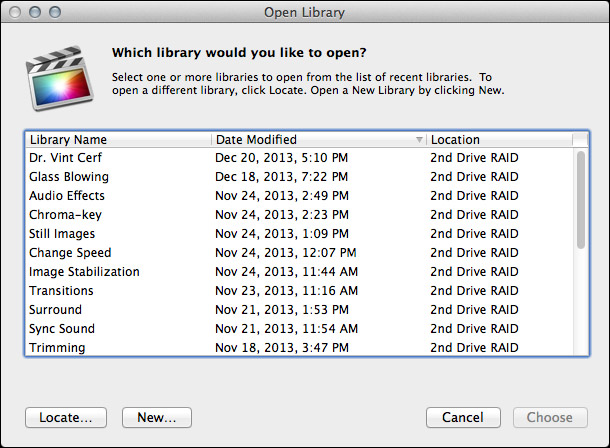
To open a library that isn’t on the list, select File > Open Library > Other. This displays a list of all the libraries that Final Cut knows about.
To open a library that you know exists, but Final Cut does not display in its list of libraries, click the Locate button in the bottom left corner. Select the library you want to open from the File Picker window that appears.
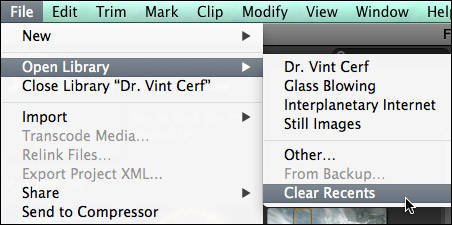
To clear the list of recently opened libraries, select File > Open Library > Clear Recents. This list repopulates based on the libraries that you either reopen or create.
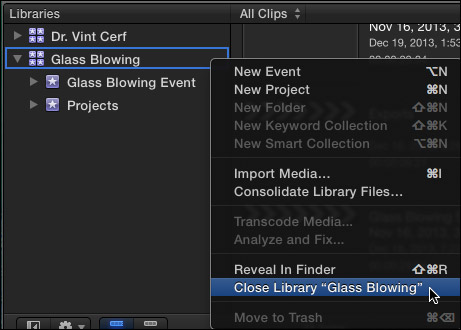
To close a library, select the library you want to close, then do one of the following:
SECRET LIBRARY TIPS
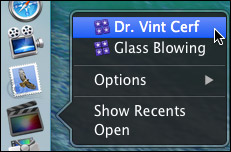
To open Final Cut with a specific library selected, right-click the Final Cut icon in the dock and select the library you want selected after FCP opens.
NOTE: All other open libraries will also open when you use this tip.
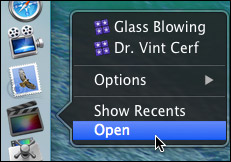
To open Final Cut with ONLY one library open, regardless of how many libraries were open when you last quit Final Cut, press and hold the Option key as FCP opens. Then, select the library you want to open from the list.
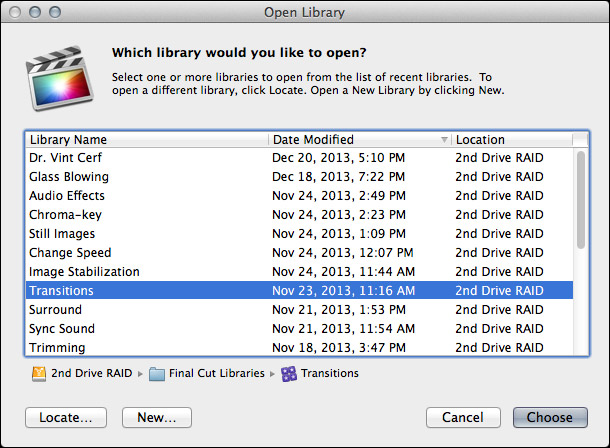
NOTE: You can not close the last remaining open library inside Final Cut. To close a library that you no longer want, open a different library, so that there is always one open library in FCP.
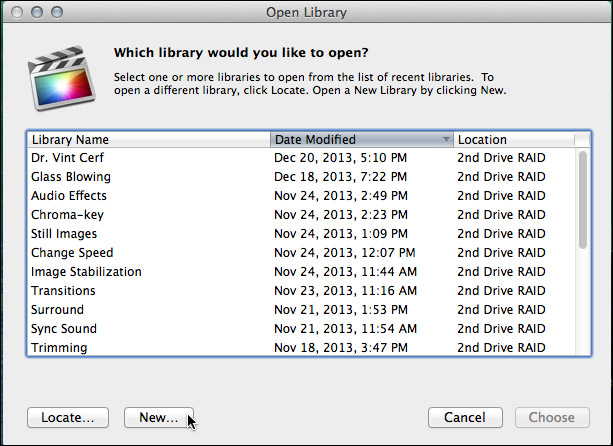
Final Cut Pro X always requires at least one library, containing at least one event to be open. To open FCP with an empty library and event (and all other libraries closed), press and hold the Option key when starting FCP from the dock and click the New button in the bottom left corner.
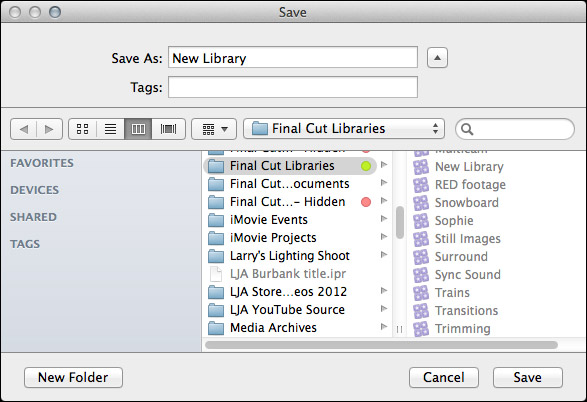
Remember, libraries can be named anything and stored anywhere.
NOTE: Because libraries contain media and render files, be sure to store these to a high-speed storage device. And, I continue to recommend not storing media to the boot drive.
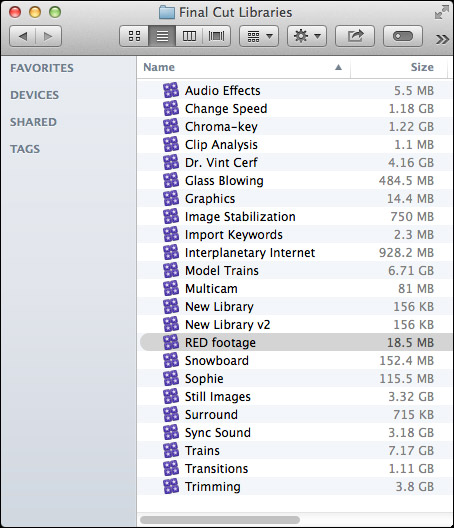
To open a specific library, double-click the library icon in the Finder.
LIBRARY BACKUP
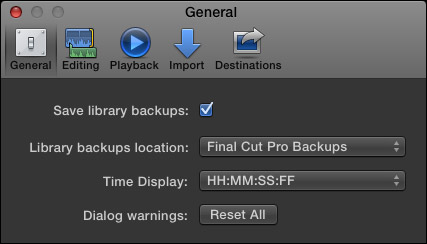
To backup a Library database, go to Final Cut Pro > Preferences > General and make sure Library backups is turned on. This defaults to storing backups in your Home directory. You can specify another location from the pop-up menu.
NOTE: This backup also includes backups for every project and event database contained in that library. It does not backup media. This makes archiving library data easy, because you don’t need to backup the media contained in the library, just the database.
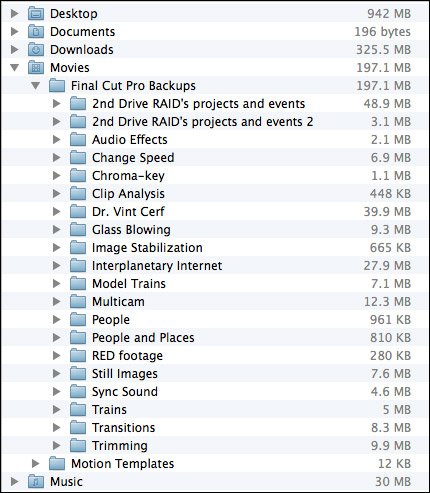
By default, library backups are stored in: [Home directory] > Movies > Final Cut Pro Backups. As you can see, the library database is not that big. (On the other hand, these are not large projects.) Backups are made every 15 minutes.
RESTORING LIBRARIES FROM BACKUPS
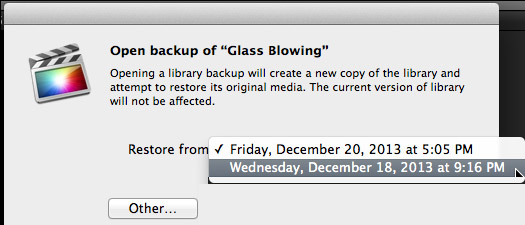
In the Libraries list, select the library you want to restore and choose File > Open Library > From Backup.
In the “Restore from” popup menu, select the backup date and time you want to restore from. Or, click Other, to select a different backup file. This backup file is added as a library in the Libraries list.
NOTE: The backups are standard Final Cut Pro library files, so you can also open them by double-clicking them in the Finder.
LIBRARIES ARE BUNDLES
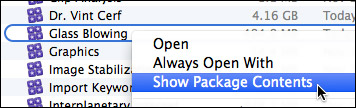
Libraries act like a file, but they are actually a bundle. Right-click a library name in the Finder and select Show Package Contents.
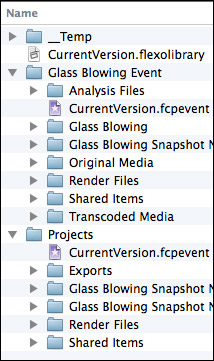
Inside, you will find folders containing all events, projects, snapshots, media, and related files. (This is the new incarnation of the old Final Cut Events and Final Cut Projects folders.)
I STRONGLY recommend you not mess with the files inside this folder for any project you care about. However, if you are looking for ways to access media or project files, this is the place to look.
DELETING A LIBRARY
Libraries can not be deleted from within Final Cut. Apple made this decision to prevent the accidental erasure of all our work. To delete a library, select it in the Finder and delete it like any other file.

2,000 Video Training Titles
Edit smarter with Larry Jordan. Available in our store.
Access over 2,000 on-demand video editing courses. Become a member of our Video Training Library today!
Subscribe to Larry's FREE weekly newsletter and
save 10%
on your first purchase.

154 Responses to FCP X 10.1: Manage Libraries
← Older Comments Newer Comments →-
 LarryJ says:
June 3, 2014 at 5:47 pm
-
 seth says:
June 5, 2014 at 6:54 am
-
 Enrico says:
June 10, 2014 at 9:09 am
-
 Henry K says:
June 22, 2014 at 3:59 am
-
 Larry Jordan says:
June 22, 2014 at 7:41 am
-
 Larry Jordan says:
June 22, 2014 at 7:43 am
-
 Larry Jordan says:
June 22, 2014 at 7:46 am
-
 Henry K says:
June 22, 2014 at 4:05 pm
-
 Johnny Friday says:
July 19, 2014 at 10:25 am
-
 Johnny Friday says:
July 19, 2014 at 10:30 am
← Older Comments Newer Comments →Scott:
Yes. I strongly recommend it, in fact. Here’s the article that describes how:
http://www.larryjordan.biz/fcp-x-delete-render-files/http://www.larryjordan.biz/fcp-x-delete-render-files/
Larry
Larry,
I need some help in regards to managing libraries. I had a 60 minute project in a library that was roughly 900 GB on a 1 TB firewire 800 drive. The library was linked to h264 media, which I didn’t proxy or optimize (not enough space). Still responsiveness was satisfactory. But, responsiveness went way down as the number and complexity of projects/timelines grew. Now, I keep many old project timelines around for prosperity and deduced that too many project/timeliness spoils the fun. I tried flushing the projects of render files but this didn’t seem to help much. So, as a last resort, I decided to subdivide the timeline into 4 timelines, each in its own library and this seemed to solve the problem. But, the inconvenience of 4 libraries for one project is obvious particularly when editing between sections and when exporting (hi rez exporting was done for each library and then the exported media recombined into a new timeline and that exported was exported as one whole).
Question: Can you offer some suggestions that would allow me to keep old versions of timeline/projects for prosperity without accumulating so many into a library so that the library then takes a hit?
One solution I have wondered about (but haven’t tried) was copying/moving the old projects out and into an “old projects” library as I progressed. Of course, I wouldn’t copy out any of the media when doing this.
Much obliged.
A good question from italy:
I have an event corrupted via error code 11…database event malformed—
How can I remove it to have the project to run again?
If that event stays there fcpx doesn’t star anymore and it closes.
If I remove manually the event from the finder.-.fcpx search for it and it stuscks…
Any suggestions?
Grazie
Enrico
Hi Larry,
I facing same situation when I working on my travel show project for California. I have 15,000 clips with more than 350 hours of footages. I tried really hard to break them into smaller libraries but they are still very big.
Would it be faster if I put all the reference media on a Promise Pegasus R6 18TB (up to 600/MBs read and write) and separately put my edit projects (Timelines) on a fast LaCie Thunderbolt 2 little big 1TB SSD Raid (up to 1000/MBs read and write).
Would it be faster because of 2 channels of in and out of data? Or it would be slower because of media are referencing from other RAID drive unit?
Thanks in advance for everyone’s help.
Henry
Enrico:
My best suggestion for type of problem is to contact Apple Support.
Larry
Seth:
Projects and clips take RAM to store once FCP X is open.
Adding more RAM will help. So will moving projects out of the library into a “storage” library that you don’t need and don’t open will also help.
Anything you can do to reduce the number of open elements in an FCP X library will reduce RAM requirements and improve performance.
Larry
Henry:
I don’t have any way to test your question for sure, but I don’t think separating media from projects will help.
It will help FAR more to create multiple libraries, say by acts or subjects, then only open the libraries you need. 15,000 clips is a LOT!!! of clips and each clip needs RAM and processor time to be stored in memory once FCP X is open and clips are displayed in the Browser. (For example, FCP 7 had a limit of only 2,000 clips open at one time.)
Do what you can to reduce the number of clips open in FCP X at any one time. Also, consider adding a LOT more RAM to your system.
Larry
Hi Larry,
As always, thanks indeed for your help. I will keep the 3,000 clips guideline in mind.
15,000 clips is a result of 6 months 1080 HD DSLR Multi-Cam shooting with over 40 interviews. The other problem we facing is we use a lot of split screen effect (3-4 clips on one screen) and cropping, that also require a lots of system resources. I do take your helpful maintenance advice – “reset” FCPX preference periodically, in order to keep the system in a stable status.
What is today’s standard for LOTs of RAM? 64GB or 128GB?
As far as I know only OWC offer 128GB RAM for MacPro at a slightly slower 1333 MHz speed, but I believe more RAM capacity at slower speed will still help overall performance.
I have a MAX out late 2013 MacPro with Intel 12 Core 2.7, 64GB RAM, D700 Graphic for main editing and a MAX out 2013 iMac with 32GB RAM for sorting media. They are the highest custom spec systems I could buy from Apple “of the shelf MAC”, are there any other option to increase workflow efficiency?
Thanks in advance for your help.
How can we make a portable library now in FCP 10.2
…on top of this, if our media is stored externally and linked via sim links….to other drives….I know a work around to make a backup and then restore it—but then i need to manually copy all the files to my portable drive. I think there must be an easier way to just copy the library and all files to a “specified” drive—yes? Is this in Consolidate?
Confused….
….Excuse me i meant 10.1.2