
 [IMPORTANT NOTE: With the release of the 10.1 update to Final Cut Pro X, I released all new training that covers both new and old features. I encourage you to buy this, or become a subscriber, because it will help you learn the new software quickly. Click here to learn more.]
Since the release of Final Cut Pro X 10.1 a couple of days ago, my email has exploded with questions – and, it probably won’t surprise anyone to learn that media management is number one on the list. So here are the answers to common questions, along with some “secret tips” that make working with libraries easier. This is the first of four articles on media management. The others are:
NOTE: Here is a very important article on updating media, events, and projects from earlier versions of Final Cut Pro X. Please read this before you update.
Apple has also provided additional resources in two white papers:
And here is a video webinar that illustrates these, and more, media management techniques for Final Cut Pro X.
DEFINITIONS
A Library is a container that holds media, events, and projects. You can have an unlimited number of libraries open at once and you can open and close libraries as needed. Final Cut requires a minimum of one library to be open at all times.
NOTE: Even though computers are using faster SSD and Fusion drives, I still recommend that libraries and media be stored on a fast second drive or RAID. In my case, I store all my libraries on an attached Thunderbolt RAID.
Events are folders that are contained inside libraries. A library must contain at least one event. There is no limit to the number of events that can be contained in one library. The easiest way to to think of an event is that it is a folder, or bin, that stores stuff.
NOTE: In earlier versions of Final Cut Pro X, there was a limit of about 2,000 clips that could be stored in an event. That limit was, essentially, removed.
Projects are the instructions on how to edit our clips; they are now analogous to sequences in Final Cut Pro 7. (Here’s an article that explains how to manage projects.)
Media is stored in libraries, or referenced by libraries, and can be moved or copied between projects, events, or libraries.
WORKING WITH LIBRARIES
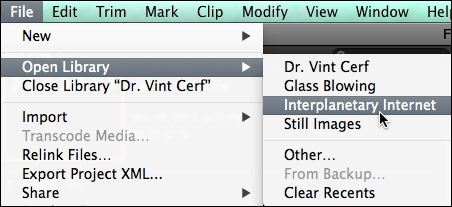
To open a library, select File > Open Library and select from the recent library list.
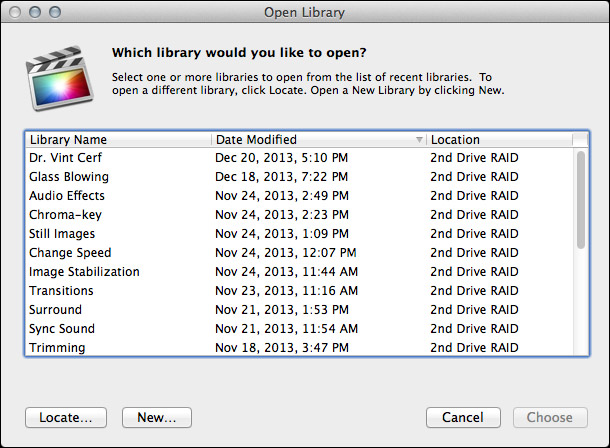
To open a library that isn’t on the list, select File > Open Library > Other. This displays a list of all the libraries that Final Cut knows about.
To open a library that you know exists, but Final Cut does not display in its list of libraries, click the Locate button in the bottom left corner. Select the library you want to open from the File Picker window that appears.
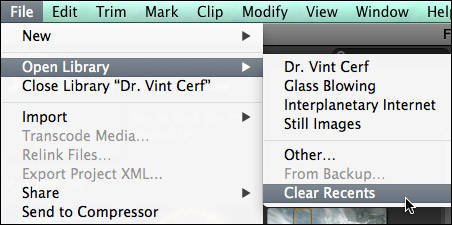
To clear the list of recently opened libraries, select File > Open Library > Clear Recents. This list repopulates based on the libraries that you either reopen or create.
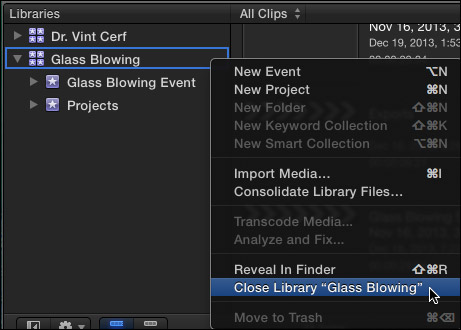
To close a library, select the library you want to close, then do one of the following:
SECRET LIBRARY TIPS
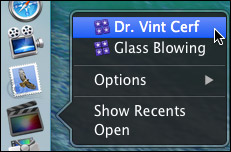
To open Final Cut with a specific library selected, right-click the Final Cut icon in the dock and select the library you want selected after FCP opens.
NOTE: All other open libraries will also open when you use this tip.
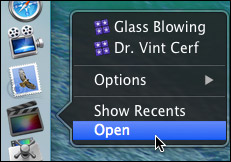
To open Final Cut with ONLY one library open, regardless of how many libraries were open when you last quit Final Cut, press and hold the Option key as FCP opens. Then, select the library you want to open from the list.
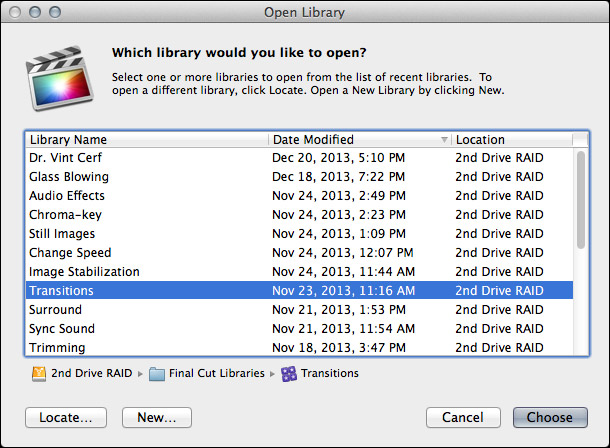
NOTE: You can not close the last remaining open library inside Final Cut. To close a library that you no longer want, open a different library, so that there is always one open library in FCP.
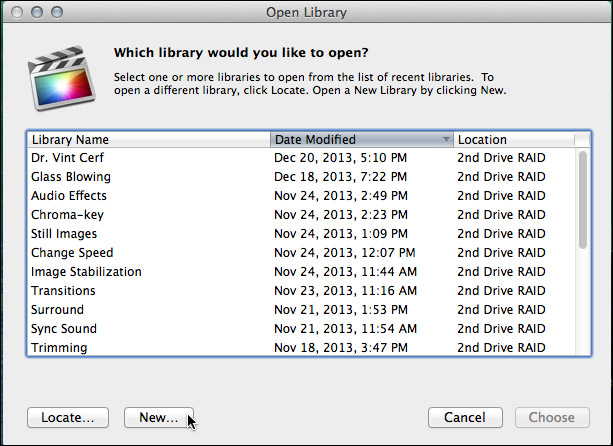
Final Cut Pro X always requires at least one library, containing at least one event to be open. To open FCP with an empty library and event (and all other libraries closed), press and hold the Option key when starting FCP from the dock and click the New button in the bottom left corner.
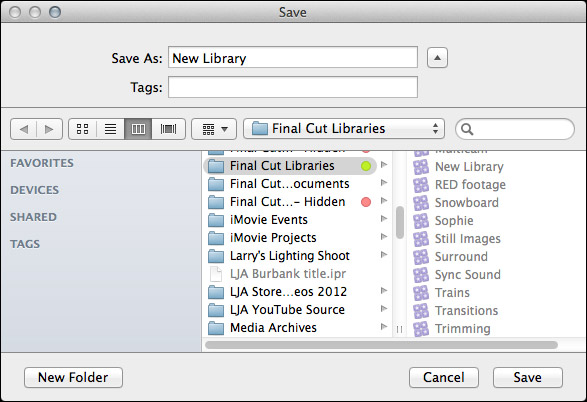
Remember, libraries can be named anything and stored anywhere.
NOTE: Because libraries contain media and render files, be sure to store these to a high-speed storage device. And, I continue to recommend not storing media to the boot drive.
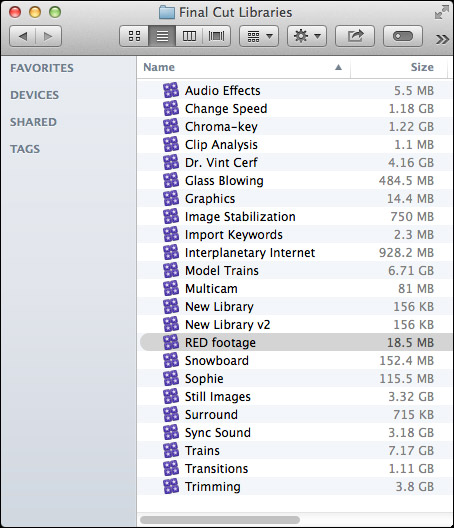
To open a specific library, double-click the library icon in the Finder.
LIBRARY BACKUP
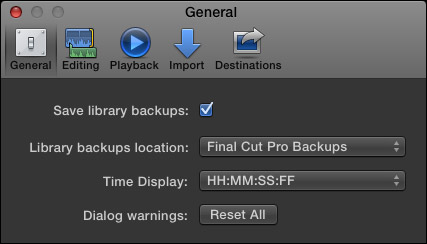
To backup a Library database, go to Final Cut Pro > Preferences > General and make sure Library backups is turned on. This defaults to storing backups in your Home directory. You can specify another location from the pop-up menu.
NOTE: This backup also includes backups for every project and event database contained in that library. It does not backup media. This makes archiving library data easy, because you don’t need to backup the media contained in the library, just the database.
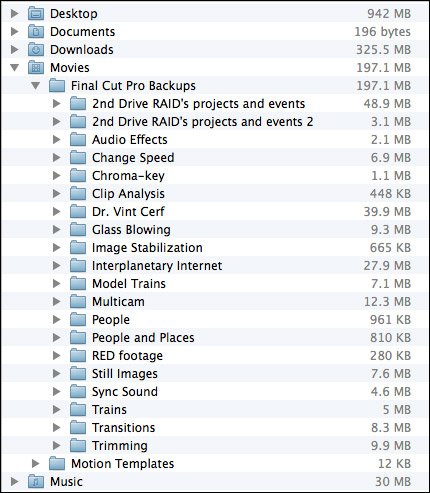
By default, library backups are stored in: [Home directory] > Movies > Final Cut Pro Backups. As you can see, the library database is not that big. (On the other hand, these are not large projects.) Backups are made every 15 minutes.
RESTORING LIBRARIES FROM BACKUPS
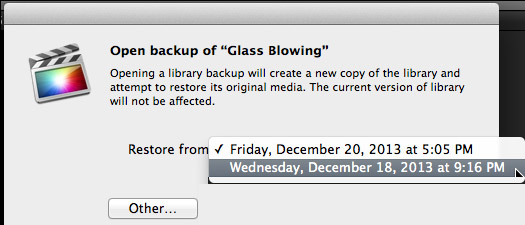
In the Libraries list, select the library you want to restore and choose File > Open Library > From Backup.
In the “Restore from” popup menu, select the backup date and time you want to restore from. Or, click Other, to select a different backup file. This backup file is added as a library in the Libraries list.
NOTE: The backups are standard Final Cut Pro library files, so you can also open them by double-clicking them in the Finder.
LIBRARIES ARE BUNDLES
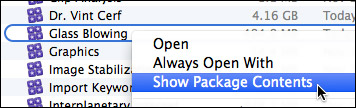
Libraries act like a file, but they are actually a bundle. Right-click a library name in the Finder and select Show Package Contents.
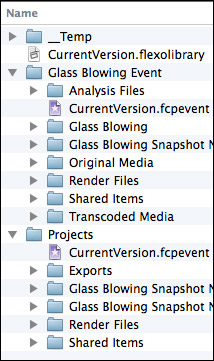
Inside, you will find folders containing all events, projects, snapshots, media, and related files. (This is the new incarnation of the old Final Cut Events and Final Cut Projects folders.)
I STRONGLY recommend you not mess with the files inside this folder for any project you care about. However, if you are looking for ways to access media or project files, this is the place to look.
DELETING A LIBRARY
Libraries can not be deleted from within Final Cut. Apple made this decision to prevent the accidental erasure of all our work. To delete a library, select it in the Finder and delete it like any other file.

2,000 Video Training Titles
Edit smarter with Larry Jordan. Available in our store.
Access over 2,000 on-demand video editing courses. Become a member of our Video Training Library today!
Subscribe to Larry's FREE weekly newsletter and
save 10%
on your first purchase.

154 Responses to FCP X 10.1: Manage Libraries
← Older Comments Newer Comments →-
 Dave says:
May 21, 2014 at 12:17 am
-
 Larry Jordan says:
May 21, 2014 at 7:06 am
-
 Dave says:
May 21, 2014 at 9:15 am
-
 Bas says:
May 26, 2014 at 12:06 pm
-
 Bas says:
May 27, 2014 at 11:17 am
-
 LarryJ says:
May 27, 2014 at 11:25 am
-
 Bas says:
May 27, 2014 at 12:08 pm
-
 LarryJ says:
May 27, 2014 at 3:00 pm
-
 Bas says:
May 28, 2014 at 1:42 am
-
 Scott Anderson says:
June 3, 2014 at 5:06 pm
← Older Comments Newer Comments →Of course, I meant the “FCPX UI”, not the “FCP UI”.
Dave:
Library backup appeared in the 10.1 FCP release. If you don’t have that menu choice, it sounds like you are running an earlier version of FCP.
If you ARE running FCP X, and those options don’t show up, reinstall FCP X.
If that doesn’t work, call Apple Support.
Larry
I am running 10.1.1. I’ll call Apple.
Hi Larry,
Just got a new iMac and could finally update to FCPX 10.1.1 . Thanks for the explanations above, very useful.
I am a big fan of folders due to many different teachers and tutorials I capture. I can not find a way to organise the libraries into folders within FCPX or in the finder. Can you give me a hint, Larry?
Thank you,
Bas
One more question Larry, I am still in the updating process to 10.1.1.
I have my hundreds of projects very well organized in many folders and sub-folders (on 1 RAID) my events (old language) were never named, so they have the default date-name. The events are stored in only 2 folders.(“fcp events” and “hidden events” Big mess. Am I correct that I can not update a project without simultaneously updating the event as well? In that case, is my only option to chuck ALL hidden projects in the FCP projects folder, ALL events in 1 folder and create ONE monster library which I have to manually sort out again??
I am asking this because when I follow your steps and add 1 project in the fcp projects folder (without adding the corresponding events in the events folder because I can’t find them!) and I click ‘update’ it pops up with a ‘fcp can’t find any projects to update.”
Am I lost? Beyond salvation?
Bas:
Because a Library stores both media and projects, you need to update at least one Event and one Project each time. I would recommend AGAINST updating everything into one massive library.
First, because FCP has an internal limit on how many clips can be stored in one Event (somewhere around 3,000) and second because organizationally this is a mess.
So, just update the Events and Projects you want to store in a single Library. Then repeat as needed. Also, you don’t need to update everything all at once. Do the most important files first, or just update the files you need to work on right now. Do the rest in stages.
Larry
So I DO need to find the event containing the media of the project I want to update ?
Bas:
If FCP X doesn’t let you update a Project by itself, then the answer is Yes.
Larry
UPDATE:
FCP X did connect and trace the matching events itself (AND gave them the correct name1)
What went wrong is that my manually created “Final Cut Projects” folder had a ‘space’ at the end (Final Cut Projects “) Hence FCP X could not find any projects to update!
Thank you so much for your help, much appreciated!
Regards, Bas
Larry,
I have a FCX project my video is 100GB. But my session has grown to 1TB. My timeline is only at 4min. Is there a way to clear my session or rendered files to just what is in my session? How do I clear up some space?