
Final Cut Pro X defaults to displaying audio as a single waveform. For stereo audio, this isn’t a problem. But for dual-channel mono clips, or single track mono clips, it is.
Here’s the solution.
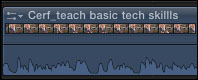
Normally, when a clip is edited to the Timeline, we see only one waveform, regardless of how many channels it has. In this example, my clip has two audio channels, but only one waveform is displayed.
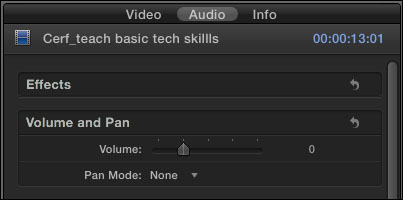
To see the channels, select the clip, go to the Inspector (press Command+4), and click the Audio tab at the top.
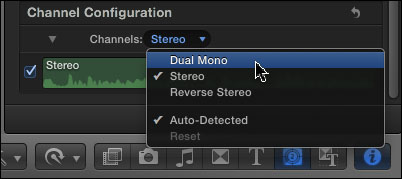
Scroll down to reveal the Channel Configuration option, and click Channels. The default setting in the popup menu is Stereo. Change this to Dual Mono.
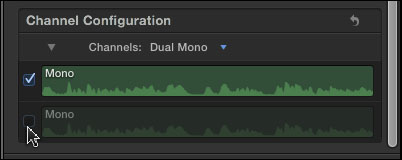
If you only want to hear one channel – just the guest, for example, and not the interviewer – uncheck the channel you don’t want to hear. In this example, I unchecked channel 2. Unchecking a channel completely mutes it in the Timeline, without removing it from the clip.
Adjust the audio level – the black horizontal line at the bottom of the clip – so it sounds the way you want.
However, if you need to adjust levels separately for each channel, or if you want to avoid hearing both channels at the same time, then you have a couple more steps.
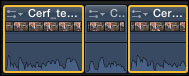
Set the audio level the way you want for the current audio channel. Then, using the razor blade (or typing Command+B), cut the clip where you want to switch between channels.
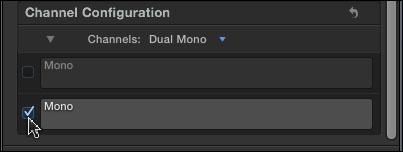
Select all the sections of the clip where you want to hear the opposite channel. Go to the Inspector and check the channel you want to hear and uncheck the one you don’t. (In this example, I am muting the first channel so I can hear the second.)
Now, as you play through the clip, each channel will play for a section. Since the levels for one channel were correct before you started cutting the clip, all you need to do is adjust the levels for the new sections, which won’t affect the levels of the other speaker.
Done.

2,000 Video Training Titles
Edit smarter with Larry Jordan. Available in our store.
Access over 2,000 on-demand video editing courses. Become a member of our Video Training Library today!
Subscribe to Larry's FREE weekly newsletter and
save 10%
on your first purchase.

52 Responses to FCP X: Dual-channel Mono Audio
← Older Comments Newer Comments →-
 Barry says:
April 18, 2014 at 2:38 am
-
 Larry Jordan says:
April 18, 2014 at 10:19 am
-
 Barry says:
April 18, 2014 at 11:56 am
-
 MrBobDobolina says:
April 22, 2014 at 10:10 am
-
 MrBobDobolina says:
April 22, 2014 at 10:26 am
-
 Larry Jordan says:
April 22, 2014 at 10:47 am
-
 Charlie says:
December 1, 2015 at 2:03 am
-
 Larry says:
December 1, 2015 at 10:59 am
-
 Matt Stevenson says:
December 8, 2015 at 4:26 pm
-
 frank says:
April 24, 2016 at 12:01 pm
← Older Comments Newer Comments →I’m trying hard to find a way to get stereo tracks in FCPX from dual-mono (.L and .R) audio files. Specifically, I want to use them in multi cam clips. When I “Ad Angle” and drag in the clips (or include them in the bunch for automatically generating multi cam clips), they come in as separate mono tracks, and there is no option in the inspector to change these to stereo tracks – I can assign each mono track a role of left or right, but I have no way to link them, etc. This Makes all the automatic synchronization features of multi cam clips useless for this audio. Is there any way that we can get FCPX to recognize non-interleaved stereo audio as stere audio (as in FCP 7’s beautiful “Stereo Pair” in the Modify menu?
Barry:
The only thought I have is to add each clip to its own angle in a multicam cilp, and pan that clip left or right as needed. As far as I know, there is no equivalent to the Modify > Stereo link from FCP 7 in FCP X.
Larry
Yeah, that’s what I’ve tried, but it’s unwieldy and doesn’t maintain sync between left and right channels, so no automatic synchronization featured can be used. Also, of course, level changed and effects are unwieldy and/or unevenly applied to the channels. So… I run my files through ProTools to make an interleaved version… Which brings in other complexities involving timecode. Ugh.
So, I just ran into a similar problem… Footage from a Nikon D800 is imported and has stereo audio, add music, upload to YouTube and it works fine, unless you’re on a mobile device… but the added music track worked, just not the interview.
Super confusing.
Anyway, I pulled the exported video file into FCP to look at wave forms, it’s all there… until I switch the audio from stereo to dual mono, and then the interview audio simply goes away. It’s just gone. But the waveforms for the audio track still show up at the beginning and the end.
I tried pulling the file into Quicktime X and Quicktime 7, same thing. Anytime you switch to mono, you lose the interview.
So I pulled the file into Premiere CC, and was finally able to modify the audio channels, I couldn’t just convert it to mono, though, I had to assign both stereo channels to the same input.
When I pulled in the original recorded video I got the same thing. Audio plays in stereo, completely disappears when switched to dual mono. Even the wave forms go away… (although, Premiere still showed levels as it played…)
I’m feeling like a crazy person, because in all of these instances the added music track works fine, which to me means there is a third mono audio track which everything plays, but nothing acknowledges, until I turn off the interview audio.
I think my next step is to pull the audio into audacity or pro-tools or logic or something and try to do an audio mixdown to a mono track and then add that to the video separately.
Okay. Solved the issue… kinda.
Using Raymond’s advice, I looked at both audio tracks in my dual mono setup. Both show wave forms, but when both tracks are enabled, the audio disappears from the timeline. I disabled one of them (didn’t matter which) and the audio came back to the timeline. Problem solved.
Bob:
What you are seeing is “phase cancellation.” The two audio tracks are exactly 180 degrees out of phase, which means they cancel each other out resulting in no audio.
By muting one channel, you are removing the cancellation, thus hearing the audio.
This is generally caused by bad mic cables or improper settings during mixing.
Larry
I thank you for the post and tutorial. The problem I have is I recorded on mono then followed your tutorial to make it dual mono. When i play it on my timeline, I hear all the channels. But when I export the whole movie only one channel is audible. What am I missing. Is it setting or something else?
Charlie:
I’m not sure. My guess is that the pan is set incorrectly in the Inspector. Select the clip, then set Pan to “Stereo (left/right)” and move the slider to the middle.
Larry
Hi Barry,
One trick I found to get stereo audio from mono tracks was by using nested clips in the multicam view (or compound clips would also work the same way.)
If your tracks are separate audio files:
1. Drag your first audio clip to the multicam angle in the timeline and right click on the audio track
2. Click “Open in Timeline”
3. You can then select the resulting nested audio track.
4. Drag the other alternate channel into the timeline as a connected clip aligned right on top of the first audio channel. Check to make sure they’re both in sync. You’ll have a very hard time if you have either side of your starting clip trimmed anywhere.
5. Then go to the Audio panel and under “Volume and Pan” change the Pan Mode to Stereo Left/Right for both clips and adjust the pan left/right there.
6. Back out of the nested clip and you’ll find your channel configuration now probably shows dual mono. If not, click the drop down and choose Reset to get it to recognize the changes you just made in step 4.
7. Now in the Channel Configuration, click on the drop down that hopefully says Dual Mono and change it to stereo.
Hopefully that works and helps for future projects!
I have an audio file with the Lav in the Left channel and the boom in the Right channel. If I turn off the Lav, leaving me with just the Boom, the sound is only on one channel and not in both. How can I make it sound in Both channels when your hear the LAV or BOOM. My project is already in the multicam setup. Any help will be greatly appreciated.