
[ To see how Compressor 4 works, check out this step-by-step video training. ]
One of the sorely missed features in Final Cut Pro X is the ability to create chapter markers. Chapter markers are not just for DVDs, they can also be built into a QuickTime movie that’s posted to the web. In fact, all my online training uses chapter markers. (Here’s an article that describes how to view chapter markers in both QuickTime X and QuickTime 7.)
However, while we can create chapter markers in Final Cut Pro 7, we can’t in FCP X. However, we can in Compressor — both Compressor 3 and Compressor 4. Here’s how.
EXPORTING FROM FINAL CUT PRO X
When your project is complete and ready to output, open the Project Library and select your Project. Exporting is always done from the Project Library, never the Timeline.
With the Project selected, choose Share > Send to Compressor. (This is faster than first exporting your movie as a self-contained QuickTime movie, and, depending upon the video format you are editing, has the potential to yield higher quality images.) If you have already created a master QuickTime file, simply import it into Compressor.
If Compressor is already running, your Project loads almost instantly.
CREATING CHAPTER MARKERS MANUALLY
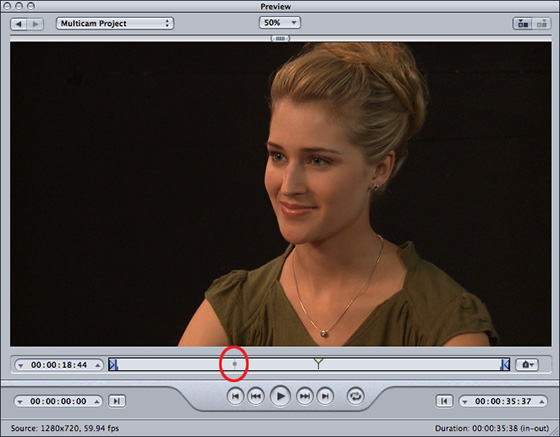
Select your Project by clicking it in the Task window. This displays the movie in the Preview window.
NOTE: See that small marker to the left of playhead (it’s circled in red)? That indicates the location of the poster frame for this movie. You can set this manually, see below.
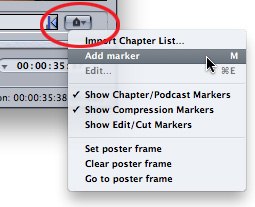
Click the Marker icon to reveal a popup menu. From this menu you can jump to, set, or clear the poster frame for the movie, as well as set chapter markers. Chapter markers are always set at the position of the playhead.
You can set chapter markers manually by positioning the playhead, then either use this menu or type M.
CREATING CHAPTER MARKERS AUTOMATICALLY
However, you can also import a marker list to set markers automatically.
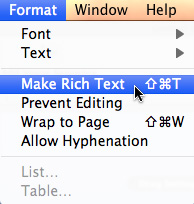
A marker list is a plain-text document. The easiest way to create one is using Text Edit. Go to the Format menu and make sure the menu choice says Make Rich Text. That’s the indicator that you are creating a plain text document. (Yes, it is a bit counter-intuitive.)
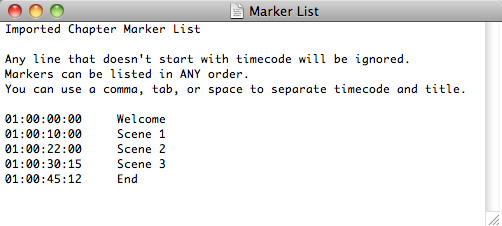
You can give your document a name and add comments at the top. Any line that doesn’t start with a number is ignored.
Then, enter a timecode value that corresponds to the Timecode of your exported movie. Press Tab and add a marker title.
Once you have markers set, compress the file as normal and the markers will be included in the compressed file. These embedded markers will be visible in both Quicktime during playback or in your MPEG-2 video for use by your DVD authoring software.

2,000 Video Training Titles
Edit smarter with Larry Jordan. Available in our store.
Access over 2,000 on-demand video editing courses. Become a member of our Video Training Library today!
Subscribe to Larry's FREE weekly newsletter and
save 10%
on your first purchase.

37 Responses to Compressor 4: Create Chapter Markers
← Older Comments Newer Comments →-
 Alex says:
September 23, 2012 at 7:39 am
-
 Larry Jordan says:
September 23, 2012 at 8:08 am
-
DVD z rozdziałami-jak says:
October 15, 2012 at 1:45 pm
-
 Alan says:
November 5, 2012 at 8:13 am
-
 bluedotproductions says:
November 23, 2012 at 10:54 pm
-
 Jac Colón says:
November 24, 2012 at 8:05 am
-
 Mike Dury says:
November 30, 2012 at 2:16 am
-
 Lori says:
January 4, 2013 at 10:13 pm
-
 Larry Jordan says:
January 4, 2013 at 10:20 pm
-
 mark says:
January 21, 2013 at 1:11 am
← Older Comments Newer Comments →Thanks Larry, I understand, a website will be a great option to some clients. But what about the long list of clients that want a file, either in DVD, USB, ZIP, download form with professional looking menus, etc. that need their vídeos for, lets say, internal training for employees, usb, dvd or cd give aways to potential clients, weddings that dont want their video on the internet, internal stockholders vídeos, and the list goes on.
It seems to me from what I read that apple has shifted out of dvds to early or just plainly focused on hobbysts, amateurs or dilettantes that upload to website, youtube, vimeo, facebook, etc.
The only thing holding me right now from buying FCP X is that I’ll need FCP X and Adobe’s Encore to satisfy my clients. Someway it doesnt make sense to me. I understand that DVDs and such will be something of the past, will probably not be aorund in the future, but what about the present? A suitable transition from Apples side would’ve been optimum. Dont you agree? Take out those option and software once their faithful clients and FCP users are not needing it either. Apples decision seems solely buck making on their part.
Many thanks for your answers and time. I am really upset at Apple.
Alex:
The only folks that can answer “why” are Apple. I agree that it would have been helpful to many of us if they had supported optical media – like CDs and DVDs – a while longer.
Larry
[…] Dzisiaj 21:45 Cytuj | #6 Tutaj jest opis i film: Larry Jordan – Compressor: Create Chapter Markers | Final Cut Pro Training | The Best Training in Fi… Tutaj jeszcze opis. https://discussions.apple.com/thread…art=0&tstart=0 Generalnie ten […]
Hi Larry,
Very useful article – thanks.
One question – I noticed in Compressor 4 you can select an image to go with the chapter marker is there anyway to define that in the text file – or even a way to default to the image in the movie?
Thanks for a very useful site.
Alan
Wow! Markers works really well! I am logging with markers on compound clips. Lots of markers. This app gives me a good enough list I don’t have to do a transcription outside of FCPX.
Anyone know a way to mark raw files while capturing?
I am using a Cannon XL2 and capturing with FCPX 10.6 on on my MacBookPro using an external hard drive (Firmtek housing- Esata)
We shoot our one hour and 45 min. seminar program each night for 24nights and edit them for DVDs available the next day.
I will often make mistakes and want to edit that particular point. I would like to insert a chapter marker at that point while capturing. Now we just assign someone to note the places that need editing on paper, using the timecode manually. Would be nice to have a marker already inserted there. It saves me from having to comb through every word of the program every night. Getting too old for that. 🙁
I am hoping that FCX v.6 has a provision for doing something that will help. Appreciate any ideas.
jac
Although FCPX has now included chapter markers in the update I have had a problem with the the DVD freezing on a chapter, my work about has always been to edit in FCPX export the finished movie to my hard disc import it into iMovie add the chapter markers here and export straight to Idvd. It seems to work fine and does not take an awful lot of time.
Hi Larry,
I uploaded what I thought was my project to a Closed Captioning Company, and while it was the correct name, it wasn’t in the correct format for him to review. As you know, we are very new to all of this, so can you please tell me if we missed a step. I went to the finder and opened up the project folder and downloaded the current version of the file in FCP X. Perhaps there was something we were supposed to do when we finished the project?
Thanks,
Lori
Lori:
You need to use File > Share > Master File. This creates a QuickTime master file, which you send to the closed caption company.
Larry
another question for you larry,so i am exporting my 2 hour long training video, my client would like the video to be in a powerpoint presentation , they would like each of my chapters to be a diff slide. is there a quick way to export each chapter this way or when importing into keynote, can i link the video and set up the chapters in it? any ideas