
[ To see how Compressor 4 works, check out this step-by-step video training. ]
One of the sorely missed features in Final Cut Pro X is the ability to create chapter markers. Chapter markers are not just for DVDs, they can also be built into a QuickTime movie that’s posted to the web. In fact, all my online training uses chapter markers. (Here’s an article that describes how to view chapter markers in both QuickTime X and QuickTime 7.)
However, while we can create chapter markers in Final Cut Pro 7, we can’t in FCP X. However, we can in Compressor — both Compressor 3 and Compressor 4. Here’s how.
EXPORTING FROM FINAL CUT PRO X
When your project is complete and ready to output, open the Project Library and select your Project. Exporting is always done from the Project Library, never the Timeline.
With the Project selected, choose Share > Send to Compressor. (This is faster than first exporting your movie as a self-contained QuickTime movie, and, depending upon the video format you are editing, has the potential to yield higher quality images.) If you have already created a master QuickTime file, simply import it into Compressor.
If Compressor is already running, your Project loads almost instantly.
CREATING CHAPTER MARKERS MANUALLY
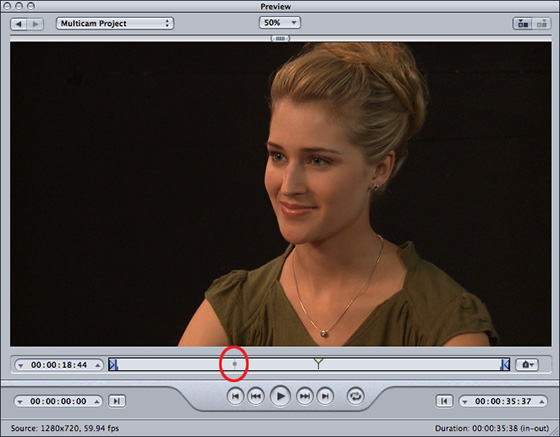
Select your Project by clicking it in the Task window. This displays the movie in the Preview window.
NOTE: See that small marker to the left of playhead (it’s circled in red)? That indicates the location of the poster frame for this movie. You can set this manually, see below.
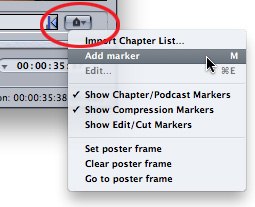
Click the Marker icon to reveal a popup menu. From this menu you can jump to, set, or clear the poster frame for the movie, as well as set chapter markers. Chapter markers are always set at the position of the playhead.
You can set chapter markers manually by positioning the playhead, then either use this menu or type M.
CREATING CHAPTER MARKERS AUTOMATICALLY
However, you can also import a marker list to set markers automatically.
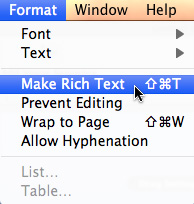
A marker list is a plain-text document. The easiest way to create one is using Text Edit. Go to the Format menu and make sure the menu choice says Make Rich Text. That’s the indicator that you are creating a plain text document. (Yes, it is a bit counter-intuitive.)
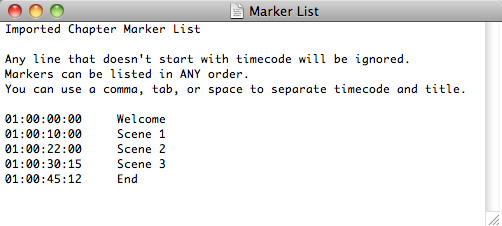
You can give your document a name and add comments at the top. Any line that doesn’t start with a number is ignored.
Then, enter a timecode value that corresponds to the Timecode of your exported movie. Press Tab and add a marker title.
Once you have markers set, compress the file as normal and the markers will be included in the compressed file. These embedded markers will be visible in both Quicktime during playback or in your MPEG-2 video for use by your DVD authoring software.

2,000 Video Training Titles
Edit smarter with Larry Jordan. Available in our store.
Access over 2,000 on-demand video editing courses. Become a member of our Video Training Library today!
Subscribe to Larry's FREE weekly newsletter and
save 10%
on your first purchase.

37 Responses to Compressor 4: Create Chapter Markers
← Older Comments Newer Comments →-
 Abe Kestenberg says:
September 10, 2012 at 8:12 am
-
 Larry Jordan says:
September 11, 2012 at 11:21 am
-
 Larry Jordan says:
September 11, 2012 at 11:22 am
-
 Josh says:
September 19, 2012 at 7:38 am
-
 Alex says:
September 21, 2012 at 2:15 am
-
 Larry Jordan says:
September 21, 2012 at 6:54 am
-
 Alex says:
September 21, 2012 at 7:28 am
-
 Larry Jordan says:
September 21, 2012 at 7:49 am
-
 Alex Ojeda says:
September 21, 2012 at 8:17 am
-
 Larry Jordan says:
September 21, 2012 at 8:45 am
← Older Comments Newer Comments →Hi Larry,
I have learned a lot from your tutorials and from just reading the manuals of various programs.
Although no program is perfect, could you please ask the Apple Software engineers to add “export with chapter markers” from the timeline of FCPX.
Yes, I know we can deal with chapter markers in compressor, but frankly, this is a clunky workflow. Especially since we had “export with chapter markers” in FCP 7.
Your work is excellent and thank you for making my editing life easier with your tutorials.
All the best…Abe
Abe:
I agree and have already mentioned to Apple that this needs to be added to a future release. I’m keeping my fingers crossed they implement it soon, as I use this in every video that I create.
Larry
Jon & Jac:
I have not worked with the program that Jac mentions, however, I created a video tutorial that shows how to create chapter markers in either Compressor 3 or 4.
Here’s the link: http://www.larryjordan.biz/compressor-add-chapter-markers/
Larry
I tried and tried to save the marker list as Rich Text, and Compressor 4 did not recognize it. When I saved the marker list as Plain Text, it did recognize it. FYI all.
Thanks.
Hi,
Many thanks for the tutorial. I have a question if you could help me out I would greatly appreciate. How can I create a DVD índex at startup out of those markers if I have my movie created in FCPX and chapters added with compressor 4? Or if I have two FCPX movies I want in the DVD and want an índex that will enable to select from one or the other at dvd startup.
Many thanks!
Alex:
Converting the markers into navigation points would be done by the DVD authoring program – such as Adobe Encore, or DVD Studio Pro. It is not done by FCP X.
Larry
Hi, Larry,
Are there any other options besides DVD studio pro (which I think I read is no longer for sale), and a cheaper option then Encore? I already have the movie and just need a piece of software to créate a simple custom índex at dvd startup and to get encore I need to dislodge 800usd for Adobe premiere.
I might be wrong but it seems better to invest the 800 in adobe software, then 300 in FCPX, plus 50 in Compressor and not be able to burn a DVD with a menú index. From what I read it seems like Apple is focusing in doing family or recreational videos and distancing from pro. Is this right or am I going insane? Im taking my first steps in the long road of turning pro and would like to know if I should just adobemize myself.
Many thanks!
Alex:
You can create simple DVDs using Roxio Toast – but whether this meets your needs for menus, only you can determine. The process of authoring a DVD is not simple and I don’t know of any other applications other than Encore that do a complete job on the Mac.
I think a better way to describe what Apple is doing is that they are focusing on tapeless media and downloads. DVDs and CDs are no longer considered today’s technology by Apple, and they are gradually dropping support.
larry
Many thanks for your help Larry.
So with this new apples perspective what is the output they recommend for clients instead of Dvd/cds? Can i create and output a file with apples software that by having my clients download it or having it ftp’d or emailed thay can click on it and have a menu for my video options? What are apple options to produce a neat professional output that substitutes the old tech dvds/cds authoring?
Many thanks again Larry.
I can’t speak for Apple, but the obvious answer is a website with links that play each movie as you click on it.
Larry