
 One of the exciting announcements from Apple on Tuesday was news of the soon-to-be-released 24″ iMac. Delivered in seven colors and sporting the new M1 system-on-a-chip, it generated a lot of email from editors asking my thoughts.
First, and this is most important, as Ars Technica reported: “Apple sees the M1 as an entry-level chip.” This statement is key to understanding where the M1 iMac fits.
 THE GOOD NEWS
In terms of sheer performance, the M1 blows the doors off just about everything else in the Mac ecosystem. It is stunningly fast.
If pure performance is your goal, you will be delighted with an M1 iMac. This is especially true if you have a computer which is older than, say, 2017.
THE LIMITATIONS
While there is no bad news with the M1 iMac, there are a variety of limitations that you need to think about. Some may not matter, others may matter a lot – each of us is different.
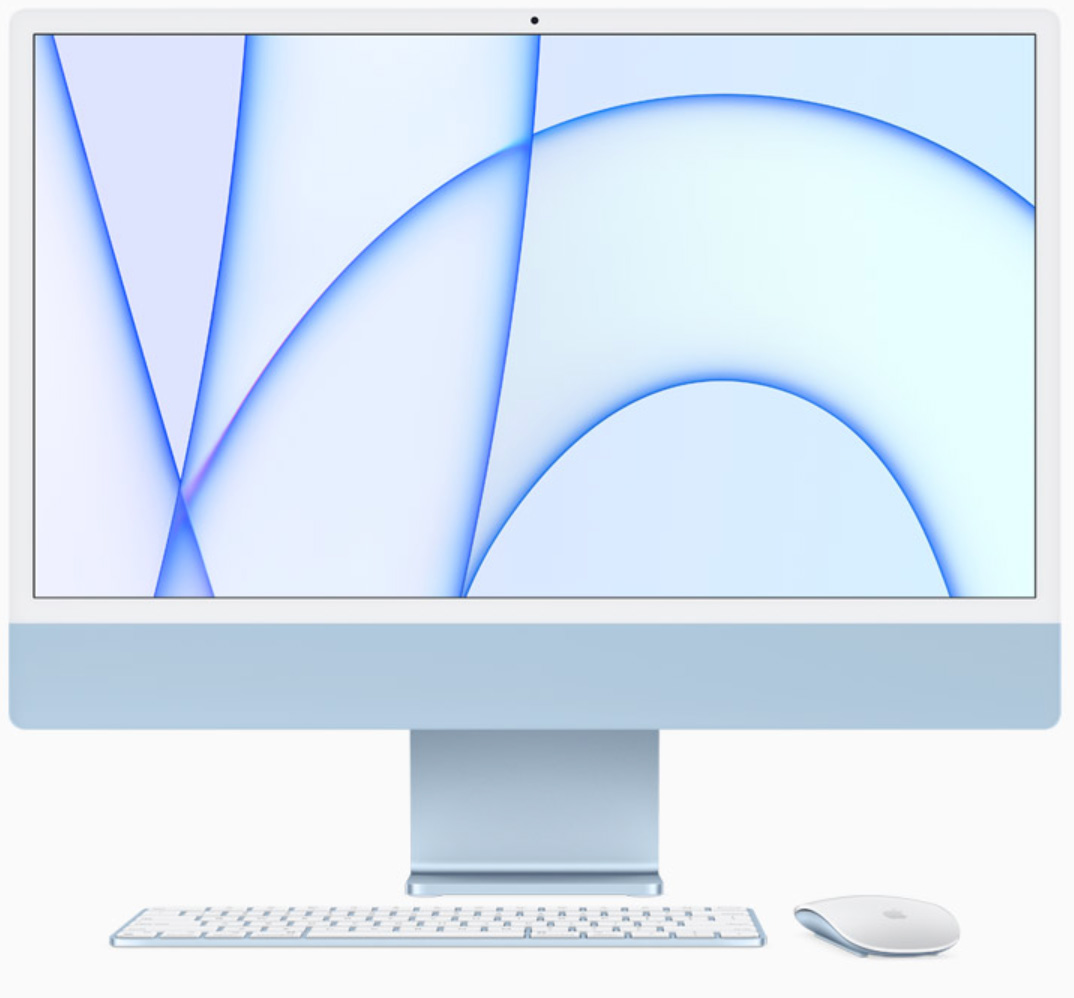
Apple introduced two 24″ iMacs:
Both options start with 8 GB of RAM, both can expand up to 16 GB of RAM and both are 1/2 the weight of a 27″ iMac (9.88 pounds).
THOUGHTS
The M1 uses unified memory. With Intel systems, whenever data is loaded into RAM, it needs to be optimized for the CPU, then again for the GPU, then again for whatever other process needs to work with it. All these copies mean that we need lots of RAM simply to work with our data.
NOTE: Here’s an article that discusses M1 systems in more detail.
The M1 makes this duplication unnecessary. CPU, GPU and AI systems all use the same form of data stored in RAM without duplication. This means that a system with, say, 16 GB RAM may be as efficient as an Intel system with 32 GB. In other words, the old rules about how much RAM we need don’t apply to M1 systems the way they did with Intel systems. However, this is not to say that more RAM is not useful – it is, especially as frame sizes or frame rates increase or when you need to edit large multicam projects.
NOTE: I should also note that 16 GB of RAM for an M1 system is not a limitation for editing HD or 4K media. I received several email reports from editors using the M1 Mac mini for 4K editing and glowing about how smoothly it edits.
However, the bigger issue is that M1 RAM is not upgradeable, ever, because it is built into the M1 chip itself. My concern is that new applications are always looking for ways to use more RAM to solve problems we couldn’t solve before. And we have not yet reached the end of increasing frame sizes. (My guess is that once we reach 12K frames, video will roughly equal the same resolution as the human eye.)
Another issue is that the GPU in the M1 does not equal high-end GPUs from AMD or NVIDIA. (Remember, the M1 is an “entry-level” chip.) If you depend upon really fast rendering, the M1 will be slower than an Intel system.
NOTE: Faster GPUs do not mean higher quality. All GPUs generate the same quality; faster simply means faster.
This is not to say these M1 systems are bad. Far from it – they are amazing. They are fine for people who need a desktop computer, with a built-in high quality monitor, a few high-speed ports and access to the latest in high-performance computer technology. In fact, I would recommend the base, two-port system to any student or typical business user because of the high-performance, low-cost of the system.
But, video editors are not “typical” users. Video editing remains one of the hardest tasks we currently ask computer systems to perform. Video editing devours computer resources and often requires lots of connected devices. Which means that we need to think more clearly about what we want the system to do before we spend our money.
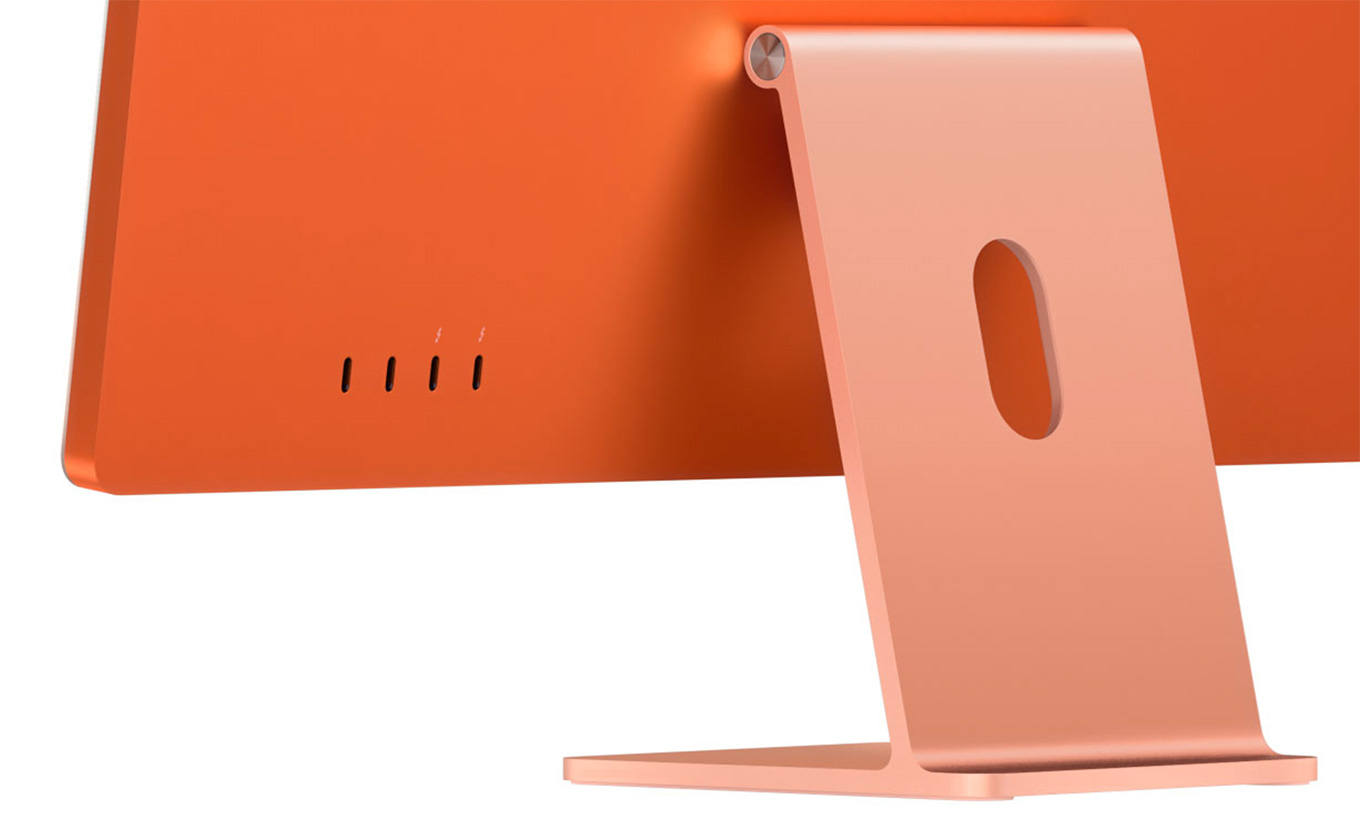 My concerns about these new iMacs is not the M1 – I’m blown away by what it can do – but by the limited RAM, limited GPU, and limited ports. Video editors need to connect to a LOT of different gear. Both of these new systems will probably require you to purchase an external dock – and certainly external storage – to get the ports and capacity you will need for most video projects.
As well, because the amount of RAM is fixed, I would strongly recommend you get 16GB of RAM. You may not need it for the HD media you are editing today, but as frame sizes and frame rates continue to grow – and they will – more RAM will make future editing easier.
 RECOMMENDATIONS
Most editors I ask say they “currently are editing single-camera 1080p HD material, but want to buy a system that will future-proof them for editing 8K multicam RAW images in real time; without rendering.” You know, just in case they land Taylor Swift’s latest music video.
Sigh… You do realize that, from a computer point of view, that’s a pretty big stretch? If you need THAT much power, hold off until the next round of M1 chips is released.
But, for normal HD and 4K editing, assuming the number of ports is not a limitation to you, here’s the system I recommend.
NOTE: This recommendation is based on the goal of getting the most system for the least money. If you have the budget, spend more.
While internal storage maxes out at 2 TB, this is still inadequate for many video projects. My recommendation is to save on internal storage, which is expensive, then spend those savings on fast external storage. My general recommendation for storage is a RAID.
Apple hasn’t released final configuration pricing yet, but based upon the base price, this puts the cost of the upgraded system around $1,899.
M1 iMac orders open April 30, with shipment later in May.
SUMMARY
Any M1 system is impressive when measured in performance. What these new 24″ iMacs lack, though, is more ports, more RAM, faster GPU and an option for 10 Gb Ethernet.
These first M1 iMac systems are targeted at consumers and general business computer users. While they can be used for video editing – even serious video editing – be sure you can work with their limitations before ordering a system.
My expectation is that we will see the next round of higher-capability iMac systems announced at WWDC 2021, which is where Apple tends to make its power user announcements. Once those are announced, we can take a look at the entire iMac family and determine which system, at which price, makes the most sense for our work.

2,000 Video Training Titles
Edit smarter with Larry Jordan. Available in our store.
Access over 2,000 on-demand video editing courses. Become a member of our Video Training Library today!
Subscribe to Larry's FREE weekly newsletter and
save 10%
on your first purchase.

44 Responses to Configure a 24″ M1 iMac for Video Editing
← Older Comments Newer Comments →-
 Larry says:
May 27, 2021 at 7:40 am
-
 Scott says:
June 29, 2021 at 6:11 am
-
 Larry says:
June 29, 2021 at 6:32 am
-
 Brad Rake says:
June 29, 2021 at 11:16 am
-
 Larry says:
June 29, 2021 at 11:51 am
-
 Todd says:
September 3, 2021 at 1:33 pm
-
 Larry says:
September 3, 2021 at 1:52 pm
-
 Todd says:
September 6, 2021 at 10:25 am
-
 Russell Stephen Kern says:
October 1, 2021 at 7:41 am
-
 Larry says:
October 1, 2021 at 7:52 am
← Older Comments Newer Comments →Ross:
Good point – but keep in mind that these computers were not created for professional colorists.
Larry
I’ve gotten along fine with a mid 2010 Mac Pro with A SAS-connected ProMax Projectstor RAID and LTO archiving system. But the MacPro cannot upgrade past Mojave (I’m using a Metal graphics card) and I’m seeing the end of this system fast approaching. Any recommendations on whether to try to maintain status quo until the M1 (or M whatever) is more proven for FCP or try to get a bridging setup such as iMac?
Scott:
I don’t know Apple’s hardware release schedule, but I would try to keep your system running for a few more months. The next iteration of the M1 is rumored to be out in 3rd quarter, with new laptops first (according to rumors) and iMac a bit later in the year.
Given the performance benefits to the new chips, the fact that FCP is optimized for Apple silicon and a desire not to waste money, I would encourage waiting.
Larry
Hi Larry!
It’s been a few years since I’ve asked you a question, but now I’m facing a dilemma over the new M1 chip. I know you are asked a lot about configurations, but I’m looking specifically at Apple’s current 16-inch Intel MacBook Pro vs. their 13-inch M1 Chip MacBook Pro. Unfortunately, I need to make the purchase soon and I can’t afford to wait for Apple to come out with something new.
My original career was as a TV news producer. For the last nine years, I have been a one-man video department for a mortgage company. I travel around the country with corporate executives visiting branches and holding events, which I shoot for my biggest recurring production – a monthly 15-25 minute “newscast” for employees. Complete with the CEO as anchor, various guests and interviews, I produce the show to look like a newscast on your local TV station, building a lot of animated graphics in Motion, so memory and render speed is a big concern for me.
I edit (FCP) on an old 2012 Mac Pro we maxed out with 64 GB of memory, 8 TB of internal storage (four 2 TB internal hard drives – one used as a boot drive). The processor is 2×2.4 GHz 6-Core Intel Xeon. I only edit using the internal hard drives, but I have a 70 TB Drobo that I archive projects on. I shoot in 1080p, and I don’t see us moving to 4K very soon, but it’s a possibility.
I’m looking to get a new portable Mac I can use to edit at home, as well as bring into the office to edit, and take on the road to edit in hotels. From looking at the MacBooks currently available, I could go with the 16-inch Intel processor and max it out with 64 GB of memory and 8 TB of storage, making it very similar to the setup I have with the 2012 Mac Pro (but I’m sure, much faster), and I think, would eliminate the need to carry a small external hard drive when traveling or working out of hotels.
The other choice is going with the 13-inch M1 chip MacBook Pro. I’m not sure if the M1 chip would match up speed-wise with the 64 GB of memory in the Intel MacBook. If so, the tradeoff would be having only 2 TB of storage, requiring me to carry a small external hard drive everywhere.
I’m leaning toward the 16-inch Intel MacBook Pro, but the unknown wildcard is the M1 chip. I was hoping you could provide some advice, or at least shed some light on how comparable the two laptops are?
Sorry this post is so long, but I wanted to provide as much detail about my workflow as I could.
Thanks!
Brad:
Thanks for writing such a nicely-detailed question. The short answer is: Buy the 13″ M1 MacBook Pro with 16 GB of RAM. Then, get a 2 TB Samsung T7 SSD for external storage (small enough to fit in your pocket – https://www.samsung.com/semiconductor/minisite/ssd/product/portable/t7/ )
Here’s the longer answer.
The M1 and soon-to-be-released advanced M1 chips are the future of the Mac. Intel is not. Even though the system you need may be a “stop-gap,” there’s no reason to buy into a “dead-end.” The performance of the M1 is just that much better than Intel.
For what you are editing – 1080p talking head HD material – the M1 MacBook Pro will handle it easily. You aren’t using your 64 GB of RAM in your current projects, so you should not feel a lack of performance. Compared to your 2012 Mac Pro, the M1 will blow the doors and hinges off your older system. You can still use it for archiving and accessing older projects, but once you edit on an M1, you won’t want to go back.
NOTE: You can always using an external monitor, including an iPad, to give you more editing real-estate. Also both FCP and Premiere (beta) support the M1 chip.
Personally, I’m waiting for the new MacBook Pros coming, hopefully, this summer. In your case, you need to buy a system now that will allow you to get your work done on the road quickly and efficiently. I recommend the M1 MacBook Pro, then consider upgrading to a new and as-yet-unannounced 27″ iMac for your home studio.
Larry
Hi!
I have spent the last week with the M1 iMac (8×8-16GB-2Thunderbolt-2 USB) trying to edit with the native versions of Premiere and Media Encoder. The list of issues is long and disheartening. I had been using my 2015 MBP in a dual monitor set up. That 2015 laptop utterly smokes this M1 iMac.
First issue was my Logitech MX Master 2s mouse and the Logitech Option drivers causing massive system resource usage. To the point where the mouse lag was at about 25 seconds between inputs while exporting a 1080p/23.98/h264. My laptop would export the same edit in about 5 mins. this export took over 20 mins on more than one try. Hardware encoding with Metal was enabled.
Constant beach balling when switching between applications.
Activity monitor reports little CPU or GPU usage yet the system grinds to a halt when exporting.
Today I discovered that my Thunderbolt drives will only mount when plugged into the outside TB port. If they are plugged into the the inside one, the drives need to be power cycled every reboot or cold boot for them to mount.
Switching away from Media Encoder when its exporting cuts the GPU usage and dramatically slows the export even when it’s just the System Preferences pane window that becomes active and no activity is being taken. Switching back to media Encoder returns it to full GPU use after about 15 or 20 seconds.
The worst is the system grinding to a halt when exporting….it becomes unusable. It’s not immediate..almost like a memory leak until it just stutters and ignores input.
I run a two monitor set up. To save memory, I have set all my apps to launch in Low Resolution mode and according to Activity monitor it cuts many apps memory use by 33 to 50%.
I’m my experience, stay away from the M1 if using Adobe products. It’s frustrating and absolutely maddening. Shipping times to exchange this are running 3 to 4 weeks but I’m not sure I want to.
Stay away
Todd:
I’m really sorry you are having these problems!
May I forward your comments to the Premiere product team at Adobe?
Larry
Hi Mr. Jordan!
Please forward to anyone who could possibly help. I’m going to attempt to exchange this computer for a new one. To hopefully put hardware issues aside. Not sure how long it will take.
Thank you for the reply and giving us a place to find help!
Todd
Wow – great site Larry!
I like the idea of this 24″ iMac – I’m an independent filmmaker doing longform videos — usually fund raising 8 minutes long. I shoot lots of 4k and store on external Thunderbolt drives. The 24″ would have to replace my 3.5 ghz 27″ imac with 16gig ram that has begun to slow, stop and stutter under the weight of the 4k footage. I shoot lots, edit full rez, and graphics are pretty minimal; just narrative titles. Think 24″ is up to the task? Many thanks!
Russell:
The new 24″ M1 iMac is up to the task. I think you will be delighted at how peppy it is. Be sure it get it with 16 GB of RAM.
Larry