
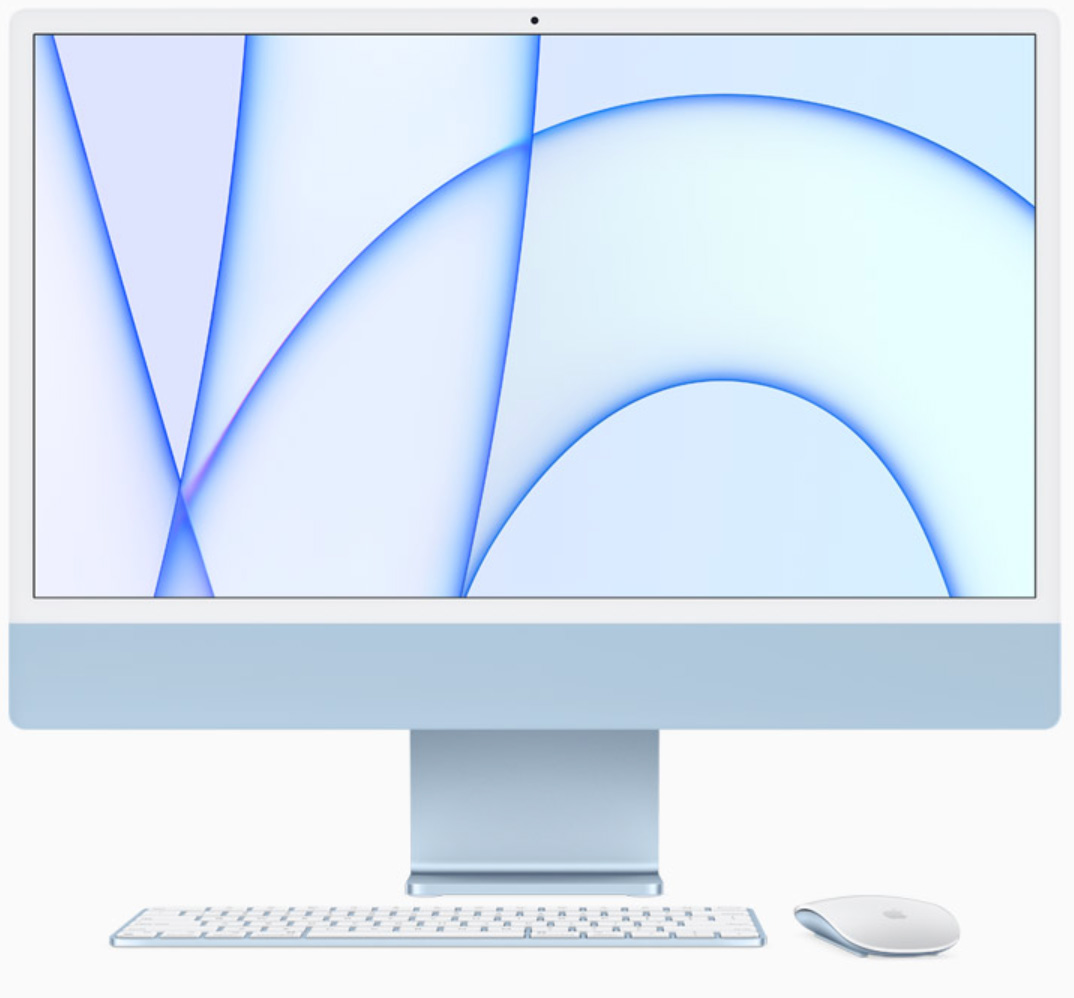
 One of the exciting announcements from Apple on Tuesday was news of the soon-to-be-released 24″ iMac. Delivered in seven colors and sporting the new M1 system-on-a-chip, it generated a lot of email from editors asking my thoughts.
First, and this is most important, as Ars Technica reported: “Apple sees the M1 as an entry-level chip.” This statement is key to understanding where the M1 iMac fits.
 THE GOOD NEWS
In terms of sheer performance, the M1 blows the doors off just about everything else in the Mac ecosystem. It is stunningly fast.
If pure performance is your goal, you will be delighted with an M1 iMac. This is especially true if you have a computer which is older than, say, 2017.
THE LIMITATIONS
While there is no bad news with the M1 iMac, there are a variety of limitations that you need to think about. Some may not matter, others may matter a lot – each of us is different.
Apple introduced two 24″ iMacs:
Both options start with 8 GB of RAM, both can expand up to 16 GB of RAM and both are 1/2 the weight of a 27″ iMac (9.88 pounds).
THOUGHTS
The M1 uses unified memory. With Intel systems, whenever data is loaded into RAM, it needs to be optimized for the CPU, then again for the GPU, then again for whatever other process needs to work with it. All these copies mean that we need lots of RAM simply to work with our data.
NOTE: Here’s an article that discusses M1 systems in more detail.
The M1 makes this duplication unnecessary. CPU, GPU and AI systems all use the same form of data stored in RAM without duplication. This means that a system with, say, 16 GB RAM may be as efficient as an Intel system with 32 GB. In other words, the old rules about how much RAM we need don’t apply to M1 systems the way they did with Intel systems. However, this is not to say that more RAM is not useful – it is, especially as frame sizes or frame rates increase or when you need to edit large multicam projects.
NOTE: I should also note that 16 GB of RAM for an M1 system is not a limitation for editing HD or 4K media. I received several email reports from editors using the M1 Mac mini for 4K editing and glowing about how smoothly it edits.
However, the bigger issue is that M1 RAM is not upgradeable, ever, because it is built into the M1 chip itself. My concern is that new applications are always looking for ways to use more RAM to solve problems we couldn’t solve before. And we have not yet reached the end of increasing frame sizes. (My guess is that once we reach 12K frames, video will roughly equal the same resolution as the human eye.)
Another issue is that the GPU in the M1 does not equal high-end GPUs from AMD or NVIDIA. (Remember, the M1 is an “entry-level” chip.) If you depend upon really fast rendering, the M1 will be slower than an Intel system.
NOTE: Faster GPUs do not mean higher quality. All GPUs generate the same quality; faster simply means faster.
This is not to say these M1 systems are bad. Far from it – they are amazing. They are fine for people who need a desktop computer, with a built-in high quality monitor, a few high-speed ports and access to the latest in high-performance computer technology. In fact, I would recommend the base, two-port system to any student or typical business user because of the high-performance, low-cost of the system.
But, video editors are not “typical” users. Video editing remains one of the hardest tasks we currently ask computer systems to perform. Video editing devours computer resources and often requires lots of connected devices. Which means that we need to think more clearly about what we want the system to do before we spend our money.
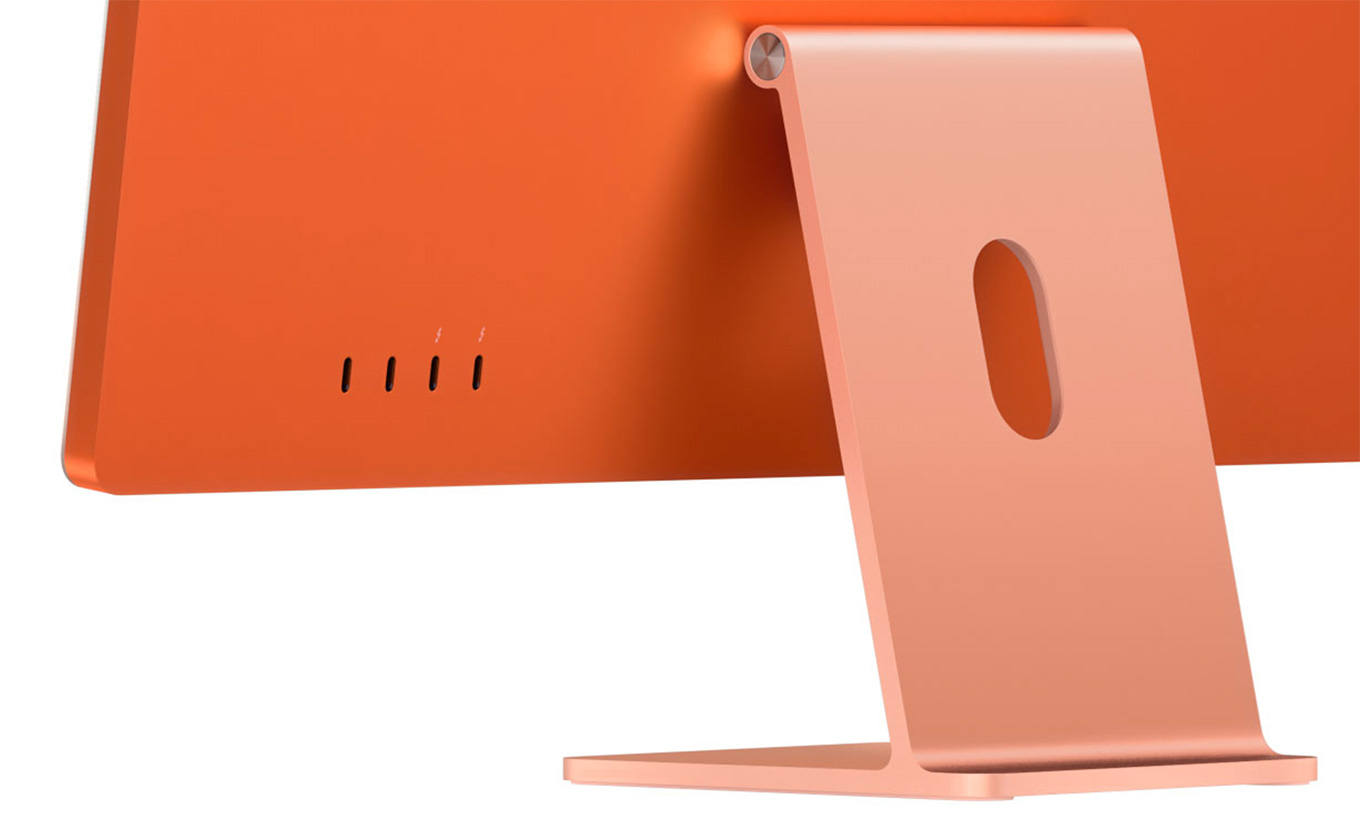 My concerns about these new iMacs is not the M1 – I’m blown away by what it can do – but by the limited RAM, limited GPU, and limited ports. Video editors need to connect to a LOT of different gear. Both of these new systems will probably require you to purchase an external dock – and certainly external storage – to get the ports and capacity you will need for most video projects.
As well, because the amount of RAM is fixed, I would strongly recommend you get 16GB of RAM. You may not need it for the HD media you are editing today, but as frame sizes and frame rates continue to grow – and they will – more RAM will make future editing easier.
 RECOMMENDATIONS
Most editors I ask say they “currently are editing single-camera 1080p HD material, but want to buy a system that will future-proof them for editing 8K multicam RAW images in real time; without rendering.” You know, just in case they land Taylor Swift’s latest music video.
Sigh… You do realize that, from a computer point of view, that’s a pretty big stretch? If you need THAT much power, hold off until the next round of M1 chips is released.
But, for normal HD and 4K editing, assuming the number of ports is not a limitation to you, here’s the system I recommend.
NOTE: This recommendation is based on the goal of getting the most system for the least money. If you have the budget, spend more.
While internal storage maxes out at 2 TB, this is still inadequate for many video projects. My recommendation is to save on internal storage, which is expensive, then spend those savings on fast external storage. My general recommendation for storage is a RAID.
Apple hasn’t released final configuration pricing yet, but based upon the base price, this puts the cost of the upgraded system around $1,899.
M1 iMac orders open April 30, with shipment later in May.
SUMMARY
Any M1 system is impressive when measured in performance. What these new 24″ iMacs lack, though, is more ports, more RAM, faster GPU and an option for 10 Gb Ethernet.
These first M1 iMac systems are targeted at consumers and general business computer users. While they can be used for video editing – even serious video editing – be sure you can work with their limitations before ordering a system.
My expectation is that we will see the next round of higher-capability iMac systems announced at WWDC 2021, which is where Apple tends to make its power user announcements. Once those are announced, we can take a look at the entire iMac family and determine which system, at which price, makes the most sense for our work.

2,000 Video Training Titles
Edit smarter with Larry Jordan. Available in our store.
Access over 2,000 on-demand video editing courses. Become a member of our Video Training Library today!
Subscribe to Larry's FREE weekly newsletter and
save 10%
on your first purchase.

44 Responses to Configure a 24″ M1 iMac for Video Editing
← Older Comments Newer Comments →-
 Larry Jordan says:
May 10, 2021 at 1:29 pm
-
 Walt Atwood says:
May 11, 2021 at 10:09 am
-
 Larry says:
May 11, 2021 at 12:40 pm
-
 Walt Atwood says:
May 11, 2021 at 2:00 pm
-
 Jake Smolowe says:
May 21, 2021 at 8:30 am
-
 Larry says:
May 21, 2021 at 8:39 am
-
 Jake Smolowe says:
May 21, 2021 at 8:55 am
-
 Larry says:
May 21, 2021 at 9:47 am
-
 Jake Smolowe says:
May 21, 2021 at 10:22 am
-
 Ross says:
May 26, 2021 at 11:40 pm
← Older Comments Newer Comments →Walt:
Smile… well, you don’t need to re-invent the ENTRE wheel, but a lot of reinvention will be necessary.
If you are fluent in FCP 7, Adobe Premiere Pro will be easiest to pick up – they are very similar. If you want something simpler to learn – but equally powerful – FCP is a better choice. FCP is also faster and more compatible with M1 Macs.
If you need to control an external DV tape deck, Premiere is the better choice. If you have already digitized the tape, then I’d go with FCP.
ANY computer you get today can easily run your business applications.
As for FireWire, you could get a Thunderbolt 2 to Thunderbolt 3 adapter, but, frankly, it would be far cheaper and just as effective to get a FireWire to USB 3 adapter for about $10. In today’s computer terms, FireWire just isn’t that fast.
Can you get it all to work together? Yes, but there will be some growing pains and a learning curve. And, at some point, you are going to need to retire your HDV deck – HDV is interlaced, which is death on the web.
Finally, when you get your new gear keep the old stuff. Keep the old system working while you learn the new system, then – and this is important – digitize all the tapes you need to keep for the future. Very soon now, you won’t be able to digitize them at all and then you’ll be, ah, screwed.
Convert them to your hard disk, make backups and you are set for the future.
Larry
I was unaware that you could bring FireWire to USB. Do adaptors exist to bring FireWire to USB-C? Silly question, I know.
Walt:
Smile…. that’s what a Google search is for.
Larry
I tried an Amazon search so far… nothing.
Off to Google…
I’ve been editing virtual choirs using my late 2013 27″ iMac (3.5 HGz i7, 32 GB RAM, 512 GB SSD with external SSDs for the projects). Some tunes have up to 24 separate student videos in frame simultaneously, most at 1080p resolution.
The project is finished at this point, but my computer had a really hard time with it, and I’m hoping to upgrade soon—probably whenever the larger Silicon iMacs come out. I was viewing everything using Proxy formats but anytime I wanted to animate keyframes I had to hide all but 2-3 students to view the transitions smoothly. Pretty much every operation feels slow/slightly delayed, even just selecting a lane or moving to the next lane down.
I don’t have any experience editing using higher-end systems so I’m not really sure what reasonable expectations would be for editing this type of project. Like, how powerful of a computer would I have to have to be able to view and animate 20+ lanes simultaneously without lag?
Jake:
You are REALLY pushing your older system! I would strongly recommend you consider using a proxy workflow – it will decrease the load and increase the responsiveness of your system. I agree, an upgrade is in your future, but, for now, switching to proxies will make a big difference. The keyframe geometry of proxies in FCP is the same as for the master files, so you won’t need to redo any of your work when you switch between proxies and master files.
Once a timeline is rendered, you are no longer using 24 separate tracks of video, but one single track – which makes a big difference. But hiding and revealing clips deletes render files, which makes your system work all that much harder re-rendering each time you make changes.
A new system will render faster and, depending upon your storage, may even play those unrendered clips in real time. In any case, it will be faster – BUT your storage will need to be equally fast. Playing 24 1080p clips in real time requires very fast storage – on the order of full-speed Thunderbolt 3. Again, proxies will make your life easier – or spending time rendering.
Larry
Hi Larry,
Thanks so much for the detailed and thoughtful response! I will definitely look at upgrading my storage as well—right now I’m editing off of a 1 TB Samsung SDD 860 EVO connected via USB 3, which I’m sure is completely inadequate at this point. Also using proxies as often as possible (basically always unless I need to export something to show off).
One thing I’m confused about is you said hiding and revealing clips deletes keyframes—can you elaborate on that? Is that different than just disabling and re-enabling the clip? That’s what I’ve been doing and it didn’t seem like it was messing with my keyframe animations or anything like that.
Jake:
The Samsung is what’s allowing you to edit your projects at all. It is QUITE fast! No reason to throw it out. In the future, though, if you plan to do more of these, use an NVMe SSD – it will be three to four times faster than the Samsung. (And the Samsung is as fast as any RAID composed of spinning hard disks.)
Regarding your question, I mistyped (and I’ve corrected my response). Hiding and revealing clips does NOT delete or modify keyframes. What it DOES do is delete render files, because the composition of the timeline changed. Sorry for the confusion.
Larry
Ah, thanks for the clarification! Also, good to know my EVO still mostly holds up! I’ll look at an NVMe SSD for the future after I get a computer that supports Thunderbolt 3.
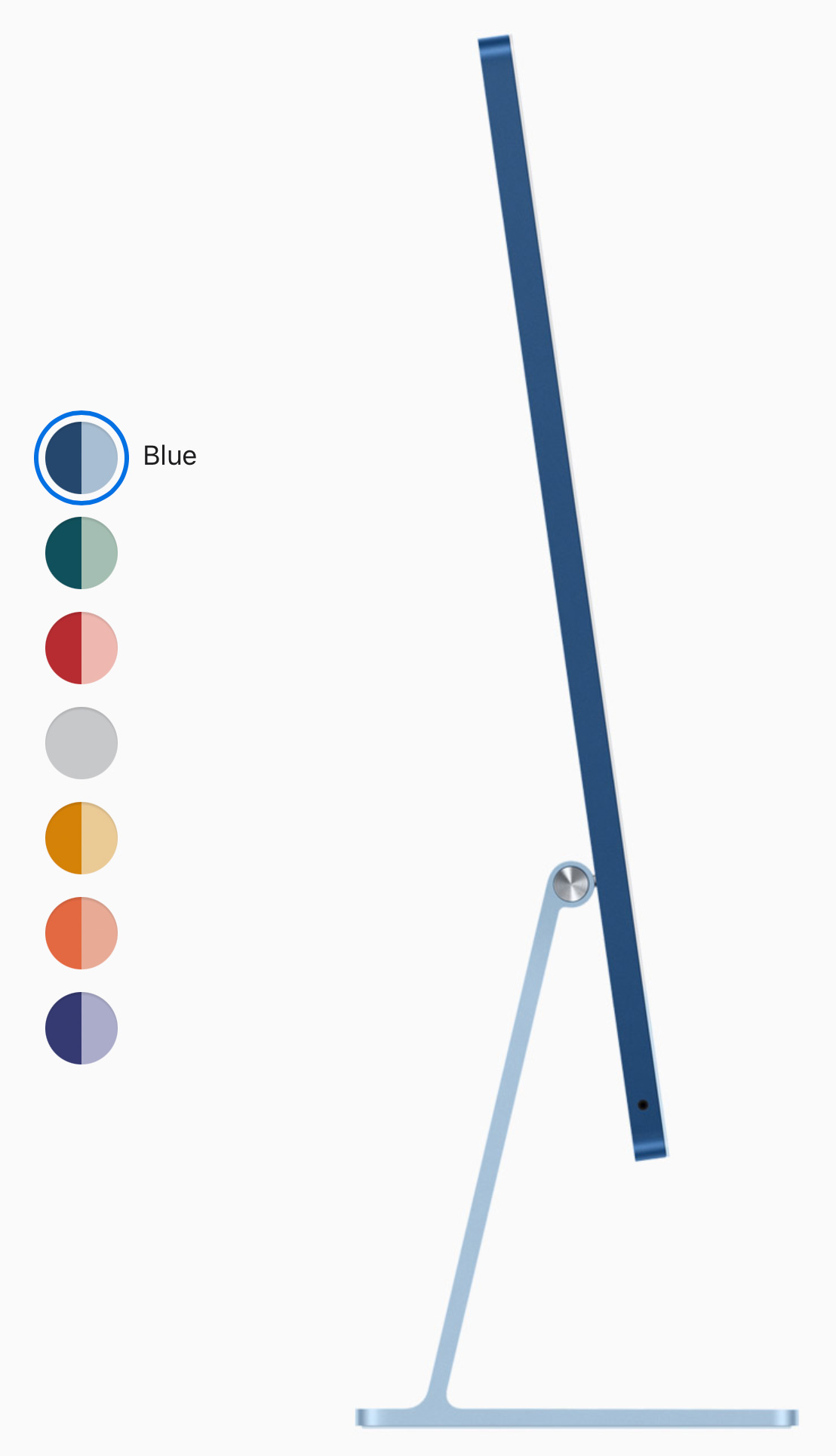
Might be worth considering how that colourful surround might affect your perception of colours if you are not using an external monitor or if you’re doing any graphics work. In which case the not so fun silver is going to be your best option,