
 The “poster frame” is the small, thumbnail image that is displayed by the Finder for most movies. Most of the time, we don’t care what the poster frame is. But, sometimes, we care a lot.
The problem is that when you export files from Final Cut Pro X or Premiere Pro CC, the poster frame is assigned automatically. Unlike YouTube, you can’t pick the poster frame you want displayed.
However, there is a simple fix using Apple Compressor. Better, you can do so without re-encoding or compressing the file. Here’s how:
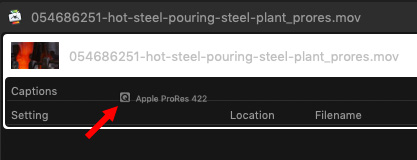
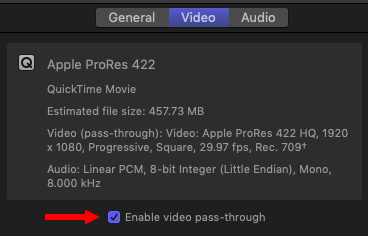
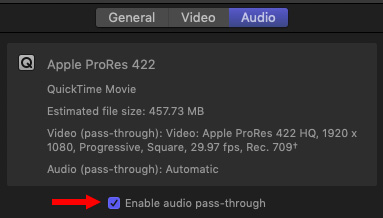
These two steps make sure that your file is only copied and not compressed.
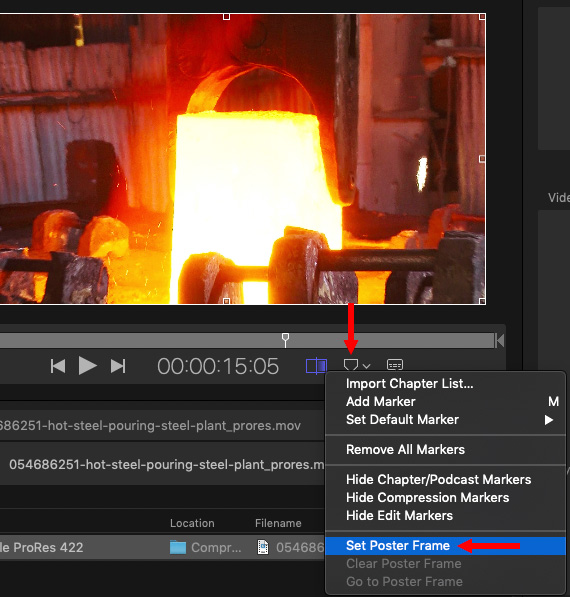
NOTE: As you can see, you can also use this menu for other marker tasks as well.

The secret to this technique is the Pass-Through settings. These override the compression settings – which is why you don’t care which compression setting you initially pick – and allow you to make a copy of the master file using Compressor without altering the source video or audio.
EXTRA CREDIT
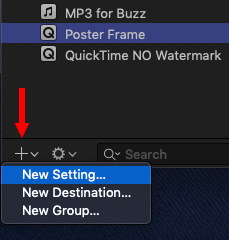
You could also create a new compression setting as a custom preset – call it, say, “Poster Frame.” This allows you to create these settings once, then apply them to as many files as you need. Keep in mind that you can’t save this as a droplet, though, because that wouldn’t allow you to set the poster frame.

2,000 Video Training Titles
Edit smarter with Larry Jordan. Available in our store.
Access over 2,000 on-demand video editing courses. Become a member of our Video Training Library today!
Subscribe to Larry's FREE weekly newsletter and
save 10%
on your first purchase.

21 Responses to Change Your Movie’s Poster Frame
← Older Comments Newer Comments →-
 Larry says:
October 24, 2020 at 9:14 am
-
 Ariel Dovas says:
November 10, 2020 at 10:18 am
-
 Larry says:
November 10, 2020 at 10:51 am
-
 Darran Bruce says:
November 20, 2020 at 3:27 pm
-
 Larry says:
November 20, 2020 at 4:05 pm
-
 Karl says:
December 30, 2020 at 8:41 pm
-
 Steve Mills says:
February 8, 2021 at 11:49 am
-
 Larry says:
February 8, 2021 at 12:17 pm
-
 Gee says:
December 26, 2021 at 8:25 pm
-
 Larry says:
December 27, 2021 at 8:26 am
← Older Comments Newer Comments →PAJ:
Thanks for your comment. However, not all of use are familiar with using Terminal along with ffMPEG.
Larry
Does this still work? I can’t figure out how to go to Get Info in QT??
Thanks!
Ariel:
This still works.
You don’t “Get Info” inside QuickTime Player, you do so by selecting the file in the Finder.
Larry
Hello Larry,
I am having trouble finding the “Enable video pass-through” and Enable audio pass-through” buttons in Compressor.
I have also tried the FCPX Export option by moving the playhead where I want it and it does export with the frame I have chosen as the image for the file however when I upload it my image for the poster image remains to be the first frame.
I tried the Get Info method as well. I saw that it did change the file image but still had the first frame as the poster image when I uploaded it to my server.
Any help here would be great.
I feel I am so close and I have been looking for this for years.
I don’t know why they removed “Set Poster Frame” from QT in the first place.
Darran:
To find the two Pass-through buttons, apply a compression setting to a clip in Compressor, then, select that compression setting in the clip.
Go to the Video Inspector, the pass-through checkbox is near the top. The same is true for the Audio Inspector.
Different servers treat poster frames differently. YouTube, for instance, gives you three choices with the ability to add a custom frame. If the server overrides the image you selected as the poster frame, you may need to look for a different way to display the poster frame.
For myself, I upload separate images and incorporate them into the webpage using HTML. Poster frames are pretty hit and miss.
Larry
Yes Indeed Larry in FCPX If you render out your video with the playhead on the frame you want it applies that image as the poster frame thumbnail. I literally was searching for how to do this and this thread popped up on goggle. Read the poster below and gave it a try and voila it works. I guess if you’re using adobe or blackmagic one can go with the Quicktime method listed in this thread, as that also works.
Larry! This page was early (like 4 or 5 from the top) in a Google search I did when another customer was asking about cataloging videos in Image Chest and being able to choose the frame for the thumbnail.
I miss the old days when QuickTimer Player had the feature. Why did Apple take it away? Maybe because they could no longer write the poster frame to all the newer types of videos? Seems lame.
Steve:
“Why?” is a question Apple almost never answers. My guess, like you, only a few video formats support poster frames, so they removed it rather than explain all the cases where it wouldn’t work.
Larry
Hi Larry –
Do you know if PAJ’s Terminal command listed above works on Big Sur in 2021
ffmpeg : ffmpeg -i in.mp4 -I yourposterimage.jpg -map 0 -map 1 -c copy -c:v:1 mjpeg -disposition:v:1 attached_pic out.mp4
in.mp4 = target movie file
yourposterimage = new image for poster
out.mp4 = new movie file w/ new image for poster
— (? or is it “attached_pic out.mp4”)
Thx
Gee:
I don’t use Terminal often, so I’m not a good source for this level of advice. Perhaps another reader can help.
Larry