
 The “poster frame” is the small, thumbnail image that is displayed by the Finder for most movies. Most of the time, we don’t care what the poster frame is. But, sometimes, we care a lot.
The problem is that when you export files from Final Cut Pro X or Premiere Pro CC, the poster frame is assigned automatically. Unlike YouTube, you can’t pick the poster frame you want displayed.
However, there is a simple fix using Apple Compressor. Better, you can do so without re-encoding or compressing the file. Here’s how:
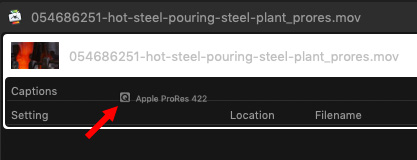
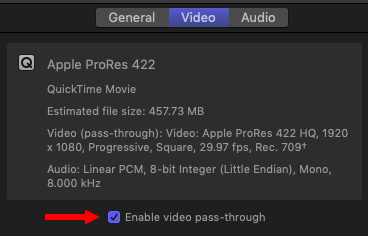
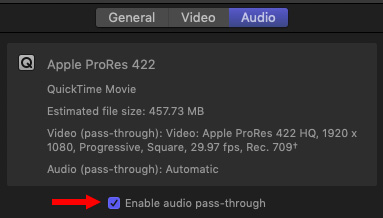
These two steps make sure that your file is only copied and not compressed.
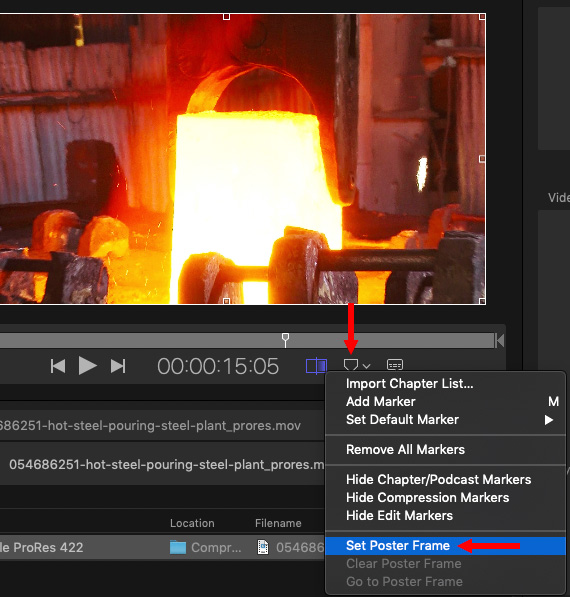
NOTE: As you can see, you can also use this menu for other marker tasks as well.

The secret to this technique is the Pass-Through settings. These override the compression settings – which is why you don’t care which compression setting you initially pick – and allow you to make a copy of the master file using Compressor without altering the source video or audio.
EXTRA CREDIT
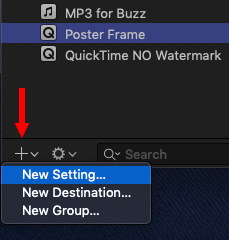
You could also create a new compression setting as a custom preset – call it, say, “Poster Frame.” This allows you to create these settings once, then apply them to as many files as you need. Keep in mind that you can’t save this as a droplet, though, because that wouldn’t allow you to set the poster frame.

2,000 Video Training Titles
Edit smarter with Larry Jordan. Available in our store.
Access over 2,000 on-demand video editing courses. Become a member of our Video Training Library today!
Subscribe to Larry's FREE weekly newsletter and
save 10%
on your first purchase.

21 Responses to Change Your Movie’s Poster Frame
Newer Comments →-
 mijones says:
May 14, 2019 at 10:12 am
-
 Larry says:
May 14, 2019 at 11:24 am
-
 Luke says:
May 23, 2019 at 1:04 pm
-
 Larry says:
May 23, 2019 at 1:31 pm
-
 Ian R. Brown says:
October 17, 2019 at 2:04 am
-
 Larry says:
October 17, 2019 at 8:02 am
-
 Jordan Bentz says:
December 17, 2019 at 8:53 am
-
 Stelios says:
June 24, 2020 at 11:36 am
-
 George says:
September 28, 2020 at 2:29 pm
-
 PAJ says:
October 24, 2020 at 1:19 am
Newer Comments →Larry: This is great, but what about those who have migrated away from FCP, et al., and use Adobe editing products. Is there a fix in the Adobe CC apps somewhere? Thanks, Michael
MI Jones:
I don’t know how to do this using Adobe products. On the other hand, Compressor is only $50, runs as a stand-alone app and you could consider it as a utility you use to reset poster frames, while still using AME for your standard compression.
Keep in mind that this works with QuickTime movies, not MXF.
Larry
Hi Larry. I noticed that when sharing a project directly from FCPX (Top Right Corner) the Poster frame displayed in the finder is whatever image I have selected by positioning the “playhead” in the timeline before sharing. It seems to work great and that’s what I use personally. Am I loosing something in the process ?
Luke:
Wow… if true, that’s a trick that even Apple doesn’t know! (And I can’t think of anything you’d be losing…)
Thanks for sharing.
Larry
There is a much quicker method using QuickTime Player. Open the video in QT, navigate to the appropriate frame and copy it (cmd-c). Then do a “Get Info” (ctrl-click) on the video file and select the tiny thumbnail at the top left corner of the “Get Info” window. Finally paste (cmd-c) the new frame onto the thumbnail. That’s it!
VERY cool!
Thanks,
Larry
Ian R. Brown… what a hero — your QT fix worked.
Working with a client who’s doing a direct embed – didn’t know the solution until now.
Thanks my dude.
OMG! This worked GREAT! Thank you!
Great tip, Ian! “Get Info” has the ability to surprise with its hidden super-powers. (Like what you discovered in its little thumbnail box.)
I had been trying to designate the poster frame using Luke’s cursor position trick, but it’s about 50% successful. Often a black (blank) background creates a poster frame with white background.
Not too long ago, among all of its other handy abilities, QT7 Pro used to include a tool for selecting the poster frame. QT10 is definitely NOT a professional-worthy replacement. Wouldn’t it be great if Apple updated QT7 Pro to 64-bit?
The quicktime hack here does not modify the video file, to permanently change the poster frame use ffmpeg : ffmpeg -i in.mp4 -I yourposterimage.jpg -map 0 -map 1 -c copy -c:v:1 mjpeg -disposition:v:1 attached_pic out.mp4