
 One of our most popular webinars this year covered Media Management in Final Cut Pro X. Download a copy of the webinar here, or become a member of our Video Training Library. This article grew out of that webinar.
Dan sent me an email: “I’m looking at this blue cube icon in the Finder and still can’t figure out where Final Cut Pro X stores media?”
The answer is both simple and complex, so let me explain. There are two types of media in Final Cut Pro X:
These two options are not a case of good vs bad, rather each option provides unique benefits. Which option you should pick depends upon your project and how you intend to use media.
My general recommendation is that if you are new to FCP X, always use managed media. If you expect to share the same media between multiple editors or multiple jobs, use external media.
MANAGED MEDIA
EXTERNAL MEDIA
A SIMPLE WAY TO START
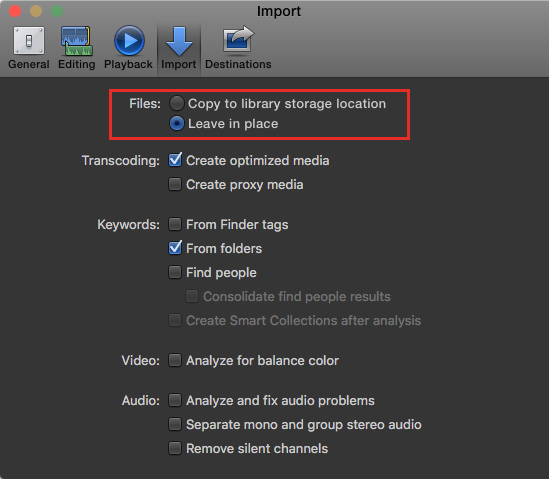
In all cases, you determine which of these two options you want to use for your media during import. So, here’s a simple way to choose.
Before importing any media, start Final Cut and choose Final Cut Pro > Preferences > Import. This displays all the import settings in FCP X – see the screen shot above.
The top two are the ones that determine where media will be stored.
It would seem that leaving files in place would be the “best” option. Maybe, but not always….
HOWEVER!
There is a big down-side to external media. You, not Final Cut, need to remember where your media files are stored.
If you move a library containing external media to a different drive, you’ve moved the library but you haven’t moved the media. Why? Because the media is only linked to the library, not contained within it. Links are pointers that “point” to where the media files are actually stored on your system.
Because you moved files using the Finder when FCP X wasn’t running, Final Cut was not able to update any of the media links to reflect their new location. This means that if you were to open that now-moved library, all your media would come up unlinked (red.). If the original drive containing media were not connected, you wouldn’t be able to edit anything.
So, the trade-off is that external media is more flexible, but requires more work from you to keep track of where all your media files are stored.
NOTE: FCP X tracks media files perfectly during an edit, regardless of whether the media is managed or external. Problems occur only when you start moving files using the Finder, when FCP X is not running. Where possible, move media and libraries using Final Cut. My Media Management webinar shows how to do this.
GETTING MORE COMPLEX
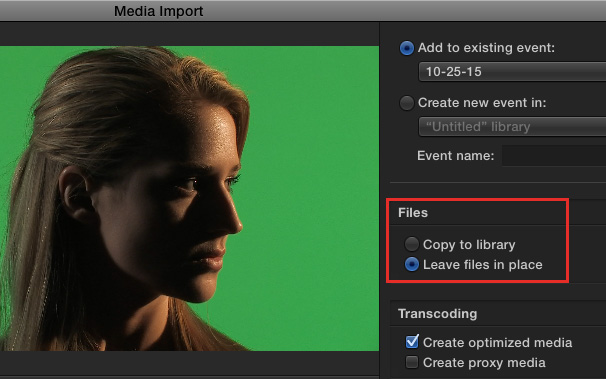
The ideal (or maybe I should say “simplest”) way to set import preferences is to use the preference settings we just looked at. However, EVERY TIME you import media, you have the option of changing your mind and storing media somewhere else.
Here’s the Media Import window. Notice the two radio buttons under Files. These are the same two settings that we first saw in preferences.
Here’s the trick: If you change these settings here, Final Cut ALSO changes the preference setting so that the settings you last used in Media Import become the default settings the next time you open the Media Import window.
So… every time you import media you have a new opportunity to decide where you want your media to be stored.
The choice is always up to you.
EXTRA CREDIT
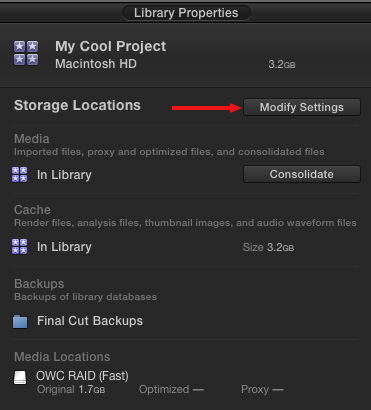
You can change media storage locations for a library using File > Library Properties. This video explains how in more detail.
I’ve written a lot about media management in Final Cut Pro X. Here’s a collection of eighteen articles that explain this in much more detail.
SUMMARY
Media management in FCP X boils down to a choice: media is either stored in the library or it isn’t. And every time you import media, you get to choose where it goes.

2,000 Video Training Titles
Edit smarter with Larry Jordan. Available in our store.
Access over 2,000 on-demand video editing courses. Become a member of our Video Training Library today!
Subscribe to Larry's FREE weekly newsletter and
save 10%
on your first purchase.

12 Responses to Where Does Final Cut Pro X Store Media?
← Older Comments-
 David Horne says:
February 9, 2021 at 9:33 am
-
 Larry says:
February 9, 2021 at 9:59 am
← Older CommentsHi Larry, I have a different issue. I am trying to import old dv files into my IMAC as complete films and convert/export to MP4, but when I import a previously edited film from my mini HI8 tape into FCP Pro X, the resultant clips that appear in the browser are not always in the same sequence as those in the original film. I had the idea to copy from the browser into the timeline and export from there but would obviously get a different result to the original. Is there a simpler way of getting my DV films to MP4 format?
Many thanks in advance
David
David:
Wow! I have not heard of this before.
However, there is a work-around. Are you able to play the imported clips in the right order in QuickTime Player? If so, you don’t need FCP to convert them into MP4, you can use Compressor, Adobe Media Encoder, Handbrake or any other video compression software.
If they don’t play in the correct order in QuickTime Player, there may be a problem with the edit stored on the tape. Can you play the tape and are the clips in the right order? If the clips are in the right order on the tape, but won’t import, you can use a hardware converter to take the video from the Hi-8 deck and convert it to MP4 in realtime during playback.
Larry