
 This is the third in a series of articles looking at the new Apple Compressor 4.2. In this article I compare compression speeds between a new Mac Pro, iMac and MacBook Pro when compressing video for YouTube and, by extension, the web.
EXECUTIVE SUMMARY
The power of hardware-accelerated compression is brought home in this test. Based on the YouTube presets shipped with Apple Compressor 4.2 – which are typical for many web compression tasks – if you want the fastest video compression get the fastest iMac.
Video compression is surprisingly complex. Different codecs will compress at different speeds on the same hardware. There are some tasks, such as transcoding video files into ProRes where the Mac Pro should be substantially faster. I’ll look at ProRes transcoding in a future article.
However, for tasks where you are compressing video for YouTube, Vimeo, Facebook or other web sites utilizing the H.264 codec, your best option is an iMac.
TEST GEAR
I used three essentially current computers for this series of tests:
I created a series of four test files, all exported as Master files from Final Cut Pro.
During compression all files were scaled to 1280 x 720, using the YouTube HD720 preset shipped with Compressor 4.2 No changes were made to the compression setting for this test. All source media and resulting compressed files were stored locally.
THE RESULTS
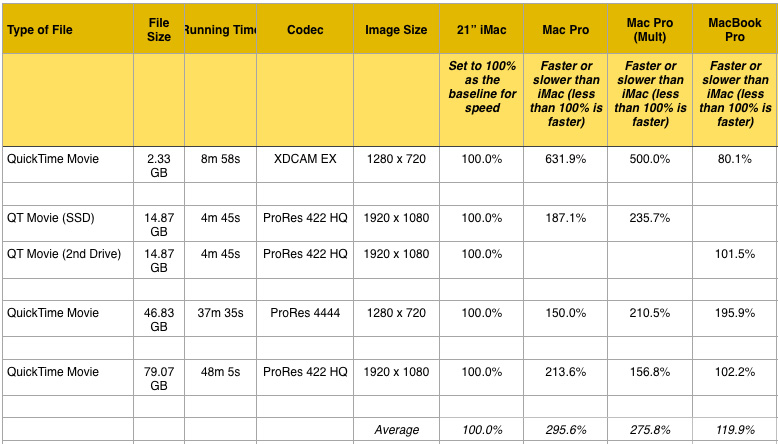
(Click the image to download a PDF with the detailed results.)
For the purposes of comparison, in the table I set the speed of the iMac to equal 100%, then compared the compression speed of the other two computers to it. (The PDF, which you can download here, has all the details, including timing durations, so you can check my math.)
Both the iMac and the MacBook Pro utilize hardware-acceleration when compressing files using the H.264 codec. You can see the benefits in these results. The iMac was almost three times faster than the Mac Pro, while the MacBook Pro matched the speed of the iMac for everything except ProRes 4444 source files.
I was really surprised at how much hardware-acceleration improved compression speed. This does NOT mean that the Mac Pro is not a useful computer. H.264 is a codec that does not fully utilize multi-core computers. Video compression uses significantly different computer resources than video editing.
NOTE: I should point out that every system running Compressor 4.2 was a WHOLE lot faster than the same system running Compressor 4.1.2.
USING MULTIPLE INSTANCES
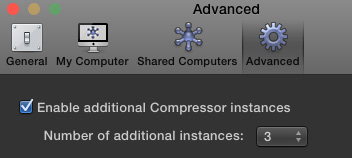
A feature available in the Mac Pro that doesn’t exist in the iMac or MacBook Pro, is the ability to run Compressor in multi-instance mode. This allows multiple “copies” of Compressor to run simultaneously.
NOTE: Multiple instances are turned off by default. You turn them on from the Compressor > Preferences menu. When multiple instances are turned on and Compressor is running, other applications will slow down significantly.
If you are compressing a single file, you won’t see a whole lot of difference by enabling multiple instances. As you can see in the results, Compressor speeds up about 8%. What does benefit is when you are compressing a number of files at the same time. Multiple instances allows Compressor to compress different files at the same time. While I did not specifically time it, enabling multiple instances reduced total compression time for all four files almost in half.
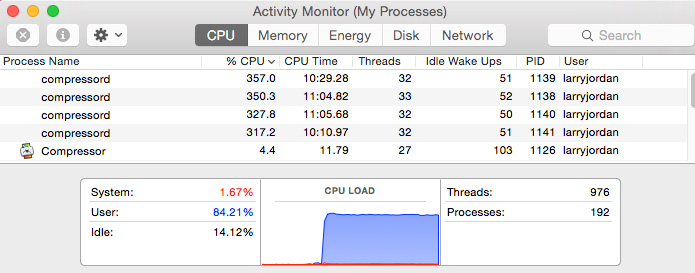
You can see the results of multiple instances in Activity Monitor. CPU load is way up with almost double the processing power applied when the maximum of 3 instances are enabled.
NOTE: The number of available Compressor instances is determined by your computer’s cores and memory. After meeting the minimum system requirement (four cores and 2 GB of memory), you can add one additional instance for every additional four cores and 2 GB of memory. This portion of the Compressor documentation describes this in more detail.
INTERNAL VS EXTERNAL DRIVES
Last week, I discovered that when compressing media using hardware-acceleration on an iMac compression speeds improved almost 15% when storing media on a fast SSD drive – whether internal or external. In the PDF, you’ll see comparisons between media stored on an SSD drive vs. spinning media.
NOTE: In this test, the SSD drive was an Apple Fusion internal drive.
SUMMARY
There are three more tests I’m working on for next week:
However, based on compressing video for YouTube or the web, a current model iMac is about the best it gets. As always, I’m interested in your comments.

2,000 Video Training Titles
Edit smarter with Larry Jordan. Available in our store.
Access over 2,000 on-demand video editing courses. Become a member of our Video Training Library today!
Subscribe to Larry's FREE weekly newsletter and
save 10%
on your first purchase.

14 Responses to Video Compression Hardware Speed Test
Newer Comments →-
 Scott Martin says:
May 11, 2015 at 5:34 am
-
 andrew says:
May 11, 2015 at 5:44 am
-
 Dick Walters says:
May 11, 2015 at 6:07 am
-
 Claudiu says:
May 11, 2015 at 6:09 am
-
 Larry says:
May 11, 2015 at 7:24 am
-
 Larry says:
May 11, 2015 at 7:25 am
-
 Larry says:
May 11, 2015 at 7:26 am
-
 Jeff says:
May 11, 2015 at 8:54 am
-
 Larry says:
May 11, 2015 at 10:04 am
-
 Claudiu says:
May 11, 2015 at 10:22 am
Newer Comments →Great write up Larry! Really appreciate this.
I was keen to see the results of all your hard work.
However as the Retina i-Mac enables multiple instances, your conclusions require updated.
Aside, I find the retina i-Mac to be a considerable help with viewing clips and thumbnails and so I imagine other video/photographers editors also will be using this machine. Hence the relevance of this caveat.
Thanks.
I wish you had included the old 201 style MacPro for comparison, since that’s what many of use are still using.
Kind of ridiculous to see a regular 21″ iMac being SIX TIMES faster than an all-powerful Mac Pro in a H.264 compression test… I hope Apple will update the Mac Pro this summer, as from what I know the current Xeon generation has H.264 hardware-acceleration.
Dick:
Good comment. The old Mac Pro that I have is reserved for running OS X 10.6.8 so I can easily use FCP 7 and DVD Studio Pro. I’ll see if I can get it set up as a dual-boot system. If so, I’ll add it to our testing this week.
Larry
Andrew:
You are correct, but it only supports one instance. I’ll due a test this week to see if it makes much difference. What I would EXPECT is that compression times for individual movies won’t change much, but that multi-movie compression jobs will finish a bit faster because more than one more can be compressing at the same time.
But, like I said, this is easy to test and I’ll see what I can find out.
Larry
Yup, this really proved the value of hardware acceleration for video compression to me.
Larry
Hi Larry,
Great job as always. Much appreciated.
I’ve been trying for years to speed up the process of compressing and loading to YouTube/Vimeo. I shoot sports and many games are anywhere from 60 to 100 minutes in length. I found the fastest way to compress is simply go to SHARE>Apple Devices>720p (FCPX). This seems to compress the file to the lowest file size while maintaining HD.
(A one hour video AVCHD to FCPX then compressed with Apple Device setting is usually around over 3GB)
I’ve tried using Compressor to try and get that compressed file size lower without losing the HD, but with no success.
Your thoughts????
Jeff:
There’s nothing wrong with this approach. The latest version of Compressor (4.2) and FCP X now use the GPU to accelerate exports from Final Cut using the Send to Compressor option. Since both Compressor and Final Cut use the same compression engine, you’ll get similar file sizes regardless of which one you use.
Larry
Thing is, H.265 is just around the corner (already used actually, just not mainstream yet); I’m wondering if the updated Mac Pro will lack the H.265 hardware acceleration as well.