
 [ Read my disclosure statement on product reviews here. ]
Updated Dec. 7, 2014, with new multicam tests and specs using a 5K iMac.
SSD (Solid State Drives) drives are known for their performance, small size and ruggedness. However, for a long time, SSD drives were priced so that only the few could afford them. Today, however, we are seeing SSD drives appear at prices that are more within reach.
The good folks at OWC loaned me a ThunderBay 4 mini SSD drive to take a closer look at for a week. Here’s what I found.
NOTE: This unit has both SSD or spinning hard disk options. Because of the potential performance benefits, I only looked at the SSD version.
SECOND NOTE: OWC is also a sponsor of my podcast, Digital Production Buzz.
EXECUTIVE SUMMARY
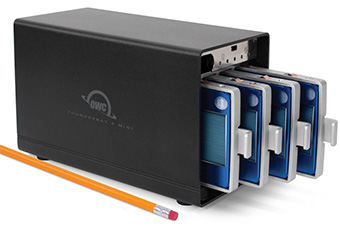
This petite unit – roughly 3 x 4 x 6 inches – is easy to setup, weighs very little, sits quietly on a desk, and, in RAID 0 mode, delivers the speeds you expect from an SSD drive. The unit can be configured as RAID 0 using Apple’s Disk Utility, or RAID 0, 1, 4, 5 or 1+0 using SoftRAID; which is RAID utility software, sold separately. However, in RAID 5 mode, while read speeds were excellent for a small, 4-drive unit, write speeds slowed more than I expected.
Because there are no moving parts in an SSD, the unit can easily survive very rugged handling, which makes it ideal for editors that need to travel; and it is small and light enough to fit just about anywhere.
Company: OWC
Product: ThunderBay 4 mini
MSRP: $1,815.00 as tested (prices range based upon storage capacity)
Website: www.macsales.com
QUICK NOTE ON RAID LEVELS
RAID systems can be configured in multiple ways. The two most common are RAID 0 and RAID 5. RAID 0 provides the fastest performance, but, in the event you lose a drive, you lose all of your data. (Protecting data in the case of drive failure is called “data redundancy.”) RAID 5 systems provide data redundancy, but with a sacrifice in performance and storage capacity equal to the speed and storage of a single drive.
Personally, I prefer data redundancy to maximizing speed, so I generally prefer using RAID 5 when I have a choice.
Here’s an article that explains RAID levels in more detail.
COMPARISON
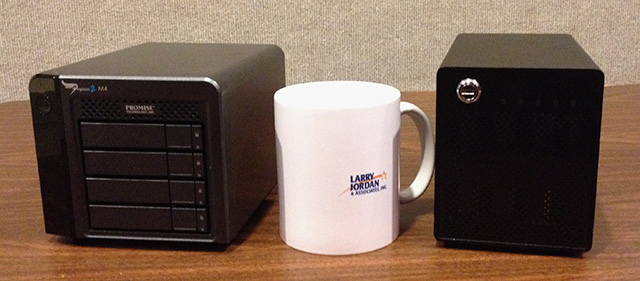
The same week I was testing this OWC ThunderBay 4 Mini RAID, I was also looking at the Pegasus2 M4 SSD RAID from Promise Technology (OWC is on the right). Click here for that review.
UNPACKING
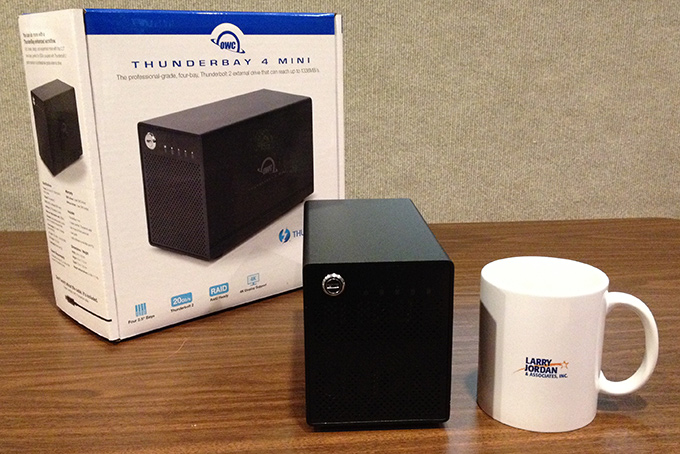
OWC ships the unit safely padded and nicely boxed. There are clear Getting Started instructions. The unit, as you can see here, is about the size of a coffee mug and two coffee mugs deep. (“Coffee mug” is the latest standard in measurement because, um, I can’t find a ruler in my new office.)
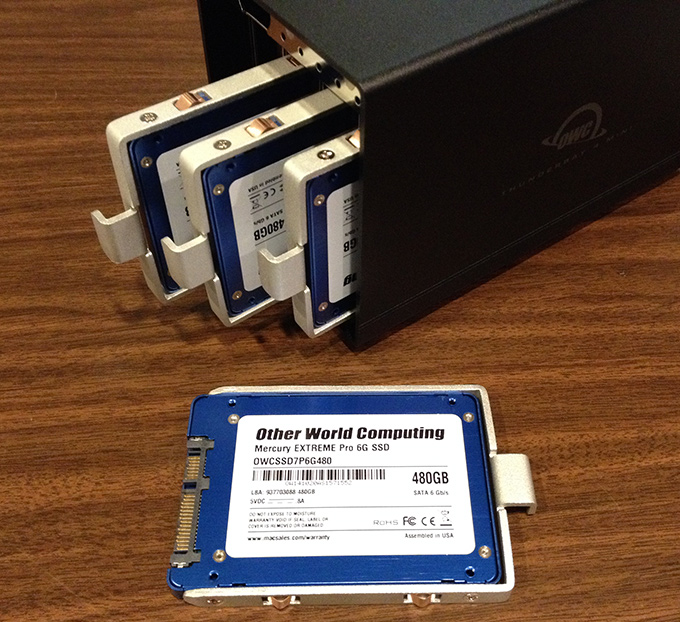
The unit has all four 2.5″ SSD drives preinstalled. Drives are available in a variety of sizes, starting at 240 GB but, unlike spinning hard disks, sizes are measured in Gigabytes, not Terabytes. (You purchase an SSD drive for its speed, not capacity.) All drives need to be the same size and type for optimal performance.
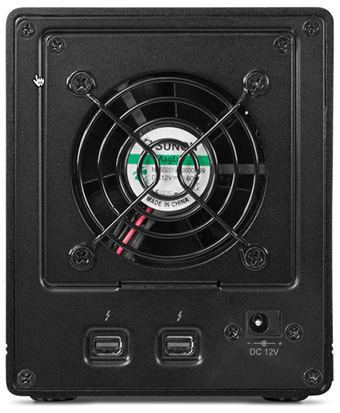
Connecting the drive could not be easer. Plug in a power cable, it uses an external transformer similar to most smaller hard drives, connect a Thunderbolt cable between the SSD and your computer and you are good to go. There are two Thunderbolt 2 ports on the back of the unit, allowing you to connect up to six Thunderbolt devices; which is the limit of the protocol.
NOTE: When I first powered up the unit, nothing happened. So, let me stress that Thunderbolt cables need to be inserted firmly and pushed all the way in. It was the “pushed all the way in” part that I missed.
OPERATIONS
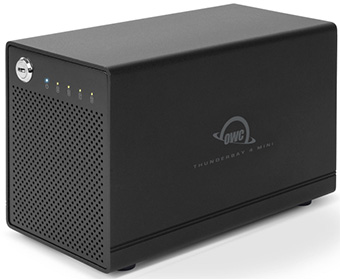
The drive ships configured for RAID 5. Even better, it gets power-up instructions from the Mac it is connected to. When the Mac is on, the RAID is on. When the Mac sleeps, the RAID sleeps, and when the Mac shuts down, the RAID shuts down. You no longer need to power the unit on or off separately. I like that.
The fan is audible, but not distracting. It might be nice to have the fan spin a bit more slowly to decrease the sound, but it can by no means be considered “noisy.” The unit ships with a three-foot (one meter) Thunderbolt cable, so you can move it somewhat away from you and your computer. If you prefer, longer Thunderbolt cables are available.
Once the unit is powered on, it appears as a hard disk icon on your desktop.
SOFTRAID SOFTWARE

The ThunderBay 4 mini has two basic configurations:
I’ve reviewed SoftRAID in the past and like it a lot. I’m using it on all my RAID 5 devices. It is a software utility and driver that configures RAID systems without the laborious formatting delays required by hardware RAID systems. It adds a bit more to the price, but I believe the configuration flexibility, error checking, and utilities it provides are worth it.
For example, the ThunderBay 4 mini does not tell you if a drive has failed, but SoftRAID will. You can also use SoftRAID to verify that your drives are working properly, create RAID volumes using different RAID configurations, test drives for potential failure and, in general, manage your system much more efficiently.
When using the SoftRAID package, you can choose a storage capacity of 1, 2 and 4 TBs. For this review, I was using SoftRAID 5.0.5; which is the latest version of the SoftRAID software.
CAUTION ON USING SSD ON YOSEMITE SYSTEMS
There is currently a known issue where Mac OS X 10.10 (Yosemite) does not support the TRIM function on non-Apple SSD drives. This lack of support will tend to decrease performance over time. There are also reports where systems upgraded to Yosemite no longer boot with a third-party SSD drive attached.
There are several work-arounds, none of them optimal.
Here’s an article that describes this issue in more detail. Be sure to read through the comments. Some of this is technical, but you need to be aware of the issue before you start having problems.
NOTE: When first running SoftRAID, it will ask if you want to modify the operating system to support TRIM functions. What I think it is doing is turning off kext-checking without requiring that we go into Terminal. This is the one screen I did not get a screen-shot of. This is a one-time only setting.
SPEED TESTS
I did my testing on a late 2013 MacBook Pro with Thunderbolt 2 connections. (OS X 10.9.5, 16 GB of RAM).
UPDATE: I’ve also included new tests run on a 5K iMac, in the Update section below.
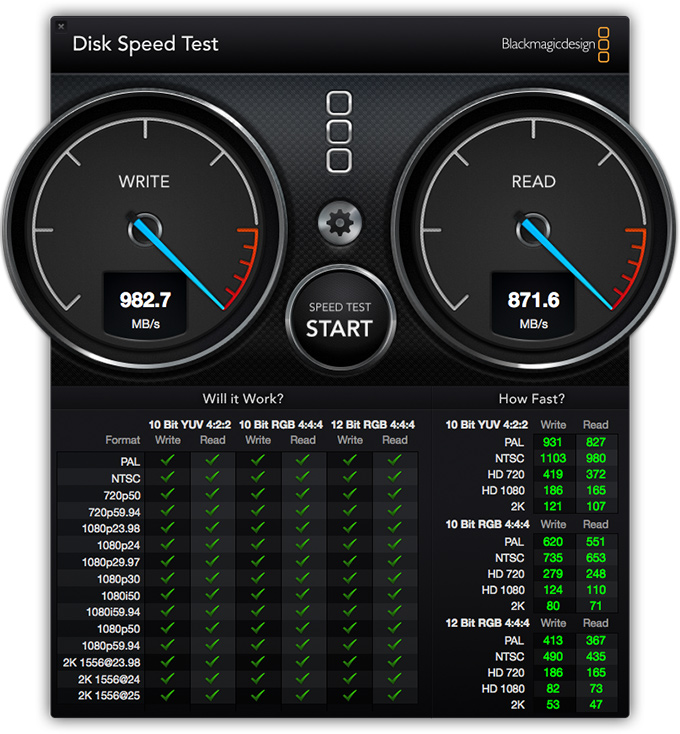
The screen shot above shows the performance specs of the internal drive of my MacBook Pro. It is normal that write speeds are different from read speeds.
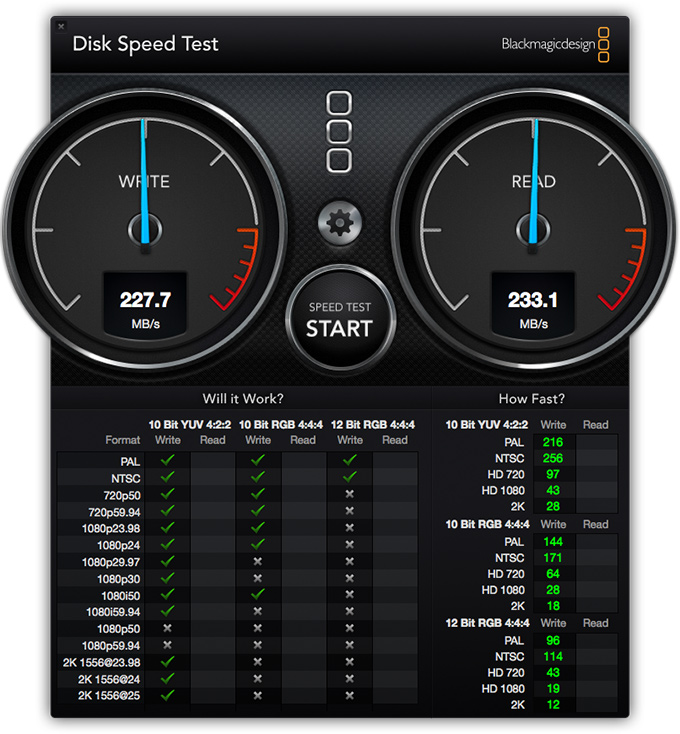
For a comparison, here are the performance specs for a 2-drive G-Technology Thunderbolt RAID 0. (The drive has a lot of data on it, speeds would be somewhat faster if the drive were totally empty.)
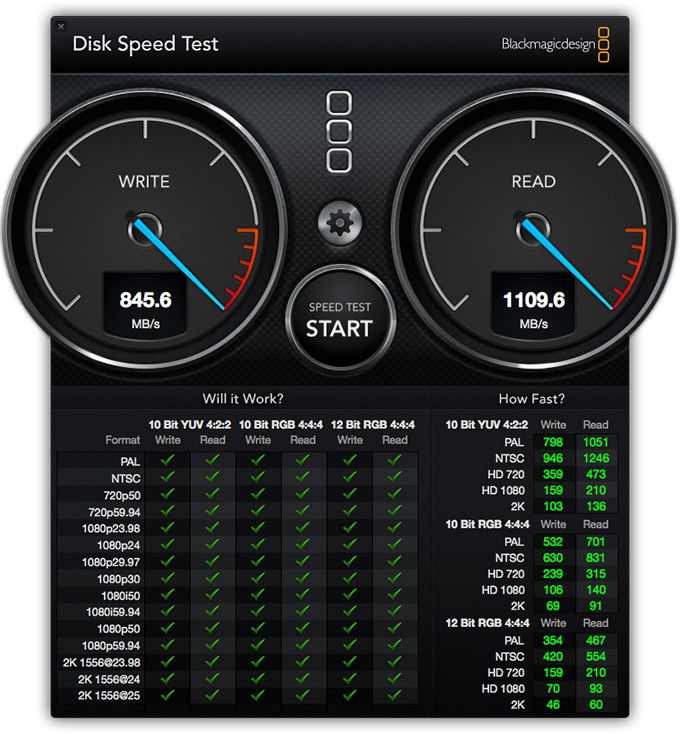
Here are the speeds of the ThunderBay 4 mini, when formatted using SoftRAID as a RAID 0. These are very acceptable speeds.
Read speeds are plenty fast for multicam editing, as well as editing any video format short of 4K uncompressed, or extreme bit-depth 2K files such as 12-bit RAW. Write speeds don’t need to be as fast as read, but these speeds are excellent for rendering and exporting.
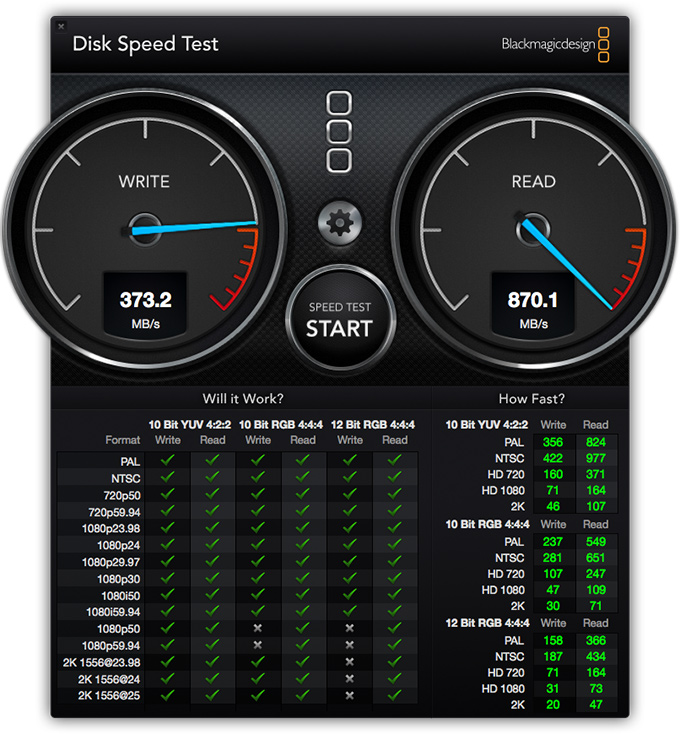
Because RAID 5 uses the equivalent of a single drive to store parity data, the decrease in read speed – compared to RAID 0 – is expected and normal.
NOTE: Speeds will also vary by computer and by how full the RAID is. Different computers achieve different speeds for the same RAID system. In general, I would suggest that variations of 10% or less be considered equivalent.
But, when the drive is formatted as RAID 5, something strange happens. Write speeds drop dramatically. While this isn’t a problem for most video formats – read speed is far more important for video editing – this write speed is close to what I would expect from a single SSD drive, not a RAID 5. I’m not sure what the problem with write speed is here. I have re-initialized and re-formatted the drive four different times and had the same results each time.
UPDATE – Dec. 7, 2104
My new 5K iMac arrived a couple of days after I wrote this review. So I decided to include performance stats using my new system. Also, I realized that, while measuring maximum data transfer rates is important, it is even more important to examine the drive using scenarios that are typical for video editing.
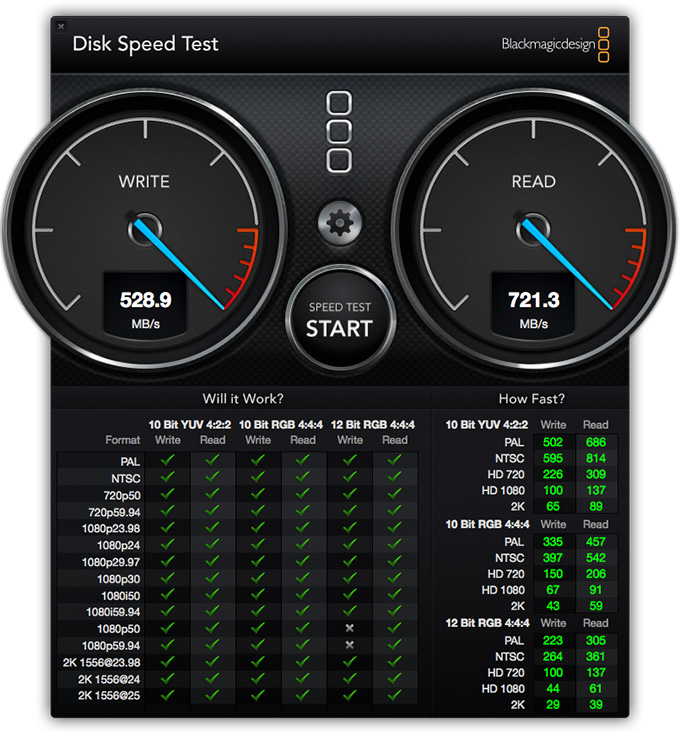
When then OWC is configured as a RAID 0, here are the results I get using a brand new 5K iMac.
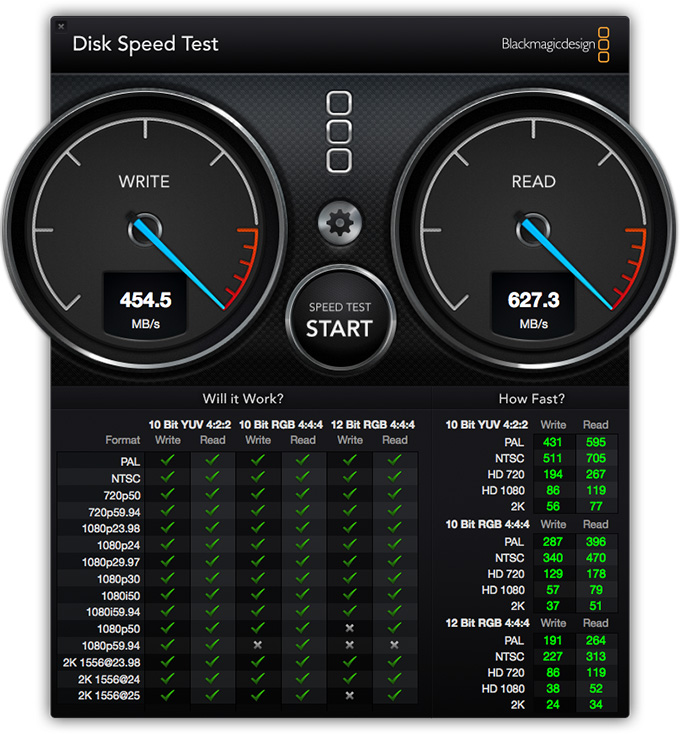
When the OWC is configured as a RAID 5, here are the results I get using the 5K iMac.
Notice the green check boxes at the bottom? These indicate all the different video formats that this system will support. In the case of the RAID 5 configuration, the OWC supports all video formats EXCEPT those with gray check boxes.
Basically, if you are doing single camera editing, this system is fine for all video editing except high-frame-rate, high-bit-depth files.

Next, I duplicated about 200 GB of data where both sets of files were stored on the drive. While speeds varied, duplication averaged around 500 MB/second; which is pretty darn fast.
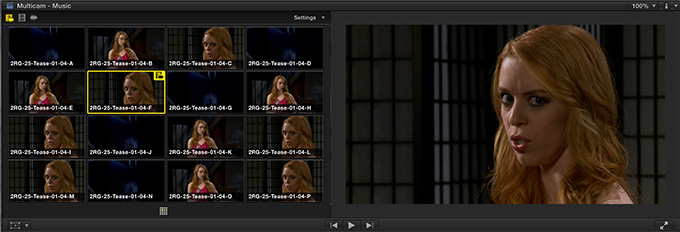
Next, I decided to try a 16-camera multicam clip. Here, the internal SSD drive of the iMac’s Fusion drive altered the results. I like the Fusion drive because I prefer its combination of speed and storage, rather than an all-SSD system with limited storage.
However, the Fusion caches frequently used files so that they play from the internal SSD drive, rather than off the RAID. This means that the more you play the same portion of the Timeline, the more likely the files are to play off the internal SSD drive.
This improves overall performance, but makes testing external drives a bit tricky.
In my first test, I created a 16-camera multicam clip using XDCAM EX 720p footage. This played back perfectly in real-time; and required about 100 MB/second from the RAID to do so.

Next, to work around the cacheing in the Fusion drive, I created a multicam clip of eight ProRes 4444 720p files, each of which was 56 GB in size. This created a data set far in excess of the 128 GB SSD drive included with the Fusion drive. So, even if it tried to cache, it wouldn’t be able to hold all the clips.
As you can see from the screen shot above, the data transfer rate of this multicam configuration was less than 300 MB/second. In other words, the OWC RAID was able to handle this load easily, as well.
NOTE: A more typical video format is ProRes 422, which creates smaller files than ProRes 4444. So, using ProRes 4444 puts an extra heavy burden on the RAID.
It is easy to get blinded searching for “the fastest” system. However, in most real-world editing applications, the system will spend far more time waiting on you to make a decision than you will waiting for the system to deliver data. Speed is important, but so is the price, reputation of the manufacturer, and storage capacity.
SIDE NOTE
There is an interesting inverse relationship between data transfer speed (“performance”) and storage capacity. Given the same amount of money, the faster something transfers data, the less data it can hold. For example, here is a list of devices based on performance:
In each case, as you move down the list, each device holds more than the device above it, but transfers data more slowly.
SUMMARY
I really like the petite size and ruggedness of this unit. It is reasonably quiet and, when configured as RAID 0, plenty fast, though not blindingly so.
However, the slow RAID 5 write speeds concern me, as does the issue of SSD drives running properly in Yosemite. OWC has no control over what Apple does with its operating system and all third-party RAID developers are in the same boat. The issue of lack of TRIM support in OS X is not limited to OWC. But OWC does have control over RAID performance. I’m looking forward to learning how to improve the write speed of this unit.
This unit would be best used:
The big limitation is that SSD drives don’t hold a lot of data. Configured as a RAID 5, this unit only hold 1.42 TB of data. As a RAID 0, it holds slightly less than 2 TB. If storing lots of data is more important than speed, the big brother of this unit: the ThunderBay 4 RAID is a better choice.
EXTRA CREDIT
Here are two other relevant reviews:

2,000 Video Training Titles
Edit smarter with Larry Jordan. Available in our store.
Access over 2,000 on-demand video editing courses. Become a member of our Video Training Library today!
Subscribe to Larry's FREE weekly newsletter and
save 10%
on your first purchase.

27 Responses to Product Review: OWC ThunderBay 4 Mini RAID
Newer Comments →-
 Blair Thornton says:
December 1, 2014 at 6:54 am
-
 Robin Harris says:
December 1, 2014 at 11:48 am
-
 Blair Thornton says:
December 1, 2014 at 11:53 am
-
 Blair Thornton says:
December 1, 2014 at 11:58 am
-
 LarryJ says:
December 1, 2014 at 5:56 pm
-
 Terry says:
December 30, 2014 at 7:59 pm
-
 Larry Jordan says:
December 30, 2014 at 10:33 pm
-
 Terry says:
January 2, 2015 at 4:02 pm
-
 Julien says:
January 20, 2015 at 4:39 am
-
 Larry Jordan says:
January 20, 2015 at 12:02 pm
Newer Comments →Great article Larry. This is THE portable solution I’ve been waiting for someone to make.
Larry,
The ThunderBay 4 is a nice looking unit. But the slower RAID 5 write speed is puzzling. It may be due to the XOR math required for RAID 5.
However this shouldn’t cause a lot of CPU overhead, so perhaps SoftRAID needs to optimize their code for SSD arrays. A quad-core Macbook should have plenty of CPU power to handle the XOR problem.
Until that gets fixed the RAID 0 option gives both high write speeds and more capacity. Just make sure that you always have a 2nd copy of your footage somewhere else.
Robin
Could you imagine if they made an 8-bay unit like this? Wow.
Larry, Have you tested Crucial M550 SSD’s in this or just the OWG ones?
Larry,
There’s another way to enable trim in Yosemite without disabling security: http://www.return1.at/trim-enabler-for-osx/
Blair:
So far, I’ve only tested the OWC SSD drives. I’ll see if I can find some other choices.
Larry
Larry,
Thanks for the info. I just purchased one of these ThunderBay units and running FinalCut Pro X 10.1.3. Came across a strange issue. I loaded in some test clips (optimized) and noticed that final cut will not show me the clips but says the Proxy is missing. Since I had the RAID 5 going I was not going to use Proxy. After transcoding the Proxy, I noticed the the audio that was on the clip did not come over either. Do I need to tell final cut that I’m using a RAID?
Thanks for your help.
PS: I bought your Final Cut tutorial and have found it to be the best tutorial i’ve ever watched, keep up the good work.
Terry:
You should not need to tell FCP X you are using a RAID. In fact, FCP X doesn’t care what your storage is, as long as it is fast enough. And the RAID is fast enough.
The error messages you are seeing, and the audio problem, is caused by some other issue than the RAID you are using. This would be worth calling Apple Support about.
Larry
Thanks for your help. Apple helped me with the solution and that was that in the little drop down box on the far right, I had an option to display optimized/original or proxy. (I had it on proxy) I had been working on a proxy job – just before I got my RAID and never switched it back. Simple fix that might help someone else down the line. Thanks again for the quick response.
hi Larry,
Please excuse my english in advance, I’m French. I’m looking for order a Thunderbay mini with 4 Crucial SSD (512Go). I would use it with my 5K iMac (with 512Go ssd) in a raid 5 array (with Softraid) composed with all 5 disks (4 in the thunderbay mini + 1 in the iMac). Do you think that is possible ?
Thanks for you reply
Julien:
This is a REALLY bad idea. Never store your boot disk on a RAID.
Leave the boot drive your internal SSD. Then use the external OWC unit separately for media and other storage.
Larry