
There’s a lot of confusion about the three different media types in Final Cut Pro X: native, optimized, and proxy.
Native media is the format shot by your camera. For example, AVCHD, H.264, DV, and HDV are all examples of native media formats.
Optimized media is always ProRes 422. When the “Optimize Media” checkbox is checked during import, FCP X transcodes, which is a fancy way of saying it “converts,” your media from its native format into Apple ProRes 422.
Proxy media is always Apple ProRes 422 Proxy. Proxy media creates a reasonably high-quality media file, but at about 1/4 the size of ProRes 422.
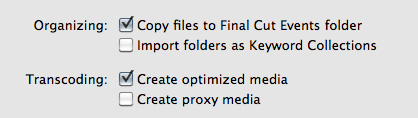
When you import media from either a file or camera, you have the ability to optimize it, or create proxy files.
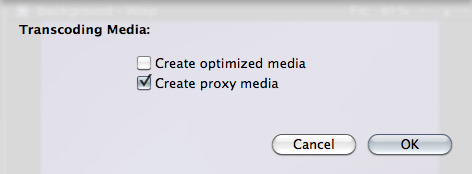
You also have the ability to convert media after you’ve imported the files. Simply select the clips in the Event Browser that you want to transcode and select File > Transcode media.
Either way, here are your options:
What’s “reasonable image quality?” Generally, the higher the bit rate of the media, the better the image quality. For this reason, since ProRes 422 has a much higher bit rate than ProRes Proxy, the image quality is potentially better. This is especially true if you are doing color correction, green-screen keying, or lots of image manipulation. However, if you are simply capturing and editing consumer-grade camera images, without many effects, you may not see any quality difference at all between optimized and proxy media.
Creating proxies or optimized media always makes a copy of your camera source files. Both optimized and proxy media will have better performance than the camera native formats.
You can select one option, both, or none. Depending upon which options you select, you could have up to three copies of your media files stored on your system:
1. Camera native
2. Optimized
3. Proxy
Duplicate media files are not necessarily a bad thing and FCP X will track them properly; however, multiple copies do require more disk space.
RECOMMENDATIONS
Not all camera formats require optimizing. If the Optimize option is grayed out, it means that the camera format is already optimized and would not benefit if converted into ProRes 422. (DV and AVC-Intra are two examples of already-optimized media formats.)
NOTE: For the geeks among us, optimized formats are those that are stored in an I-frame format.
My general recommendation is to always optimize media. Purchasing an extra hard disk will more than pay for itself in the time you save during editing.
SWITCHING BETWEEN FILES

To switch between native, optimized, or proxy files in your Project go to the Final Cut Pro > Preferences > Playback tab.
Click the radio button for Proxy to edit using Proxy files.
Click the radio button for Original/Optimized to edit using anything else.
You can change this setting whenever you want, however, you can’t have a mix of some Proxy and some Optimized files in the same Project at the same time. Proxy and Optimized files are stored in different folders in the same Event folder.
(By the way, I thought whether you selected High Quality or Better Performance in this preference pop-up menu, your output quality will always be the same – high quality. However, see Jason’s comment below.)

2,000 Video Training Titles
Edit smarter with Larry Jordan. Available in our store.
Access over 2,000 on-demand video editing courses. Become a member of our Video Training Library today!
Subscribe to Larry's FREE weekly newsletter and
save 10%
on your first purchase.

142 Responses to FCP X: Native vs. Optimize vs. Proxy Media
← Older Comments Newer Comments →-
 Iain Anderson says:
November 26, 2012 at 12:22 am
-
 trish says:
December 16, 2012 at 11:19 am
-
 Larry Jordan says:
December 16, 2012 at 12:13 pm
-
 trish says:
December 16, 2012 at 12:27 pm
-
 Lennard says:
December 19, 2012 at 1:31 am
-
 Larry Jordan says:
December 19, 2012 at 8:52 am
-
 Lennard says:
December 21, 2012 at 4:24 am
-
 Richard says:
January 7, 2013 at 3:43 am
-
 Jeff Orig says:
January 7, 2013 at 1:37 pm
-
 Kent Jakusz says:
January 7, 2013 at 3:30 pm
← Older Comments Newer Comments →An issue: you could end up with four copies of your media that way — the copy you dragged off the card, the native copy that FCP X puts in Events, and the Optimized and Proxy versions. Instead, just use Import Media from the card directly and you eliminate one source of duplication. I’d also suggest that you don’t need to create Optimized. If native files aren’t good on your Mac, then you should only need one of Proxy or Optimized.
HI Larry (and friends)
could someone help me ? I have edited a wedding video using Proxy media but now after reading ..
I want to export using the highest quality .. I want to burn it to Blue Ray
could someone tell me what I do ?
thanks so much .. trish
Trish:
If you are using FCP X, simply change your preference setting from Proxy to Optimize/Native and re-export.
However, I suspect that your proxy media – which has very good quality – may be good enough for a Blu-ray DVD.
Larry
hey Larry
you are so kind to respond so quickly
thank you .. on my way smiling
trish
Hi, i thought i understand finally the export settings, but i still have a question.
When i import my H264 files (Sony Alpha57) and when ik create a project in de correct preferences (use original media) then i export 2 versions.
The first version is source prores422 (900mb) and the second version is H264 (90mb)
But i think its very strange, because when i watch both video’s, they are exactly the same.
Lennard:
The two codecs – ProRes and H.264 – are optimized for different things. ProRes is optimized for extensive color space, fast editing and multi-generational quality. It is an excellent mastering format. H.264 is optimized for small file sizes. It has limited color space, degrades quickly when you copy it, and is very difficult to edit. It is an excellent distribution format.
Larry
Thanks Larry,
Is it true, ProRes is also better when you want to use the stabilization function, or is there no difference between H.264 and ProRes?
Thanks
Hi Larry,
I’m making my first feature length doc film. I have shot solidly for about 9 days and will probably be shooting for another 9, so I have a huge amount of footage all shot on a 7D Dslr. So storage is a big problem for me.
Having read most of the comments on this article I think the best solution for me is this: import the files with ONLY the Proxy media box ticked.
Later, when my edit is complete, I somehow (don’t know how yet) convert all the files used on the time line to full, optimized prores 422, a bit like when you would reconnect media in FCP 7. My understanding is that this is necessary for the best possible quality when I export my final film file.
Please can you tell me if I’m correct? Is this a good idea?
Many thanks,
Richard
Hi Larry,
I think with 10.0.7 this has changed a bit. At least for Canon DSLR footage. With 10.0.7 it is now forcing conversion to ProRes. It might be time to close the comments on this thread as I think the information may be getting out of date.
Just a thought.
Thanks.
Jeff;
Where did you get your information? Why do you say that “10.0.7 it is now forcing conversion to ProRes”?
Kent