
 This article was suggested by Robert Bagley, who was having problems storing files on a newly-acquired hard drive. Fixing his problem was simple – but not obvious. If this setting is incorrect on a new hard drive you just installed, you’ll have problems accessing files on that drive.
NOTE: This technique applies to, and works the same on, all versions of the Mac OS from 10.6 through 10.9.
Applications, and the boot disk, require permissions and ownership to be accurate and enabled to function properly. (A permission allows one application to “talk” with another application.) This is what we are repairing when we use Disk Utility to “Repair Permissions.”
NOTE: File servers, also, require permissions to keep track of which user has access to which file.
Drives that store data don’t use permissions and ownership. In fact, they shouldn’t use permissions. However, especially for new drives, permissions get turned on by accident for a data drive, which then prevents it from working properly.
Here’s how to turn off permissions on a hard drive or RAID.
BIG NOTE: This should NOT be done for the boot disk or server volumes. This SHOULD be done for all direct-connected drives that only store data.
Select a drive. (Remember, leave the boot disk alone.)
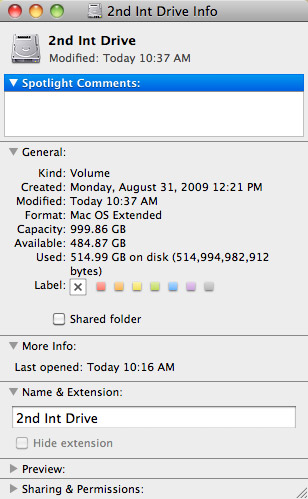
Type Command+I (or choose File > Get Info). This displays a wide variety of statistics about that hard disk. (My favorite is “Available,” which is always seems to disappear almost immediately.)
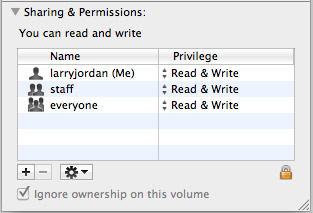
If it is closed, twirl open the Sharing and Permissions triangle and look toward the bottom. If “Ignore ownership on this volume” is checked, everything is fine.
However, if this is NOT checked, we need to change the setting.
Click the lock and enter an administrator’s password to allow changes to this setting.

Then, check “Ignore Ownership on this volume” and close the window.
You only need to do this once for each of your data drives. Most of the time, this will be set correctly. But, for those instances where it isn’t, now you know how to fix it.

2,000 Video Training Titles
Edit smarter with Larry Jordan. Available in our store.
Access over 2,000 on-demand video editing courses. Become a member of our Video Training Library today!
Subscribe to Larry's FREE weekly newsletter and
save 10%
on your first purchase.

79 Responses to Mac OS: Turn Off Drive Ownership
← Older Comments-
 SC says:
March 10, 2019 at 11:46 am
-
 Larry says:
March 10, 2019 at 12:48 pm
-
 Carola Panzeri says:
April 3, 2019 at 8:04 am
-
 Larry says:
April 3, 2019 at 8:30 am
-
 Christine says:
March 17, 2020 at 12:01 pm
-
 Larry says:
March 17, 2020 at 1:04 pm
-
 Chris Ogden says:
May 4, 2020 at 12:10 pm
-
 Larry says:
May 4, 2020 at 1:12 pm
-
Problem with permissions - PhotoLens says:
December 19, 2021 at 6:31 am
← Older CommentsDid you ever fix your problem accessing your external hard drive contents? How did you do it? I also do not see the message “Ignore ownership”. Using a Seagate hard drive.
SC:
I’m running Mojave and this option appears at the very bottom of the Get Info window. (Select the drive, then choose File > Get Info.)
And, yes, I fixed this problem.
Larry
All goes fine until I try checking the ‘Ignore ownership on this volume’ and it says that the operation could not e completed because of error -8076. How can I solve this problem?
Carola:
I have not seen this error message. My suggestion is to contact Apple Support.
Larry
Hi Larry,
I’m running Mojave (10.14.6), and I don’t see the “Ignore ownership on this volume” box either. This is on a seagate harddrive used to store data. The sharing and permission section of the get info window for my harddrive looks similar to the photo you posted, except it says “You can only read” instead of “You have custom access” and the Ignore Ownership box is missing. Any suggestions?
Christine:
I’ve discovered that not all drives support this option. If everything is running smoothly, then don’t worry about it.
If not, contact Tech Support for your drive manufacturer.
Larry
@Carola, I bet a dollar that the drive is formatted as NTFS (a windows format that many seagate ship by default).
By default, Macintosh can READ, but can not WRITE to NTFS volumes.
Either need to backup the drive, reformat with a Macintosh format, and restore your files (then can read/write and set “ignore ownership..”
or pay $20 for an NTFS driver such as https://www.paragon-software.com/us/home/ntfs-mac/
yes?
Chris:
Thanks for your comment. I automatically reformat all new drives, so I never even considered this.
Larry
[…] After that, the simplest solution is to turn on “Ignore Ownership” on the drive. Navigate to the drive in Finder and use Get Info… to see the permissions, as you have been doing. Underneath the permissions, you’ll see a box that says “Ignore Ownership on this volume.” Check that box. This will ignore all permissions on the volume and allow any user or program to do anything on the drive. Follow this link for more information on the benefits and perils of doing this: https://larryjordan.com/articles/mac-os-set-hard-drive-permissions/ […]