
 OK, I confess. I’ve ignored QuickTime Player since it was first released as QuickTime Player X with the original release of macOS X. When the new version was compared to the features, power and flexibility in Quicktime Player 7 Pro, the new version failed just about everywhere.
However, recently, I was exploring the menus in QuickTime Player and discovered that, over the years, Apple has added significant features that make it worth reconsidering – even for us QT 7 snobs.
In fact, the new version can do many things that the old version couldn’t; though, to be truthful, the old version still wins in several areas.
NOTE: When I say “new,” I mean the version of QuickTime Player shipped with the current version of the macOS. And, while the old version still has a few tricks up it’s sleeve, in the next OS upgrade or two, the old version is will stop working because it is only a 32-bit application. So, change is coming.
Also, more changes are coming with the upcoming release of macOS Mojave, which adds video editing capability to QuickLook. I’ll cover that when the new OS is released.
RECORDING
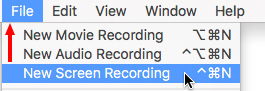
The new QuickTime Player can record your screen (File > New Screen Recording) or record a movie from an attached iPhone, iPad or the built-in camera on your Mac.
To record a movie from your iDevice:
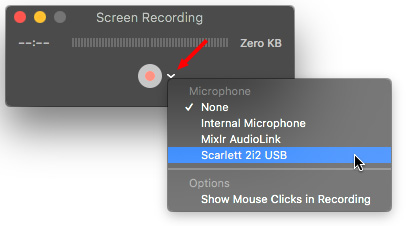
To record the screen of your computer:

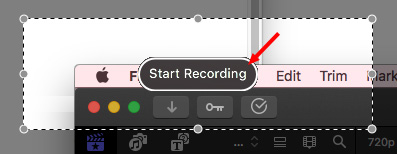

NOTE: This file is saved as an H.264 QuickTime movie with AAC audio. This quality is fine for illustration and emailing. However, if you produce screen captures professionally, recording in a higher-quality format, such as ProRes 4444 and Linear PCM audio will yield better results for editing and distribution.
EDITING MOVIES
In addition to recording, we can use QuickTime Player for simple movie editing. Specifically, we can use it to:
The secret is in the View > Show Clips command.

Footage courtesy: Anne L. Gibson, Toucan Productions, Inc.
To split a single movie into multiple clips:

To rearrange clips:
NOTE: Press Option while dragging to make a copy.

To trim a movie or a clip:
NOTE: To make more precise adjustments, click and hold the yellow handle to see pseudo-timecode. Hours, minutes and seconds are accurate. However, actual frames are replaced by hundreds of a second.
Using the Edit menu, you can also rotate the selected clip in 90-degree increments; which, frankly, is stunningly weird when you play it back; but perfect for handling vertical iPhone videos.
You can also use QuickTime Player to append multiple clips together, though, truthfully, we have much more control over this process in a standard video editing application.
OTHER STUFF

Footage courtesy: John Putch “Route 30, Too!” (www.route30trilogy.com)
The View menu allows us to display subtitles and, if provided, switch between languages.
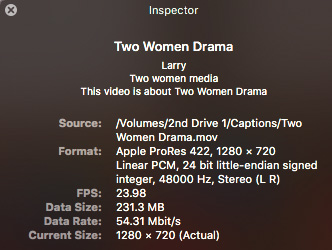
The Movie Inspector (Shortcut: Cmd + I) provides a very useful summary of the tech specs of a clip. I find myself using this all the time to verify clips and compression settings.
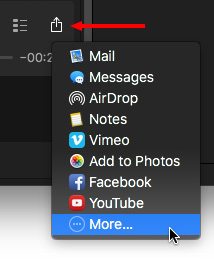
We can also use QuickTime Player to share movies and, when we do, QuickTime Player creates a version of the movie that is optimized for the destination we select. Pre-selected choices include:
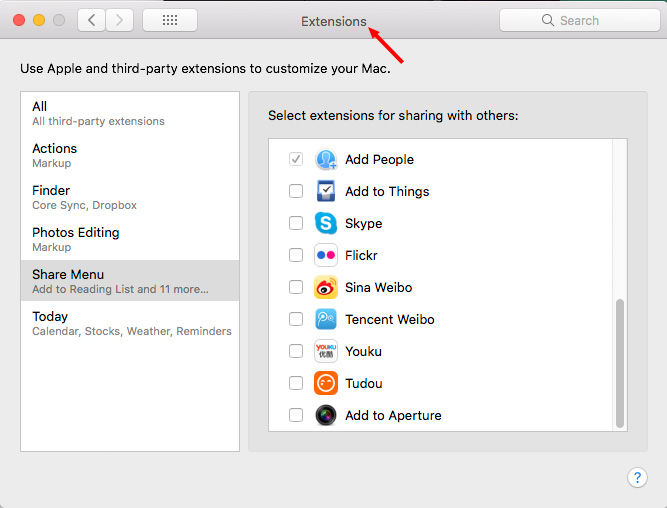
However, what you may not know is that you can create custom sharing destinations for a wide variety of other destinations by choosing the More option in this popup menu.
NOTE: More does not exist in the File option in the Menu Bar, only in the playback controller.

The More option actually opens a System Preference (called “Extensions”) that allows you to customize the Share destinations across multiple apps.
THE EXPORT MENU
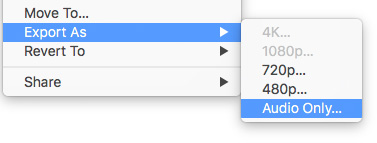
The Export menu allows us to resize the movie to something smaller (which preserves image quality), as well as extract just the audio from a clip.
SUMMARY
There are still things the current version of QuickTime Player doesn’t do, or doesn’t do well when compared to QuickTime Player 7 Pro. For example:
Still, the usefulness of QuickTime Player has significantly improved over the years and, if you haven’t looked at it recently, the time has come to give it a second look.

2,000 Video Training Titles
Edit smarter with Larry Jordan. Available in our store.
Access over 2,000 on-demand video editing courses. Become a member of our Video Training Library today!
Subscribe to Larry's FREE weekly newsletter and
save 10%
on your first purchase.

47 Responses to Hidden Features in QuickTime Player
← Older Comments Newer Comments →-
 Chris says:
May 2, 2020 at 12:33 pm
-
 Larry says:
May 2, 2020 at 1:07 pm
-
 Chris says:
May 3, 2020 at 3:50 pm
-
 Larry says:
May 4, 2020 at 8:23 am
-
 emerson says:
May 25, 2020 at 2:18 pm
-
 emerson says:
May 25, 2020 at 2:19 pm
-
 Larry says:
May 26, 2020 at 9:23 am
-
 Jonathan says:
June 11, 2020 at 3:00 am
-
 Larry says:
June 11, 2020 at 8:13 pm
-
 Jeremy says:
January 3, 2021 at 9:27 am
← Older Comments Newer Comments →Hi,
Since upgrading to Catalina I’ve found QuickTime to be much more stable but I can not for the life of me get the control bar to disappear when I’m watching a video. Please help.
Kind Regards,
Chris
Chris:
Yeah, drove me nuts too. Drag your mouse outside the window, or to the very side.
Larry
Ah, there in lies the rub Larry. That doesn’t work. I always have my MacBook linked to my Samsung Tv as a separate screen, the configuration being side by side.
My usual M.O. being:
Open Finder on MacBook screen.
Select video file and open it in Quick Look.
Click open in QuickTime from the top of the Quick Look video window.
QuickTime usually opens on the MacBook screen so drag window across to the TV screen.
Select Full Screen mode on TV.
Click the Play button on the Control Bar with the Mouse Arrow.
Move the Mouse Arrow to the side and onto the MacBook screen.
As soon as the Arrow left the TV screen it used to result in the immediate disappearance of the QuickTime Control Bar. Occasionally it would remain and returning the Arrow back to the TV screen and just flying over the Control Bar, not even clicking on it and back to the MacBook screen would be enough to rectify this and the QuickTime Control Bar would disappear. Not anymore and believe me I’ve tried all possible combinations of this process as well as using the single screen of the MacBook and just moving the Mouse Arrow to the side of the screen. Nothing has resulted in the disappearance of the Control Bar.
Isn’t there a shortcut to make it go away?
I’m not sure if this is connected or even if it’s useful information but the progress bar at the bottom of the Quick Look window remains there for the entirety of the videos play time instead of fading as well.
Neither of these things are major problems and I’m certain if it didn’t work differently previously it wouldn’t even be an issue to me now but you know one of those niggling little problems that I’m reminded of every time I use my MacBook, which is at least once a day, like the digital equivalent of Japanese water torture.
Help me Obi-Wan. You’re my only hope….
Chris
Chris:
If you use View > Fit to Window, the controller disappears when you move the mouse out of the video frame.
If you use View > Full Screen, it doesn’t.
At least, that’s how it behaves on my system.
Larry
For some reason my scree recording is capturing the video in h.264 color profile PAL and 60 fps…is there a way to change these settings?
For some reason my screen recording is capturing the video in h.264 color profile PAL and 60 fps…is there a way to change these settings?
Emerson:
None that I know of – which is why I use Telestream Screenflow instead. It allows me to capture at 24, 25, 30 and 60 fps and save the results as ProRes 4444 for highest image quality.
Larry
Hi Larry,
My Quicktime Movie Recording is mirroring my mac’s camera. I cannot find any reference to this anywhere, and it seems to be a new thing. Facetime and Photobooth aren’t doing this. Any ideas?
Thanks for all the great article over the years.
Jonathan:
I have no idea – perhaps another reader can help.
Larry
This version 10.5 doesn’t even allow you to quickly make a video brighter like 7 did. This is a HUGE step backwards. Or am I missing something?