
 OK, I confess. I’ve ignored QuickTime Player since it was first released as QuickTime Player X with the original release of macOS X. When the new version was compared to the features, power and flexibility in Quicktime Player 7 Pro, the new version failed just about everywhere.
However, recently, I was exploring the menus in QuickTime Player and discovered that, over the years, Apple has added significant features that make it worth reconsidering – even for us QT 7 snobs.
In fact, the new version can do many things that the old version couldn’t; though, to be truthful, the old version still wins in several areas.
NOTE: When I say “new,” I mean the version of QuickTime Player shipped with the current version of the macOS. And, while the old version still has a few tricks up it’s sleeve, in the next OS upgrade or two, the old version is will stop working because it is only a 32-bit application. So, change is coming.
Also, more changes are coming with the upcoming release of macOS Mojave, which adds video editing capability to QuickLook. I’ll cover that when the new OS is released.
RECORDING
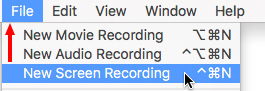
The new QuickTime Player can record your screen (File > New Screen Recording) or record a movie from an attached iPhone, iPad or the built-in camera on your Mac.
To record a movie from your iDevice:
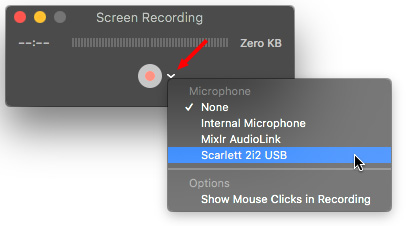
To record the screen of your computer:

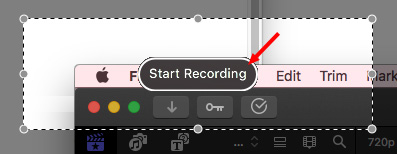

NOTE: This file is saved as an H.264 QuickTime movie with AAC audio. This quality is fine for illustration and emailing. However, if you produce screen captures professionally, recording in a higher-quality format, such as ProRes 4444 and Linear PCM audio will yield better results for editing and distribution.
EDITING MOVIES
In addition to recording, we can use QuickTime Player for simple movie editing. Specifically, we can use it to:
The secret is in the View > Show Clips command.

Footage courtesy: Anne L. Gibson, Toucan Productions, Inc.
To split a single movie into multiple clips:

To rearrange clips:
NOTE: Press Option while dragging to make a copy.

To trim a movie or a clip:
NOTE: To make more precise adjustments, click and hold the yellow handle to see pseudo-timecode. Hours, minutes and seconds are accurate. However, actual frames are replaced by hundreds of a second.
Using the Edit menu, you can also rotate the selected clip in 90-degree increments; which, frankly, is stunningly weird when you play it back; but perfect for handling vertical iPhone videos.
You can also use QuickTime Player to append multiple clips together, though, truthfully, we have much more control over this process in a standard video editing application.
OTHER STUFF

Footage courtesy: John Putch “Route 30, Too!” (www.route30trilogy.com)
The View menu allows us to display subtitles and, if provided, switch between languages.
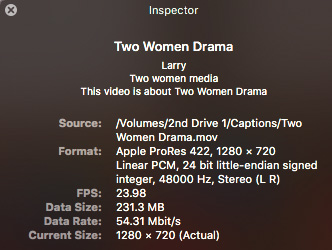
The Movie Inspector (Shortcut: Cmd + I) provides a very useful summary of the tech specs of a clip. I find myself using this all the time to verify clips and compression settings.
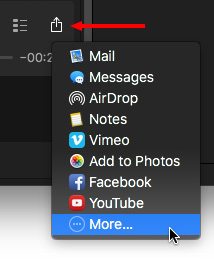
We can also use QuickTime Player to share movies and, when we do, QuickTime Player creates a version of the movie that is optimized for the destination we select. Pre-selected choices include:
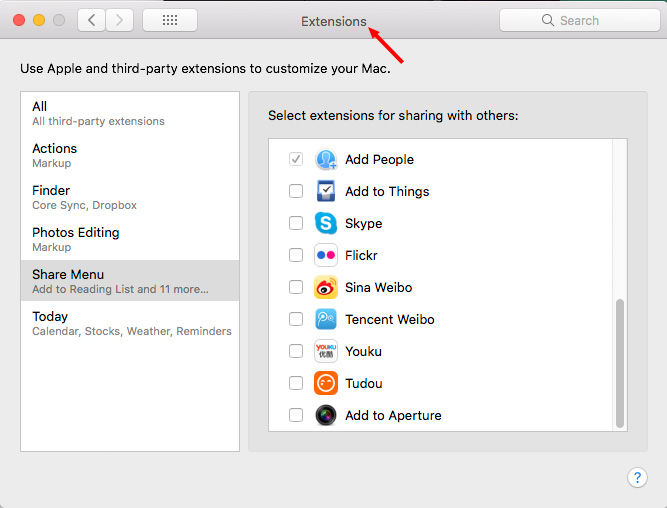
However, what you may not know is that you can create custom sharing destinations for a wide variety of other destinations by choosing the More option in this popup menu.
NOTE: More does not exist in the File option in the Menu Bar, only in the playback controller.

The More option actually opens a System Preference (called “Extensions”) that allows you to customize the Share destinations across multiple apps.
THE EXPORT MENU
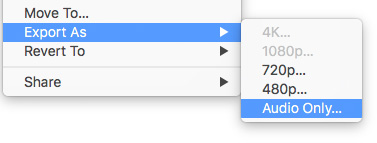
The Export menu allows us to resize the movie to something smaller (which preserves image quality), as well as extract just the audio from a clip.
SUMMARY
There are still things the current version of QuickTime Player doesn’t do, or doesn’t do well when compared to QuickTime Player 7 Pro. For example:
Still, the usefulness of QuickTime Player has significantly improved over the years and, if you haven’t looked at it recently, the time has come to give it a second look.

2,000 Video Training Titles
Edit smarter with Larry Jordan. Available in our store.
Access over 2,000 on-demand video editing courses. Become a member of our Video Training Library today!
Subscribe to Larry's FREE weekly newsletter and
save 10%
on your first purchase.

47 Responses to Hidden Features in QuickTime Player
← Older Comments Newer Comments →-
 Kathryn says:
January 9, 2020 at 8:56 am
-
 Larry says:
January 9, 2020 at 9:52 am
-
 John Reddick says:
February 25, 2020 at 9:59 am
-
 Larry says:
February 25, 2020 at 10:01 am
-
 RP says:
April 4, 2020 at 8:48 pm
-
 Larry says:
April 5, 2020 at 7:31 am
-
 Michael Haken says:
April 12, 2020 at 2:27 pm
-
 Larry says:
April 12, 2020 at 2:40 pm
-
 ruchi says:
April 19, 2020 at 3:16 am
-
 Larry says:
April 19, 2020 at 7:02 am
← Older Comments Newer Comments →How can I get quicktime to allow direct upload to youtube of a video longer than 15 minutes? I already have youtube set to allow longer clips, but quicktime won’t let me. So frustrating.
Kathryn:
I’m confused by your question. Why are you using Quicktime, instead of a Browser, to upload to YouTube. QuickTime is a media format, not an uploader.
Larry
I’m trying to figure out how to record high-quality audio from the internal sound when I create a screen recording. I’m playing a slideshow in Photos and doing a screen recording with QuickTime Player 10.4. This provides much better video than the version exported from Photos. But the audio sucks, I suspect it is just picking up what it “hears” through the internal microphone. There are only two audio source selections – internal microphone and none. Any way to route the internal system audio to the screen recording?
John:
The internal mic is a general purpose mic, not designed for high quality. To get the best sound, buy a separate mic – I use a headset and use that for your screen recordings. I’ve used one for years and it yields great results.
Larry
The older versions of QT used to allow an easy edit in the middle of an audio clip – where you can edit out a ‘mistake’ but continue playing & still have the whole song there – and I also can’t access the Cmd E either …. it is blanked out, along with most of the View Commands! :(. Do you have to ‘buy’ a pro version to access these commands?
RP:
I don’t know anyway to do that in the current version of QuickTime Player.
Larry
Get a 3rd-party app called Soundflower: https://soundflower.en.softonic.com/mac/download
In System Preferences Sound set Output to “Soundflower (2ch)”. That will now show up in the input source menu of New Screen Recording. When selected you can check by generating some internal sound e.g. ‘delete’ key and observe it registers on the level meter. After recording be sure to set the Output back to listen. The quality is very good.
Michael:
Excellent tip – thanks!
Larry
Hi, I made a tutorial video through quick time screen recording. there is some personal information that I want to hide but I’m unable to. I tried using emoji that’s given in edit section but its not working.
could you please suggest me a way.
Ruchi:
You can’t hide elements in QuickTime Player, but you can easily do so in Premiere or Final Cut Pro X.
Larry