
In FCP 7, we organized our files using folders and file names. In Final Cut Pro X, we organize files using keywords. There are two ways to apply keywords: automatically and manually. Here’s an article that describes how to apply keywords automatically.
However, most often, we need to organize our clips manually as we figure out the organization we need to make sense of a project. Keywords are perfect for this – and very fast, both to apply and to use.
The purpose of keywording is to allow you to find the files that relate to a particular part of your project. For instance, here are six keywords:
Once applied, it is almost instant to find all clips of the bride at the beach in the daytime. FCP is very fast at categorizing and displaying clips using keywords. (A subset of keywords are Favorite and Rejected, which have their own menu and Toolbar options.)
APPLYING A KEYWORD MANUALLY
For instance, here I have a variety of beauty shots on different subjects. I want to create two new keywords: The West and Flowers, so that I can quickly find just the shots in those categories.
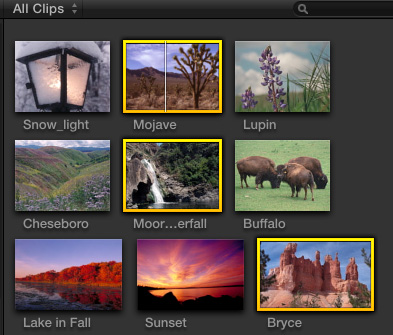
In this example, I’ve selected three clips. To apply a keyword, select a clip, or group of clips, in the Event Browser. In general, it is most efficient to select multiple clips and apply a single keyword. If you are always applying the same keywords to a collection of clips, all but one of those keywords is probably unnecessary.
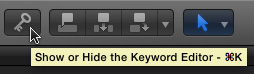
Click the Keyword Editor icon to display the Keyword Editor, or type Command+K.
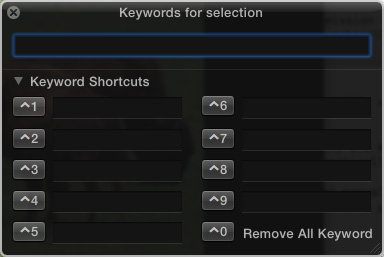
If this is the first time you’ve opened the Keyword Editor, it will look like this. If you’ve already entered keywords, you’ll see the first nine keywords you entered displayed here.
NOTE: Final Cut allows an essentially unlimited number of keywords, however only the first nine keywords that you created are displayed in this dialog. You can change them at any time by deleting a reference and adding a new keyword.
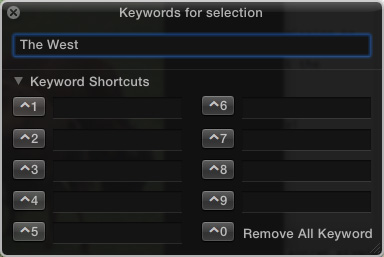
In the top text box, type the keyword you want to apply to the selected clips. In our case, I’ve typed “The West”.
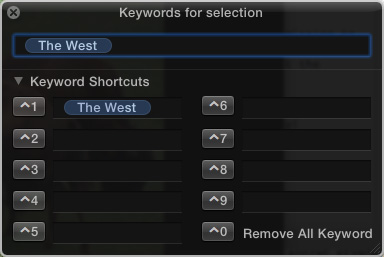
Press the Enter key and watch as the keyword animates itself into each of the selected clips, and the keyword itself is added to one of the empty keyword preset slots in at the bottom of this window.
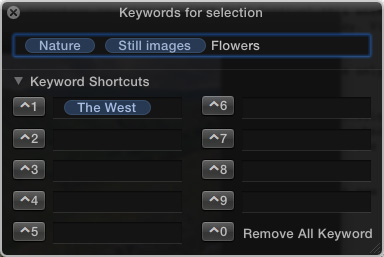
Here’s another example, this time I selected two different clips. They already have two keywords applied: Nature and Scenic. I’m adding another keyword Flowers. Press Enter to apply the keyword “Flowers” to the selected clips.
Notice that past keywords are displayed in this dialog. This provides a fast way to apply past keywords to a selected clip, or group of clips by either typing the keyboard shortcut, or clicking the button next to the keyword you want to apply.
NOTE: To apply an existing keyword, either click it in the Keyword Editor, or type the associated keyboard shortcut: Control+1 – 9. To delete a keyword preset from the Keyword editor, select the word and press Delete. ( For instance, in the screen shot above, The West is selected.”
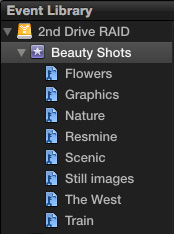
Notice as soon as you create a new keyword and apply it to a clip, it appears under the Event name in the Event Library; both The West and Flowers are displayed as part of this Event.
The easiest way to view clips by keyword is to click the keyword itself in the Event Library. You can also search on multiple keywords using the Keyword search box – and I’ll write about that in a future article.
To remove a keyword:
BY THE WAY: I cover keywording in detail in Chapter 5 from my FCP X: Editing training. Click here to learn more.

2,000 Video Training Titles
Edit smarter with Larry Jordan. Available in our store.
Access over 2,000 on-demand video editing courses. Become a member of our Video Training Library today!
Subscribe to Larry's FREE weekly newsletter and
save 10%
on your first purchase.

22 Responses to FCP X: Adding Keywords Manually
← Older Comments Newer Comments →-
 Aoise Tutty says:
May 21, 2013 at 8:27 am
-
 Michael says:
August 21, 2014 at 7:24 pm
-
 LarryJ says:
August 21, 2014 at 7:31 pm
-
 Alex says:
October 13, 2015 at 10:20 am
-
 Larry says:
October 13, 2015 at 12:33 pm
-
 Alex says:
October 13, 2015 at 2:00 pm
-
 adam says:
November 26, 2015 at 11:56 am
-
 Larry says:
November 26, 2015 at 3:49 pm
-
 Emily says:
February 4, 2016 at 11:14 am
-
 Larry says:
February 4, 2016 at 12:04 pm
← Older Comments Newer Comments →Hi Larry,
I was wondering if you can help. I’ve created quite a few keywords for the data I’m looking through as it’s quite a large project. However when I open the keyword search, the window is too small and cutting out half of my keyword names meaning it’s difficul tto choose the correct ones – I can’t seem to enlarge the search window in order to help with this – any help much appreciated!
Hi Larry,
Trying Keywords as you’ve outlined. No tags. There are several clips in the timeline with keyword TK1. I typed TK1 in the search at the top of the Timeline index and hit enter but only one of the clips becomes selected. Could you say more about this workflow (esp what is meant by “Highlight”)
Thanks!
Aoise:
Remember, the search box at the top is a text search based on file names and notes. To find by keyword, either click the Keyword collection, in the Library List, or click the microscopically small magnifying glass in the search box to display the Find window, then do a keyword search within that.
This article explains more:
http://www.larryjordan.biz/fcp-x-find-media-using-keywords/
Larry
Hey Larry,
We used multicam to sync a bunch of clips. Now I’m going through the multicam and tagging sections (shot 2a, 2b, etc). Seemed like a great solution to syncing and organizing except one thing: Inside the keyword collection, all the clips have the same name (they originate from the same multicam clip). Is there a way to add unique metadata to each so that I can visually differentiate the clips without having to scrub through?
Alex:
Easy. Using the Range tool, select the portion of the shot to which you want to add a keyword.
Then, using the Keyword entry box (Cmd+K) enter the keyword you want.
Keywords can be applied to ranges within a clip, as well as the clips themselves.
Larry
hi larry. I am doing what you described. The issue is when I then browse a particular keyword collection all the clips tagged have the same name. (e.g “multicam_01”). I’m wondering if there is a way to add unique metadata so that I can rename or distinguish these clips from one another without having to scrub.
My workflow thusfar:
1. Sync multiple clips using multicam.
2. Use the range tool to tag parts of the multiclip (e.g. 2a, 2b, 2c, etc)
3. Browse the clips via these newly created keywords.
4. All clips of a keyword collection have the same name (because they are borne of the same multiclip)
But I’d love to be able to visually identify which clip is which so if the director says, “take 2 was best,” i can easily click on the correct clip without having to scrub across the clip and identify by the words on the slate. Does that make sense?
Larry
I have applied keywords to my project but every since time I search for them within the search using the magnifying glass they never appear. I do not what I am doing wrong. I have the updated fcp 10.2.2.
Adam:
You need to CLICK the magnifying glass to open the Advanced Search window; there’s no keyboard shortcut for this dialog.
Then, click the Plus button in the top right corner to search by Keywords. This article will help you understand how this works:
https://larryjordan.com/articles/fcp-x-expanded-keywords-and-search/
Larry
Hi Larry,
I don’t find keywords useful and I would like to delete my keyword collections…but are the keyword collections tied to storage for the clips and media inside of them?
ie: If I delete a keyword collection, will the clips associated be safe?
Also, how do I stop FCX from automatically assigning keywords?
Thanks
Emily:
Absolutely, you can delete keyword collections without affecting your media in any way. Right-click on the collection you want to delete and choose “Delete Keyword Collection.”
Adding or deleting keywords has no material effect on storage.
Larry