
In FCP 7, we organized our files using folders and file names. In Final Cut Pro X, we organize files using keywords. There are two ways to apply keywords: automatically and manually. Here’s an article that describes how to apply keywords automatically.
However, most often, we need to organize our clips manually as we figure out the organization we need to make sense of a project. Keywords are perfect for this – and very fast, both to apply and to use.
The purpose of keywording is to allow you to find the files that relate to a particular part of your project. For instance, here are six keywords:
Once applied, it is almost instant to find all clips of the bride at the beach in the daytime. FCP is very fast at categorizing and displaying clips using keywords. (A subset of keywords are Favorite and Rejected, which have their own menu and Toolbar options.)
APPLYING A KEYWORD MANUALLY
For instance, here I have a variety of beauty shots on different subjects. I want to create two new keywords: The West and Flowers, so that I can quickly find just the shots in those categories.
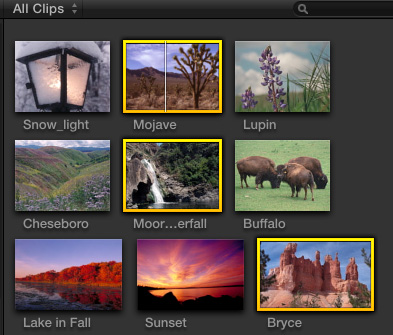
In this example, I’ve selected three clips. To apply a keyword, select a clip, or group of clips, in the Event Browser. In general, it is most efficient to select multiple clips and apply a single keyword. If you are always applying the same keywords to a collection of clips, all but one of those keywords is probably unnecessary.

Click the Keyword Editor icon to display the Keyword Editor, or type Command+K.
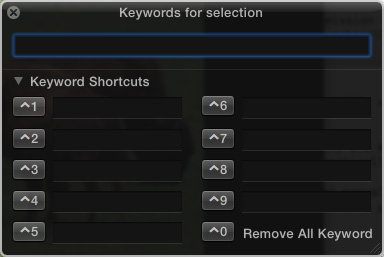
If this is the first time you’ve opened the Keyword Editor, it will look like this. If you’ve already entered keywords, you’ll see the first nine keywords you entered displayed here.
NOTE: Final Cut allows an essentially unlimited number of keywords, however only the first nine keywords that you created are displayed in this dialog. You can change them at any time by deleting a reference and adding a new keyword.
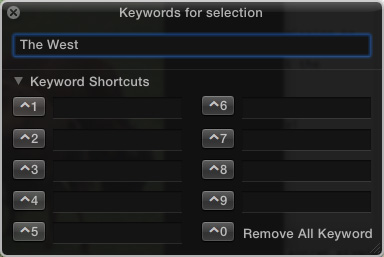
In the top text box, type the keyword you want to apply to the selected clips. In our case, I’ve typed “The West”.
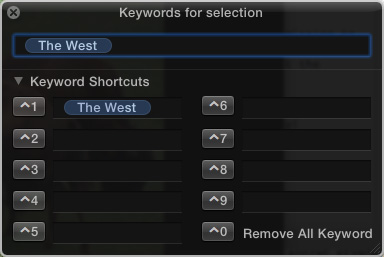
Press the Enter key and watch as the keyword animates itself into each of the selected clips, and the keyword itself is added to one of the empty keyword preset slots in at the bottom of this window.
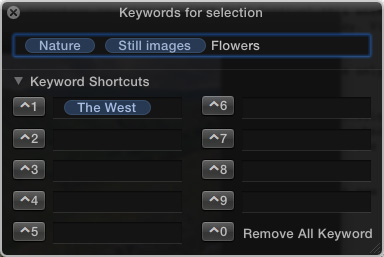
Here’s another example, this time I selected two different clips. They already have two keywords applied: Nature and Scenic. I’m adding another keyword Flowers. Press Enter to apply the keyword “Flowers” to the selected clips.
Notice that past keywords are displayed in this dialog. This provides a fast way to apply past keywords to a selected clip, or group of clips by either typing the keyboard shortcut, or clicking the button next to the keyword you want to apply.
NOTE: To apply an existing keyword, either click it in the Keyword Editor, or type the associated keyboard shortcut: Control+1 – 9. To delete a keyword preset from the Keyword editor, select the word and press Delete. ( For instance, in the screen shot above, The West is selected.”
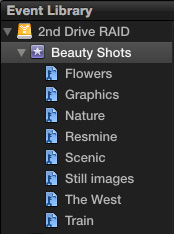
Notice as soon as you create a new keyword and apply it to a clip, it appears under the Event name in the Event Library; both The West and Flowers are displayed as part of this Event.
The easiest way to view clips by keyword is to click the keyword itself in the Event Library. You can also search on multiple keywords using the Keyword search box – and I’ll write about that in a future article.

To remove a keyword:
BY THE WAY: I cover keywording in detail in Chapter 5 from my FCP X: Editing training. Click here to learn more.

2,000 Video Training Titles
Edit smarter with Larry Jordan. Available in our store.
Access over 2,000 on-demand video editing courses. Become a member of our Video Training Library today!
Subscribe to Larry's FREE weekly newsletter and
save 10%
on your first purchase.

22 Responses to FCP X: Adding Keywords Manually
Newer Comments →-
 Russell Kelley says:
March 12, 2012 at 2:31 pm
-
 Larry Jordan says:
March 12, 2012 at 3:28 pm
-
 Russell Kelley says:
March 12, 2012 at 4:59 pm
-
 Larry Jordan says:
March 12, 2012 at 5:24 pm
-
 Steve says:
March 29, 2012 at 1:31 pm
-
 Larry Jordan says:
March 29, 2012 at 2:06 pm
-
 Steve says:
March 29, 2012 at 2:29 pm
-
Domande frequenti su Final Cut Pro X + Risorse per filmmakers | Feelmaking says:
April 21, 2012 at 3:02 am
-
 Craig Warrian says:
May 27, 2012 at 10:10 pm
-
 Larry Jordan says:
May 28, 2012 at 12:27 am
Newer Comments →Hi Larry
I am puzzled by FCP X’s keyword searching as i seems you cn only serch events. So far I am unable to search all my evnts globally.
Cheers
Russell
Russell:
Not true.
Select all the Events you want to search FIRST, then open the Keyword Search window – click the small magnifying glass in the top right corner of the Event Browser and you can search on all keywords that exist across all selected projects.
Larry
Thanx Larry
Funny, I’m getting some inconsistent behaviour with regard to Keyword searching. I had tried to do a global search by selecting the media DRIVE icon – it didn’t work at first but now it does.
Also, do you find that when creating / typing a NEW keyword into the Keyword Editor that it does not display until it is created? Once created it shows up as an autofill when u begin typing but on first creating it my system give no visual feedback as you type leading to misspelt keywords which need to subsequently be deleted.
Cheers
Russell
Russell:
I haven’t noticed this – but what you describe is behavior that might be cured by trashing preferences. Read this:
http://www.larryjordan.biz/improving-fcp-x-performance/
Larry
I don’t like how you can’t change the name of a clips after it is in a keyword collection. Say I have a long clip names 00001 and I’ve got it keyworded into 10 different “subclips” under the keyword collection YELLOW. I’d like to change the name of each clip in the YELLOW keyword collection, like YELLOW1, YELLOW2, etc.
This doesn’t seem to work as it changes the name of the main clip right?
Correct. The keyword is a piece of metadata, NOT a clip name. Think of this as a street name. If you change the name of the street, all the houses on the street have to change their address as well.
you are not creating subclips with keywords, you are simply applying index terms.
Larry
True Larry but it seems rather silly that there is no way to pull something like a subclip in fcp-x and then change the name of it. Unless I haven’t found a way.
[…] Cut Pro X – Keywords di Steve Douglas, Keywords and Ratings in Final Cut Pro X di IzzyVideo e FCP X: Adding Keywords Manually di Larry Jordan. Come viene sfruttato l’hardware? Il mio Mac è abbastanza […]
Larry,
Is there any way to solo clips being used in my timeline via keyword?
eg: I want to view or highlight all shots of ‘Frank’ in my timeline. He demands there are 47 shots of him in the film.
This would be a handy feature.
Craig
Craig:
This is very easy. Go to the Timeline Index. Click the Tags button at the top. Click the Key icon at the bottom.
Highlight the keyword you want to select. All clips with that keyword are selected in the Timeline. Click the Solo button in the top right corner of the Timeline and all your highlighted clips are soloed.
Piece of cake.
larry