
While I covered this in my Final Cut Pro X training, I realized I haven’t written about how to manage media for Final Cut Pro X.
FCP X is powered by databases: one for Events and one for Projects. As such, it takes a different approach to managing media than any prior version of Final Cut Pro.
Events are collections of media. Projects are the instructions on how that media is to be edited.
Events and Projects can be stored on any attached hard disk. By default, both are stored on your boot disk. However, I recommend against this because the boot disk (the hard drive that holds your Applications folder) is too busy with other work to play media smoothly.
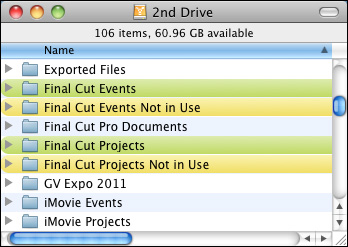
Events are stored in folders inside the Final Cut Events folder. You can have one of these folders on each hard drive attached to your system.
Projects are also stored in folders inside the Final Cut Projects folder. You can have one of these folders on each hard drive attached to your system.
Both these master folders are highlighted in green in the screen shot above.
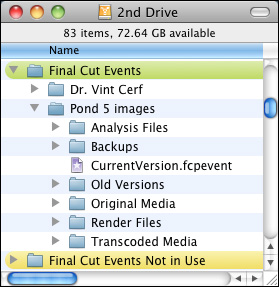
This screenshot shows two Events stored inside the Final Cut Events folder: Dr. Vint Cerf and Pond 5 images. Each Event is a folder. The Event folder, depending upon how you set your import preferences, will hold a copy of your source media, optimized media, proxy files, analysis results, and, if you are running FCP X 10.0.3 or later, backup files.
Aside from the amount of available storage on your hard disk, there is no limit to the number of Events you can store in the Final Cut Events folder, nor is there a limit on the number of clips stored in each Event.
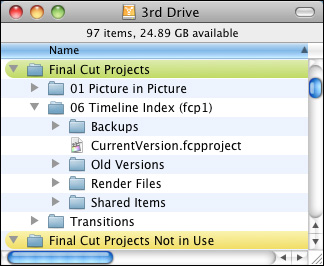
Here’s a similar example of a Project. In the Final Cut Projects folder are two projects: 01 Picture in Picture and 06 Timeline Index (fcp1). Both projects are stored in folders. (There is no significance to the numbers in the project name – I use them personally to stay organized.) Each Project folder contains the edit instructions for the project (stored in the CurrentVersion.fcpproject file), along with render files, and other project related files. And, as with Events, if you are running version 10.0.3 or later, backup files.
Aside from the amount of available storage on your hard disk, there is no limit to the number of Projects you can store in the Final Cut Projects folder.
NOTE: FCP X 10.0.3 automatically creates backups of your current Event and Project every 15 minutes. (However, if nothing changed over the last 15 minutes it doesn’t create a new backup file.) In the event that your Project becomes corrupted, FCP X automatically reverts to the backup file the next time you start up Final Cut. So, the worst that happens in the case of a corrupted Project or Event is that you lose 15 minutes of work.
Final Cut is designed to have all your Events and all your Projects online at the same time. However, that can make for a very cluttered Event Library and Project Library. Plus, I don’t necessarily want my clients seeing work that I’m doing for other clients.
The problem is that FCP X does not allow you to hide Events or Projects. However, there’s a very simple workaround.
On each disk that has an Event folder, I create another folder called Final Cut Events Not in Use. On each disk that has a Project folder, I also created a second folder called Final Cut Projects Not in Use. There is no magic in these folder names, they are just easy for me to remember and sort next to their related folder.
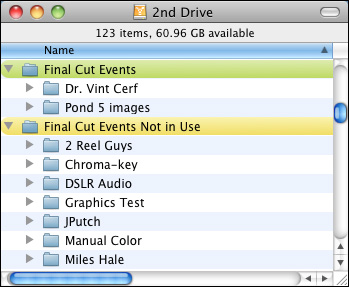
Here, for instance, you can see that I have two Events that are active and displayed inside Final Cut, because the are inside the Final Cut Events folder. I also have several Events that are inactive and not displayed in Final Cut, because they are not in the Final Cut Events folder.
To make an Event inactive, I first quit FCP X, then drag the Event folder from the Final Cut Events folder into the Final Cut Events Not in Use folder. When I restart FCP X, only the contents of the Final Cut Events folder are displayed. My inactive Events are not displayed.
To make an inactive Event active, I drag it from the Final Cut Events Not in Use folder into Final Cut Events folder and restart FCP X.
NOTE: FCP X only looks at the contents of the Events or Projects folders during startup, which is why I need to restart the application whenever I move folders around.
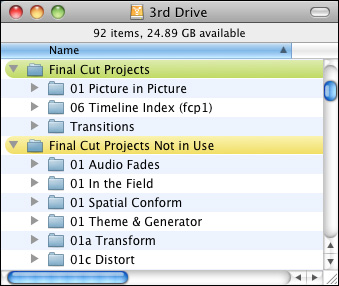
Here’s an example of organizing Projects. In this example, I have three active projects, with several inactive projects. When you are done with an Event or a Project or, at least, you don’t want it displayed in the Library, quit FCP X, drag the Projects folder into the Final Cut Projects Not in Use folder and restart FCP X.
Just as with Events, drag an inactive Project folder from Final Cut Projects Not in Use into Final Cut Projects, restart FCP X, and that Project is online and ready to edit.
NOTE: Always drag entire Event or Project folders, never drag the contents of a folder. Because everything in a folder is referenced in the database, moving individual elements breaks the database.
THE SECRET WEAPON
It could be argued that FCP X should provide this functionality in the program. But it doesn’t. On the other hand, dragging folders is not difficult. But it can become cumbersome.
There is a great utility, called Event Manager X, from Intelligent Assistance, that simplifies this entire process. I find this utility so useful that I can’t edit in FCP X without it. I highly recommend it.
Here’s a review that explains this utility in more detail.
SUMMARY
Here are the ten key points you need to remember:

2,000 Video Training Titles
Edit smarter with Larry Jordan. Available in our store.
Access over 2,000 on-demand video editing courses. Become a member of our Video Training Library today!
Subscribe to Larry's FREE weekly newsletter and
save 10%
on your first purchase.

62 Responses to FCP X: Manage Events and Projects
← Older Comments Newer Comments →-
 Larry Jordan says:
October 29, 2012 at 4:22 pm
-
 kevin says:
October 29, 2012 at 4:54 pm
-
 steph says:
November 16, 2012 at 3:47 pm
-
 Larry Jordan says:
November 16, 2012 at 4:03 pm
-
Copia eventi e progetti FCPX prima di interveto manutenzione says:
November 18, 2012 at 4:56 am
-
 studio says:
November 19, 2012 at 5:14 pm
-
 Larry Jordan says:
November 19, 2012 at 5:50 pm
-
 Hector says:
December 17, 2012 at 5:16 am
-
 Larry Jordan says:
December 17, 2012 at 8:54 am
-
 http://chelmsfordchurches.net/web/index.php?option=com_jevents&task=day.listevents&year=2010&month=06&day=24&Itemid=0 says:
December 30, 2012 at 9:02 am
← Older Comments Newer Comments →Check the date / time setting in your camera.
it may be recording the wrong date.
Larry
The date on the camera is good because on the import process from the card to the event browser it establishes the month and year to which the event folder is subbed under . then during the course of editing a few days or a week later the event folder will be in another month either for this year 2012 or another year. Also when a clip in an event folder is sent to the trash is there a way to get it back?
Consolidating Media from an external drive (2) to working project drive (1).
I would like to use a portion of media from an external drive. So I do not have to fire the drive up every time I work on this project. I can not copy all the media from the drive because it is to big. I would like to copy media from my time line and make a new event. Say B-roll and copy this footage (not move it) to the working drive from the external drive.
Can I copy (make event or smart collection) of footage from the time line into a new event?
then can I copy this media to a new drive or the working drive?
Example if you were using media from 4 different external drives and did not want them plugged in and only wanted portions of the media of the drive.
Thank you Larry for all your education material it is very helpful
Steph:
Yes.
You have the option to right-click on a project in the Project Library and select “Duplicate Project.” This allows you to duplicate the project only, duplicate the project and all related media, or duplicate the project and only the clips used in the Project.
Select this third option to create a new event, copy the media you are using into it, and create a new Project.
Larry
[…] backup. FCPX le riconosce e apre il progetto senza problemi anche da questo disco. vedi anche qui : Larry Jordan – FCP X: Manage Events and Projects | Final Cut Pro Training | The Best Training in Fin… ciao Replica con citazione + Replica alla discussione « […]
Hi Larry in FCP X I cannot find in the top taskbar the “SHARE” so I cannot drop down and export a project. what do you suggest?
Apple moved it with the 10.0.6 update. You’ll find it now in File > Share. Here’s an article that can help:
http://www.larryjordan.biz/fcpx-still-frames/
Larry
Situation:
Folder in desktop with P2 media
FCP preferences “copy files to final cut events” unchecked
Open import media
desktop->P2 media folder->select clip->import selected
Organizing: “copy files to final cut events” GRAYED OUT
Help.
Hector:
Hmmm… P2 media does not need optimizing, but you should be able to copy it. Turn ON “Copy Files to Final Cut Events” in preferences, or during import.
Make SURE you are selecting .mov files.
If all else fails, contact Panasonic. Also, be sure your camera is supported by checking here:
http://help.apple.com/finalcutpro/cameras/en/index.html?
Larry
Appreciating the time and energy you put into your blog and detailed information you provide.
It’s nice to come across a blog every once in a while that isn’t
the same out of date rehashed material. Wonderful read!
I’ve saved your site and I’m including your RSS feeds to my Google account.