
While I covered this in my Final Cut Pro X training, I realized I haven’t written about how to manage media for Final Cut Pro X.
FCP X is powered by databases: one for Events and one for Projects. As such, it takes a different approach to managing media than any prior version of Final Cut Pro.
Events are collections of media. Projects are the instructions on how that media is to be edited.
Events and Projects can be stored on any attached hard disk. By default, both are stored on your boot disk. However, I recommend against this because the boot disk (the hard drive that holds your Applications folder) is too busy with other work to play media smoothly.
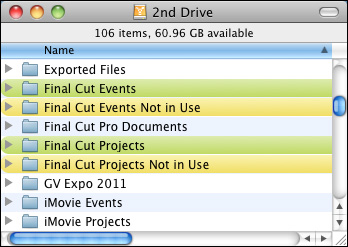
Events are stored in folders inside the Final Cut Events folder. You can have one of these folders on each hard drive attached to your system.
Projects are also stored in folders inside the Final Cut Projects folder. You can have one of these folders on each hard drive attached to your system.
Both these master folders are highlighted in green in the screen shot above.
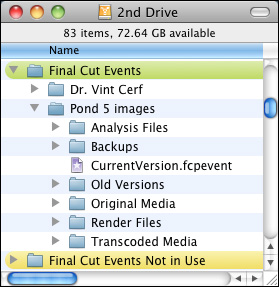
This screenshot shows two Events stored inside the Final Cut Events folder: Dr. Vint Cerf and Pond 5 images. Each Event is a folder. The Event folder, depending upon how you set your import preferences, will hold a copy of your source media, optimized media, proxy files, analysis results, and, if you are running FCP X 10.0.3 or later, backup files.
Aside from the amount of available storage on your hard disk, there is no limit to the number of Events you can store in the Final Cut Events folder, nor is there a limit on the number of clips stored in each Event.
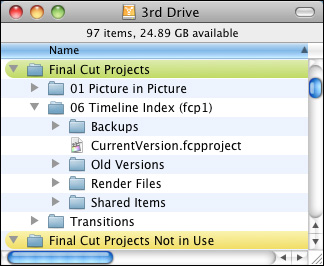
Here’s a similar example of a Project. In the Final Cut Projects folder are two projects: 01 Picture in Picture and 06 Timeline Index (fcp1). Both projects are stored in folders. (There is no significance to the numbers in the project name – I use them personally to stay organized.) Each Project folder contains the edit instructions for the project (stored in the CurrentVersion.fcpproject file), along with render files, and other project related files. And, as with Events, if you are running version 10.0.3 or later, backup files.
Aside from the amount of available storage on your hard disk, there is no limit to the number of Projects you can store in the Final Cut Projects folder.
NOTE: FCP X 10.0.3 automatically creates backups of your current Event and Project every 15 minutes. (However, if nothing changed over the last 15 minutes it doesn’t create a new backup file.) In the event that your Project becomes corrupted, FCP X automatically reverts to the backup file the next time you start up Final Cut. So, the worst that happens in the case of a corrupted Project or Event is that you lose 15 minutes of work.
Final Cut is designed to have all your Events and all your Projects online at the same time. However, that can make for a very cluttered Event Library and Project Library. Plus, I don’t necessarily want my clients seeing work that I’m doing for other clients.
The problem is that FCP X does not allow you to hide Events or Projects. However, there’s a very simple workaround.
On each disk that has an Event folder, I create another folder called Final Cut Events Not in Use. On each disk that has a Project folder, I also created a second folder called Final Cut Projects Not in Use. There is no magic in these folder names, they are just easy for me to remember and sort next to their related folder.
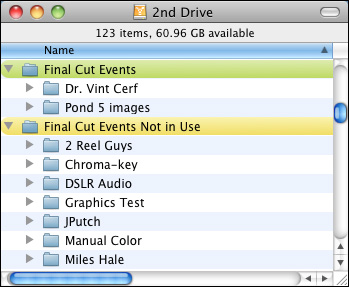
Here, for instance, you can see that I have two Events that are active and displayed inside Final Cut, because the are inside the Final Cut Events folder. I also have several Events that are inactive and not displayed in Final Cut, because they are not in the Final Cut Events folder.
To make an Event inactive, I first quit FCP X, then drag the Event folder from the Final Cut Events folder into the Final Cut Events Not in Use folder. When I restart FCP X, only the contents of the Final Cut Events folder are displayed. My inactive Events are not displayed.
To make an inactive Event active, I drag it from the Final Cut Events Not in Use folder into Final Cut Events folder and restart FCP X.
NOTE: FCP X only looks at the contents of the Events or Projects folders during startup, which is why I need to restart the application whenever I move folders around.
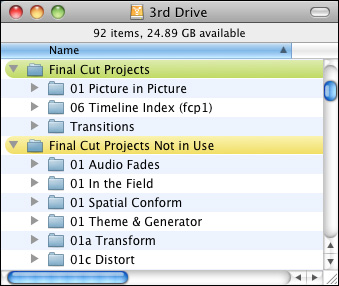
Here’s an example of organizing Projects. In this example, I have three active projects, with several inactive projects. When you are done with an Event or a Project or, at least, you don’t want it displayed in the Library, quit FCP X, drag the Projects folder into the Final Cut Projects Not in Use folder and restart FCP X.
Just as with Events, drag an inactive Project folder from Final Cut Projects Not in Use into Final Cut Projects, restart FCP X, and that Project is online and ready to edit.
NOTE: Always drag entire Event or Project folders, never drag the contents of a folder. Because everything in a folder is referenced in the database, moving individual elements breaks the database.
THE SECRET WEAPON
It could be argued that FCP X should provide this functionality in the program. But it doesn’t. On the other hand, dragging folders is not difficult. But it can become cumbersome.
There is a great utility, called Event Manager X, from Intelligent Assistance, that simplifies this entire process. I find this utility so useful that I can’t edit in FCP X without it. I highly recommend it.
Here’s a review that explains this utility in more detail.
SUMMARY
Here are the ten key points you need to remember:

2,000 Video Training Titles
Edit smarter with Larry Jordan. Available in our store.
Access over 2,000 on-demand video editing courses. Become a member of our Video Training Library today!
Subscribe to Larry's FREE weekly newsletter and
save 10%
on your first purchase.

62 Responses to FCP X: Manage Events and Projects
← Older Comments Newer Comments →-
 Don Smith says:
March 18, 2012 at 2:55 am
-
 Frank Coleman says:
May 21, 2012 at 8:04 pm
-
 Frank says:
May 22, 2012 at 4:35 am
-
 briant says:
July 15, 2012 at 12:53 pm
-
 Larry Jordan says:
July 15, 2012 at 1:24 pm
-
 briant says:
July 16, 2012 at 4:29 am
-
 Jeffrey says:
September 4, 2012 at 7:49 pm
-
 Larry Jordan says:
September 4, 2012 at 7:54 pm
-
 Peter DC says:
September 11, 2012 at 10:00 pm
-
 Larry Jordan says:
September 11, 2012 at 10:04 pm
← Older Comments Newer Comments →I’m afraid there’s nothing you can do other than to switch to a computer with better graphics that come from ATI (AMD). The graphics hardware is not user replaceable.
Oh Good Lord…
I am days into a big edit and somehow my timeline got deleted. Poof! The project file claims to be 0:00 in duration. The backup project file is pretty sizable (6.5 MB) compared to some of my others, so I’m hoping somehow it can be restored, but opening it in place of currentVersion doesn’t work. HELP!
Here is the work around, found in Apple Discussions after much furtive Googling.
Close the project that is corrupted and make sure it is highlighted in the Project Library.
Go to File/Export XML and save that file (I saved mine to a different drive).
Re-import that file, generating a new project.
Close and Restart the FCPX App.
STAY AWAY FROM THE PROJECT FILE WITH THE CORRUPTED TIMELINE.
Open the newly project created via the XML import.
Everything should be there and working fine.
5 minutes ago · Like
how do you set up an events folder on an external drive. i don’t have enough space on my computer and am unsure how to set it up so it is accessed from a drive. and if this is even recommended.
thx
Brian T:
Easy. In the Events Library, select the hard drive you want to store the Event on BEFORE creating the event. With the correct hard disk selected, create the Event and all media will end up on the drive you want.
If you need to move an Event to a different drive, select the Event you want to move then choose File > Move Event.
Larry
thanks larry!
I am VERY inexperienced with Final Cut Pro X. I have an iMac with an attached Glyph external drive. I installed FCP X on the Mac drive. How do I tell FCP that I want it to use the Glyph drive for ALL file use by default? Do I have to reinstall the FCP X on the Glyph? I only have one project on the Mac drive and really don’t mind losing it if that will be required to get everything subsequently stored on the Glyph. It would sure be nice if an option were present allowing you to tell FCP what the default drive should be! Thanks so much. I am lost.
Jeffrey:
This is actually very easy. Select the drive you want the Event or Project stored on before you create them.
So, to put an Event on your Glyph drive, select the Glyph drive in the Event Library then select File > New Event. To put a Project on the Glyph drive, select the Glyph drive in the Project Library, the select File > New Project.
Simple, once you know how.
Larry
Hi Larry. I have a problem along the lines of some of the above. I just bought a 1TB external drive to use for all things video. I copied the Final Cut Events folder onto the new drive (just dragged it onto the new disk from its previous location (on another external) and deleted the original). Weirdly, FCPX only sees this new drive as something to import from – that’s the only place it sees it (the import window)…. EXCEPT when FCPX is starting up… During that process the external drive shows up in the Event Library, complete with everything in it, then disappears from the list when the start-up procedure is done. What’s going on there?
At a guess, you’ve turn on Permissions for the hard disk, and set them to read only. To fix this, quit Final Cut. Select the drive in the Finder and go to File > Get Info. At the very bottom of the window, check “Ignore Permissions on this Volume.”
Close the Get Info window.
That should solve the problem.
Just in case, go to Utilities > Disk Utility and make sure the Drive is formatted as HFS+ Extended (Journaled) and not FAT 32.
Larry