
Francesco Portinari sent me a fascinating question and workaround earlier this week that I want to share with you. His goal was to create a non-standard video image size using Final Cut Pro X.
For example, in FCP 7, you can create a sequence of virtually any size by changing Sequence > Settings for a sequence. However, FCP X only uses preset sizes, so customizing the project image size isn’t possible.
Francesco sent me two different workarounds. Then, I contacted Apple and got a third. Let me share all three with you, along with the strengths and weaknesses of each.
OPTION 1: SET SIZE FROM A CLIP
If you have an existing video clip at the size you want, import it into FCP X and edit it into an empty Project. The project will automatically configure itself to match that format.
NOTE: This works, within reason. There are some video formats that FCP X doesn’t currently support. For a list of all supported cameras and video formats, visit this Apple support page: help.apple.com/finalcutpro/cameras/en/index.html?
OPTION 2: CREATE A CUSTOM SIZED CLIP
Then, Francesco provided an almost-really-cool second workaround — which is to create a clip at the size you want using Motion 5.
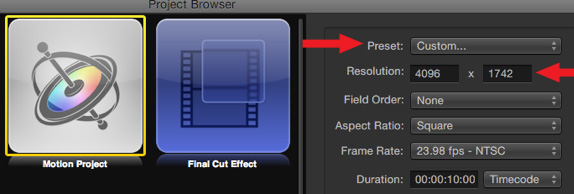
1. Create a new Motion project, using Motion 5. Set the Preset to Custom. Then, set Resolution to the image size you want to create for your FCP X Project.
2. The new Motion Project opens with a default duration of 10 seconds.
3. Use Share > Export Movie (Command+E) to export a self-contained QuickTime movie. DON’T simply save it as a Motion project, as the file needs to exist as a movie file.
At which point, the process breaks down. Because, while you CAN create movies of any arbitrary size in Motion, you CAN’T in Final Cut Pro X.
When you import a non-standard video image size into FCP X and edit it to the Timeline, the Project Properties dialog pops up asking you to pick an image size for your Project. And ALL the options use preset image sizes, including Other. You can’t enter a custom value.
Even if you try converting this to a compound clip, which you can do and which sizes properly, exporting the Project resets it back to one of the standard sizes. You can get close to creating custom sizes by setting your Motion project to be in the same aspect ratio as standard video, but this just starts making things too complex.
So, if you need to create a custom video size, you can easily do so in Motion. But not in FCP X. So, what if we need to edit our video in FCP X, but still create a custom size?
I decided to contact Apple to get their opinion.
THE APPLE WORKAROUND
Apple confirmed that FCP X does not allow creating custom project sizes. Their suggestion was to edit your video using standard video formats in FCP X, then export it to Compressor and use the Geometry tab in Compressor to create the final movie size you need.
The benefit to this process is that FCP X is optimized for video editing, so there is no performance hit working this way. The disadvantage is that many web videos are non-standard sizes, so being able to create custom Project image sizes would be very helpful.
So, here’s a quick overview of how to use the Geometry tab to create custom-size movies.
COMPRESSOR’S GEOMETRY TAB
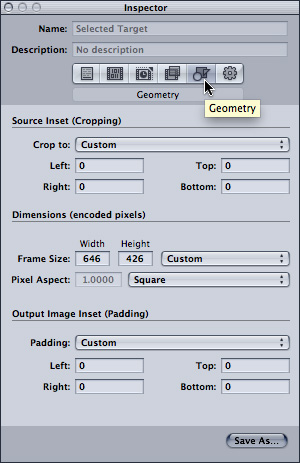
The Geometry tab is where you can scale your movie to any size. You can also crop it and pad it; cropping removes pixels from an image, padding adds black pixels to the edges of an image.
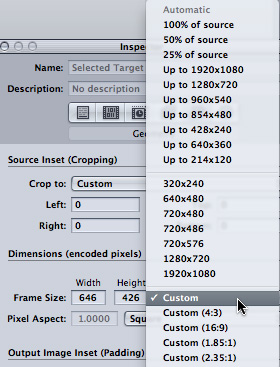
Click the popup menu next to Frame Size and select the image size you want to create. You can select Custom and enter any numeric value you want. However, if the aspect ratio between your video and the custom setting doesn’t match, your image will look stretched.
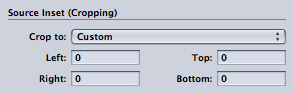
Use the cropping controls at the top of the Inspector to crop your image. The numbers represent pixels subtracted from the edges of the original image. This allows you to create any aspect ratio you want, by removing pixels you don’t need.
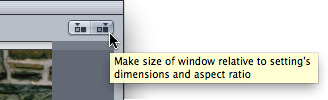
Compressor also allows you to preview your results. To see the preview, click this right-hand button. This shows your compressed image at its final size. (The Preview window shows the results of filters and geometry settings, but not compression or frame controls.)
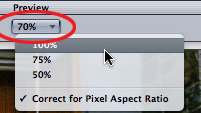
Then, view the compressed image at 100% scale by selecting 100% from the popup at the center.
Using Crop and Dimensions, you can create a sequence of any size. While it would really be helpful if FCP X could create custom image sizes, at least we have a couple of workarounds – one in Motion and one in Compressor.

2,000 Video Training Titles
Edit smarter with Larry Jordan. Available in our store.
Access over 2,000 on-demand video editing courses. Become a member of our Video Training Library today!
Subscribe to Larry's FREE weekly newsletter and
save 10%
on your first purchase.

24 Responses to FCP X: Create Custom Project Sizes
← Older Comments Newer Comments →-
 Braden Storrs says:
December 18, 2012 at 4:27 am
-
 lia says:
February 1, 2013 at 8:45 am
-
 Larry Jordan says:
February 2, 2013 at 8:45 pm
-
 Lia says:
February 3, 2013 at 7:43 am
-
 Lia says:
February 3, 2013 at 7:46 am
-
 jean says:
June 2, 2013 at 6:57 am
-
 Marcus says:
July 9, 2013 at 8:04 am
-
 Window Nation says:
August 22, 2013 at 7:12 am
-
 Iain Anderson says:
August 24, 2013 at 3:46 pm
-
 emmanuel says:
May 22, 2014 at 11:51 am
← Older Comments Newer Comments →Really? I’ve done it and seen others do it. Try again. Here’s a tutorial: http://youtu.be/E4505PhA7KE
They really need to add the functionality in to FCP X natively though.
Hi Larry, thank you for the tips. I have a prores-file (created of an image and then through quicktime 7 pro made into a mov prores clip.) and I pulled it into the event-folder. then opened a new project, wanted to drag it in there: tells me that it does not rcognize the size and suggests many other sizes. Any help why I am one of those where it doesn’t work? It just tells me “the video properties of this clip are not recognized. Click OK to use the settings below or cancel…” and suggests all the standard formats.
Maybe I misunderstood something?
Thank you!
Lia
Lia:
QuickTime 7 can create many image sizes that are not supported by FCP X.
In FCP X, you are best off using either 720 x 486, 720 x 576, 1280 x 720 or 1920 x 1080. If you need to work with a truly custom size, FCP 7, Premiere, or Motion may be a better choice.
Larry
Hi again Larry,
thank you! So even i i create a custom size in fcp 7 I cannot transfer and use it in fcp x , correct?
Or can I…? 🙂 guess it will always tell me it doesnf know the size…
That is really disappointing 🙁 I need 4:1 (2600×400) for a large display at an event.
A friend said I should use imovie haha. Well it works in there I guess..but still
hey thank you for all your tutorials and tips here
all the best
Lial
(and i made it (the white image) into a .mov-file by the way and it works and can be opened in moegcompressor and quicktime etc)
This sounds like an easier work around:
http://library.creativecow.net/articles/payton_t/FCPX_Custom-Resolution-Timelines/video-tutorial
Thank you! I can’t believe Final Cut “Pro” X doesn’t include these very basic functions…very embarrassing!
In FCP X, you are best off using either 720 x 486, 720 x 576, 1280 x 720 or 1920 x 1080. If you need to work with a truly custom size, FCP 7, Premiere, or Motion may be a better choice.
Thank you! I can’t believe Final Cut “Pro” X doesn’t include these very basic functions…very embarrassing!
There is, as other posters have noted, a much easier workaround. Create your custom-sized-movie in Motion as noted above, and import it into an FCP X Event as usual. But don’t create a Project. Right-click the clip and choose Open in Timeline. Edit there. You can export using the Master File with all the original size and speed options, then use another program (Compressor/MPEG Streamclip/etc.) to do the final compression pass.
It’s point 11 in this article I wrote for macProVideo: http://www.macprovideo.com/hub/final-cut/fcp-x-busting-the-myths
…and in video form here at Creative Cow: http://library.creativecow.net/articles/payton_t/FCPX_Custom-Resolution-Timelines/video-tutorial
Hello,
A note on apple support pages says that newer version of FC CAN natively support custom sizes … do you think it is true??
https://discussions.apple.com/thread/5759769
Thanks!