
 Since I wrote this article, I’ve written more articles detailing media management in Final Cut Pro X. They include:
And here is a video webinar that illustrates these, and more, media management techniques for Final Cut Pro X.
Media Management drives editors nuts. Since the beginning of computer-based video editing, trying to remember where your media is stored is a never-ending battle between “getting it done,” and “doing it right.”
Somewhere toward the end of a project, along about the third or fourth sleepless night, file management and organization give way to “Please, just let this end…”
In Final Cut Pro 7, all media was stored in a single scratch disk. This scratch disk included your media, plus render files and a host of other work files that Final Cut needed. The biggest complaint from editors was that we wanted to set scratch disks by project to give us more control over media storage.
NOTE: We could also “link” media, by reference, into a project except that if we moved or renamed the media or the folders containing it, everything broke.
In Final Cut Pro X, Apple switched to Events and Projects. Events held media and projects described how that media was assembled; the “edit.” Events could be stored anywhere and projects could use media from any event. The biggest complaint from editors was that we needed to quit Final Cut in order to change events or projects.
NOTE: We could still “link” media, by reference, into a project except that if we moved or renamed the media or the folders containing, everything broke.
So, with this release, Apple replaced Events and Projects with Libraries. Libraries hold everything. Events are now folders within libraries, and projects are now stored in events. Media is stored in the library, which acts like a single, big container file. This makes backups, clones, or simple moves from one hard disk to another a lot easier.
NOTE: Even with this system, we can still “link” media, by reference, into a project but if we move or rename the media or the folders containing, everything breaks. Some things never change.
EXECUTIVE SUMMARY
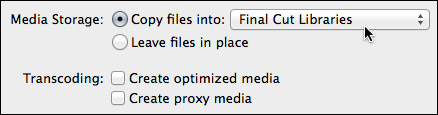
With Final Cut, you now have the ability to copy media into any selected library, or simply point (“link”) to where that media is stored on your hard disk. If you are very organized, linking is faster. If you don’t want to worry about where your media is stored, copy the media into the Library and be done with it.
Media can be copied without optimizing, if you want to edit using the camera native video format.
Libraries make working with media MUCH easier. But they work best when you copy the media into the library. Linking media, as with past versions of Final Cut, requires that you not move, or rename, any of the media files or the folders that contain it.
HOW IT WORKS
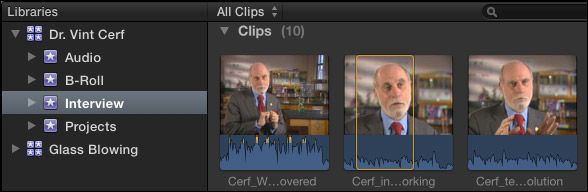
Here’s the new Library pane in Final Cut Pro X 10.1. (The Library pane is on the left, the Browser is on the right.) There are two open libraries: “Dr. Vint Cerf” and “Glass Blowing.” You can have as many libraries open as you want.
Inside the Dr. Cerf library are four events: Audio, B-roll, Interview, and Projects. Events act as folders within a library and can be named anything. There is no limit to the number of events stored inside a library. I store all my projects in a separate event, just to make them easier to find. You can store projects in any event. Media from any event can be used in any project.
NOTE: In earlier versions of Final Cut Pro X, there was an internal limit of around 2,000 clips per event. That limit was essentially removed in this update.
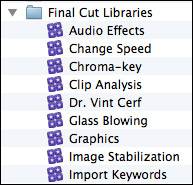
The library file is stored on your hard disk. Because most of my libraries are small, I store them on a RAID in a folder called “Final Cut Libraries.” You can store libraries anywhere and call them anything. Libraries do not need to be stored in folders. However, I always recommend storing all libraries and media files on a second drive (not the boot drive) for performance reasons.
The library file is actually a bundle, similar to the way Keynote stores its files.
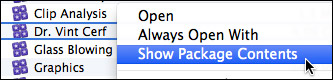
If you right-click on the Library name in the Finder, and select Show Package Contents…
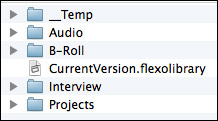
Inside is a folder for each event, which stores the actual media, as well as projects and other Final Cut work files. My STRONG recommendation is to stay out of this folder and don’t move the elements inside it. However, I wanted to let you know how this storage system works in case you ever need to rescue a clip from a library or an event.
NOTE: When copying or moving libraries, ALWAYS!!! move the entire library folder. Never mess with the database files or other individual work files in this folder.
UPDATING EVENTS AND PROJECTS
The new version of Final Cut requires updating all events and projects before they can be used. If you are someone that prefers to learn by watching a video, watch this eight-minute tutorial covering what you need to know to update existing events and projects.
Otherwise, read on.
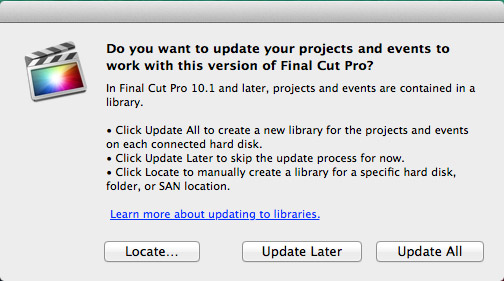
When you first start Final Cut, this warning will appear. Click Update Later. This allows you to open the program and take a look around without altering any of your existing events or projects.
Here’s what you need to know about updating:
If you have media stored across multiple hard disks, do the update first, then use File > Consolidate Events/Projects to combine all the media into one location. Consolidation is NOT required, but if it helps you to stay organized then go ahead.
To automatically update, select Update All.
To manually update:
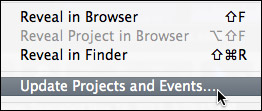
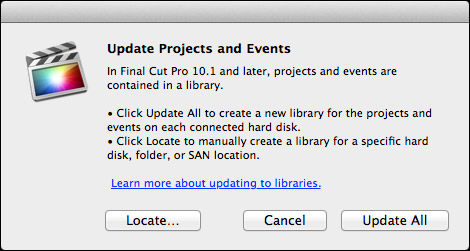
Next, click Update All. Only those events and projects you moved into the Events and Projects folders will be updated.
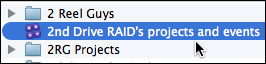
My hard disk is named “2nd Drive RAID.” The library that was created by the update is named “2nd Drive RAID’s projects and events.” You can rename this library to something more meaningful once the updating is complete.
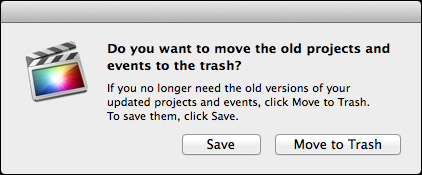
When the update finishes, you have the option to save events and projects or trash them. My recommendation is to save them until you know that the update process was successful. At which point, they can be deleted.
NOTE: If you select “Move to Trash” and realize you made a mistake, all is not lost. Simply open the Trash and drag the folders back out.
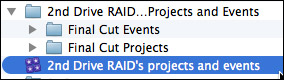
Notice that a new folder was created on 2nd Drive RAID and named “2nd Drive RAID…Projects and Events.”
The events and projects folders and their contents are not changed in any way. The information they contain was simply copied and converted into Final Cut’s new Library media management system.
GET MORE INFORMATION
Apple has provided additional resources in two white papers:
I’ve also written more articles to help you figure this out:
Also, the folks at Intelligent Assistance have released a free version of Event Manager X, along with a white paper, which can simplify the process of moving and updating older events and projects.
Website: www.intelligentassistance.com.
I just completed all-new training on Final Cut Pro X 10.1. To see the first 15 movies – which will give you a Quick Start into the application – visit my YouTube channel.
To download your own copy of my Final Cut Pro X training, please visit our store.
SUMMARY
Updating isn’t difficult, but you need to understand how the process works. To be safe, if you have the hard disk space, I recommend creating a backup of all events and projects before updating… just in case.
Then, update one event and one project and watch what happens. This is what I did as I was learning the system. Once you understand how this works, updating is simple. And, as I mentioned above, media is moved but not altered by this process.
The key is to decide how you want events and projects organized before you start the update process. And remember that you are not updating specific events or projects, but all the events or projects stored in the Final Cut Events and Final Cut Projects folders on a single hard disk.
The good news is that once the updating is complete, you never have to do it again. And libraries are a LOT easier to work with than the old Events and Projects!

2,000 Video Training Titles
Edit smarter with Larry Jordan. Available in our store.
Access over 2,000 on-demand video editing courses. Become a member of our Video Training Library today!
Subscribe to Larry's FREE weekly newsletter and
save 10%
on your first purchase.

125 Responses to Media Management is Biggest Change in Final Cut Pro X 10.1
← Older Comments Newer Comments →-
 Larry Jordan says:
January 9, 2014 at 9:57 am
-
 Tangier Clarke says:
January 9, 2014 at 10:09 am
-
 Larry Jordan says:
January 9, 2014 at 10:45 am
-
 Tangier Clarke says:
January 9, 2014 at 11:12 am
-
 Ross says:
January 10, 2014 at 5:41 am
-
 stevegalyon says:
January 10, 2014 at 2:33 pm
-
 Larry Jordan says:
January 10, 2014 at 2:40 pm
-
 Steve Galyon says:
January 10, 2014 at 4:10 pm
-
 Larry Jordan says:
January 10, 2014 at 5:23 pm
-
 Rodney says:
January 13, 2014 at 2:31 pm
← Older Comments Newer Comments →Ross:
Yes, but it does not involve relinking. To have FCP manage the assets, create a new event and reimport the media you copied into that event.
However, you’ll then need to replace the clips in the project with the new clips from the new event.
Larry
I realize media management is the biggest change and I am not personally a fan of bundled data as FCP is now, but I’ll live. I still like the new workflow, but I like having clear and direct access to my file/folder structures to get to my Quicktimes and other media. That said, Larry do you have any speculation as to why up to this point Apple has not addressed (to my knowledge) these points below which (at least the first two) should have been rolled into this release?
Some things I really want and hoped to see in this release:
1 – Media management that can truncate clips to just what we need for archiving (a la FCP 7).
2 – Reimport from folders as reels (as in the case of a card backup) rather than being forced to create camera archives first.
3 – Color marker for duplicate clips in the storyline (a la FCP 7)
4 – Search dialogue for words or phrases by typing it in (wishful thinking)
Thanks Larry.
Tangier:
#3 exists in the new version – its in the View menu.
#1 would require transcoding the clips to create just the truncated clips for all but a very few codecs. Apple decided they didn’t want to touch the source media.
#2 I’m not sure this is a true statement, I’ll need to do some research.
#4 is because, currently, speech to text conversion is highly inaccurate, as Adobe discovered.
Larry
I believe #3 is only for the browser and only tells us if that portion of the clip is used in the project. What I mean is something more like FCP 7 whereas on the sequence itself you could now (by color marker) if you’ve used a clip twice (whether on purpose or by accident) in the same sequence.
Re #2
We backup our cards to hard drives and then clone that/those drives.
If we want to restore an old project where the media is offline, FCP X has never been able to reimport the media from the backed up folder. You only have two choices: a) turn your backed up folders into camera archives so that FCP X will recognize them b) import your backed up card(s) into the old or a new event simply for the purpose of creating Quicktimes that you can then point your old project to to rebuild the offline files.
For storage/cost sake after a project is complete we do not backup all of the original media and transcoded media that we shot because we have the reels from which to recreate that media.
It’s very cumbersome really. For a project that has many reels this is horrid; being forced to create camera archives (and not in a batch fashion) takes a lot of time. Once media for a project is offline, you cannot rebuild that project using the reimport feature without the camera archive data type or a connected camera.
It’d be nice for Apple to release that and bring back the FCP 7 method where you can have a completely offline project and use log and transfer to just point FCP 7 to the reel folders. FCP X does not let you reimport from the original card structure (represented as a folder in the Finder) from which we made our initial import to begin with.
This is very strange and has never been addressed.
Thanks, Larry thought this might be the only way. I left some feedback with Apple. Maybe they might change that.
I teach high school media and before the update to 10.1 I had my hard drive divided into 6 smaller separate drives for each period I teach. This was necessary to keep students from viewing everybody’s work. I know in the new version u can simply choose to close a library. i don’t want other student’s libraries to show up at all when a student opens FCP. I would like the student’s library to be saved like before, in that student’s class. i.e., John’s library is saved in Period 3 and he opens that hard drive, then opens FCP and his hard drive shows up with his work. Is this possible? If not, what similar solution do u recommend?
Steve:
Do the same thing. Except instead of storing Events and Projects on the partition, you are storing libraries.
Works exactly the same way.
Larry
I’m not finding the partition when I open FCP. Can u take me through the steps to save the library that way? Thanks
Steve:
Are you able to see the individual drives on your desktop? If so, you should be able to save libraries to them the same way you’d save any other Macintosh file.
Larry
Is there a way to only ingest the Optimized Media? In my Library/Events if I right click and “Reveal in Finder” I am taken to “Original Media” folder in the bundle for my library. I want it to go to the Prores version which is in the “Transcoded Media/High Quality Media” folder. I’d prefer not to have the original media copied, I already have it backed up. And why is it pointing the the Original Media anyway?
Thanks, Rod