
 New with the 10.2 update to Final Cut Pro X are Library Smart Collections.
A “Smart Collection” is a fancy name for a “saved search.” This search updates automatically whenever new media is added or modified that matches the criteria of the search.
In the past, Smart Collections could only apply to the media inside a single Event. Now, Smart Collections can also be applied to an entire Library, which makes searching a lot more flexible.
GETTING STARTED
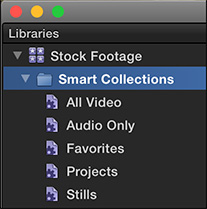
When you first create or open a project in Final Cut Pro X (v.10.2) a Smart Collection folder is created in the Library which contains five Smart Collections:
Because Library Smart Collections span the entire Library, they make finding stuff a whole lot easier. And, as you’ll learn below, you can add as many additional Smart Collections as you want.
CREATE A SMART COLLECTION
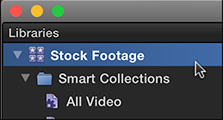
To create a Smart Collection for an Event, first select an Event. To create a Smart Collection for a Library, first select the Library.
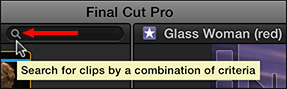
While you can create a Smart Collection from the File menu (see the Extra Credit section below) is it much easier to start by first creating a search. To do so, click the small magnifying glass in the top right corner of the Browser.
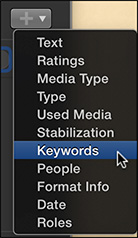
This opens what Apple calls the Filter window; I prefer to call it the Search window. Select the criteria you want to search for by clicking the Plus icon in the top right corner of the search window. You can search on multiple criteria.
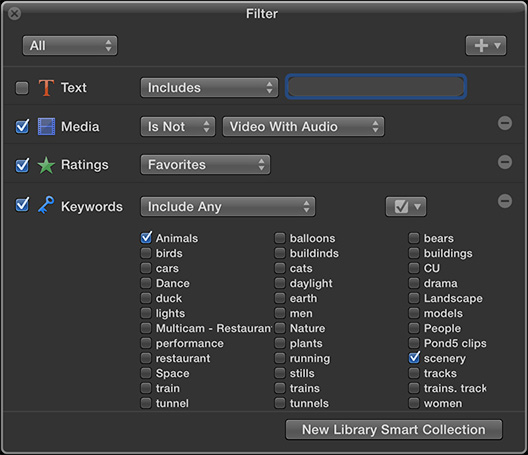
For example, here, I’m searching for all media that meets the following conditions:
And I’ve disabled searching for Text stored in either the file name or Notes field by unchecking the checkbox for Text.
As you can imagine, Smart Collection Searches can be as simple or complex as you want.

Click New Library Smart Collection at the bottom to save this search.
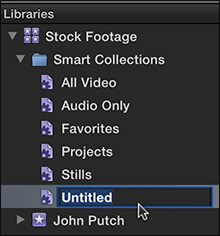
It now immediately appears as Untitled in the Smart Collections folder.
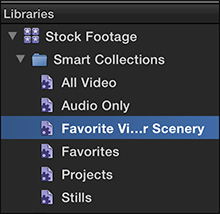
Rename the Smart Collection by clicking the name and entering the text you want to name it. Press Return to accept the name change.
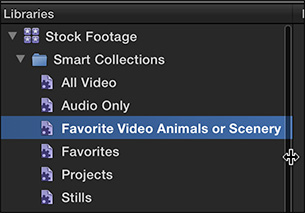
If the name is too long to display fully in the Browser, drag the vertical line separating the Library List from the Browser to expand the width of the Library List.
Anytime you want to see all the clips that meet your search criteria, simply click the name of the Smart Collection in the Library List. As new clips are added that meet these criteria, or as clips are deleted, the Smart Collection dynamically changes so that the search results are always current.
EXTRA CREDIT
To change the search criteria for an existing Smart Collection, double-click the name of the Smart Collection in the Library List which reopens the Search window.
To delete a Smart Collection that you no longer need, select it and do one of the following:
Deleting a Smart Collection deletes the search but does NOT delete any media referenced by the search.
You can also create a Smart Collection by choosing File > New > Library Smart Collection (shortcut: Option + Cmd + N), then double-clicking the Untitled Smart Collection in the Library List to apply search criteria. While this works, I prefer creating the search first.

2,000 Video Training Titles
Edit smarter with Larry Jordan. Available in our store.
Access over 2,000 on-demand video editing courses. Become a member of our Video Training Library today!
Subscribe to Larry's FREE weekly newsletter and
save 10%
on your first purchase.

12 Responses to FCP X: Library Smart Collections
← Older Comments-
 Merilynn Rodrigues says:
November 30, 2023 at 2:33 am
-
 Larry says:
December 1, 2023 at 11:26 am
← Older CommentsTo make a Smart Collection that searches the entire library, you must first?
-Select the library name before bringing up the Filter HUD.
-Check Search All in the Filter HUD.
-You cannot create a Smart Collection for an entire library, just per event.
-Create a regular Smart Collection, then drag it to the library in the browser.
Merilynn:
I just did a quick test. You can create a Smart Collection for a single Event or an entire Library. Select the Event or Library first, then choose File > New > Smart Collection.
No dragging involved.
Larry