

Everything was working great. Until…
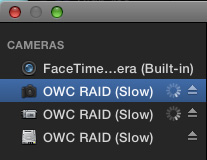
You went to import media into Final Cut Pro X and, suddenly, your hard disk thinks its a camera.
What happened?
The short answer is that you copied your camera files to the wrong place.
BACKGROUND
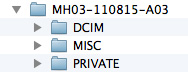
When you record video on a camera card, those files are recorded in very specific folders with precise folder and file names. This folder structure is determined by the video codec you are using. For instance, here, these three folders are used when recording some versions of AVCHD.
In your camera, the name of the card is the volume name; these three folders are then stored at the top (or root) level of the card.
Because Final Cut is able to ingest directly from a camera, or camera card, it needs to be able to recognize the difference between a hard disk and a camera card so that it can process files properly.
From Final Cut’s point of view, anything containing those three folders at the root (top) level of a hard disk MUST be a camera.
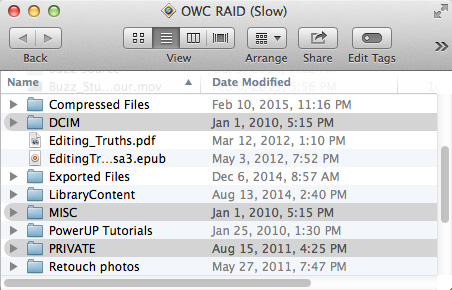
If you copy those folders INSIDE your camera card directly to your hard disk, as illustrated here, when you ask FCP to import media, it sees those three folders at the root level of the hard disk and immediately thinks your hard disk is a camera.
FCP totally ignores all the other files and folders on your hard disk. Just having those three folders outside all other folders is enough to turn your hard disk into a camera.
THE SOLUTION
The solution is easy: Always copy files from your camera card into another folder; never store them loose on your hard disk. And, if you’ve accidentally copied these folders to the wrong place, simply create a new folder, name it whatever makes sense to you, and move those loose folders – DCIM, MISC, and PRIVATE – into that folder.
NOTE: You can name the containing folder anything you want. You must NOT rename any of the folders or files inside the camera card when transferring it to your computer, or FCP won’t be able to import the files.
As soon as those folders disappear from the top level of your hard disk, Final Cut no longer considers your hard disk a camera and everything goes back to normal.
NOTE: In some cases, you may need to restart Final Cut to get it to see the changed folder positions.
Fixed.
EXTRA CREDIT
I use a naming convention for all my camera card folders: Project code – Date Shot – Camera – Card Number. So the folder name – MH03 – 110815 – A03 – translates to:
I now know, simply by looking at the folder name, who it belongs to, when it was shot, which camera was used and, roughly, when during the day it was recorded.
Simple and easy.

25 Responses to FCP X: Help! My Hard Disk Thinks It’s a Camera.
← Older Comments-
 Gareth says:
March 22, 2020 at 5:35 am
-
 Eric Emerick says:
June 9, 2021 at 7:11 am
-
 Larry says:
June 10, 2021 at 11:07 am
← Older Commentsthat helps, thanks a lot
I just ran into this issue of FCPX seeing my Lacie Big6 Disk as a camera card instead of a drive. I’ve been using everything the same way for years without an issue. I do not have any of the offending card files on my RAID, I always copy files to a separate folder, yet I still have the issue. I’ve re-installed FCPX and updated the Lacie RAID Manager, no help. Any ideas? Thanks.
Eric:
The only reason FCP will see your hard disk as a camera is if that camera card files are at the top (root) level. As a test, put ALL your files and folders into a single folder on the hard disk – just temporarily – and see if FCP still thinks it’s a camera. I suspect it will not.
Then, slowly move clumps of files / folders back to where they were originally and keep checking. At some point, you’ll find the offending folder.
Larry