
 I’m getting a lot of reports about error messages when using File > Share.
YOUTUBE EXPORT PROBLEMS
This first surfaced the middle of April with problems when exporting to YouTube.
This article explains that the problem was caused by Google, and how it was resolved.
“BAD FRAME” EXPORT PROBLEMS
Another problem that others are reporting is a project export failing due to a “bad frame.” While I have not seen this personally, it seems to occur when exporting for DVDs or Vimeo.
This is generally caused by either bad media or bad render frames. However, the problem is particularly perplexing, because the Project will render without any errors, but not export.
My first suggestion is to export as a Master File, which tends to minimize this problem. If it continues to occur, the only known workaround is to divide the number of the frame reporting an error by the frame rate of your project to determine its location in the Timeline. Then, replace the clip with the bad frame with another clip.
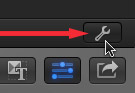
NOTE: To determine the frame rate of a Project, select File > Project Properties and click the small wrench icon that appears in the lower right corner of the Inspector.
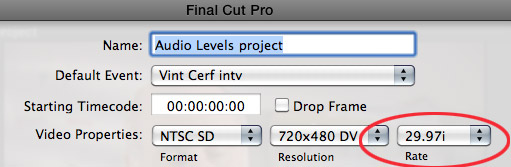
The frame rate is listed in the Rate popup menu.
CHAPTER MARKER EXPORT PROBLEMS
Currently, after upgrading to Final Cut Pro X 10.0.8, I am having problems exporting chapter markers for a project.
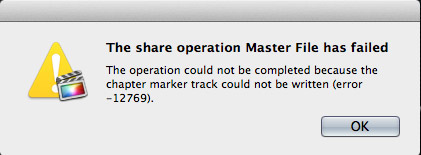
Specifically, at the end of the export, this error message appears and cancels the entire export.
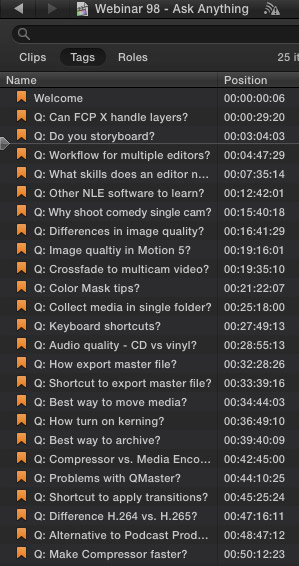
This is a list of the markers I’m using in this project. A general rule of chapter markers is that they cannot be within one second of each other or, in the case of a DVD, exceed 99 markers per project. In this project, there are 25 markers in total. As you can see, all of my markers are a couple of minutes apart.
In this case, all markers were created in 10.0.8. (I mention this because an older Apple support thread described an error when trying to export chapter markers using FCP X 10.0.6 that were created in FCP X 10.0.5. The solution there was to replace all the markers.)
This export error persists even after trashing FCP X preferences and moving marker positions. However, the file will export perfectly when chapter markers are not included in the export.
Hmmm… let’s see if I can track this down.
Apparently this message indicates a corrupt marker. The way to fix this, since there is no indicator in FCP X about which markers are corrupt, is to delete markers, individually, starting with the end of the project. (When deleting a marker, write down the timecode location and title of the marker, because, ultimately, you’ll be creating a new marker at that location.)
Keep deleting markers until the Project exports properly with chapter markers. In my case, deleting five markers, starting from the end of the Project, did the trick. Yes, this is a bit time-consuming, but it has the benefit of solving the problem.
Then, create NEW markers, don’t use Undo, at the locations of the markers you removed. The new markers will not be corrupted and the project should export properly.
TELL APPLE
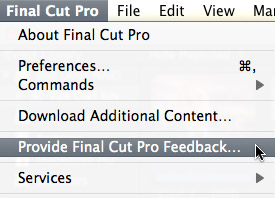
If you are having export problems, be SURE to report them to Apple using the Final Cut Pro > Provide Final Cut Pro Feedback menu option.
Apple has assured me on many occasions this is the best way to report problems, even if they don’t personally respond to your report.

2,000 Video Training Titles
Edit smarter with Larry Jordan. Available in our store.
Access over 2,000 on-demand video editing courses. Become a member of our Video Training Library today!
Subscribe to Larry's FREE weekly newsletter and
save 10%
on your first purchase.

39 Responses to FCP X: Export Problems
← Older Comments Newer Comments →-
 Larry Jordan says:
February 3, 2014 at 1:03 pm
-
 Sandy Stubbings says:
February 4, 2014 at 2:23 pm
-
 Larry Jordan says:
February 4, 2014 at 8:19 pm
-
 Sandy Stubbings says:
February 5, 2014 at 7:01 pm
-
 Larry Jordan says:
February 5, 2014 at 9:39 pm
-
 Sandy Stubbings says:
February 15, 2014 at 12:02 pm
-
 Michelle says:
May 29, 2014 at 9:50 am
-
 GillY says:
September 24, 2014 at 7:46 am
-
 Ilya says:
June 8, 2015 at 5:17 pm
-
 Larry says:
June 8, 2015 at 9:35 pm
← Older Comments Newer Comments →Sandy:
I don’t know this definitely, however, copying media to your hard drive is absolutely the preferred way to work.
Larry
I begin my project by “importing” my clips from camera (or card) into Final Cut. Doesn’t this save it to my computer? If not, how do I save to the computer before I import? (I am new to Final Cut Pro. Sorry if this is a dumb question.)
Sandy:
This isn’t a dumb question – its a good one.
When you import, you are given the choice of copying files to the library, or leaving them in place. If you choose to leave them in place, AND you don’t optimize, FCP does not copy yoru files, but references them from the camera card.
For most situations, I recommend both optimizing and copying the files into your library. Here’s a series of articles that explain this in more detail: http://www.larryjordan.biz/fcp-x-10-1-manage-libraries/
Larry
I had it set to Copy files to the library and to optimize. It still isn’t working.
Sandy:
Time to call Apple.
Larry
You are so right. Went in to Apple and did One-to- one. Nathan solved this problem and several others for me. I highly recommend. One-to One for all new Apple purchases!
Sandy / Larry,
Could you explain the fix Apple gave you for this? I’m getting the same error when I try to export – but I’ve also copied all my files on the hard drive and optimised them….
Thanks for any assistance you can give!
I have NEW FCPX, can I export my project to a dv cam..I didnt see any options..
Same thing happened to me – wasn’t able to export to any destination. I was on a tight deadline so I was desperate. I tried Send to Compressor and it worked!!
Ilya:
When FCP X doesn’t do something major, like export, its because there’s a bigger problem involved. Do as Safe Boot, as outlined in this link, then trash FCP X preferences:
http://larryjordan.com/five-step-trouble-shoot/
Larry