
 Unlike Final Cut Pro 7, the interface in Final Cut Pro X is not particularly customizable. However, there are several things you can do to modify the interface to fit your working style.
These fall into three groups: Toggles, which turn things on or off; Drags, which allow you to change the size of something by dragging, and Layouts, which change the overall interface display.
[Click to see larger image.]
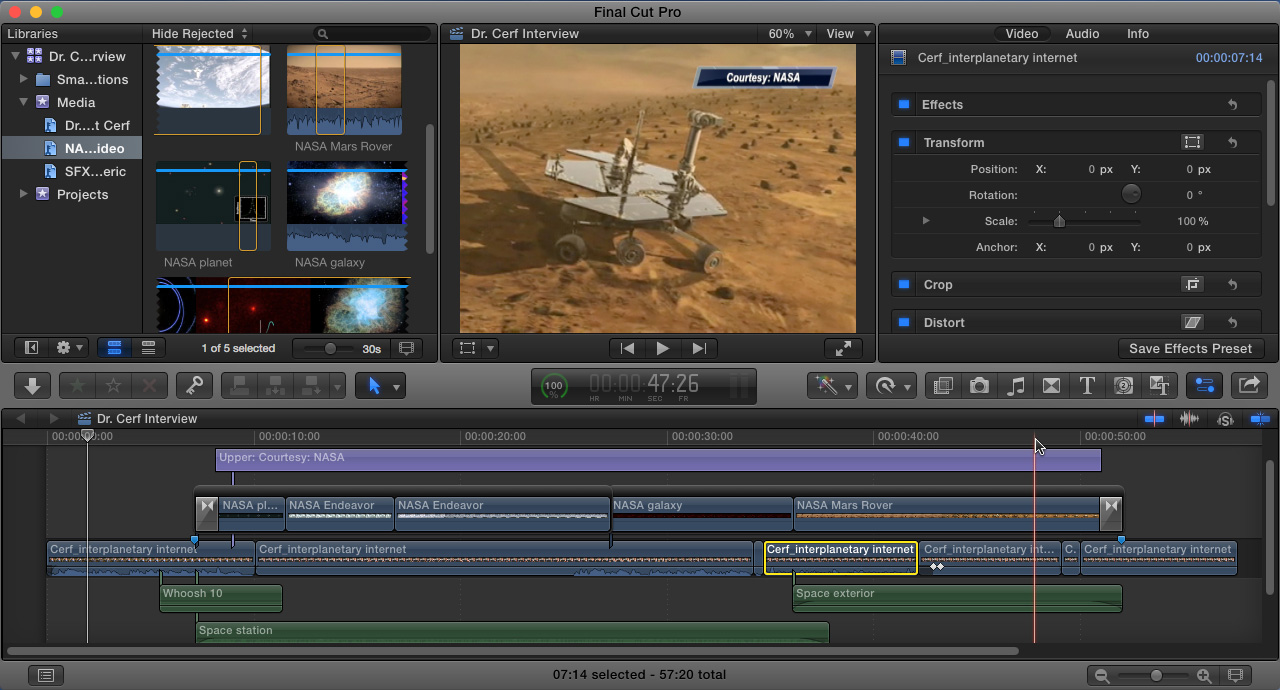
To get us started, this is the default, single window layout for Final Cut Pro X, with the Browser, Viewer, Inspector and Timeline all visible.
TOGGLES
Toggles make different elements of the interface appear or disappear. While some are menu items and others are on-screen buttons, all of these are keyboard shortcuts.
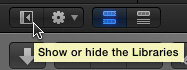
Click this button, in the lower left corner of the Browser, to Show/Hide the Library list. (Shortcut: Shift+ Command + 1)
Control + Command + 1: Show/Hide both the Library List and the Browser. (This is one of my three favorite interface shortcuts.)
Command + 7: Show/Hide video scopes. (This is my second favorite interface shortcut.)
Shift + Z: Changes the display size of whatever is in the Timeline, Viewer or Browser to fit into the window. (This is my third favorite interface shortcut.)
Command + 4: Show/Hide the Inspector
Control + Command + 2: Show/Hide the Timeline Index.
Control + Command + 3: Show/Hide the Event Viewer (this displays whatever you have selected in the Browser.)
Control + Command + F: Displays interface full-screen, hiding the menu bar at the top. To exit full screen mode, press ESC.
Shift + Command + 7: Show multicam angles.
Shift + Command + 8: Show/Hide the audio meters.
Command + 9: Show/Hide the Background Task window
Command + I: Open the Media Import window.
DRAGS
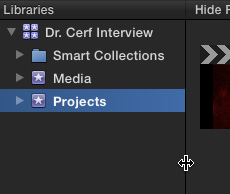
Drag the vertical edge between the Library List and the Browser to change the size of the Library List.
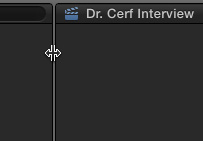
Drag the vertical edge between Browser and the Viewer to change the size of these two windows.
NOTE: You can’t change the size of the Inspector, even if you drag a border.
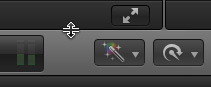
Drag the horizontal edge at the top of the Toolbar (not the bottom) to increase or decrease the size of the Timeline.
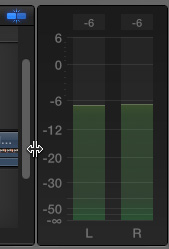
Drag the vertical edge between the Timeline and the audio meters to increase the width of the audio scopes.
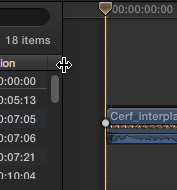
Drag the vertical edge between the Timeline Index and the Timeline to change the size of the Timeline Index.
LAYOUTS
There are three interface layouts, plus an option. All are controlled from the Window menu.
[Click to see larger image.]
This is the default single-window layout. As an option, type Control + Command + F to expand the interface full screen and hide the menu bar at the top. To access the menu bar, roll your mouse into it. To exit full-screen mode, press the ESC key.
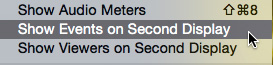
If you have a dual computer monitor setup you have two more options. Option 1: choose Window > Show Events on Second Display.
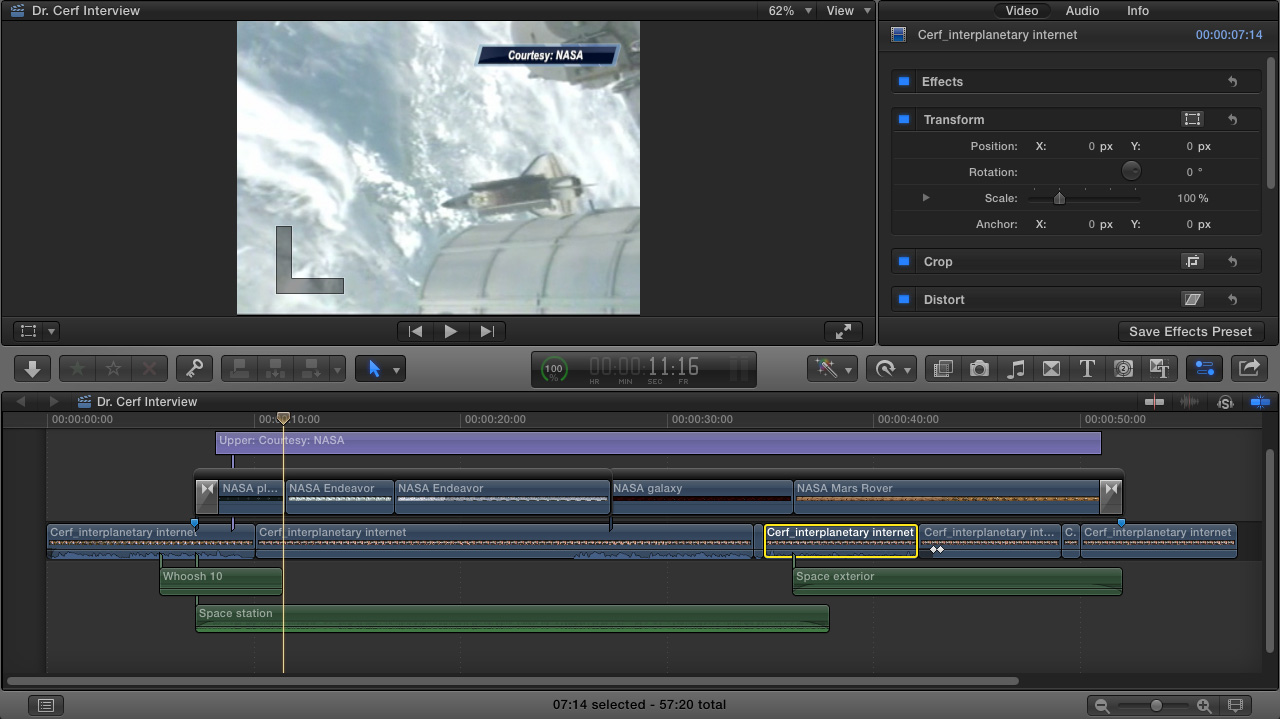
[Click to see larger image.]
This becomes the main monitor interface, shown in Full Screen mode.
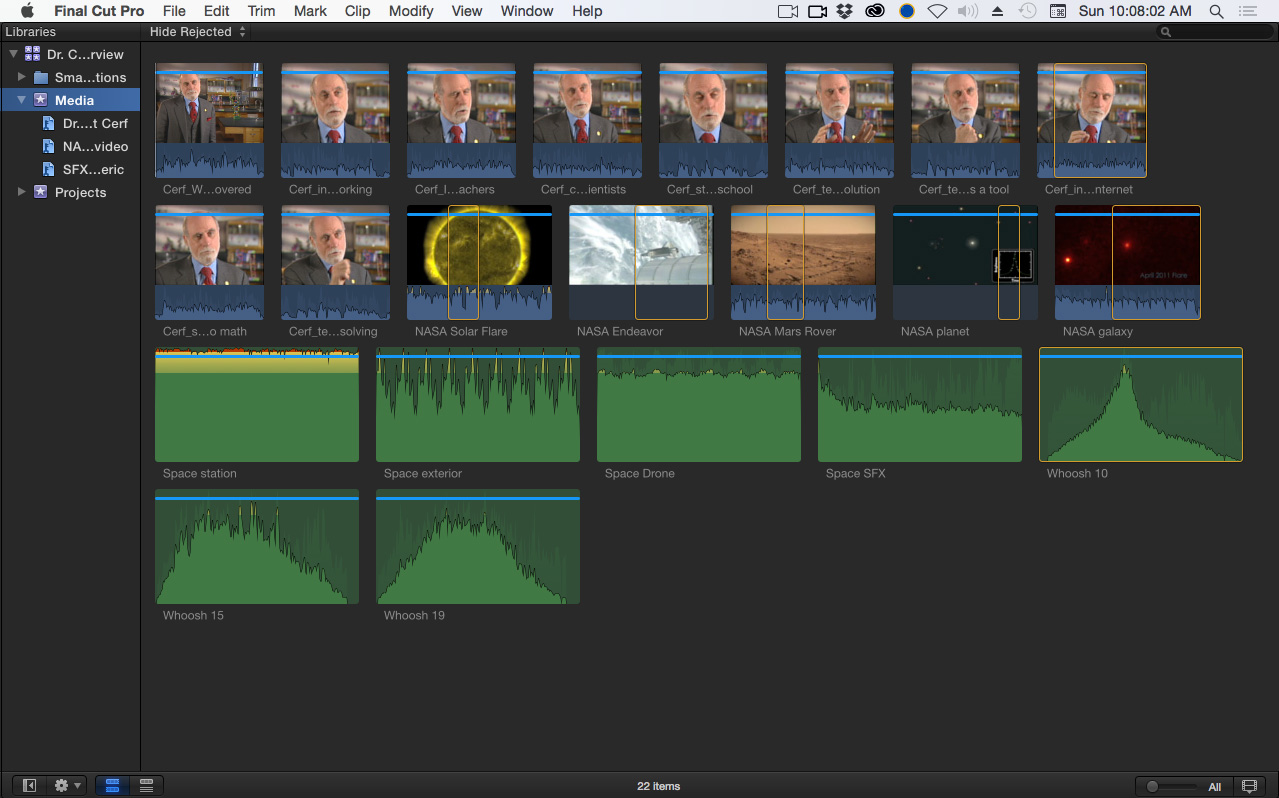
[Click to see larger image.]
And this is the second monitor interface.
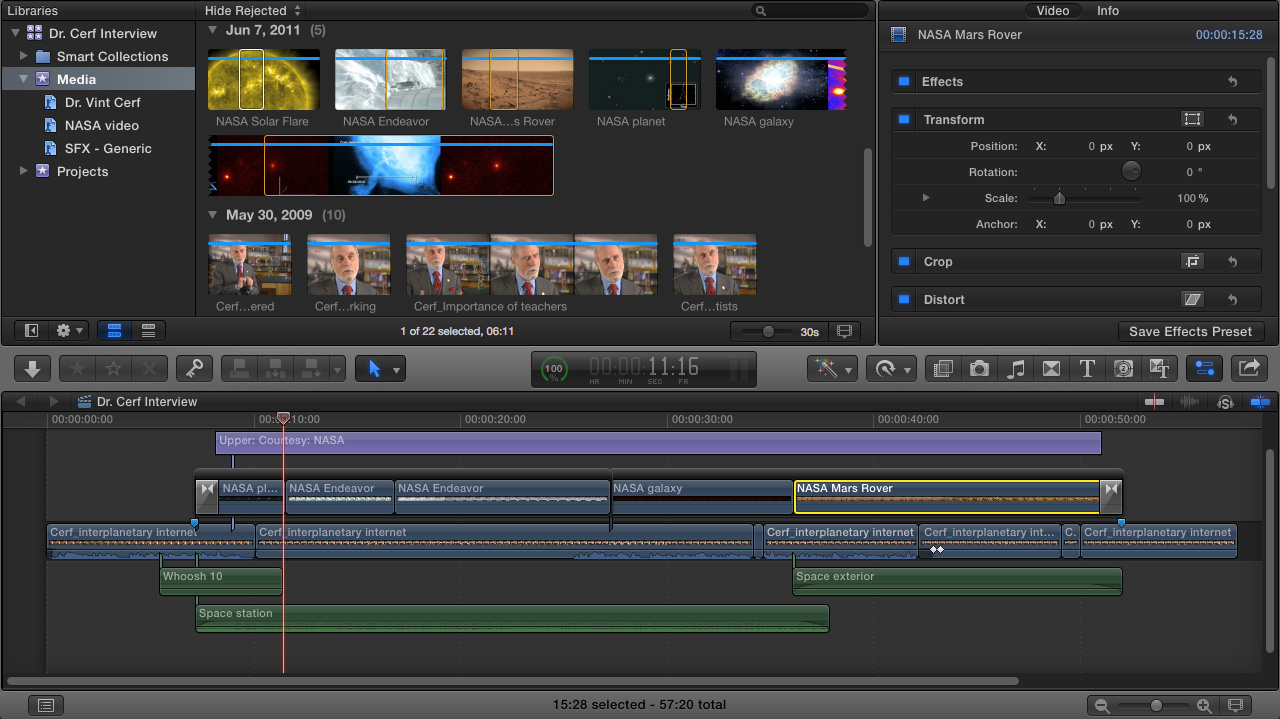
[Click to see larger image.]
Or, choose Window > Show Viewers on Second Display and this becomes the main monitor interface; again, shown in Full Screen mode.

[Click to see larger image.]
And this becomes the second monitor interface. This screen shot illustrates both the main Viewer (right) and the Event Viewer.
Final Cut will remember your interface settings when you quit and restart FCP X.
RESETTING THE LAYOUT
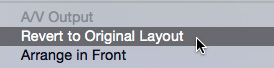
If you need to reset Final Cut’s layout back to its default settings, choose Window > Revert to Original Layout.
SUMMARY
There are hundreds of keyboard shortcuts in Final Cut that, in some manner, show or hide something. For example, Control + Command + W to show the Waveform Monitor, Command+R to show the Retiming Bar, or Command + [plus/minus] to zoom into or out of something.
However, while these enhance the interface, they don’t really “change” the interface. And illustrating how to change the interface is what this article is all about.

2,000 Video Training Titles
Edit smarter with Larry Jordan. Available in our store.
Access over 2,000 on-demand video editing courses. Become a member of our Video Training Library today!
Subscribe to Larry's FREE weekly newsletter and
save 10%
on your first purchase.

30 Responses to FCP X: Change the Interface
← Older Comments Newer Comments →-
 Larry says:
November 5, 2017 at 7:30 am
-
 Peter Snowdon says:
November 27, 2017 at 11:39 pm
-
 Larry says:
November 28, 2017 at 12:25 pm
-
 Duncan Knowles says:
January 31, 2018 at 4:36 pm
-
 Larry says:
February 1, 2018 at 7:47 am
-
 Jarrett Holmes says:
October 11, 2018 at 10:39 am
-
 Sash says:
March 24, 2019 at 5:09 am
-
 Larry says:
March 24, 2019 at 9:58 am
-
 Sash says:
March 25, 2019 at 12:24 am
-
 Brennan Wesley says:
July 3, 2019 at 9:45 am
← Older Comments Newer Comments →Alan:
The only way to make the text bigger is the lower the resolution of your monitor, which you can do in System Preferences > Display.
This is what I’ve done with my 27″ iMac – changed the resolution from 2500 pixels horizontally to 2,000. This makes all text easier to read.
Larry
Hi Larry
The shortcut toggles are excellent thank you but in my later version I do not have those toggle options appearing at all anywhere on the interface so although the shortcut works fine, I can’t see where I would click on screen for the same result.
I am sure as always it will be obvious once you have pointed it out!
On another thread you kindly advised me to reset my preferences to sort out a Keyword display problem – just to let you know it worked straight away – thank you, that’s been a life saver.
Peter
Peter:
Virtually all the toggles have menu options. Look in the View and Window menus – you’ll find them there.
Larry
In FCPX 10.3.4, is there a way to have both Scopes and Angles on the screen at the same time?
I haven’t upgraded to the latest FCPX because of your repeated good advice to not do so in the middle of a project.
Good to be in touch with you again, Larry. Thanks and best wishes, Duncan
Duncan:
I never tested this in FCP X 10.3.4, but in 10.4 it is not.
Larry
Thanks a lot for this!
Hi Larry, thank you for your tips and classes! Learned alot from you!
Is there way(when multicaming:)to have angles and timeline on one screen and viewer/output on the second? I cant seem to find it, output wants always to stick with angles :-/
Thank you again!You’ve been a great resource!
Sash:
None that I know of. There’s no way to separate them.
Larry
Thank you for taking time to reply!
Best wishes!
Can the view be resized manually not 50% 100% but can it be sized to 65%