
 Recently, I got an email from a reader asking how to change Project Properties in Final Cut Pro X. It isn’t hard, but there are a couple of hidden steps.
Most of the time, when you create a project, the settings are fine; especially when you let your Project auto-configure itself based upon the first clip you edit into it.
However, every so often, you edit the wrong type clip in first and the Project configures incorrectly, or you want to change the image size, or the render format. Here’s how.
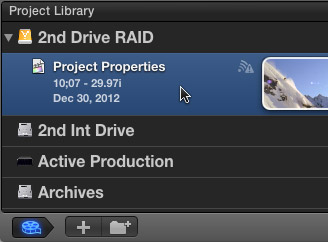
Select the Project you want to change in the Project Library.
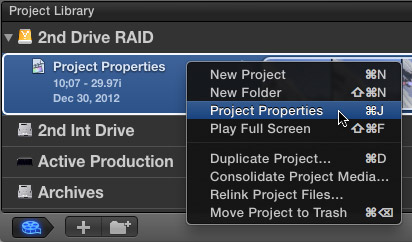
Then, either right-click the name of the project, type Command+J, or choose File > Project Properties.
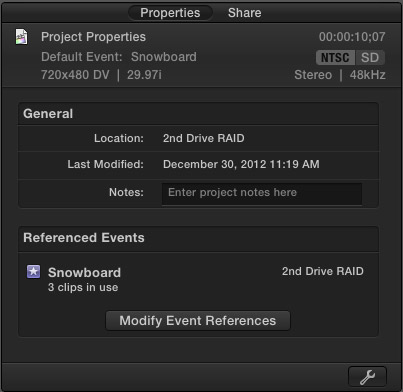
This opens the Properties tab in the Inspector.
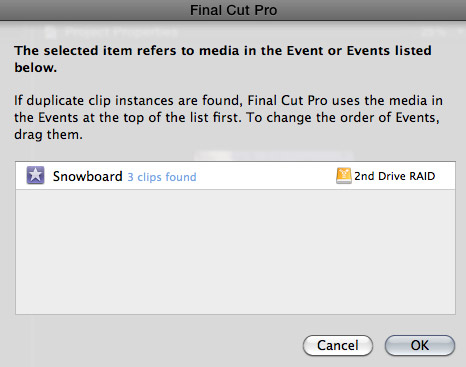
Clicking the Modify Event References button allows you view which Events are storing the media used in your Project. If you are using multiple Events, you can change their priority by dragging them up or down.
NOTE: Personally, I’ve never used this feature. However, it is nice to know it is here.

Click the Wrench icon in the lower right corner to open the Project Properties panel.
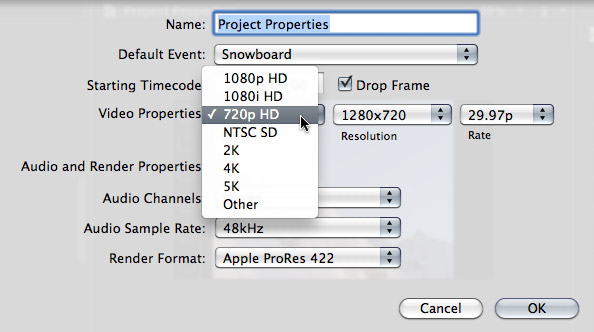
Here, you can change many of the settings of your project; including starting timecode and image size. However, once you have media edited into your Project, you are not able to change frame rate.
If you need to change the frame rate, the easiest thing to do is create a new Project, then copy the clips from the old Project and paste them into the new one.
NOTE: The best time to change project properties is when there are no clips edited into the sequence. When a sequence is empty, any property can be changed.
When you are happy with your revised settings, click OK.
Done.

2,000 Video Training Titles
Edit smarter with Larry Jordan. Available in our store.
Access over 2,000 on-demand video editing courses. Become a member of our Video Training Library today!
Subscribe to Larry's FREE weekly newsletter and
save 10%
on your first purchase.

51 Responses to FCP X: Change Project Settings
← Older Comments-
 Zareh says:
December 28, 2020 at 10:14 am
← Older CommentsLarry,
Thanks so much for this. I’m really grateful to you for your generous help and time.
Take care,
Zareh