
 [IMPORTANT NOTE: With the release of the 10.1 update to Final Cut Pro X, I released all new training that covers both new and old features. I encourage you to buy this, or become a subscriber, because it will help you learn the new software quickly. Click here to learn more.]
Since the release of Final Cut Pro X 10.1 a couple of days ago, my email has exploded with questions – and, it probably won’t surprise anyone to learn that media management is number one on the list. So here are the answers to common questions, along with some “secret tips” that make working with libraries easier. This is the first of four articles on media management. The others are:
NOTE: Here is a very important article on updating media, events, and projects from earlier versions of Final Cut Pro X. Please read this before you update.
Apple has also provided additional resources in two white papers:
And here is a video webinar that illustrates these, and more, media management techniques for Final Cut Pro X.
DEFINITIONS
A Library is a container that holds media, events, and projects. You can have an unlimited number of libraries open at once and you can open and close libraries as needed. Final Cut requires a minimum of one library to be open at all times.
NOTE: Even though computers are using faster SSD and Fusion drives, I still recommend that libraries and media be stored on a fast second drive or RAID. In my case, I store all my libraries on an attached Thunderbolt RAID.
Events are folders that are contained inside libraries. A library must contain at least one event. There is no limit to the number of events that can be contained in one library. The easiest way to to think of an event is that it is a folder, or bin, that stores stuff.
NOTE: In earlier versions of Final Cut Pro X, there was a limit of about 2,000 clips that could be stored in an event. That limit was, essentially, removed.
Projects are the instructions on how to edit our clips; they are now analogous to sequences in Final Cut Pro 7. (Here’s an article that explains how to manage projects.)
Media is stored in libraries, or referenced by libraries, and can be moved or copied between projects, events, or libraries.
WORKING WITH LIBRARIES
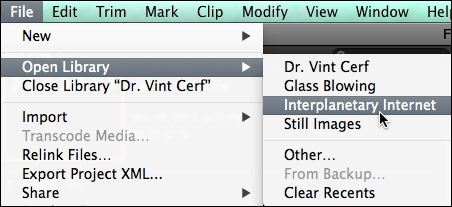
To open a library, select File > Open Library and select from the recent library list.
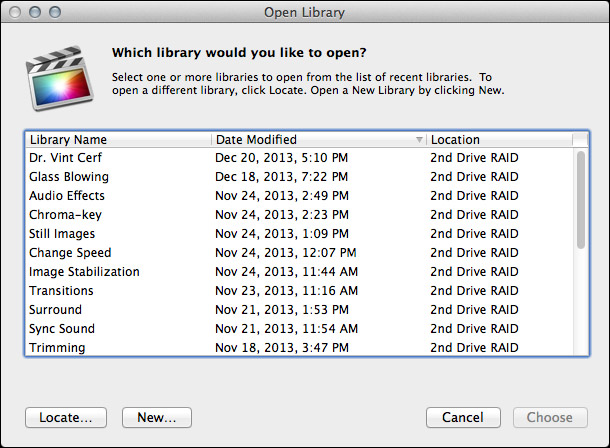
To open a library that isn’t on the list, select File > Open Library > Other. This displays a list of all the libraries that Final Cut knows about.
To open a library that you know exists, but Final Cut does not display in its list of libraries, click the Locate button in the bottom left corner. Select the library you want to open from the File Picker window that appears.
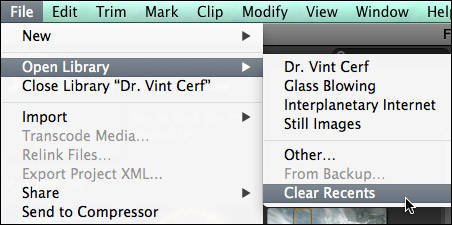
To clear the list of recently opened libraries, select File > Open Library > Clear Recents. This list repopulates based on the libraries that you either reopen or create.
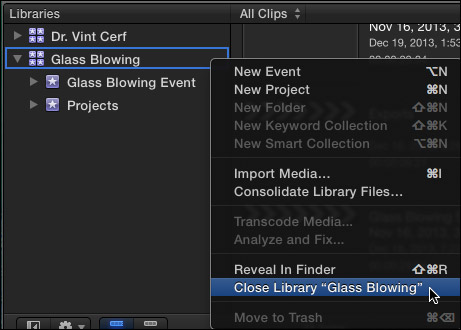
To close a library, select the library you want to close, then do one of the following:
SECRET LIBRARY TIPS
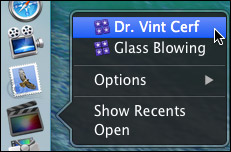
To open Final Cut with a specific library selected, right-click the Final Cut icon in the dock and select the library you want selected after FCP opens.
NOTE: All other open libraries will also open when you use this tip.
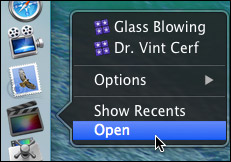
To open Final Cut with ONLY one library open, regardless of how many libraries were open when you last quit Final Cut, press and hold the Option key as FCP opens. Then, select the library you want to open from the list.
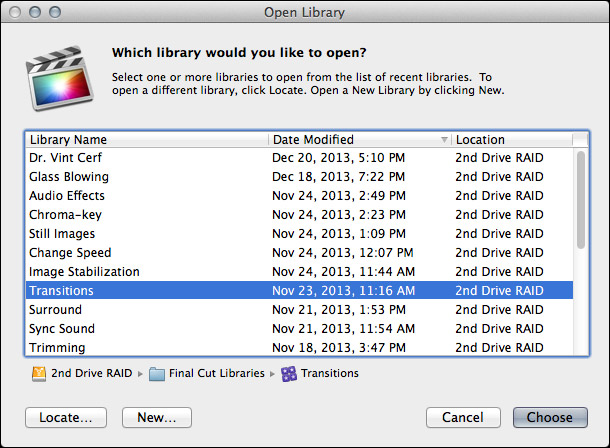
NOTE: You can not close the last remaining open library inside Final Cut. To close a library that you no longer want, open a different library, so that there is always one open library in FCP.
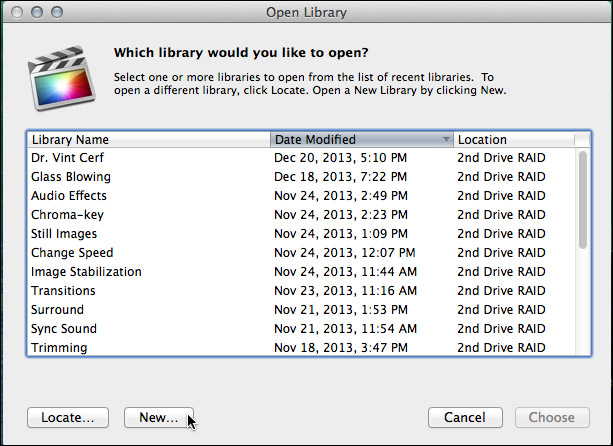
Final Cut Pro X always requires at least one library, containing at least one event to be open. To open FCP with an empty library and event (and all other libraries closed), press and hold the Option key when starting FCP from the dock and click the New button in the bottom left corner.
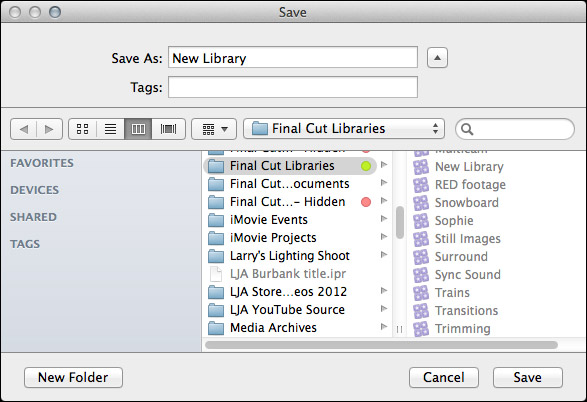
Remember, libraries can be named anything and stored anywhere.
NOTE: Because libraries contain media and render files, be sure to store these to a high-speed storage device. And, I continue to recommend not storing media to the boot drive.
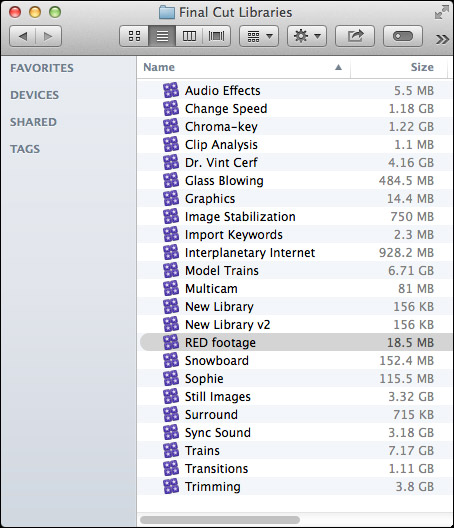
To open a specific library, double-click the library icon in the Finder.
LIBRARY BACKUP
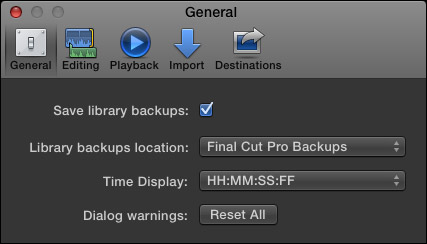
To backup a Library database, go to Final Cut Pro > Preferences > General and make sure Library backups is turned on. This defaults to storing backups in your Home directory. You can specify another location from the pop-up menu.
NOTE: This backup also includes backups for every project and event database contained in that library. It does not backup media. This makes archiving library data easy, because you don’t need to backup the media contained in the library, just the database.
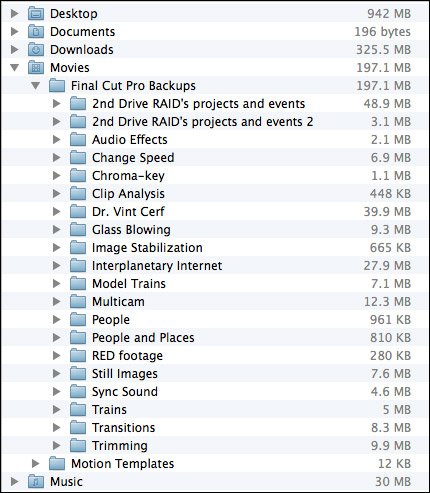
By default, library backups are stored in: [Home directory] > Movies > Final Cut Pro Backups. As you can see, the library database is not that big. (On the other hand, these are not large projects.) Backups are made every 15 minutes.
RESTORING LIBRARIES FROM BACKUPS
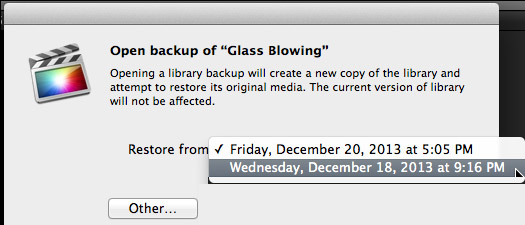
In the Libraries list, select the library you want to restore and choose File > Open Library > From Backup.
In the “Restore from” popup menu, select the backup date and time you want to restore from. Or, click Other, to select a different backup file. This backup file is added as a library in the Libraries list.
NOTE: The backups are standard Final Cut Pro library files, so you can also open them by double-clicking them in the Finder.
LIBRARIES ARE BUNDLES
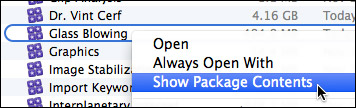
Libraries act like a file, but they are actually a bundle. Right-click a library name in the Finder and select Show Package Contents.
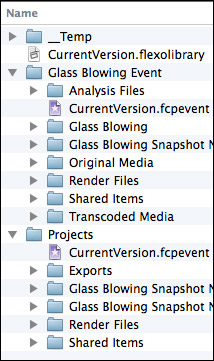
Inside, you will find folders containing all events, projects, snapshots, media, and related files. (This is the new incarnation of the old Final Cut Events and Final Cut Projects folders.)
I STRONGLY recommend you not mess with the files inside this folder for any project you care about. However, if you are looking for ways to access media or project files, this is the place to look.
DELETING A LIBRARY
Libraries can not be deleted from within Final Cut. Apple made this decision to prevent the accidental erasure of all our work. To delete a library, select it in the Finder and delete it like any other file.

2,000 Video Training Titles
Edit smarter with Larry Jordan. Available in our store.
Access over 2,000 on-demand video editing courses. Become a member of our Video Training Library today!
Subscribe to Larry's FREE weekly newsletter and
save 10%
on your first purchase.

154 Responses to FCP X 10.1: Manage Libraries
← Older Comments Newer Comments →-
 LarryJ says:
August 1, 2014 at 12:42 pm
-
 LarryJ says:
August 1, 2014 at 12:44 pm
-
 Johnny Friday says:
August 1, 2014 at 3:19 pm
-
 Gary says:
August 5, 2014 at 4:07 am
-
 LarryJ says:
August 6, 2014 at 4:06 pm
-
 LarryJ says:
August 6, 2014 at 4:08 pm
-
 seth says:
August 18, 2014 at 9:13 pm
-
 LarryJ says:
August 19, 2014 at 11:21 pm
-
 TJ says:
September 16, 2014 at 5:52 am
-
 Mike Comins says:
September 16, 2014 at 1:15 pm
← Older Comments Newer Comments →Seth:
My guess is that the library is getting too full. FCP X prefers to have less than 3,000 clips per library.
Try reducing the number of files in a single library by spreading them across multiple libraries using File > Move.
Then, only open the libraries you need.
If that doesn’t fix the problem, call Apple Support.
Larry
Johnny:
Try quitting FCP X, then move the files manually using the Finder. My guess is that the matching file names are causing the problem.
Larry
Here is the ANSWER: My rather slowness today…i NEVER downloaded the plugins for RED R3d files in this new computer…therefore it was obvious what was being told me….Missing Plugin–but somemtimes i get so focused that the red media just means Media missing…in this case after loading the RED plugin, everything is read perfectly…
“How do I move libraries between hard disks?
“You can copy libraries between hard disks using the Finder. Be sure to quit Final Cut Pro X before moving a library.”
Source: http://support.apple.com/kb/HT5958
I had the same question!
Bas:
you can absolutely organize libraries into folders in the Finder. Just create a folder and drag the library into it.
In FCP X, however, folders are only used for keywords and can’t store Libraries, Events, or Projects.
larry
Gary:
You copy/move libraries the same as any other file in the Finder: drag it from where it is to where you want it to go.
Most libraries are quite large, so it will take a while to copy, but dragging works perfectly.
Larry
P.S. Be SURE to quit FCP X before moving any libraries using the Finder.
Larry,
I’ve begun working with an assistant at a distant location. Our routine is that I I clone a version of a library onto a drive (all with media located outside the libary) and sent it to him before he starts. He creates multiclips and stringout projects and copies these into shuttle libaries and then drops them to me via dropbox. We’ve done this about 6 times for this particular “project”.
When he copies the projects into the shuttle library, he is always careful not to include any media.
Trouble is, with each shuttle library I receive from him, after copying just the project(s) into my main libary, I’m getting duplicate multiclips appearing in my library, each with its own version number (1 – 6 in this case). I seem to have about accumulated about a half dozen “versions” for each muliclip. He says he only has ONE multiclip in his library. But, my library is getting bloated. What do you think is happening?
Seth:
FCP X won’t replace an older project with a newer project. So, when your assistant editor creates the multiclip, he/she only has the one they created.
When you open the library and drag the new file into the older Library, NONE of the older versions are replaced. This prevents you from accidentally erasing a sequence.
So, once you add the new multicam clip, delete the ones you don’t need.
Larry
Hi Larry,
I have a large documentary project where I set up the libraries pretty much like you are suggesting, meaning 1 separate library for every subject (we have about 16). Now the problem is that when creating the master assemble timeline (has its own library, too), I can’t just take the already edited footage from the subject’s timeline and put it on the master timeline without FCPX wanting to copy the multi cam clips and all the original files again to the master library, effectively duplicating the files again and again. This is a complete nightmare and I don’t know how to make this workflow straight again.
TL;DR: how to create a master timeline with footage that spans across several libraries without copying media.
Editing on FCPX 10.1.1
Re: TJ on Sept. 16: I spent days reconstructing hard drives, and hours on the phone with Apple, on this issue. Bottom line: they did not foresee this most obvious problem, and they do not have a solution. I was asked by tech support to request a solution on future upgrades on the Apple website. I did. God knows when that may come. They are truly idiots on this obvious issue that so many of us face, and imperially ignoring it. Nothing would make me happier than being wrong. Has anyone figured out a solution?