
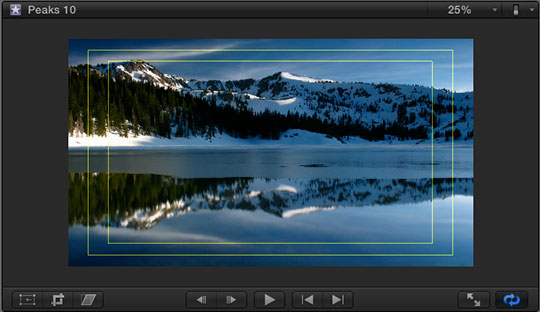
Action Safe and Title Safe boundaries were invented decades ago to solve two problems with televisions that had picture tubes:
Even today, we still need to pay attention to these issues because not everyone has yet upgraded to an LCD TV set. And, when you are digitally projecting an image, overshooting the edge of an image is common.
So, to help us prevent having portions of our image – like the phone number of a sponsor – disappear because the edge is no longer visible, all versions of Final Cut and Adobe Premiere allow us to display two boundaries to help us align our images. This makes sure that essential portions of our image can be seen on virtually all TV sets.
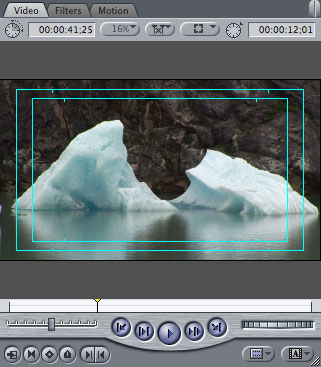
Action Safe: This boundary is 5% in from each edge of the frame. All essential action, and actors, should be inside this outer boundary.
Title Safe: This boundary is 10% in from each edge of the frame. All essential text, logos, graphics, and titles should be inside this inner boundary.
So, now that you know what these are, how do you display them?
FCP X
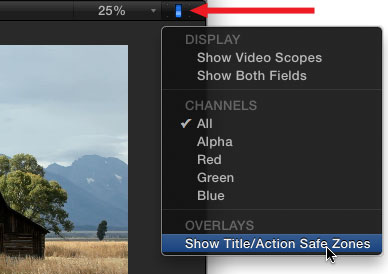
Click the Switch in the top right corner of the Viewer and toggle Show Title/Action Safe Zones on or off.
In Final Cut Pro X, the boundaries are shown as yellow rectangles. Action Safe is the outer rectangle, Title Safe is the inner rectangle.
FCP 7 AND EARLIER VERSIONS
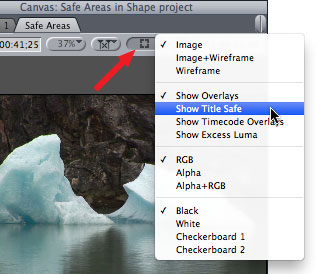
If you are using FCP 7, select either the Viewer or the Canvas and do one of two things:
In Final Cut Pro 7, and all earlier versions, Action and Title Safe are displayed as cyan rectangles.
ADOBE PREMIERE PRO
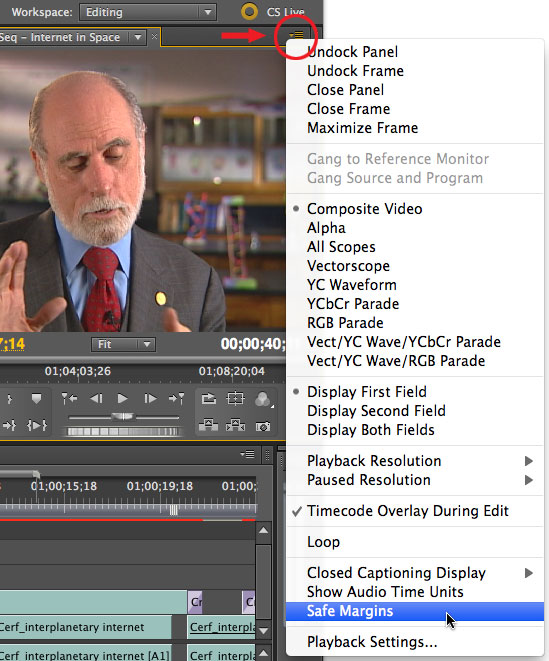
In Premiere Pro, click the small fly-out icon in the top right corner of the Program monitor and select Safe Margins.
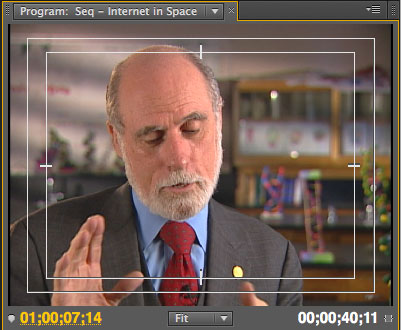
In Premiere, the zones are displayed as white rectangles with a small hash mark indicating the vertical and horizontal centers of the frame.
WEB VIDEO
These boundaries are essential for any video going to DVD, cable, or broadcast — in other words, anywhere except the web.
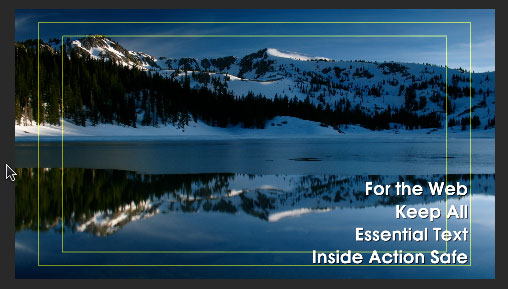
However, I’ve also found that these boundaries are useful for web video as well. We’ve grown up watching video that honors these boundaries, it is ingrained in how we perceive television.
Text that touches the edge of an image creates a very uncomfortable feeling in the viewer; generally, this is something we want to avoid.
So, when I’m creating video for the web, I don’t need the excess protection that Title Safe affords. Instead, I frame all essential text, logos, or composites so that everything is contained inside Action Safe.

2,000 Video Training Titles
Edit smarter with Larry Jordan. Available in our store.
Access over 2,000 on-demand video editing courses. Become a member of our Video Training Library today!
Subscribe to Larry's FREE weekly newsletter and
save 10%
on your first purchase.

44 Responses to Display Action / Title Safe Zones
← Older Comments-
 Larry says:
October 17, 2019 at 12:35 pm
-
 Zareh says:
October 17, 2019 at 12:47 pm
-
 Mary says:
July 2, 2020 at 1:34 am
-
 Larry says:
July 2, 2020 at 8:08 am
← Older CommentsZareh:
That’s one way to look at it – and I totally understand your feelings.
But, I look at it another way. Because you took the time and effort to record these images, we have a record of the past that would not otherwise exist. They are impossible to reshoot and, therefore, priceless. I would not be dispirited, I would be deeply grateful they exist – and do everything I could to make them look as good as possible.
Larry
Larry, you made my day/month/year. I really needed a shot in the arm like this and I’m deeply grateful to you for taking the time, and caring enough, to reply in such a positive and encouraging way.
I’m going back to cutting with wind in my sails!
what do i do if the safe margins are smaller now and how do i make them return to their original size
Mary:
In Final Cut, safe zone dimensions are coded into the software. In Premiere, it’s a preference setting.
Larry