
 NOTE: This article was first published in 2013. While accurate for earlier operating systems, here’s a more recent version that also includes a note on APFS.
Dual-boot systems are a way of configuring the boot drive so that you have the option to start-up your computer (“boot”) into different operating systems. The most common reason to do this is to have both Mac OS X and Windows available on the same system.
NOTE: While dual-boot systems allow you to choose which operating system you will run, you can’t switch between operating systems without restarting your computer.
However, for me, a big benefit of creating a dual-boot system is that I can have two different Mac OS X systems, with two different versions of Final Cut Pro X, installed. Because all of my media and projects are stored on an external drive, dual-booting allows me to select which version of Final Cut Pro X I want to use for an edit.
NOTE: Actually, you can create any number of different boot disks, to run whatever software you want. Though we use the term “dual-boot,” in point of fact you are only limited by the amount of free space on your boot disk.
DETERMINE HOW MUCH SPACE YOU NEED
Before we create a new partition, we need to figure out how big it needs to be. There are three components:
Most Mac operating systems take 20 GB or less to store. So, let’s estimate the OS at 25 GB, to be safe.
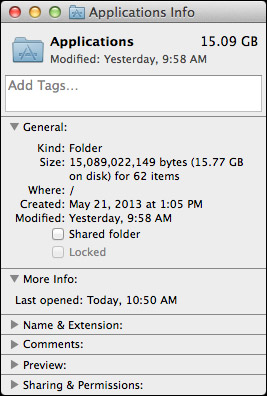
Open your boot disk, select the Applications folder and choose File > Get Info. The total storage space required for all your applications is listed in the top right corner. For this system, applications take 15 GB. Again, let’s round this up to 20 GB.
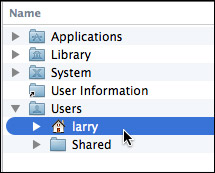
Finally, open the boot disk, twirl down Users and select your Home directory. (It has an icon of a house.)
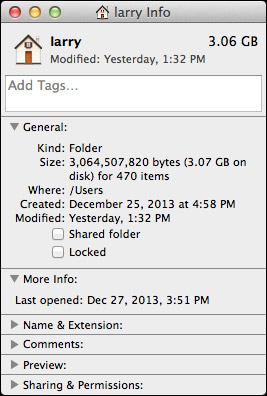
Again, choose File > Get Info and write down the size. In this example, I’m using 3 GB for all my Home directory files. Again, we’ll round up to, say, 10 GB.
The size partition you need to create is the sum of these three folders: 25 + 20 + 10, or 50 GB. Your numbers will vary, but this is how you calculate the partition size you need.
CREATE A NEW PARTITION
As shipped by Apple, your boot disk has a single partition. (You can think of hard disk partitions as similar to rooms in a house. Right now, your “house” stores all your files in a single room filled with file cabinets.)
Partitioning allows us to create multiple rooms. The only problem is that all these different rooms must fit into the space of the original house. So, partitioning allows you to create multiple rooms, but it doesn’t expand the total storage space available to you.
NOTE: In the past, we would partition drives to organize our files. This is no longer a good idea, because there’s a performance hit in moving between different partitions. While partitioning the boot drive still makes sense, partitioning for data storage does not.
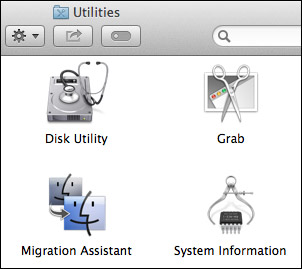
To create a partition, open Utilities > Disk Utility.
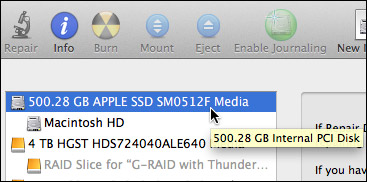
Select the text ABOVE the words “Macintosh HD.” This is because “Macintosh HD” is already a partition. You can’t partition a partition, you can only partition the hard disk that contains the partition.
NOTE: The name of your hard disk – which will probably be a gibberish of letters and numbers – will vary. The key is to select the drive that contains the Macintosh HD partition.

Once the hard disk is selected, click the Partition button at the top center of Disk Utility. If Partition doesn’t appear, you’ve selected the wrong thing in the left-hand panel.
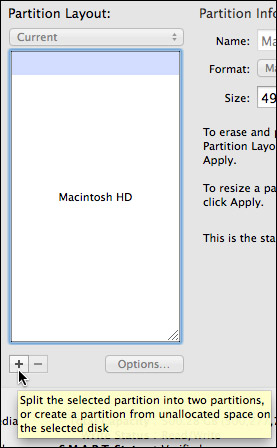
To create a new partition, click the Plus key at the bottom left of the Partition Layout.
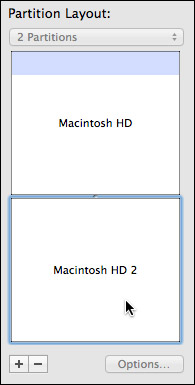
Click inside the new partition to select it.
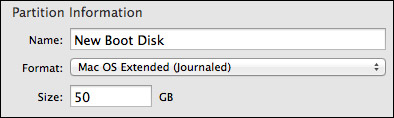
In Partition Information, give your new partition a name. In this example, I called my new partition, “New Boot Disk.” (You can name the partition anything you want, using any combination of letters, numbers and spaces.
Leave Format set to “Mac OS Extended (Journaled).”
And change the size to the size we calculated at the beginning of this article. In this example, I’m using 50 GB; however, your actual number may be different.
Double-check all your entries, then click Apply to create the new partition.
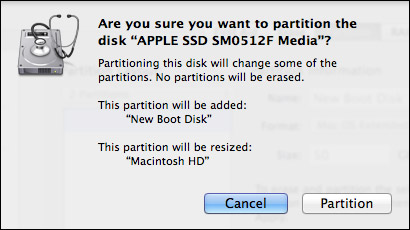
You’ll get a warning message, read it, then click Partition.
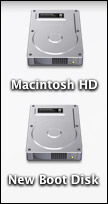
After a few seconds, a new hard disk appears on your desktop. Macintosh HD is your original partition, and New Boot Disk is your new boot disk.
INSTALLING SOFTWARE
At this point, you need to install the new operating system on New Boot Disk, along with any applications you want to use.
When you boot into the New Boot Disk you will NOT have access to anything stored on your current boot disk. It won’t be erased, just unavailable. This includes email and everything in your Home directory.
When installation is complete, you are ready to reboot into the new partition.
REBOOTING
Restart your system while pressing the Option key.
After a few seconds a screen appears allowing you to choose which hard disk you want to boot into. Select your new boot drive and click OK.
After a few more seconds, your computer is ready to go – and launched into the new partition.
EXTRA CREDIT – REMOVING A PARTITION
Removing a partition will erase all the data that is stored on it; so be SURE!!! you have moved all essential data to another drive. (Removing a partition will not affect any other partition on the same, or any other, hard drive.
Go back to Disk Utility.
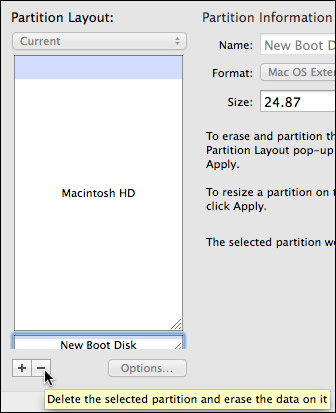
Select the Partition you want to remove and click the minus button in the lower left.
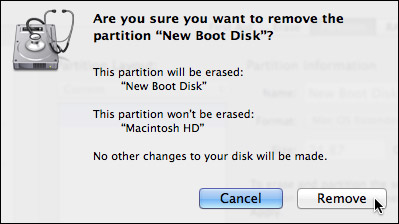
A warning message appears asking you to confirm your choice. Read the message, then click OK.
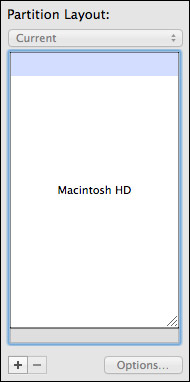
The partition is removed, but the space it occupied is not reclaimed by the original partition.
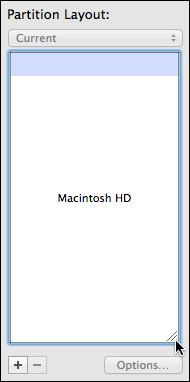
To get the space back, drag the thumb in the lower right corner all the way down to fill the gap.
Then, click the Apply button to apply your changes.
SUMMARY
Dual-boot systems are not for everyone. But, when you need to alternate between different operating systems, or different system configurations, a dual-boot system can make that easy.

2,000 Video Training Titles
Edit smarter with Larry Jordan. Available in our store.
Access over 2,000 on-demand video editing courses. Become a member of our Video Training Library today!
Subscribe to Larry's FREE weekly newsletter and
save 10%
on your first purchase.

97 Responses to Create a Dual-Boot Mac OS X System Disk
← Older Comments Newer Comments →-
 Charles says:
October 25, 2014 at 10:34 pm
-
 Dennis says:
October 26, 2014 at 12:26 am
-
 Trig Simon says:
April 16, 2015 at 4:00 pm
-
 Larry Jordan says:
April 16, 2015 at 8:45 pm
-
 gerald says:
February 8, 2016 at 7:19 pm
-
 Larry says:
February 8, 2016 at 10:22 pm
-
 Dave Solomon says:
February 16, 2016 at 6:15 am
-
 Larry says:
February 16, 2016 at 7:47 am
-
 Ken Drakeford says:
June 4, 2016 at 7:39 am
-
 Larry says:
June 4, 2016 at 9:40 am
← Older Comments Newer Comments →Larry – Actually, I was trying to make use of my original Mavericks download. I’ve just re-downloaded using the App Store. Install OS X Mavericks launched and gave the message “This copy of the ‘Install OS X’ Application is too old to be opened on this version of OS X.” and giving me the sole option to quit, so I did so.
Dennis – Confirmed found in Applications. If I double-click it to launch, I get the dialog as above.
I’ve copied it to my partition, where it is grayed as a “hidden” file. (I have my system set to show hidden files.) Double-clicking it there or control-clicking and choosing Open appears to accomplish nothing.
Note that my second partition is not yet bootable to anything. I’m just trying to get it to be bootable to Mavericks.
Guess I’ll have to contact support, unless someone else has an idea.
The Mavericks installer has to be run from a system booted into 10.8 or 10.9. If you’re booted into 10.10 it won’t run.
So you will likely need a THIRD partition to boot from – a 10.8 or 10.9 bootable partition that you can copy the 10.9 installer onto, boot into it, and then install it on the “real” partition you want 10.9 to live on.
Greyed out indicates that the download was possibly damaged or else never completed downloading. Delete it and try downloading again.
Larry, I want to load my FCP7 on my new MacPro2013. I have read that you can’t do it from an upgrade, and I understand that.
I do still have my original FCP6, full version. Do you think I can load that on my new MacPro2013? Then upgrade it to the FCP7?
I still want to concur FCPX, but have fallen back to using my old MacPro2008. My MacPro2013, Thunderbolt Monitor and my Drobo Raid system has been turned off for two months now. Would like to start using the $9000 investment for my 4 camera multicam projects.
Also, my neck is getting sore alway turning to the left monitor instead of straight ahead to my Thunderbolt screen.
Trig:
You can do it, but WHY???
FCP 7 does not use ANY of the power in your new Mac Pro. It only uses one processor, it doesn’t use the GPU, it only accesses 4 GB of RAM. FCP 7 is totally wasted on your new gear.
Keep using FCP 7 on an older MacPro, which is the system it was designed for.
Larry
I have a 2010 macbook pro that is running Yosemite and want to install the original snow leopard OSX 10.6.3 in a partition that I created. Apple sent me a SL disk that boots. I booted from the disk, and it eventually told me it was preparing the installation, but I canceled, not knowing really what to do next. What’s the best way to install it, or will it prompt me to select the disk destination?
Gerald:
It SHOULD prompt you to specify which disk you want to install on. According to this article, it will the second screen during installation. At which point you specify the new partition you just created.
http://www.macworld.com/article/1142454/os-x/install-snow-leopard.html
Larry
So I have a dumb quesstion. I read some of this thread but not all. Can I create a separate boot partition on an external hard drive? Thanks.
Dave
Dave:
You can create partitions on any hard disk; therefore, yes.
Larry
I’ve a macbook pro running Mavericks where I use Cubase and lots and lots of little plugins that the manufacturers are either slow to update for El Capitan or don’t bother and terminate it. Which infuriates me. So I need to keep Mavericks.
On the other hand I need to upgrade to El Capitan as some iCloud apps won’t perform properly on Mavericks. Along with various other reasons. Which means I need to run both Mavericks and El Capitan on the same machine.
I’m in the process of getting a BaseQi Ninja stealth drive and place a 200GB SanDisk memory card in it. I’m checking prior to purchase in case there are any known incompatibility issues.
My question (at last) is that can both systems access the same files if they’re placed in a common pool somewhere? And is it a successful dual-boot proposition?
Sorry for the longwinded question but I’d appreciate your patience in the matter.
Kind Regards – Ken
Ken:
Short answer: No.
A dual boot system creates two totally separate operating systems and Application folders. So, your existing Mavericks system will continue to run.
Then, your new El Capitan system will have all the default apps, but you’ll need to install anything new you need to run. This would NOT include any of the plug-ins or audio software you are using in Mavericks.
Larry