
 HEVC (also called “H.265”) is new with macOS High Sierra and Apple Final Cut Pro X 10.4. However, by default, none of the Sharing/Export settings inside FCP X support HEVC.
Instead, we need to change preferences inside FCP X to allow us to export a project using the HEVC codec.
CHANGE PREFERENCES
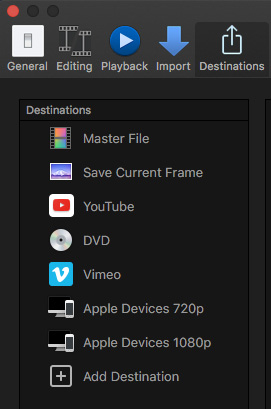
To start, go to Final Cut Pro > Preferences > Destinations. None of the default settings will output HEVC.
Instead, add the HEVC settings using the Compressor Settings menu.
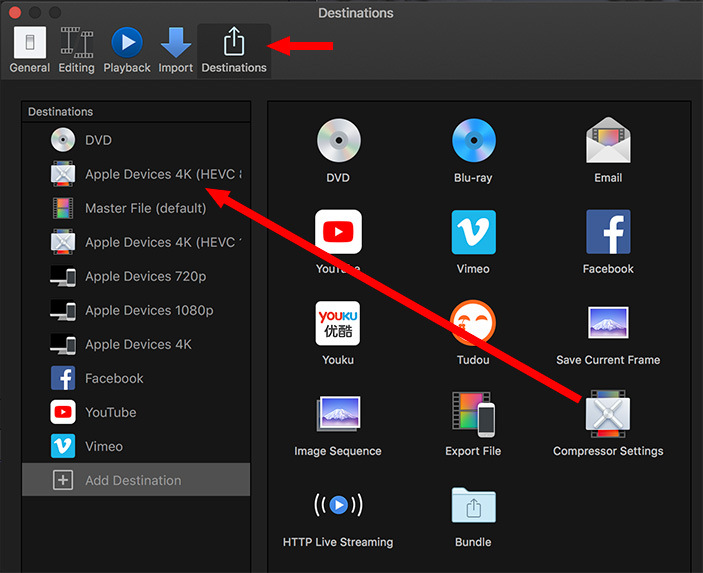
Drag the Compressor Settings icon from the right side to the left.
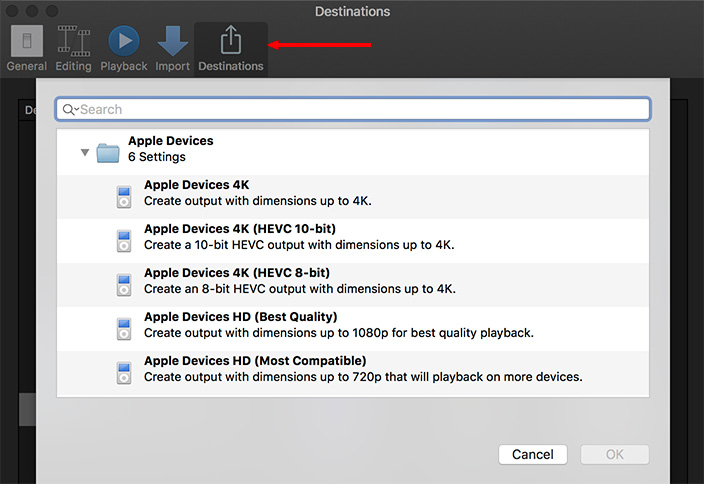
This opens a panel allowing us to choose which Compressor setting to import. There are only two HEVC settings – both in Apple Devices:
Select the setting you want to use, then click OK. For this example, I’ll add both; which means I need to drag the Compressor Settings icon across twice.
NOTE: On older systems, such as my 2013 27″ iMac, which don’t support 8-bit hardware acceleration, this 8-bit option is missing. Both options are there on my 2017 iMac.
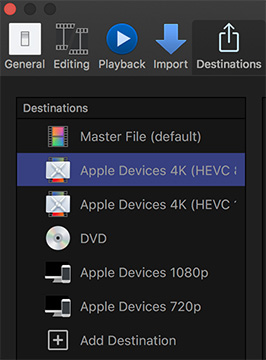
Here’s how I rearranged my settings after adding the two new options; the 8-bit option is highlighted in blue.
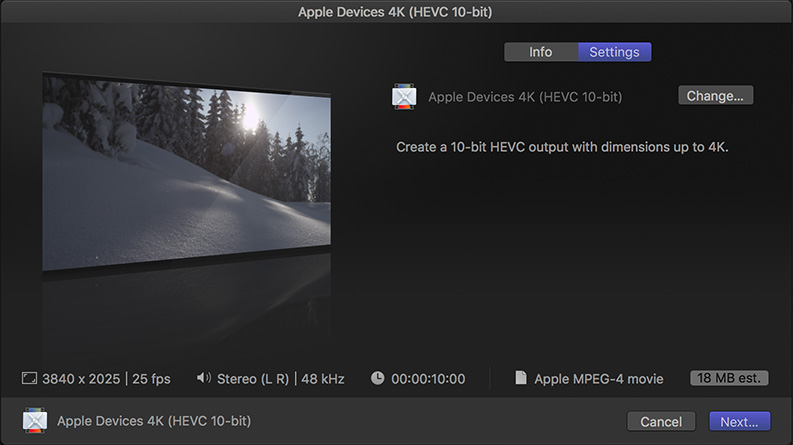
NOTE: Neither the 8-bit, nor 10-bit, options have any user-adjustable settings. If you want to tweak, you’ll need to use Compressor itself to compress the file.
COMPRESSING A FILE
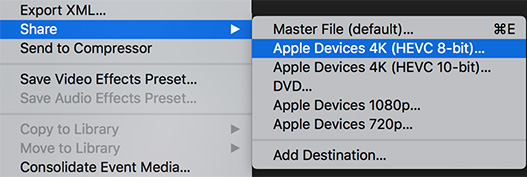
When the time comes to export an HEVC version of your project or clip, select it from the File > Share menu.
As with all files in FCP X, exporting happens in the background. This means that if you do any editing or file playback, all background processes stop until you are done. This will materially affect how long it takes to export a file.
THE RESULTS
Exporting an HEVC file takes a LONG time!
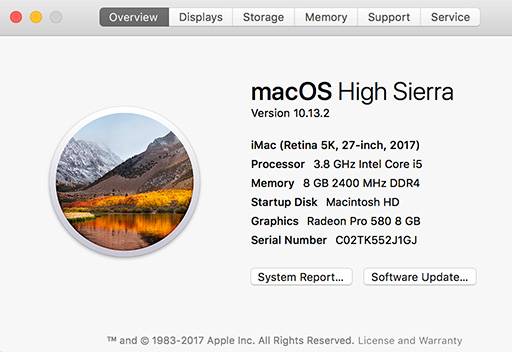
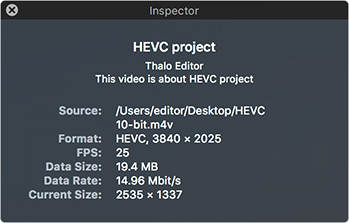
These are the specs for my 2017 iMac, which supports hardware acceleration. Leaving FCP X in the foreground and doing no editing of any sort:
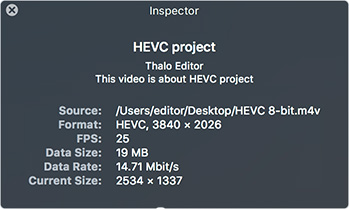
NOTE: Hardware acceleration only supports 8-bit compression.
SIDENOTE
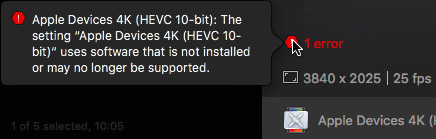
After exporting a file and quitting FCP X, when I restarted the application, I got this error message. To fix it, I deleted the existing compression setting in Preferences, then re-installed it using the Preferences menu as described above.
It worked fine after that.
SUMMARY
We are in the very beginning stages of practical support for HEVC. From an image quality point of view, there’s no real difference between H.264 and HEVC. So, for existing workflows, stay with H.264. H.264 is also supported by just about everything.
Where smaller file sizes are critical and you don’t need to reach the mass audience, HEVC can save download time. However, you need to allow plenty of extra time for compression.
If you plan to do lots of HEVC compression, my recommendation is to export a master file from FCP X, then compress the file separately using Compressor. This provides the fastest export from FCP X, with Compressor offering more controls over the exact compression settings for your file.

2,000 Video Training Titles
Edit smarter with Larry Jordan. Available in our store.
Access over 2,000 on-demand video editing courses. Become a member of our Video Training Library today!
Subscribe to Larry's FREE weekly newsletter and
save 10%
on your first purchase.

21 Responses to Configure Final Cut Pro X to Output HEVC (H.265)
Newer Comments →-
 James Duke says:
January 2, 2018 at 12:10 pm
-
 Larry says:
January 2, 2018 at 12:44 pm
-
 James Duke says:
January 2, 2018 at 2:06 pm
-
 Bill Shafer says:
January 10, 2018 at 6:49 am
-
 Larry says:
January 10, 2018 at 7:24 am
-
 Paul Hopkins says:
February 11, 2018 at 9:57 pm
-
 Larry says:
February 11, 2018 at 10:22 pm
-
 Kent says:
March 2, 2018 at 2:38 pm
-
 Philip says:
March 7, 2018 at 9:09 am
-
 Larry says:
March 7, 2018 at 10:19 am
Newer Comments →Thank you Larry for bringing interesting info. I checked on my iMac 2015 and it is 30:1 as you said. Sigh.
I have a 40 min HDR project. I do not think I can rely on 20-22 hours running without problems. Will have to split it into 2-3 parts.
Do you think bringing several HEVC clips into FCPX and then exporting the combined will just put them together without transcoding?
James:
I have a more important question for you: WHY do you want to create HEVC video?
HEVC, long-term, provides the same image quality as H.264, but with potentially – and not always – smaller file sizes.
If you don’t need the smaller file size, you’d be wise to stay with H.264 – at least for now.
What HEVC does is future-proof FCP X for this upcoming technology. I see NO reason to attempt HEVC on older systems – it will take forever, maybe longer, and yield nothing that you don’t get in just a few minutes with H.264.
HEVC will be as important to video as H.264, but that time is not now and definitely not for older systems.
Larry
Larry,
I am working on HDR project. BTW, looks beautiful in ProRes. For this project, it is not about compression time, but about an HDR film. I was thinking of bypassing iMac Pro and waiting for Mac Pro later this year. (Like, I remember, you describing your old Mac Pro, my lasted near forever. For several years now I am working on iMac 27.) But for now I will need to do some acrobatics. Just trying to figure out which flips to make.
I need to export to an h.265 file, but with MP4 container (not m4v). I’m guessing the m4v comes from the fact that we must use an option for “Apple Devices”…? Any ideas on how to get h.265/MP4 with Compressor?
Bill:
Nope. What happens if you just change the file extension after compression is complete? This has worked for me in the past.
Larry
Hi Larry:
I am trying to export a video to play on a HUGE three story Atrium Screen.
Dimensions are 2496X4224.
The file size can be no larger than 2 Gig. (I can export Pro Res but it is 16 Gig for a 6 minute movie)
H.264 does not offer this custom size in compressor, and H.265 is limited to 4K so only gives me half the size by default.
Is there a way to Export such a file? Final Cut and Compressor?
Paul
Paul:
These are very non-standard video dimensions. Not just the vertical image, but the precise pixel counts are non-standard.
File size is dependent upon frame size, codec and the duration of your video. Try using ProRes 422 LT – still high quality, when seen at a distance, but smaller than ProRes 422. I would not recommend ProRes Proxy – too much image loss.
Larry
It’s a bummer you have to own compressor in addition to final cut to get this codec. I think I’ll export as lossless then use FFMPEG or Handbrake to convert to HEVC. Thanks for the info though!
Thank you for the helpful info, I publish final versions of wedding films to clients online with a platform that has a GB limit so I’m interested in smaller file sizes. I have the new MacBook Pro with Kaby Lake processors. Should I make a custom mp4 setting in compressor with format “optimize for network use” and Data Rate “Web Publishing” selected? Or does the apple device settings work for online streaming? Thanks!
Philip:
Try both, then pick the one that’s the smallest file – assuming that it still looks good. I would avoid HEVC for the short term until more people have access to that codec for playback.
Larry